



Humanizer and Human Writing Refiner are two skills for LLMs designed to analyse texts for signs of AI generation and subsequently refine the wording. They are used to ‘humanise’ text, improving its style, structure, and overall readability. Let’s look at how these skills work, what tasks each of them solves, and how they differ. We’ll also explore what Skills in Claude are, where to download them, how to install them, and how to use them.
Claude’s skills are ready-made skills or custom mini-instructions for specific tasks. Set them up once and you won’t need to write a long prompt from scratch every time.
How Human Writing Refiner works
Human Writing Refiner is a tool for checking text for AI patterns, clichéd phrasing, and other neural network traces. It first identifies what stands out in the text, and only then do you decide what to edit.
The original English version can be downloaded here:
Our adapted version for Russian is here:
How Humanizer works
Humanizer is a skill used when text has already been written but looks like it was generated by a neural network. It rewrites the text to make it sound more lively and human, removing the typical AI style, overly polished phrasing, clichéd connections, tone and other traces of the neural network.
The original English version can be downloaded here:
Our adapted version for Russian is here:
How to install Skill in Claude
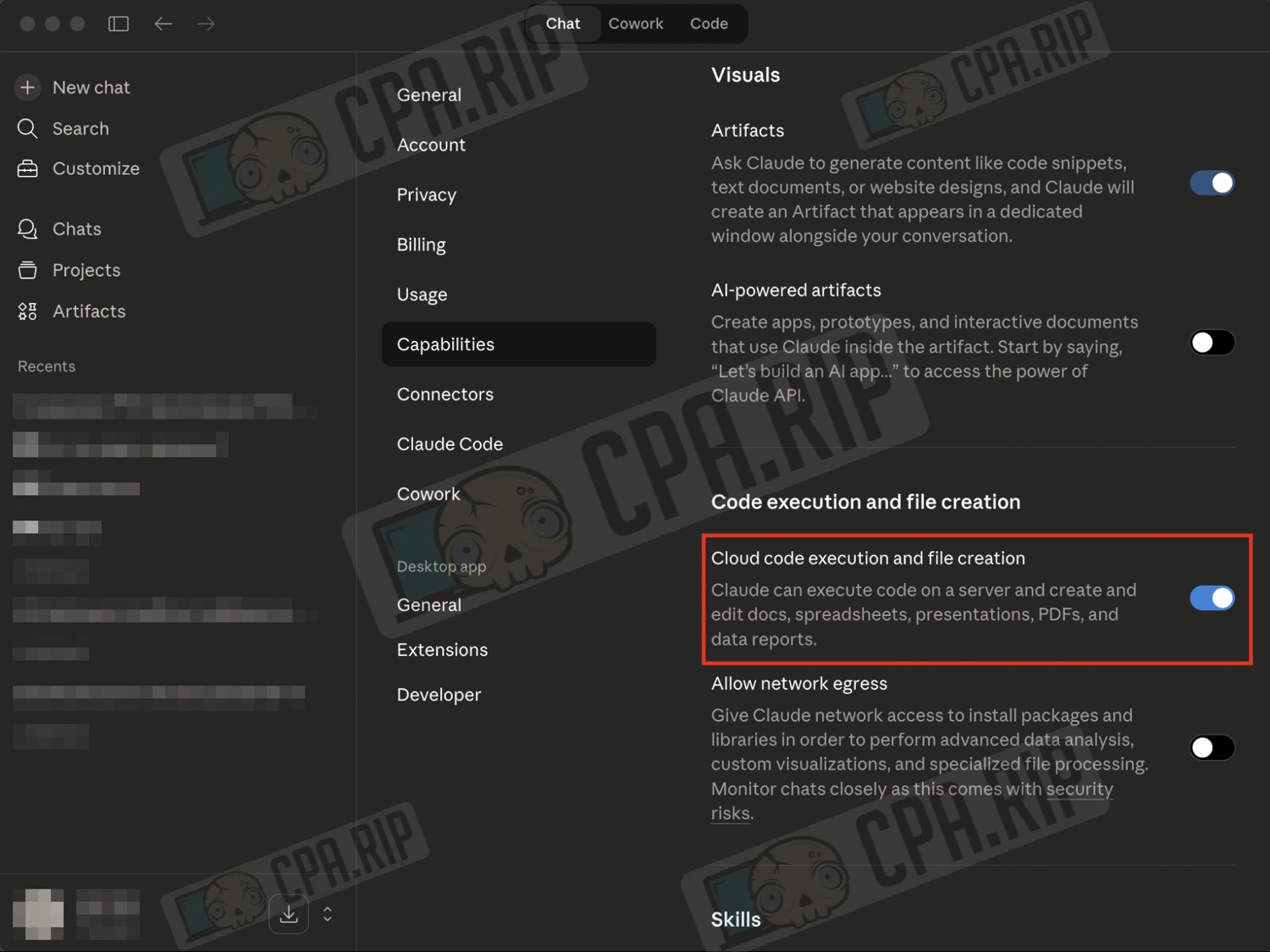
In standard Claude, skills are loaded via the Skills interface. To do this, first open the ‘Settings’ profile, go to ‘Capabilities’, and enable ‘Cloud code execution and file creation’.
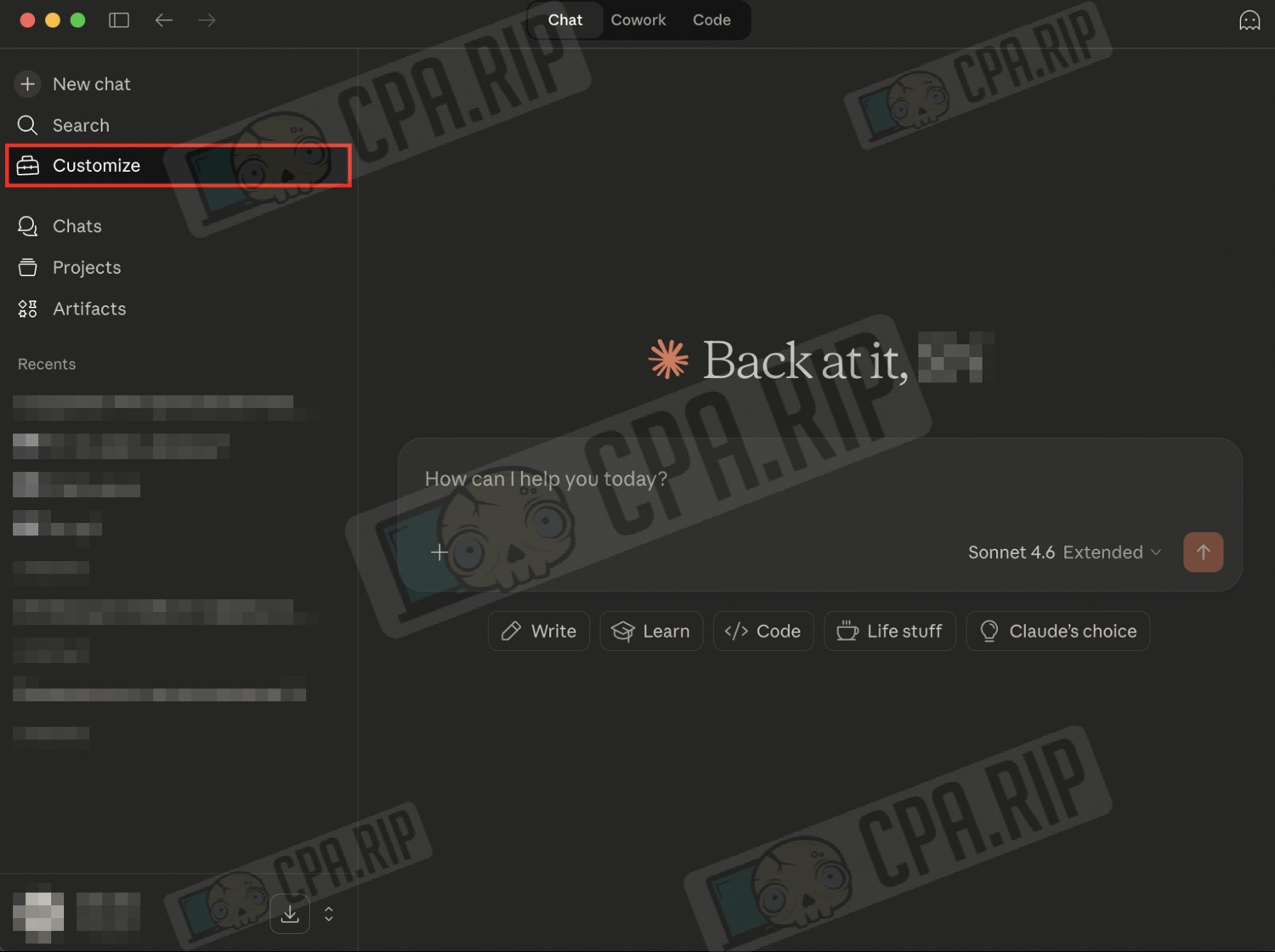
Open the ‘Customize’ tab on the left.
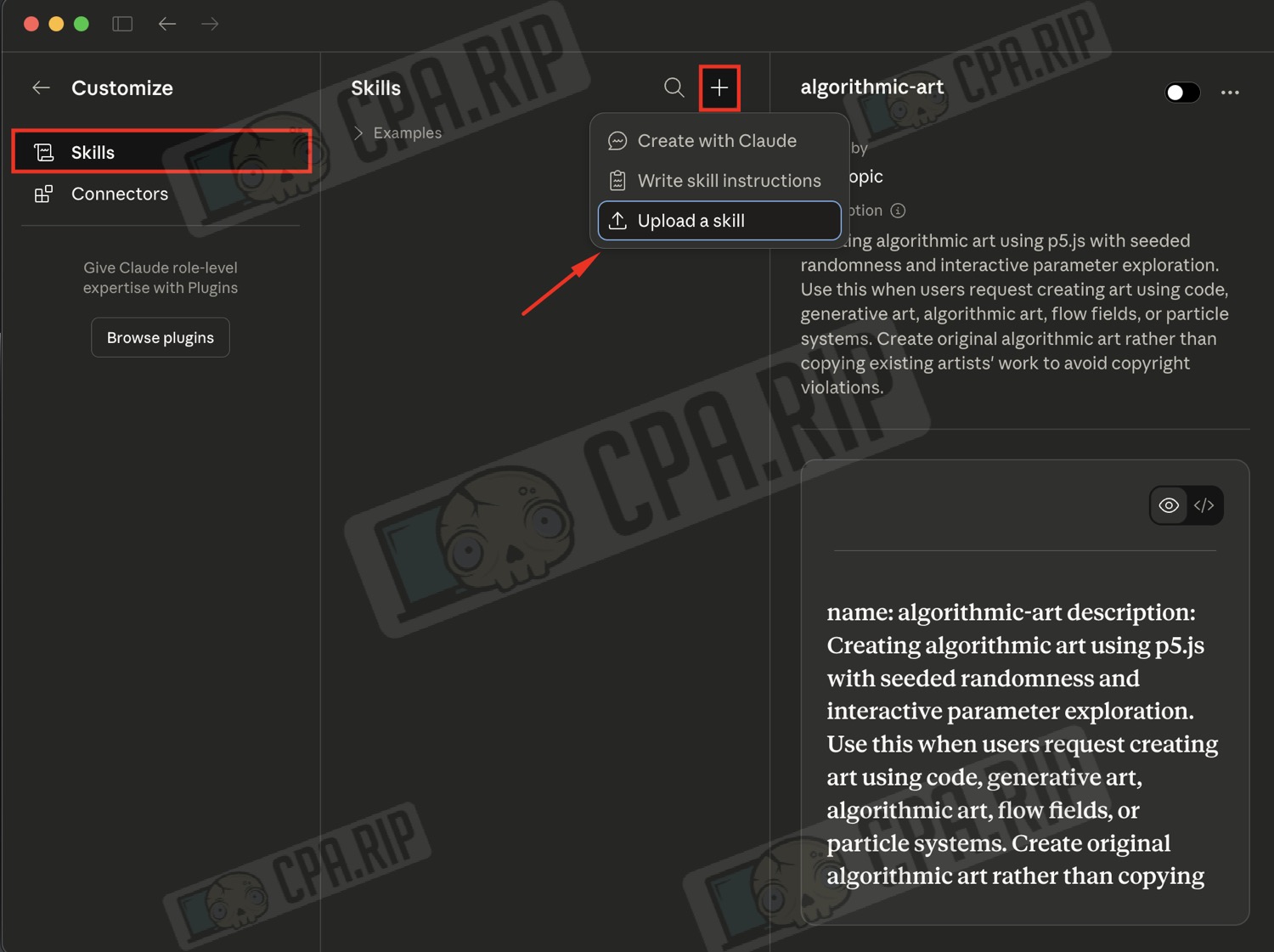
Next, open the ‘Skills’ section, click the plus sign, and select ‘Upload a skill’. Select the downloaded skill and upload it.
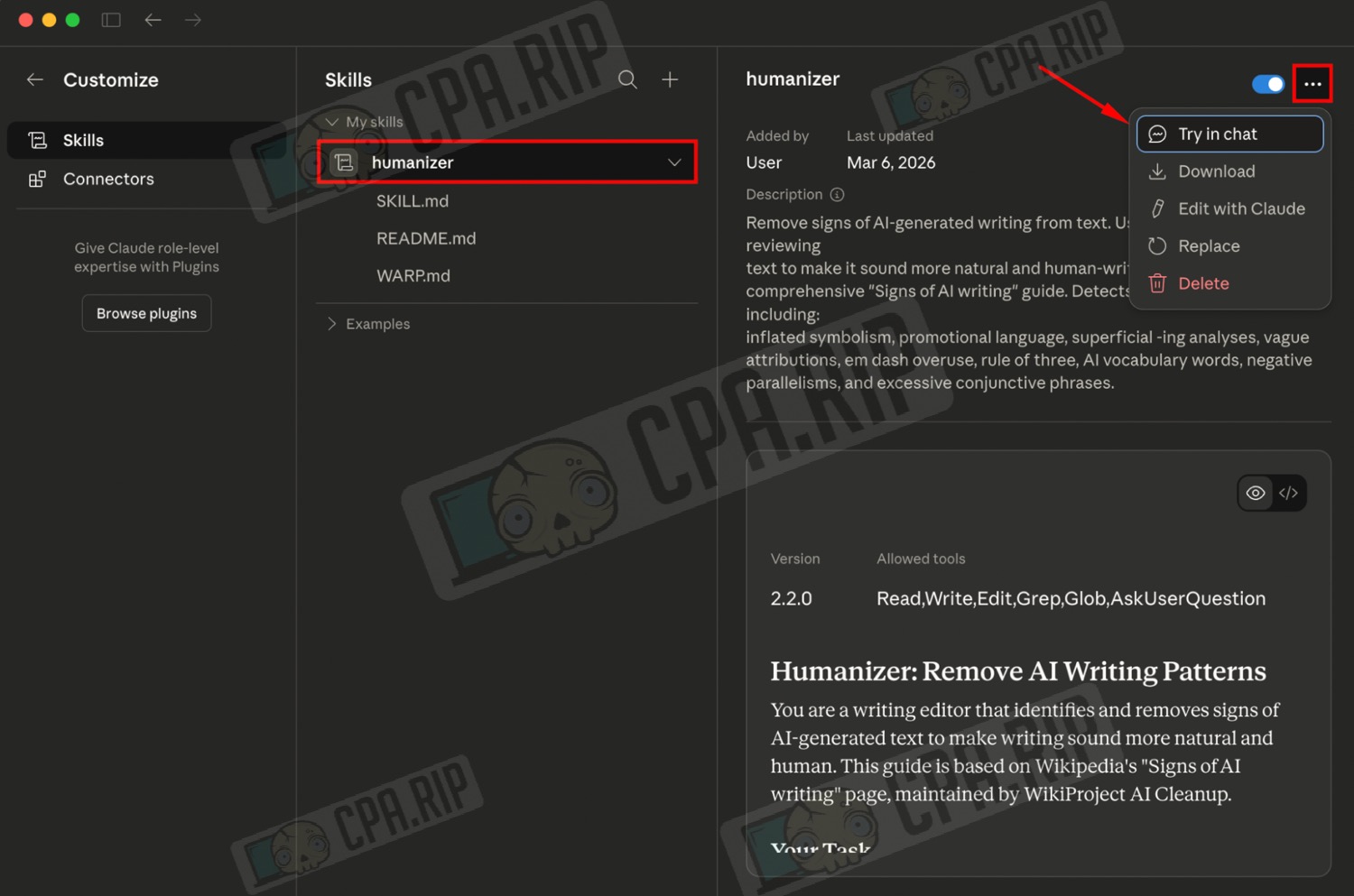
The uploaded skill will appear in the list, and you can run it directly in the chat via ‘Try in chat’.
How to use Humanizer and Human Writing Refiner
Important: it is best to run these skills on Claude Opus 4.6 in thinking mode, especially if you need a more accurate result in terms of style and phrasing. If Claude makes mistakes in thinking mode or starts digging into the code instead of working with the text, try simply turning off thinking mode and running the task again.
After sending the prompt, Claude loads and configures the skill directly in the chat. The interface may vary slightly depending on the model and thinking mode, but the functionality itself remains the same. You can reopen an already configured Humanizer or Human Writing Refiner by clicking on it at the end of the chat response.
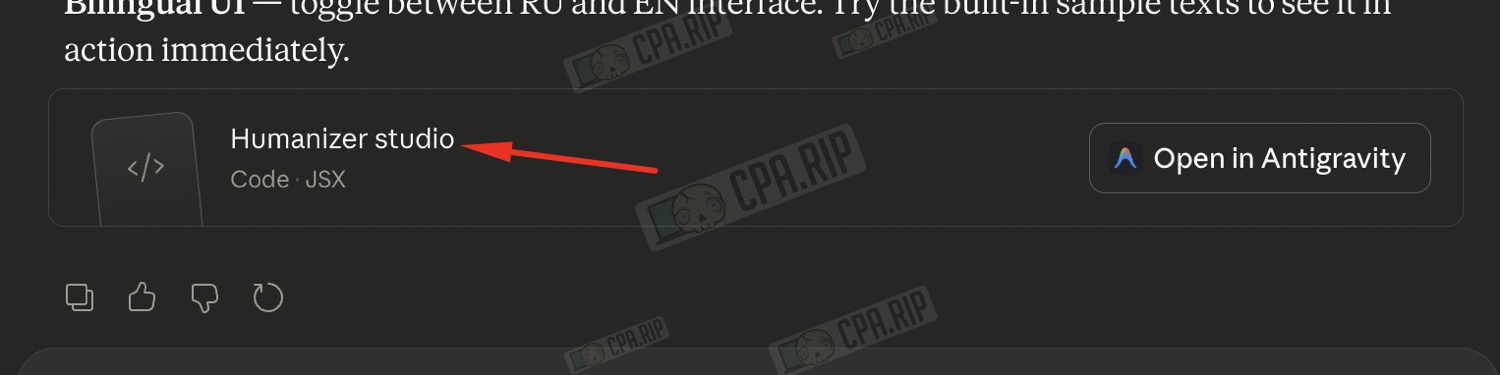
The rest is simple: load the skill, run it, and use it for your task.
- Humanizer is a skill for quickly rewriting text to make it sound more natural and human. It removes signs of AI-generated writing. Paste your text into the Humanizer whenever you need to quickly get rid of that AI style.
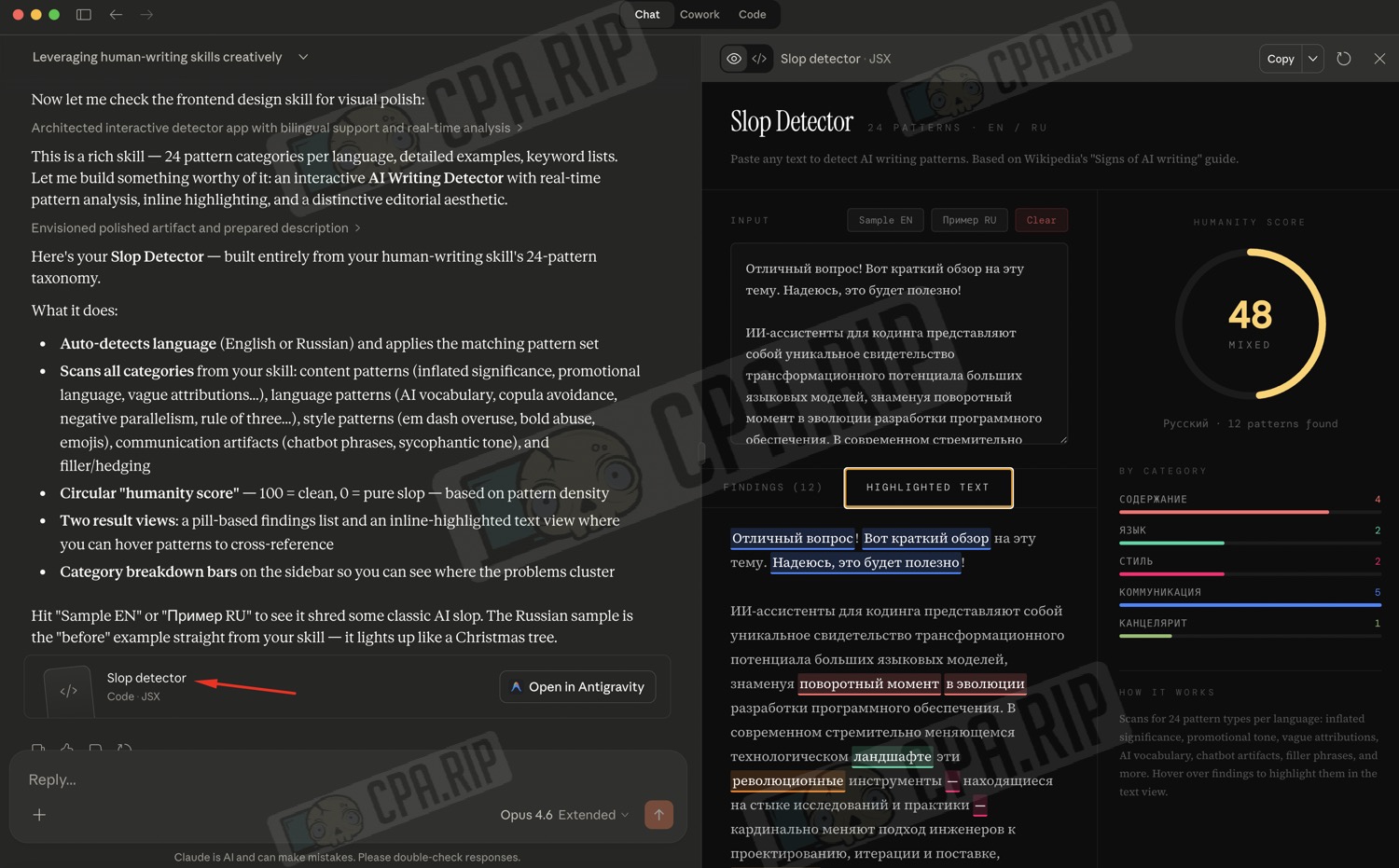
You can use it in the panel, the one Claude drew:
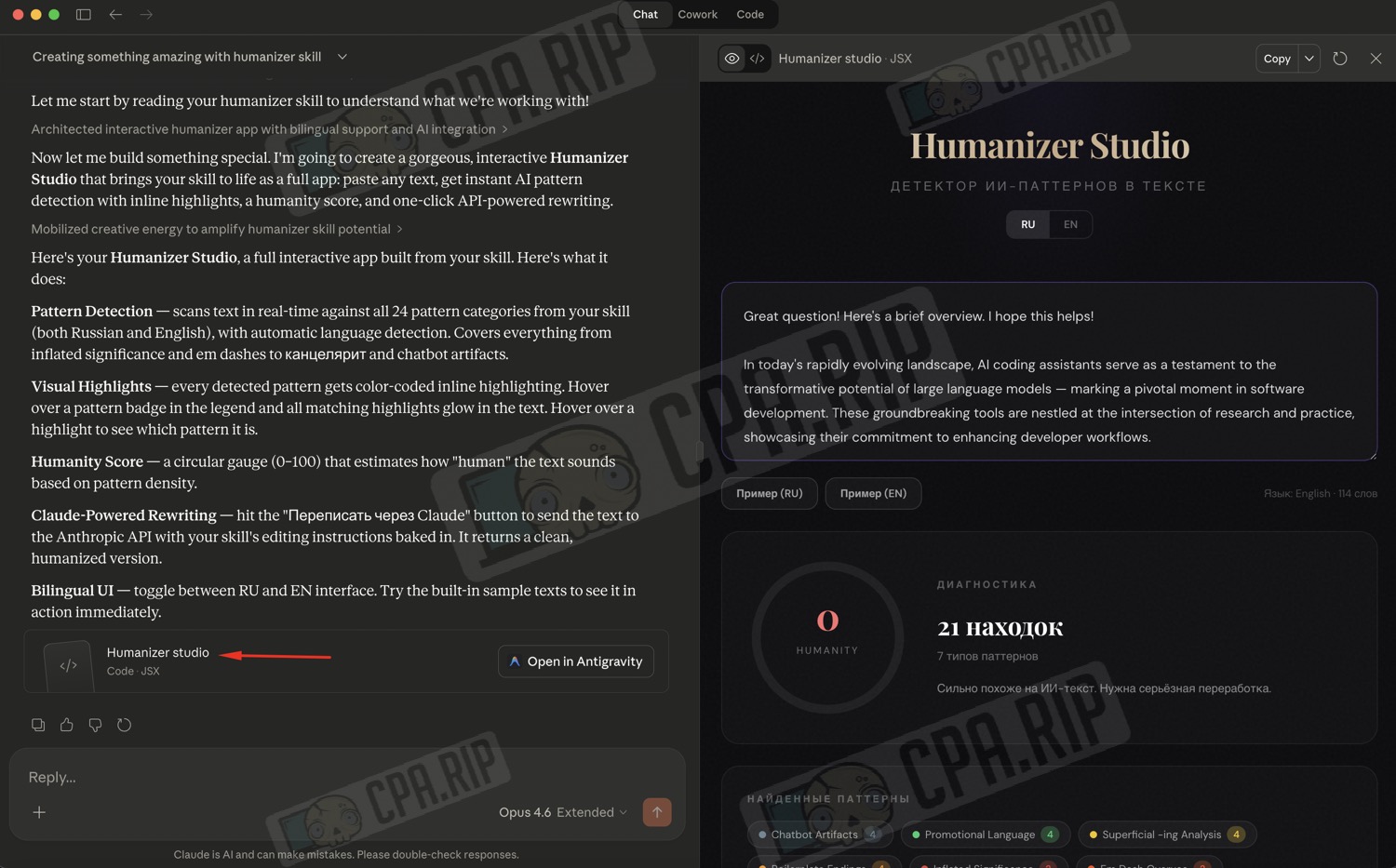
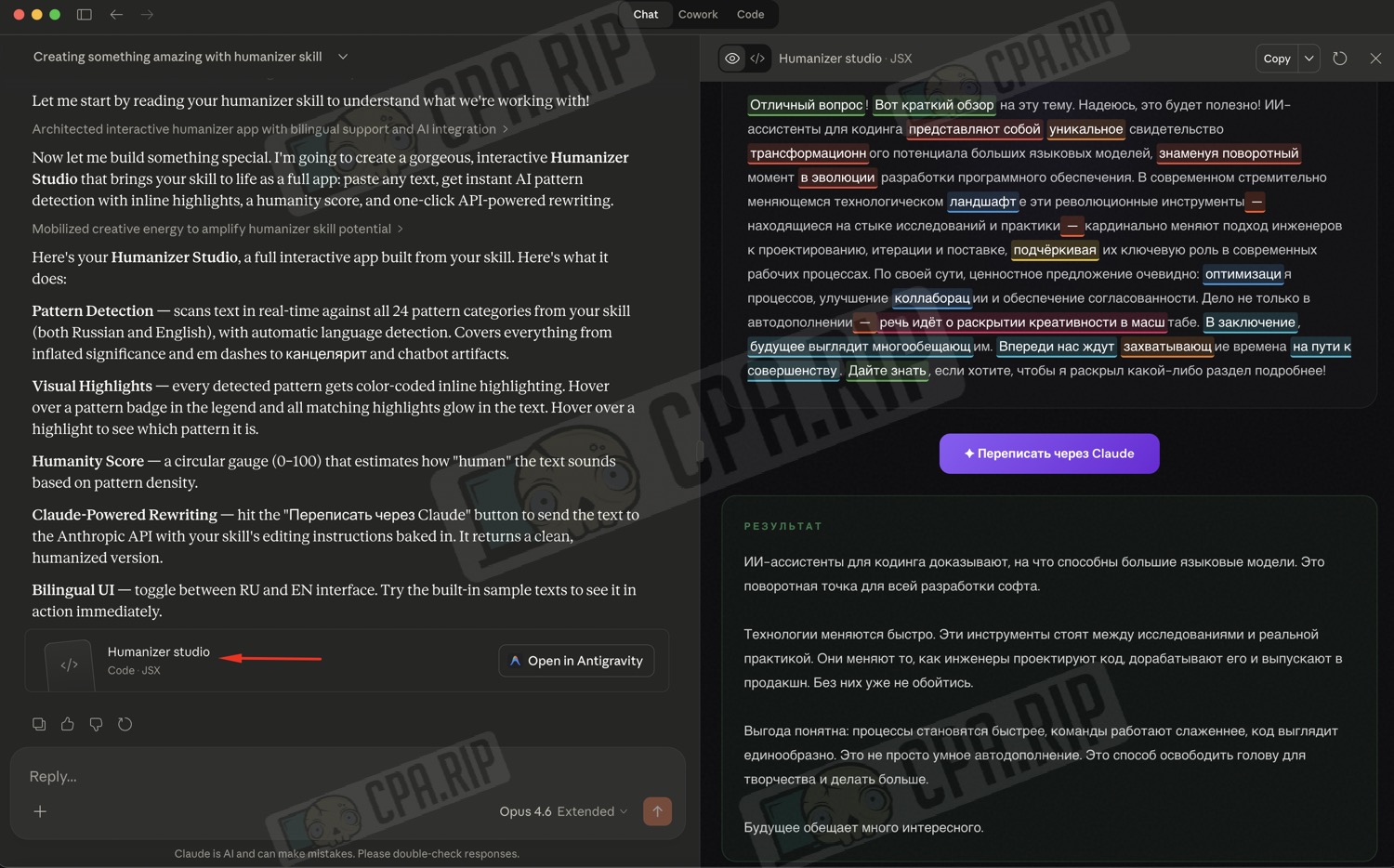
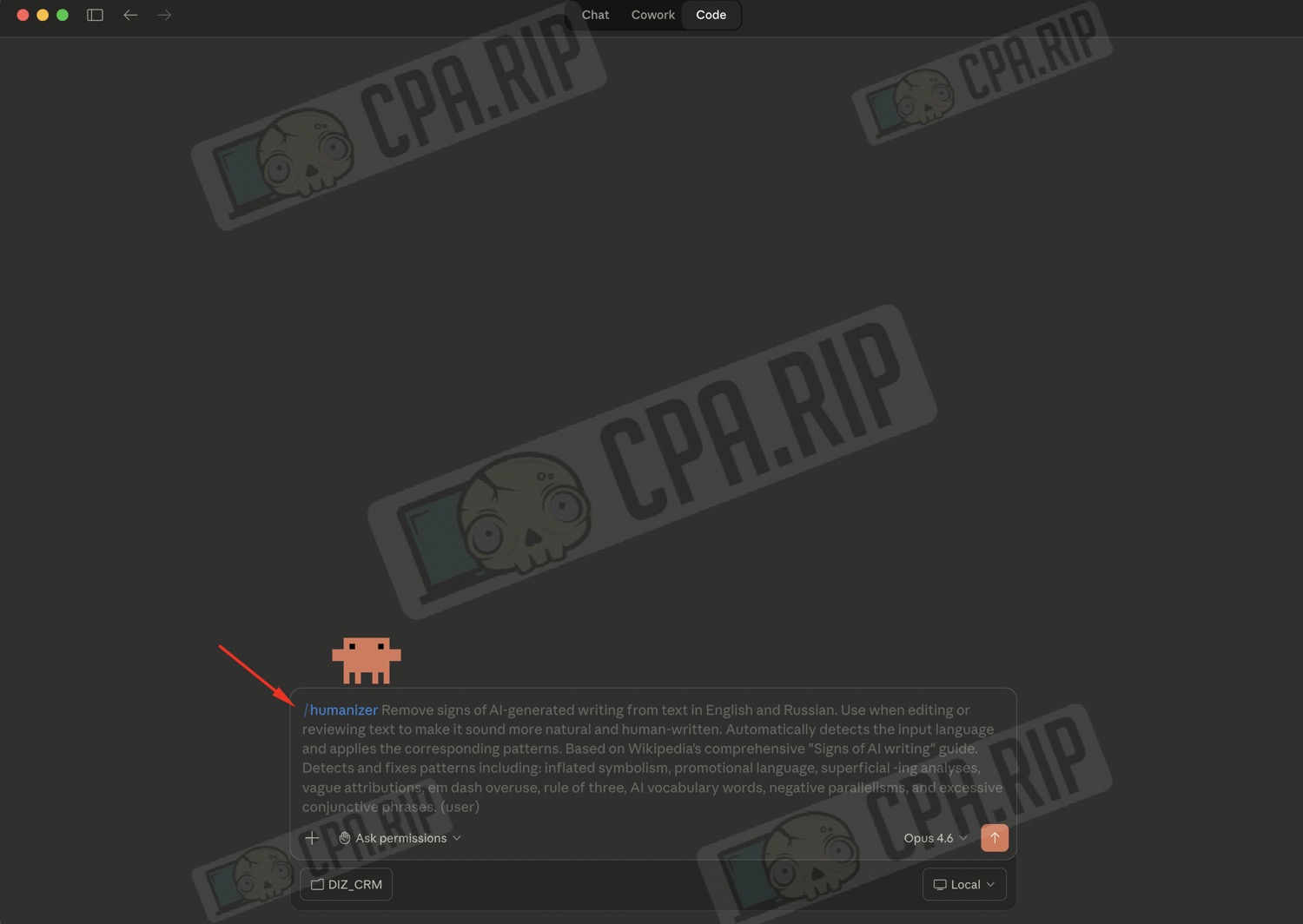
It can also be used via Claude Code with the command /humanizer
Alternatively, you can use the standard command asking it to ‘humanise your text’.
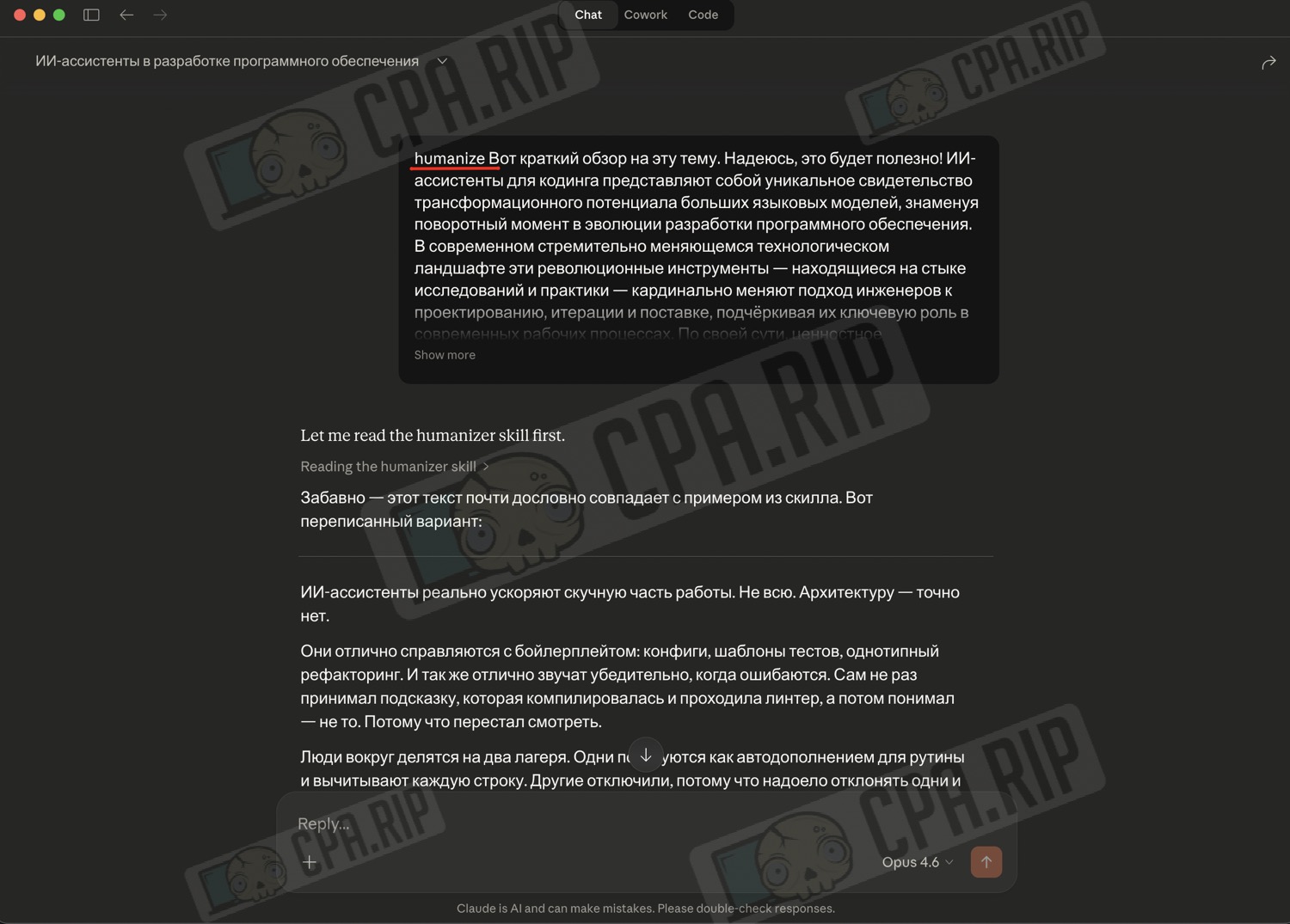
-
Human Writing Refiner – скилл для чистки AI-следов в тексте. Он чекает шаблонные фразы, нейросетевую лексику, тон и другие палевные следы сгенерированного текста. Логика простая: вставляете готовый текст и прогоняете его через скилл, когда нужно сначала найти AI-паттерны, а уже потом добить текст вручную или через Humanizer.
Можете использовать его в панели, в той что нарисовал Claude:
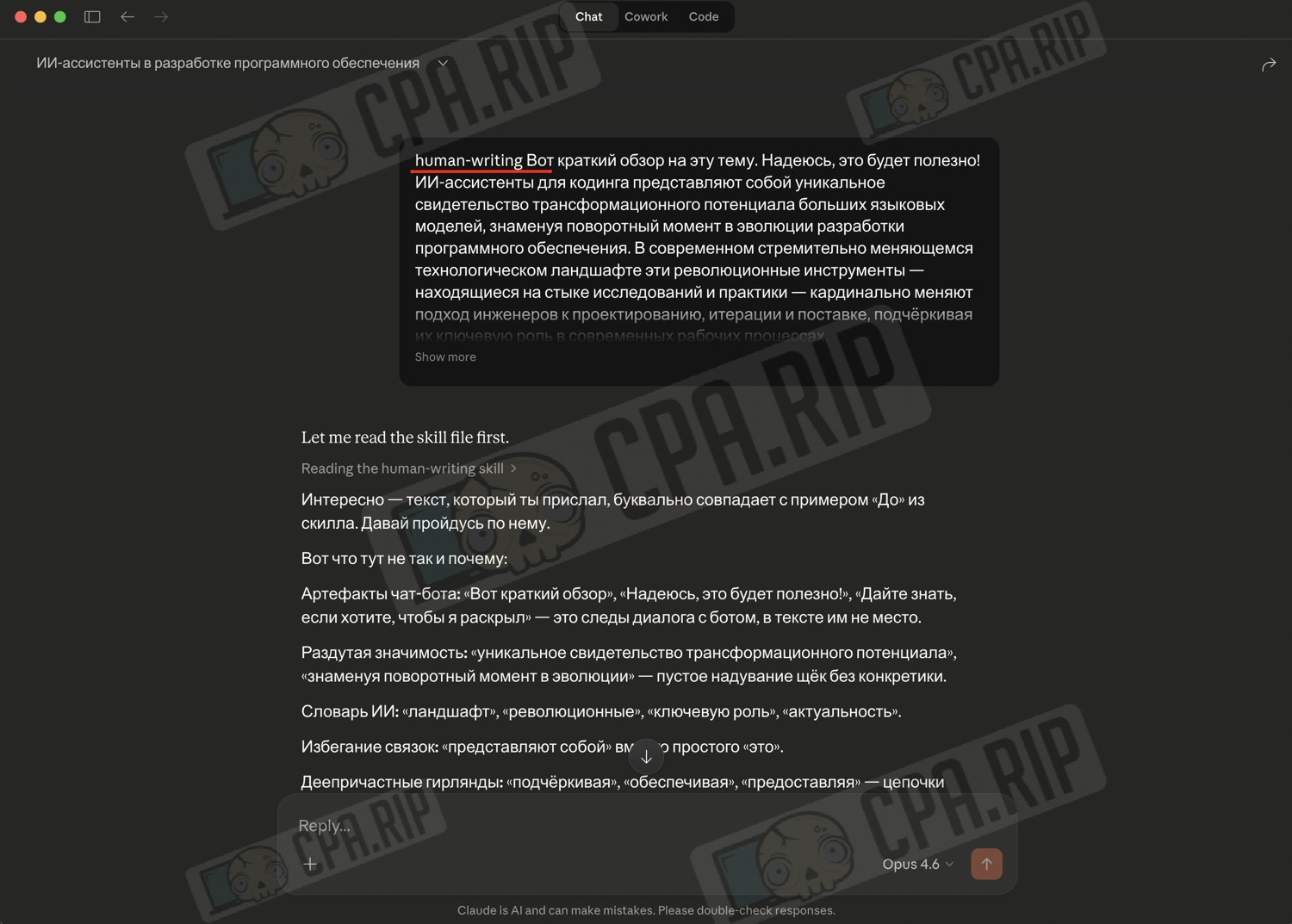
And you can use the standard command asking for ‘human-writing your text’.
Where to download other skills
Skills can be sourced from various places:
- Catalogues and collections on Claude — it’s handy to see what a specific skill does and what task it’s intended for.
- GitHub — lots of open-source skills, with descriptions and so on.
- Ready-made builds on websites — these are usually pre-packaged versions for quick installation.