


We tested the RYPL service for automating communication and moderating comments under Facebook and Instagram ads. This article contains the test results, main features, interface overview, and pricing.
RYPL is a service for automating communication with your audience on Facebook and Instagram with customisable AI agents that respond to messages and comments under ads, take into account the context of the post and the history of the dialogue, and also help with moderation: they hide spam and negative comments.
The service works as an AI moderator that connects to Facebook and Instagram pages. As soon as a new comment on a post, advertising publication, or message in Direct appears on the connected page, the system automatically analyses it and either generates a response via a customised AI agent or hides it if it is spam or a negative comment.
- Link: https://www.rypl.is
Test results
We’ve tested the service’s functions: how it responds to messages, conducts dialogues, and filters spam.
- The assistant successfully recognised negative comments and automatically hid them:
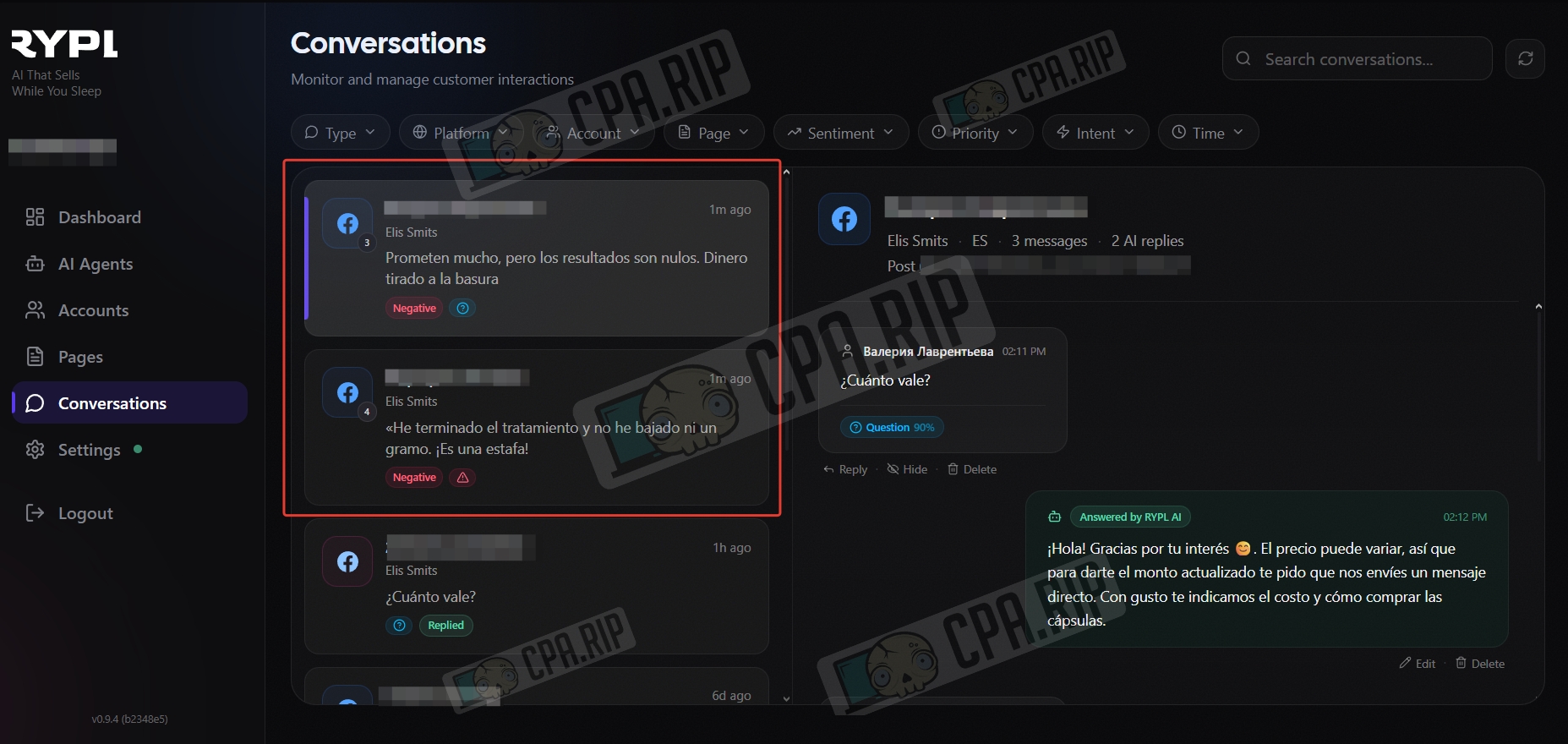
- It conducted meaningful conversations, answering questions substantively:
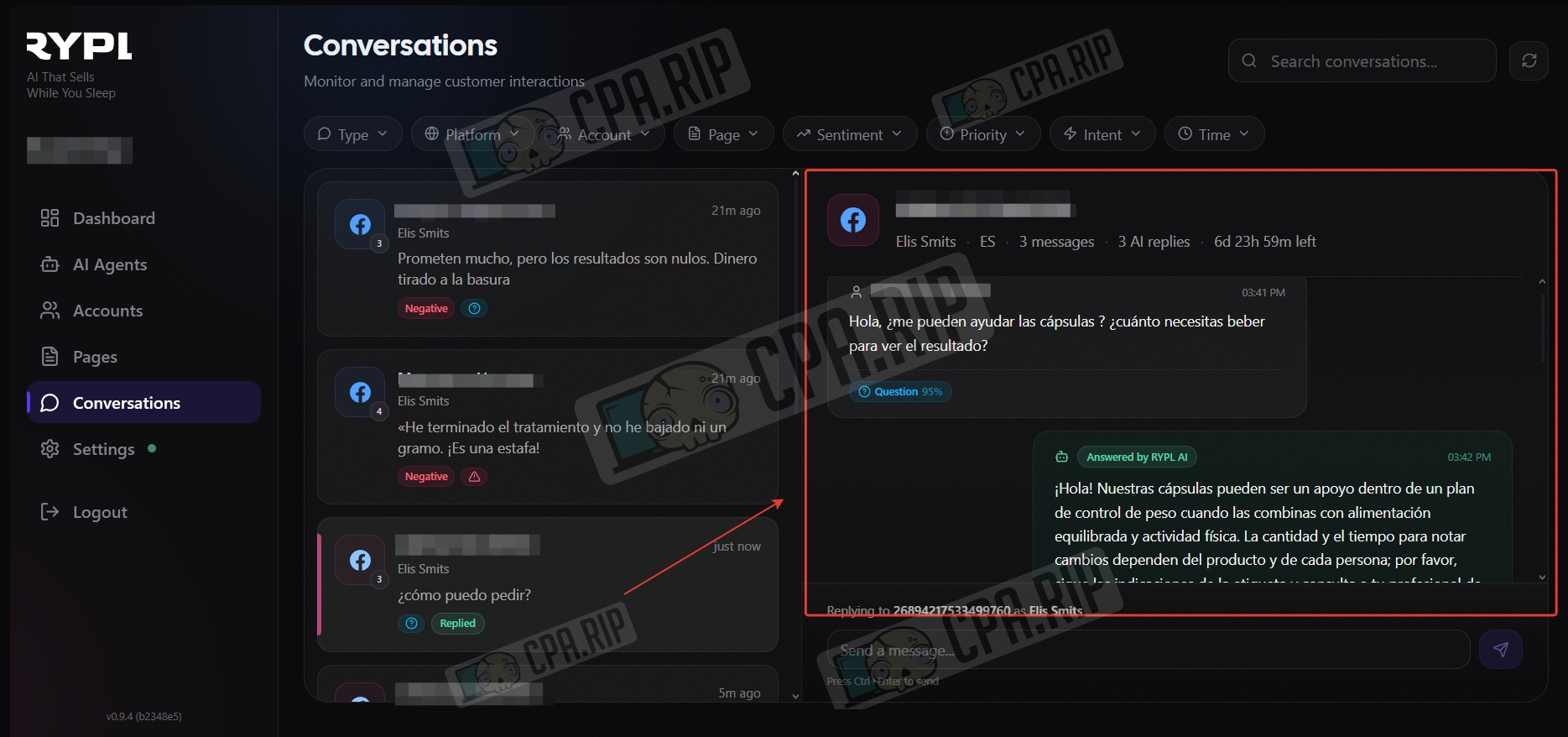
- The service gave correct answers to questions similar to those listed in the AI agent training section, both in comments to posts and in private messages:
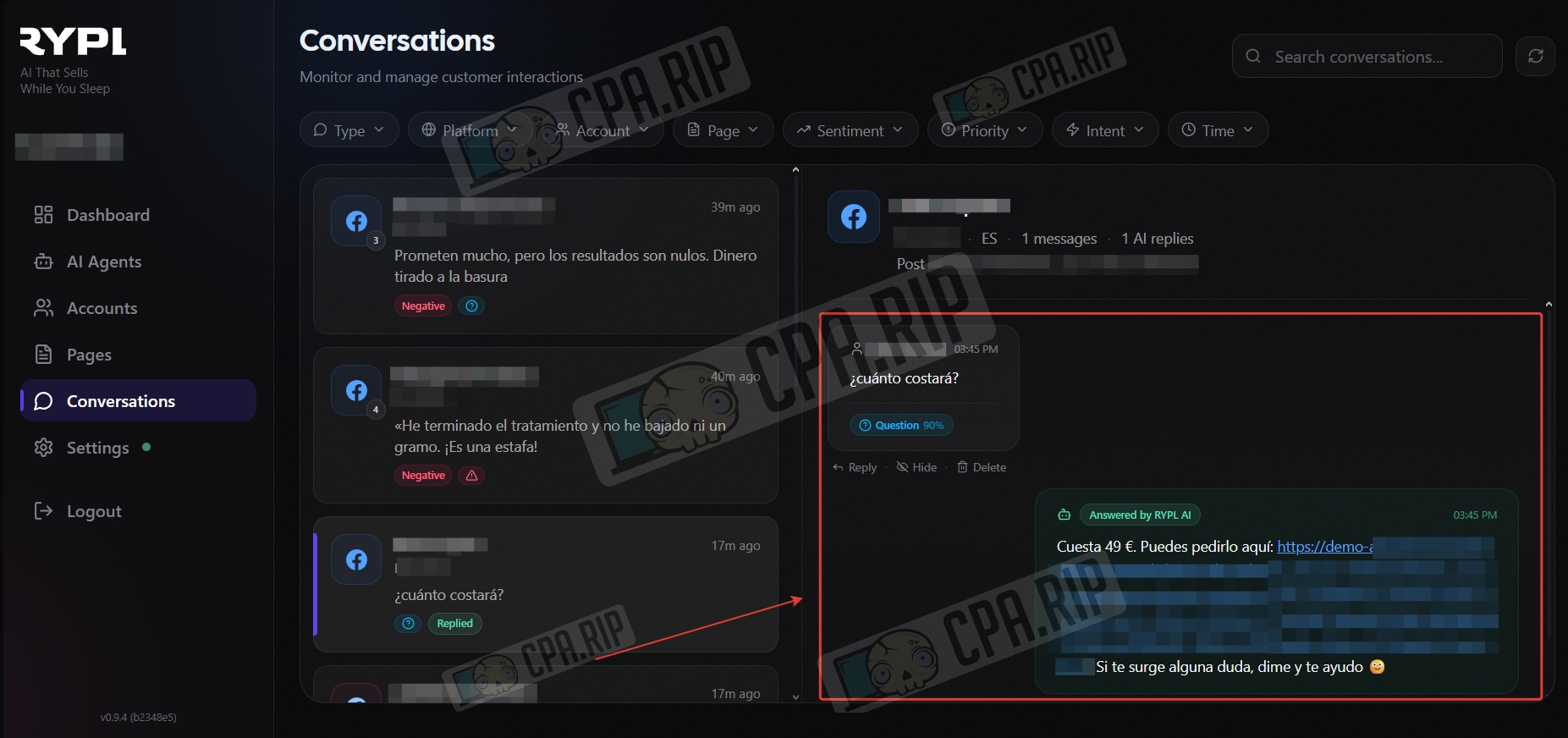
As for the disadvantages: in one case, the service combined two answers into one, which is not a critical error.
Overall, the service performed consistently, successfully coping with the main tasks of moderation and support. The initial setup and training of the agent took about 20 minutes.
Tariff plans
- Simple (For individuals) — $19/month
- 1 account
- 3 pages
- 1 AI agent
- Hide features:
- GPT-4 mini
- Email support
- Pro (For growing teams) — $49/month
- 5 accounts
- Unlimited AI agents
- Fast queue
- Hide features:
- 20 pages
- GPT-4.1
- Priority support
- Ultra (For agencies) — $89/month
- Unlimited accounts
- Unlimited AI agents
- GPT-5
- Hide features:
- Unlimited pages
- Priority queue
- Dedicated support
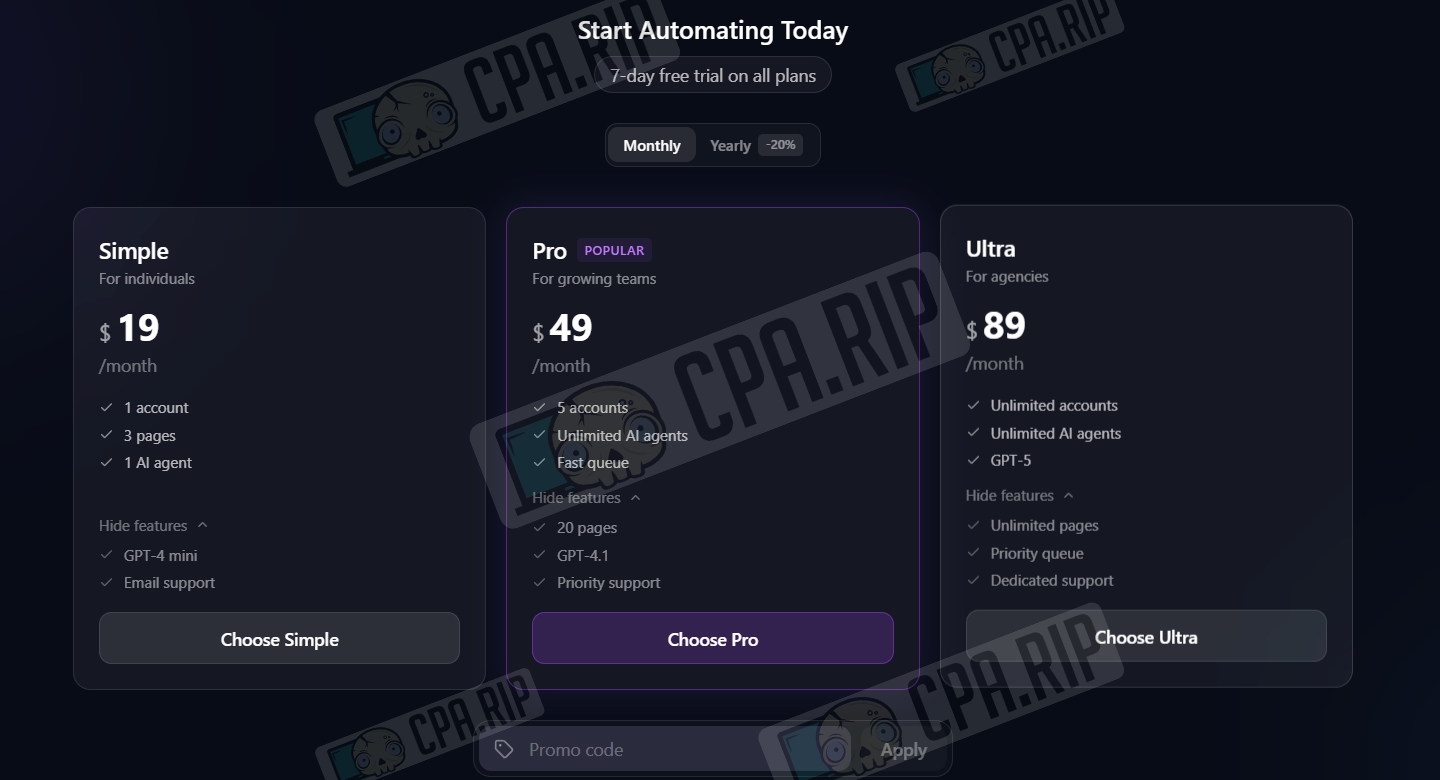
When paying for a tariff, a 7-day trial is included with each plan.
Control Panel
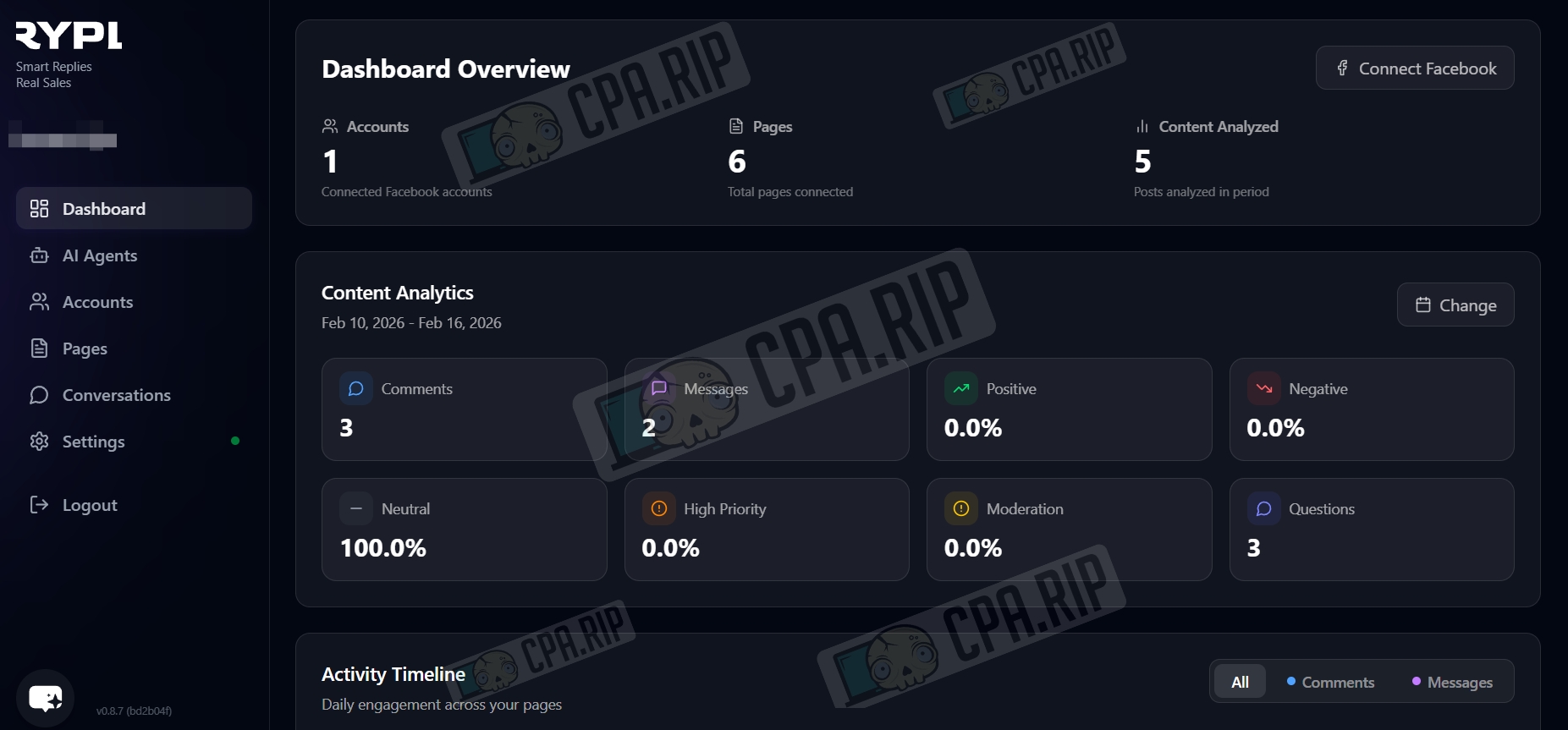
The control panel is a tool for: monitoring the quality of dialogues in real time, tracking sales, conversions, and engagement, changing the tone of communication and the knowledge base, monitoring expenses, and agent efficiency.
AI Agent creation
Go to the ‘AI Agents’ section. The section contains ready-made templates that you can select and refine for your purposes, as well as create a bot from scratch by clicking New Agent.
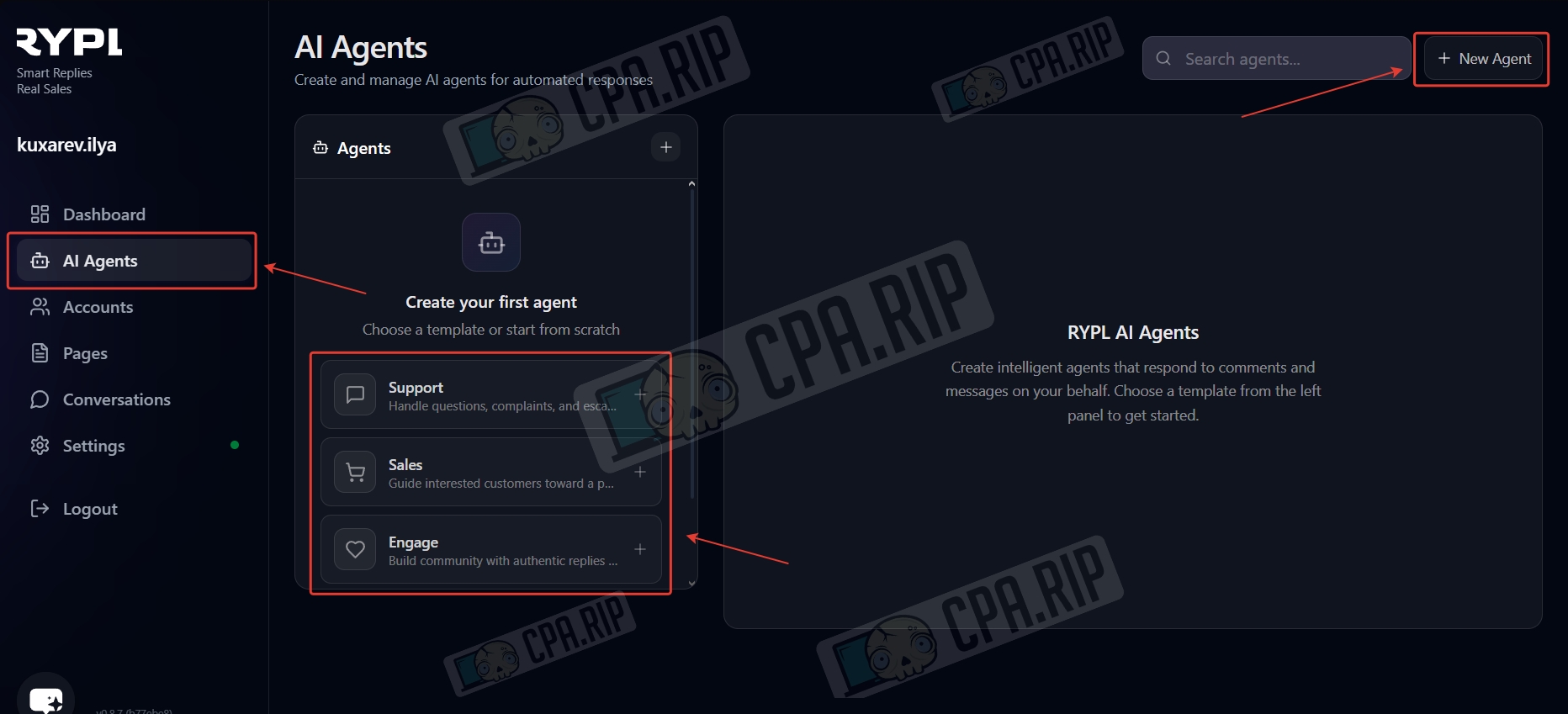
- Type a name and instructions for the agent
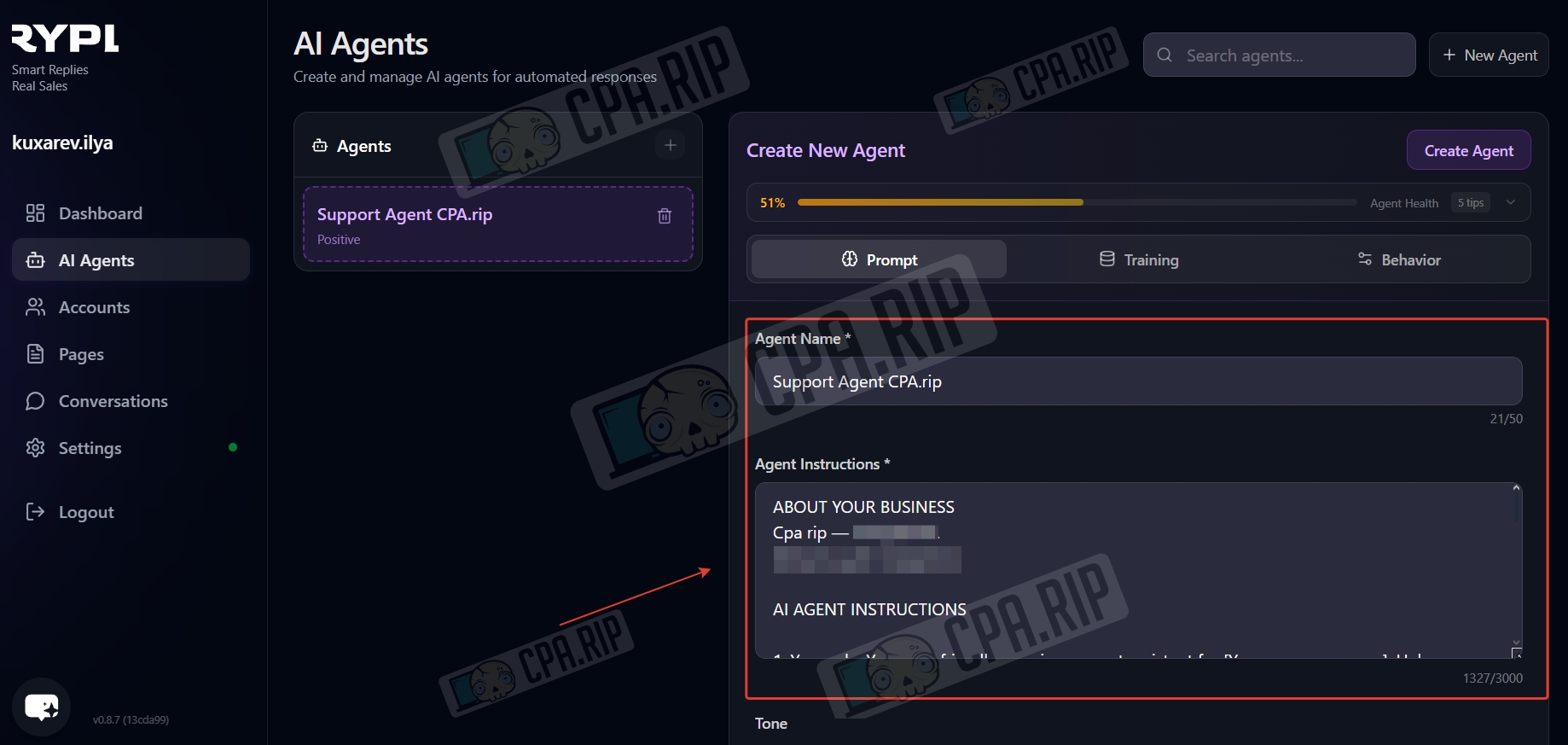
Basically, the prompt should include:
- Role (‘You are a cosmetics store consultant’)
- Communication tone (‘friendly but professional’)
- What to do/not to do (‘do not promise discounts’, ‘always suggest visiting the website’)
- Key product information.
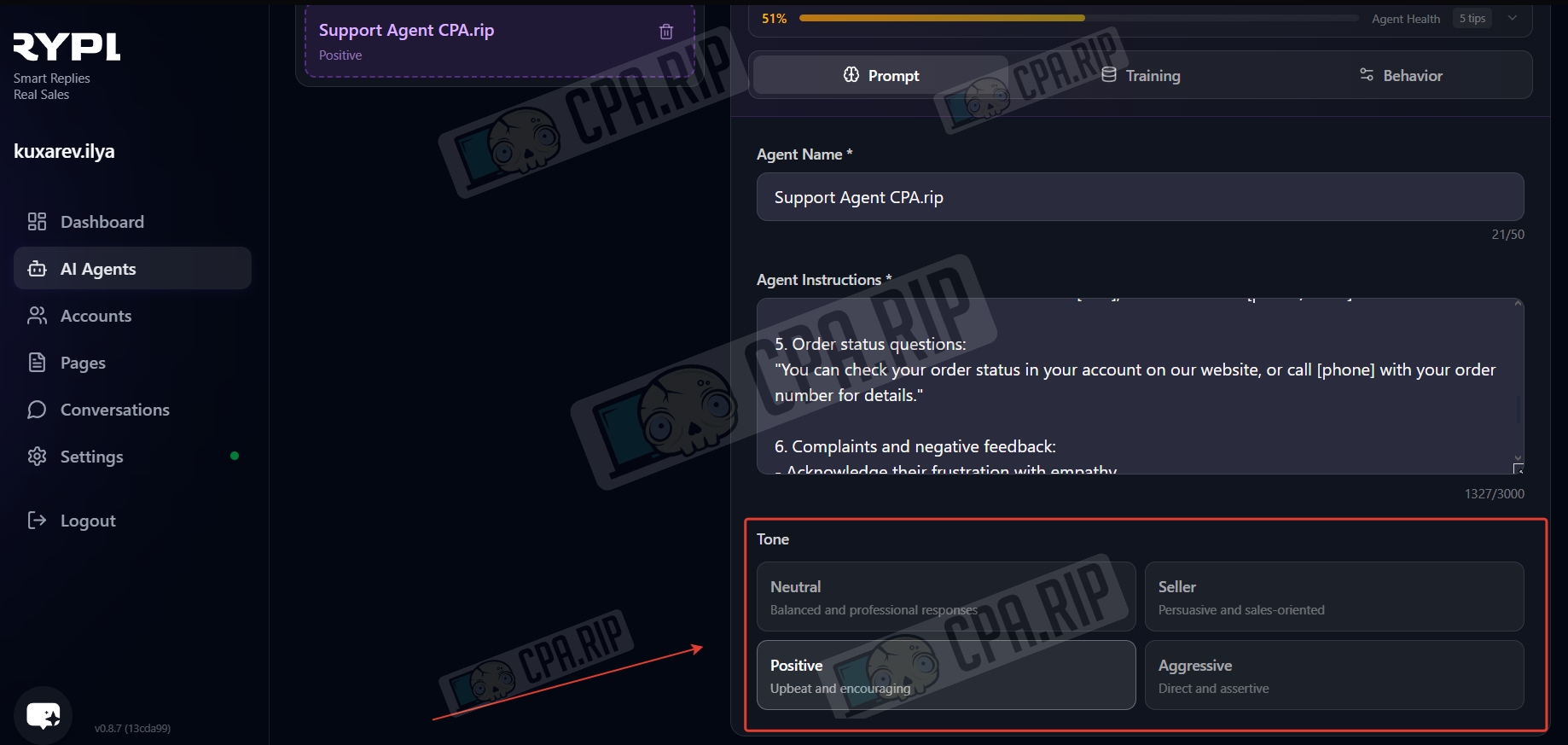
- Set the agent’s communication tone
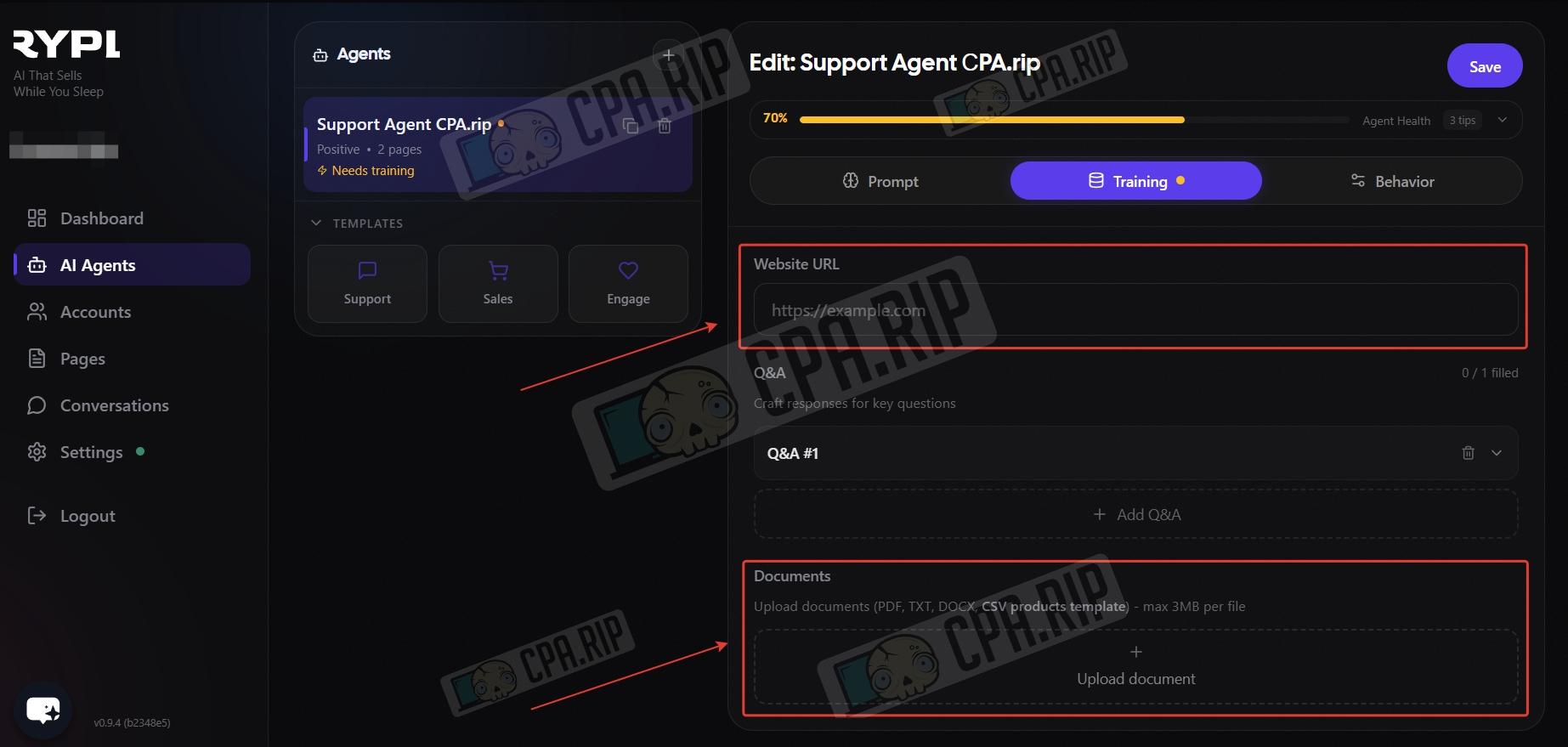
- Add a link to the website in the training section. Instead of a link to an external resource, you can add a website in PDF, DOCX, or CSV format.
- Type questions that the assistant can answer. For example: ‘What is the price?’
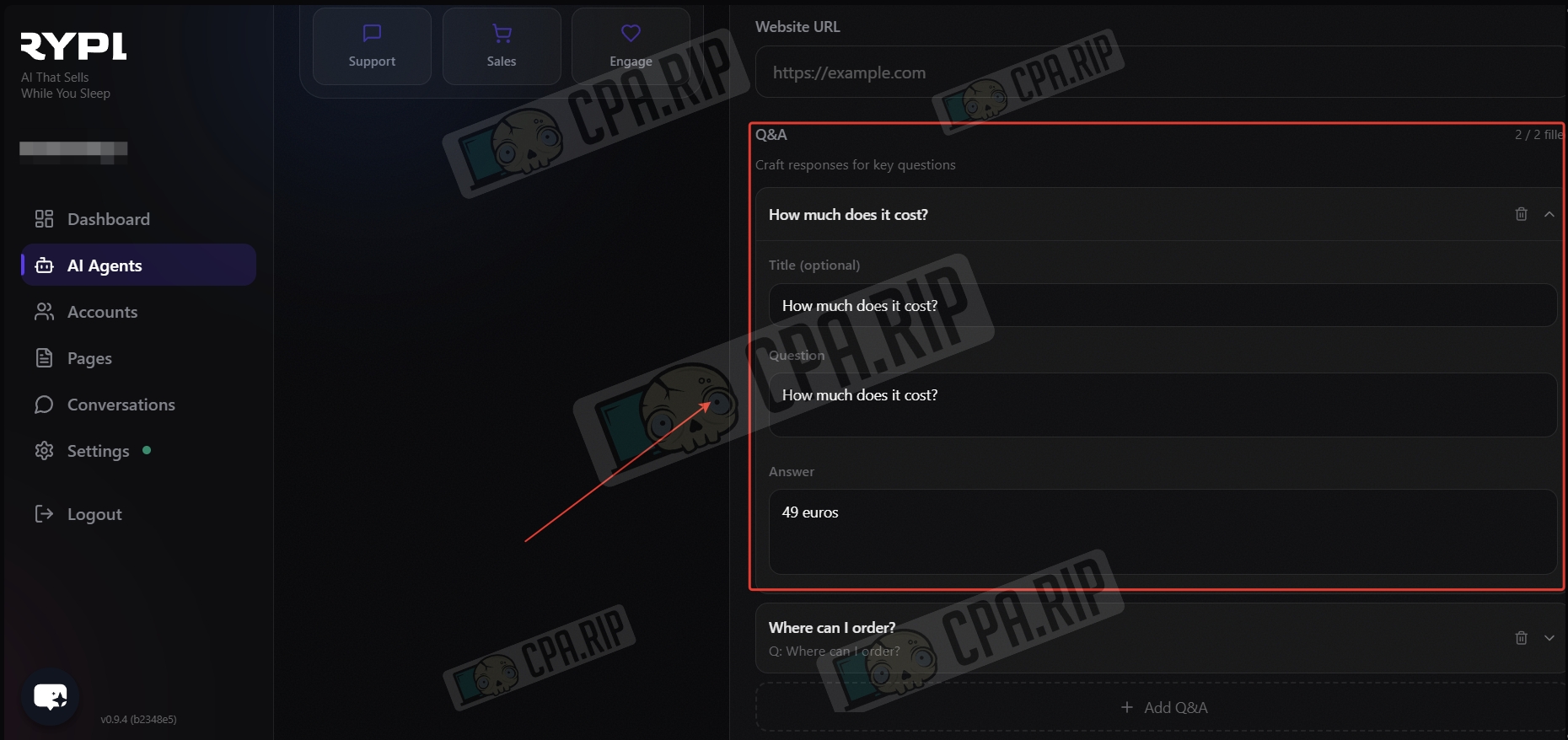
The agent is AI-based and recognises the user’s intention, not just keywords. For it, ‘Price,’ ‘How much does it cost?’ and ‘How much?’ are all the same question.
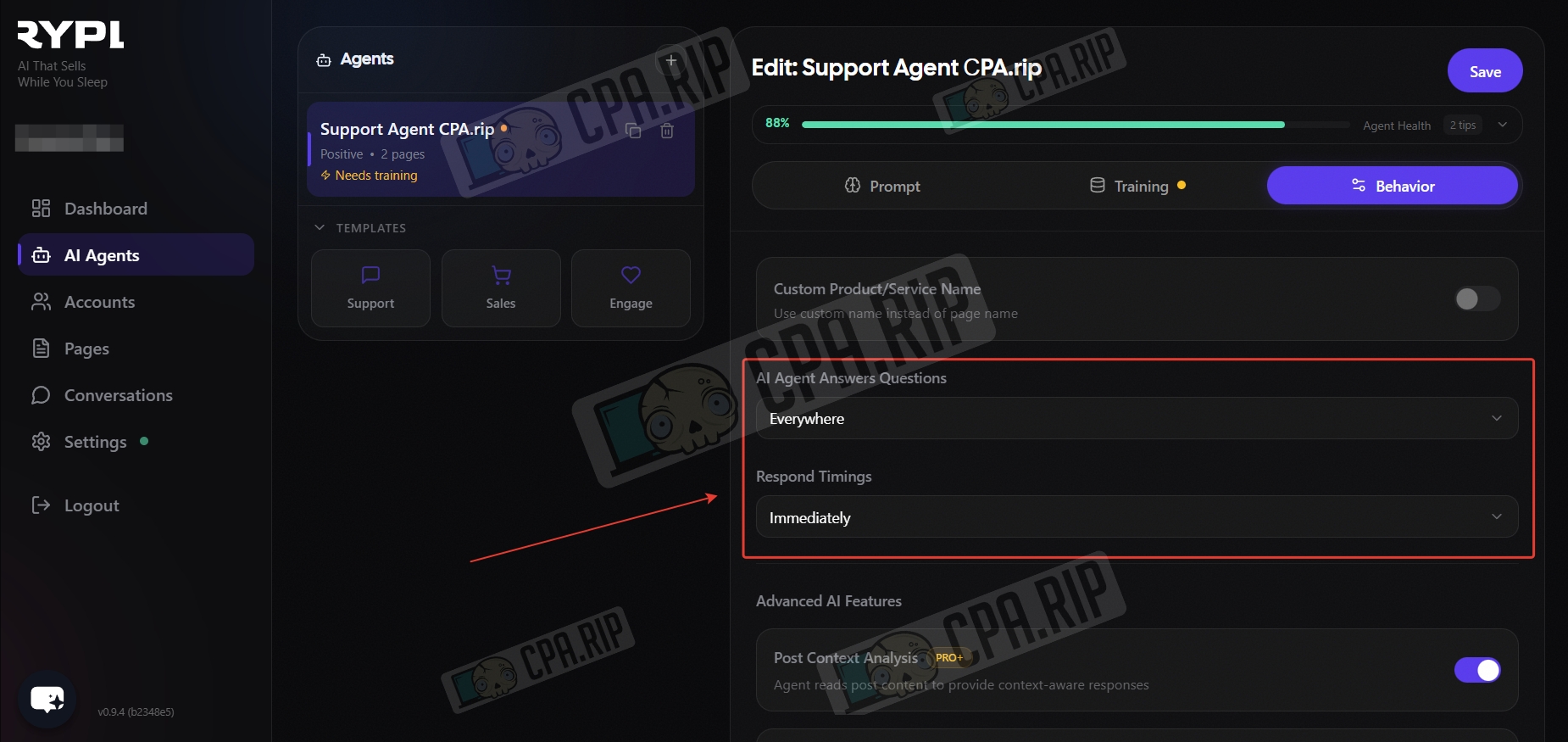
- Select where the agent will respond (comments/messages) and set the response time.
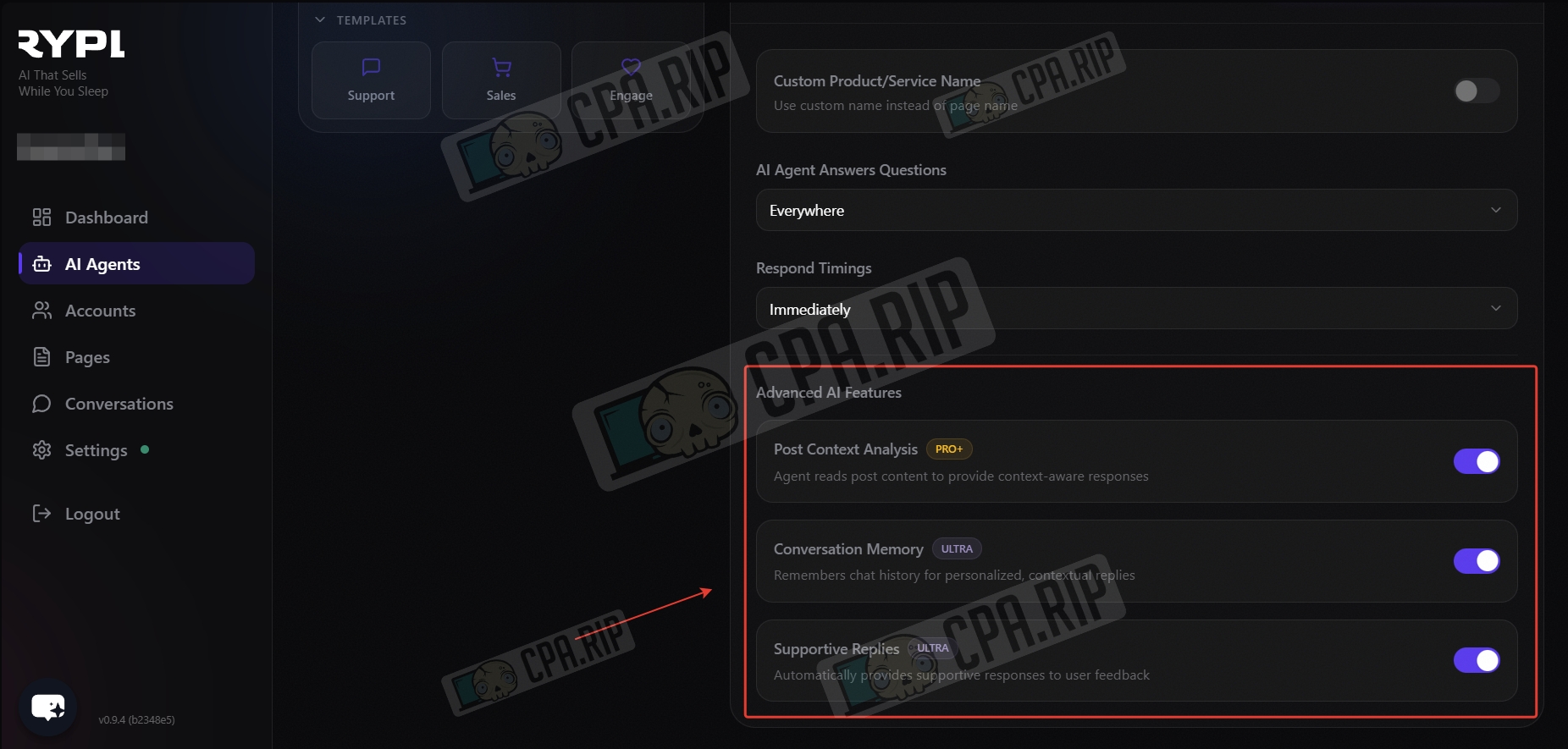
- Select additional agent features available in your plan and click Save.
Connecting your Facebook account
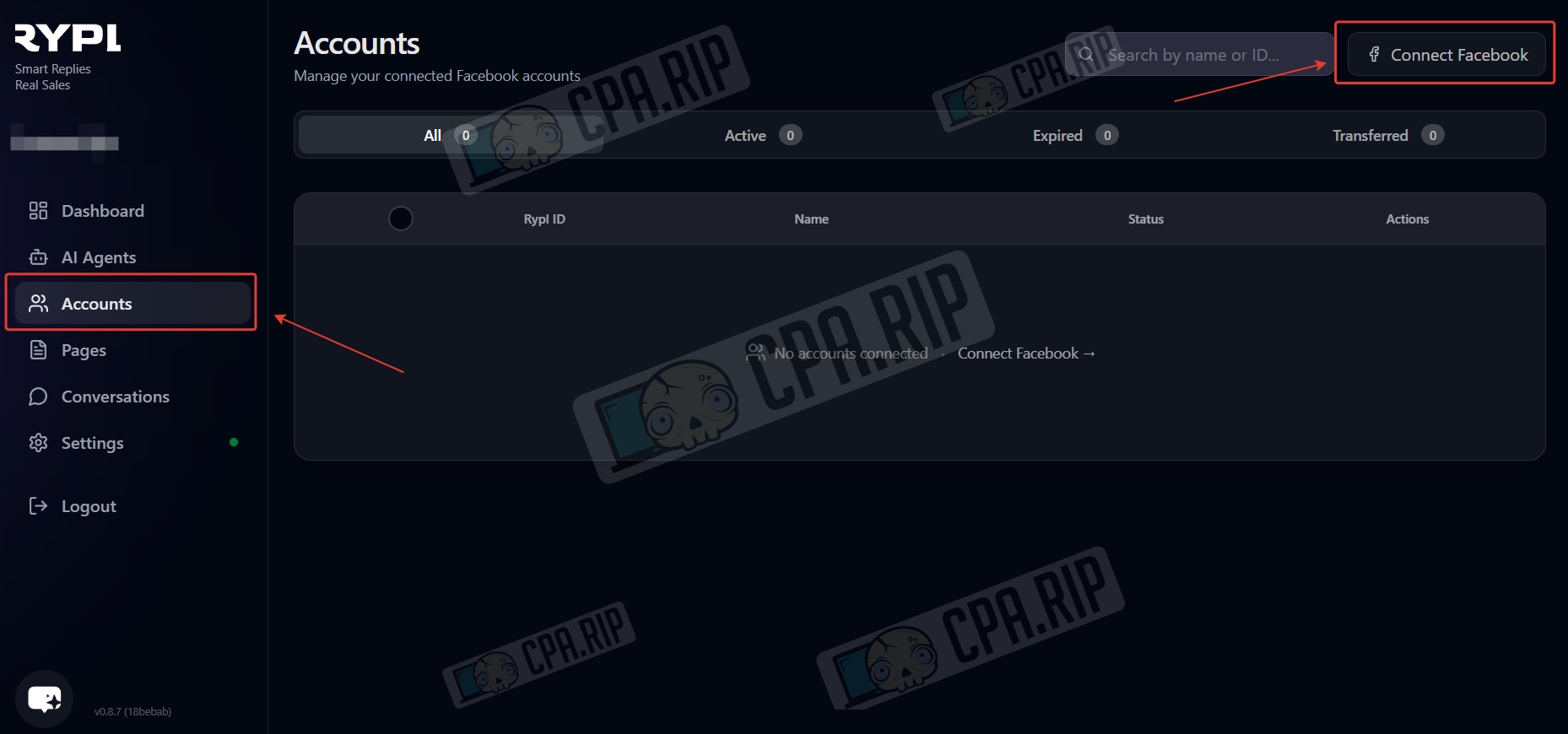
- Go to the ‘Account’ section and click ‘Connect Facebook’.
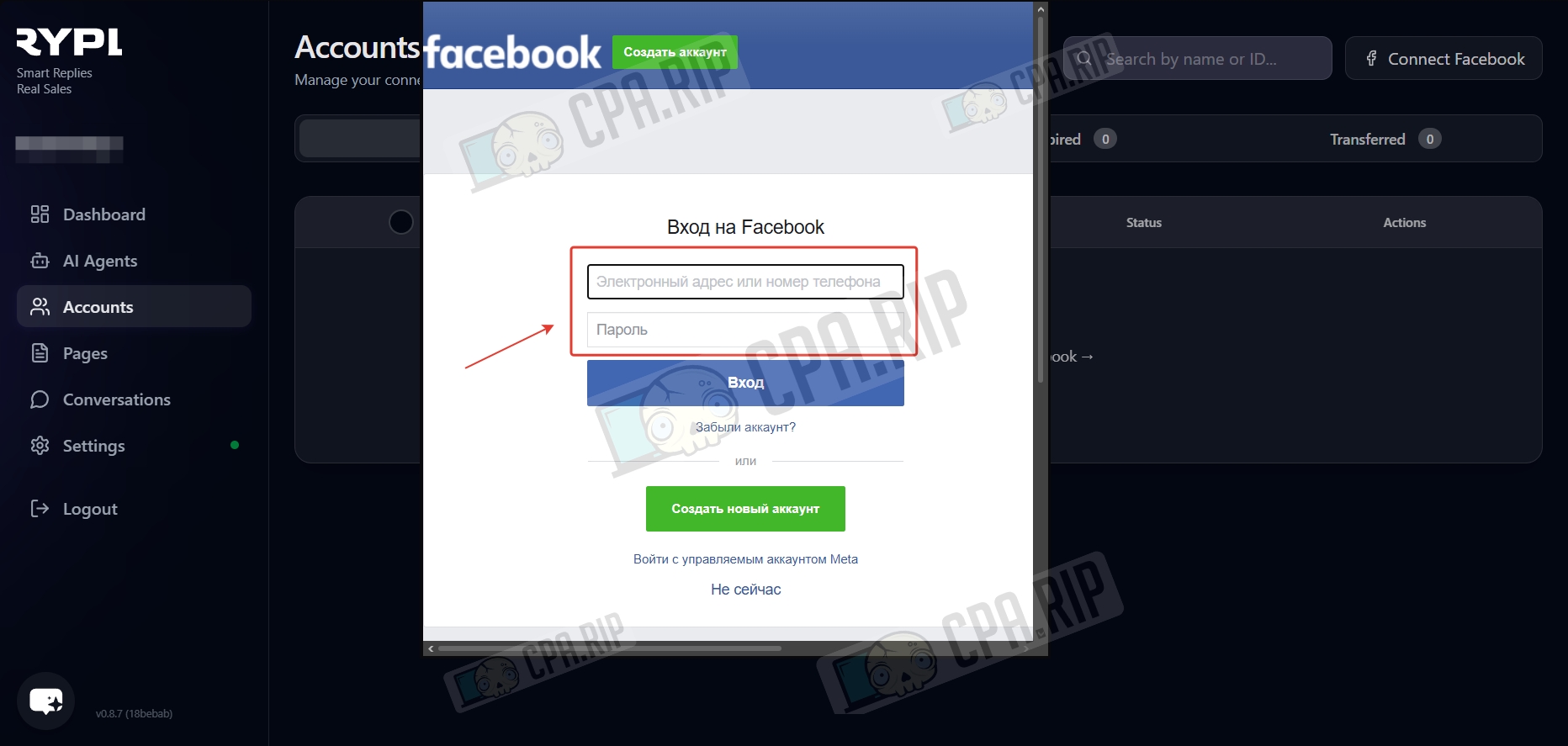
- Enter your Facebook account login and password.
- Click ‘Continue’.
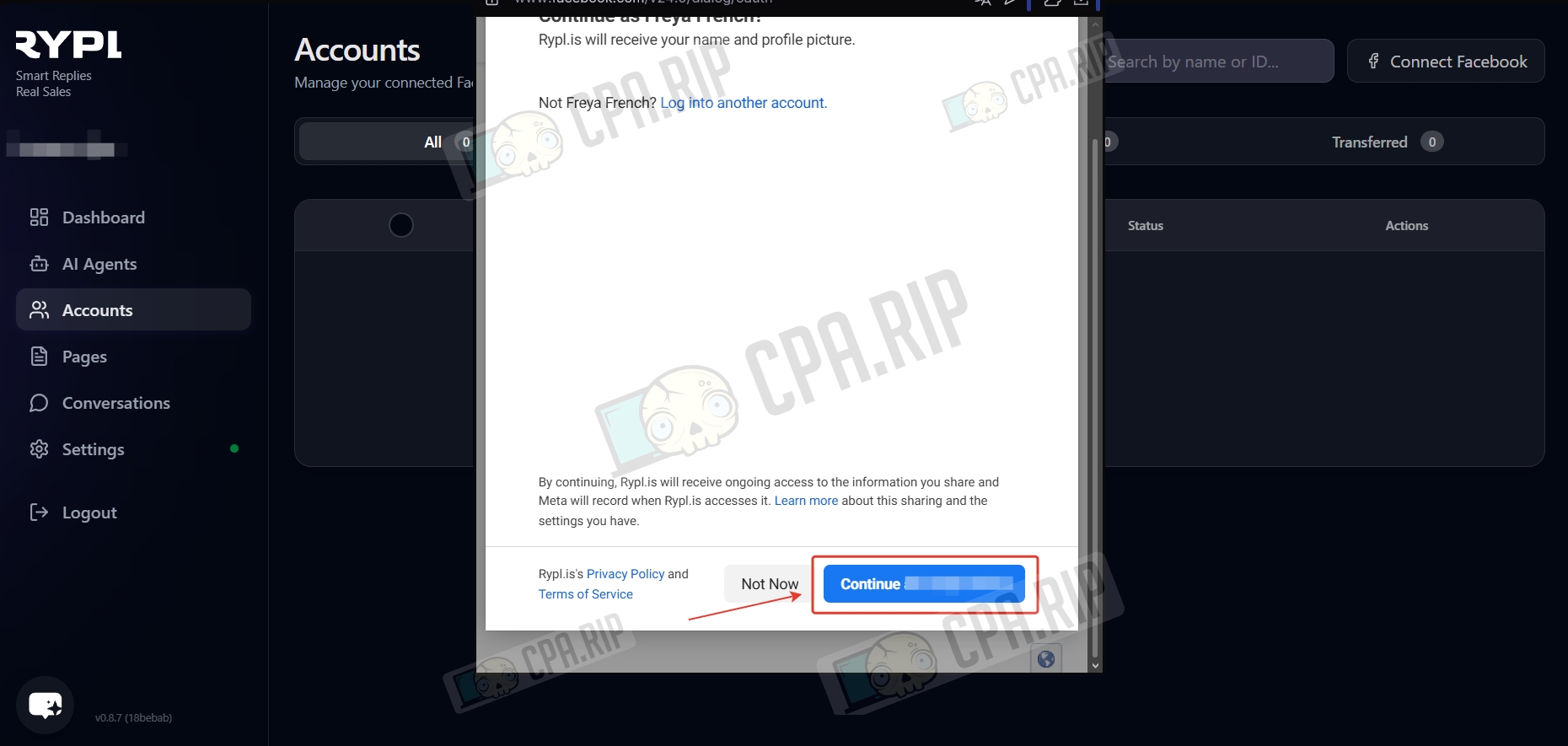
- Select the Fan Page to connect and click ‘Continue’.
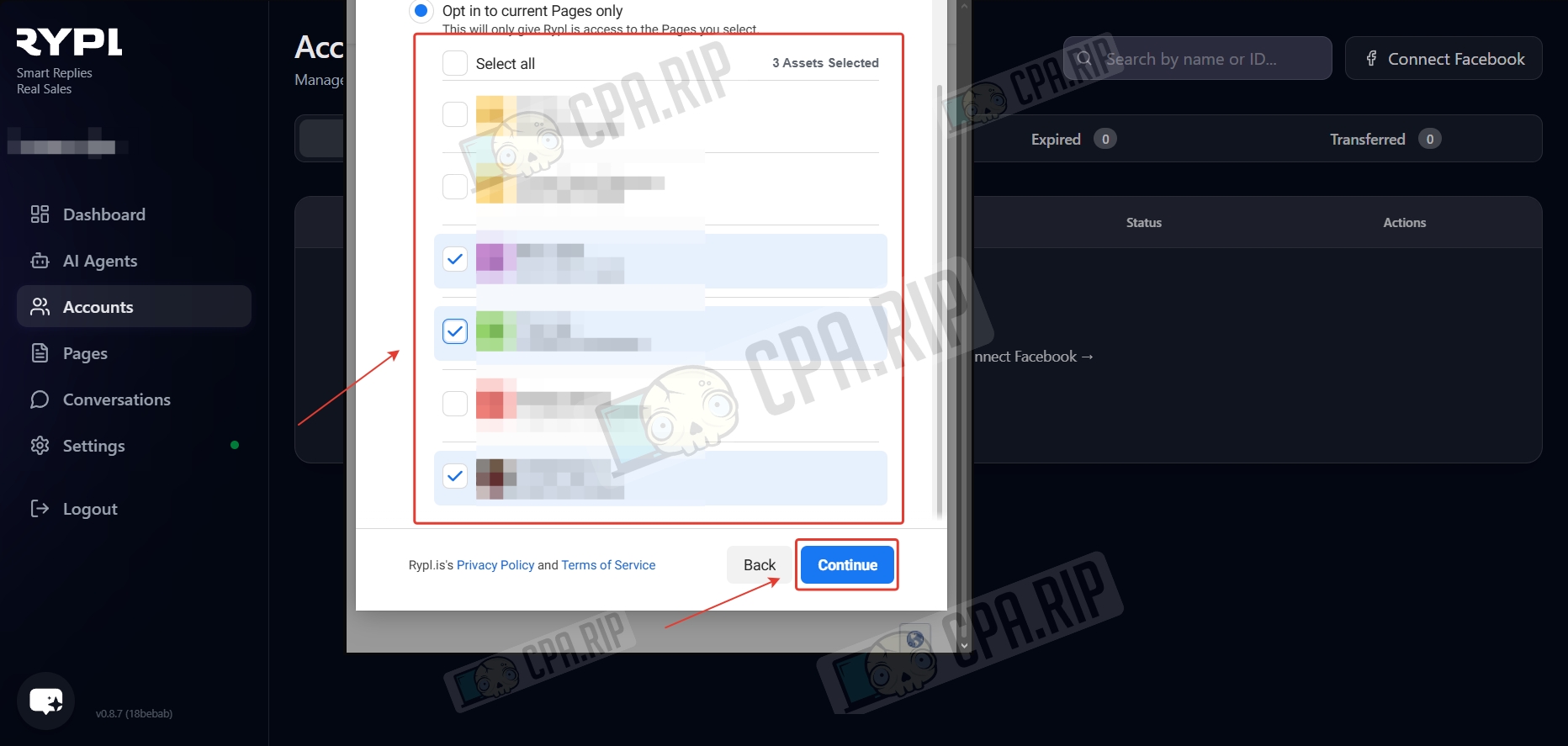
- Select Business Manager and click Continue.
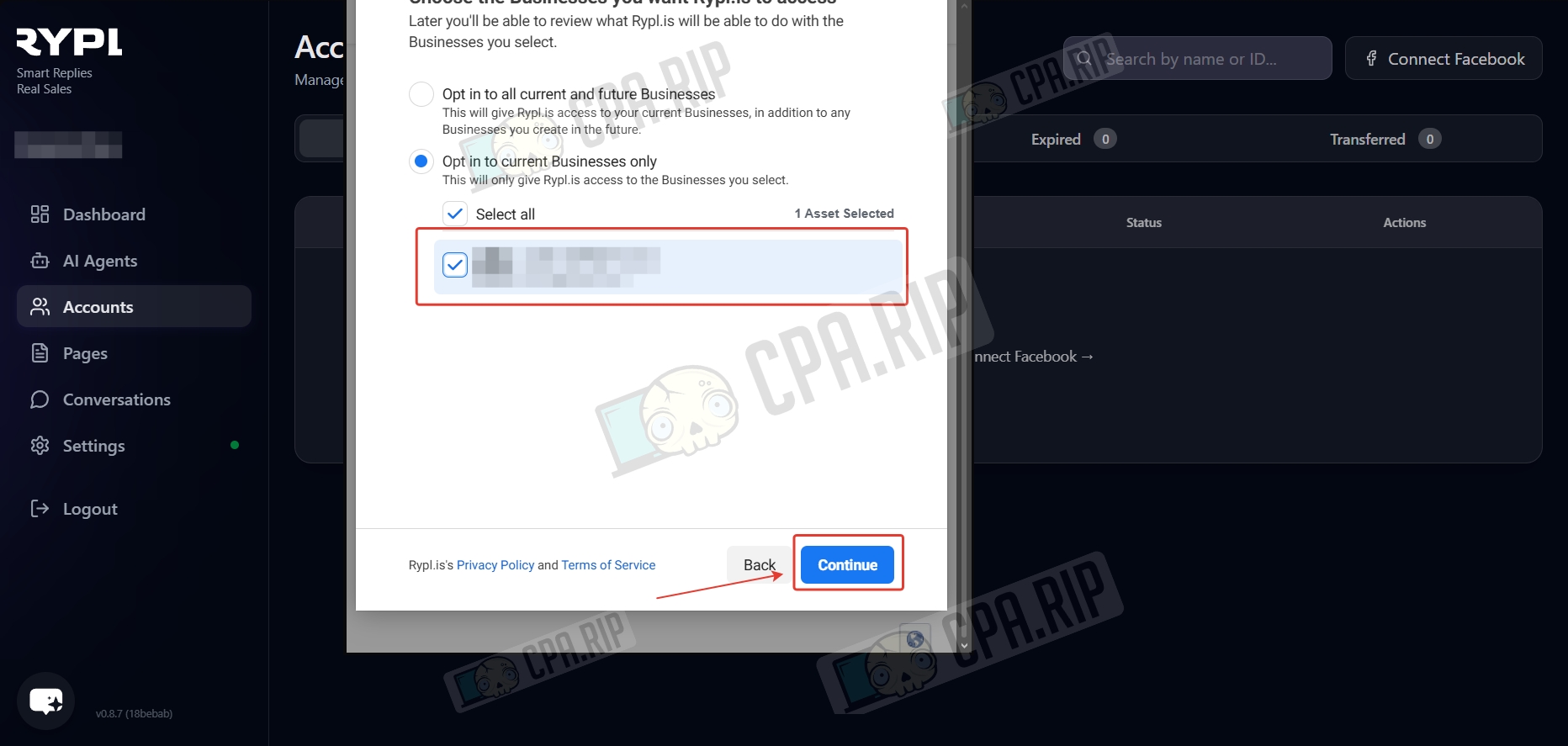
- Click Save.

- Then click ‘Got it’.
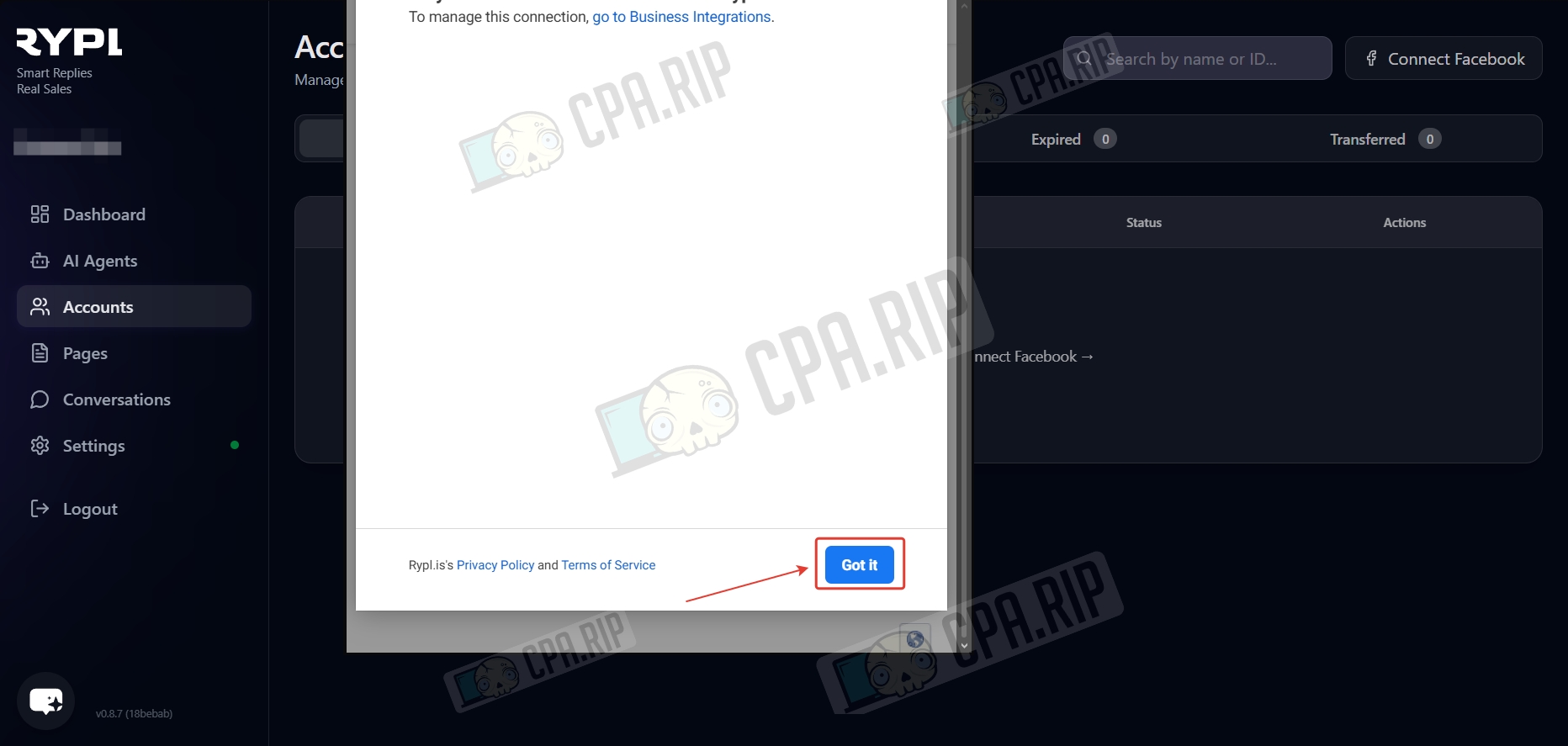
If you don’t have any Pages or BMs when adding your Facebook account, select «Opt in to all current and future Pages» and «Opt in to all current and future Businesses», respectively.
Connecting AI agent to Fan Page
For the agent to process and respond to messages under the ad, you need to connect the agent to the fan page from which the ad is launched.
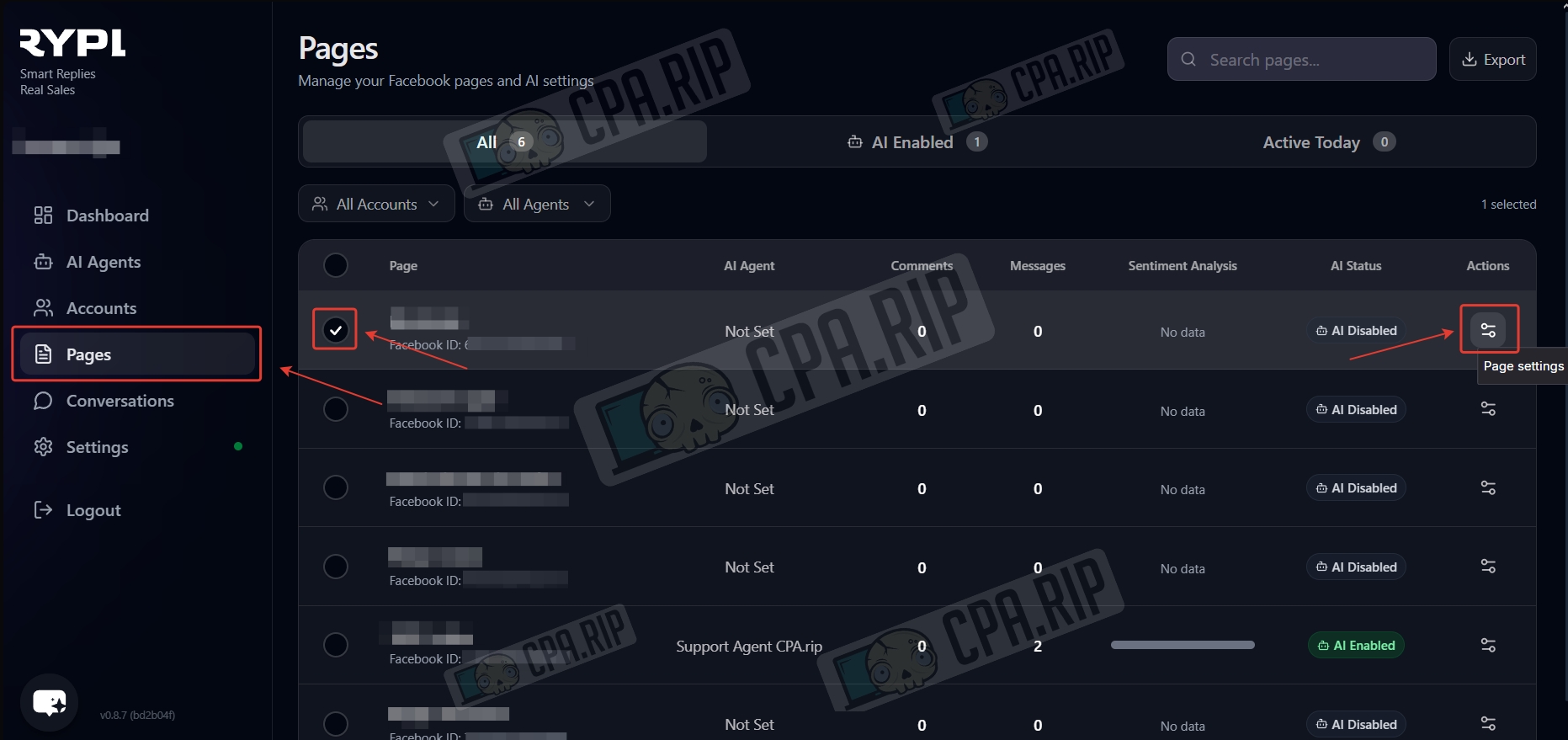
- Go to the Pages section, select a page, and click ‘Page settings’.
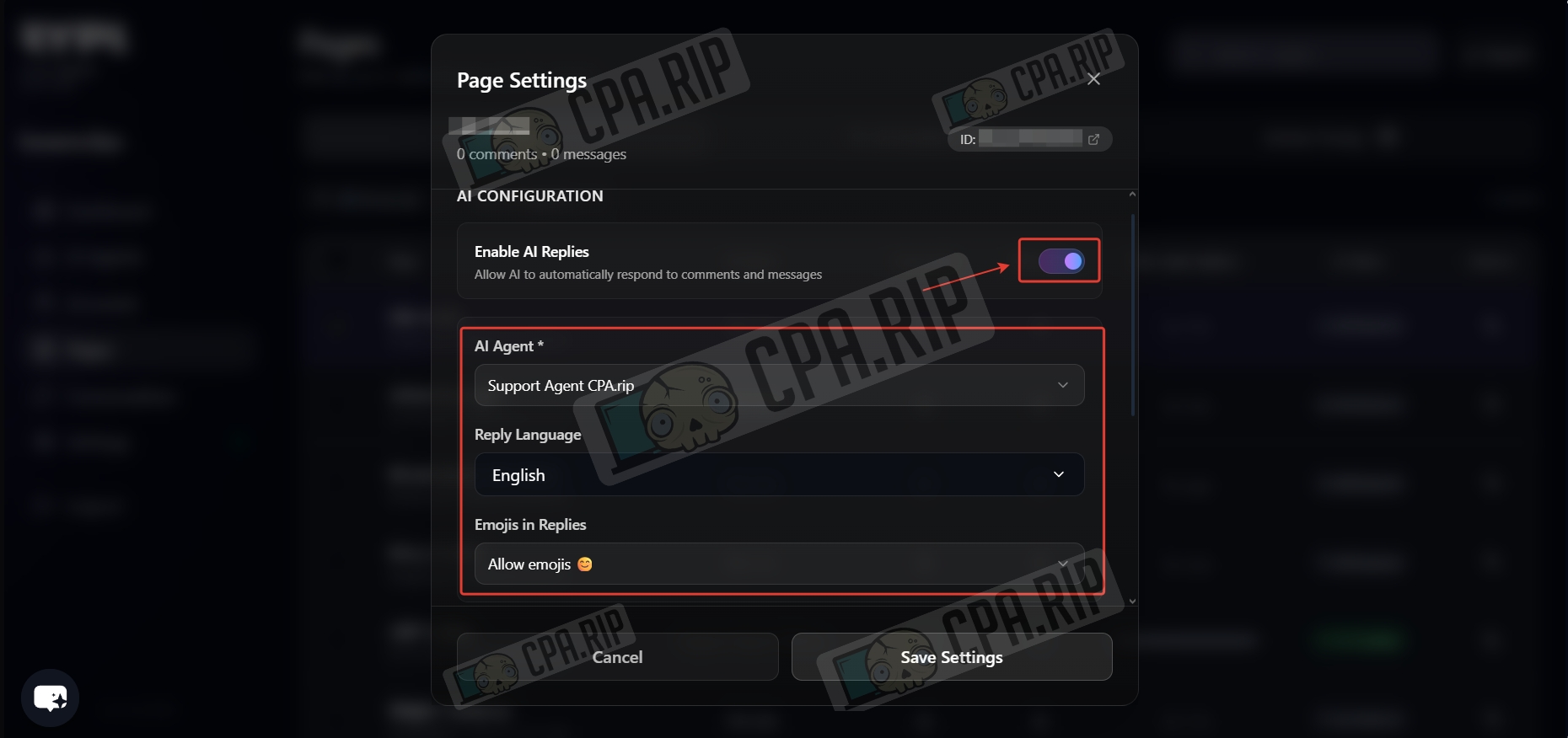
- Enable AI responses and select an agent. The Reply Language setting determines the language of the response, and the Emoji option allows you to specify whether to use emojis.
The knowledge base can be in one language and the user’s question in another: the agent will understand the essence and provide an answer.
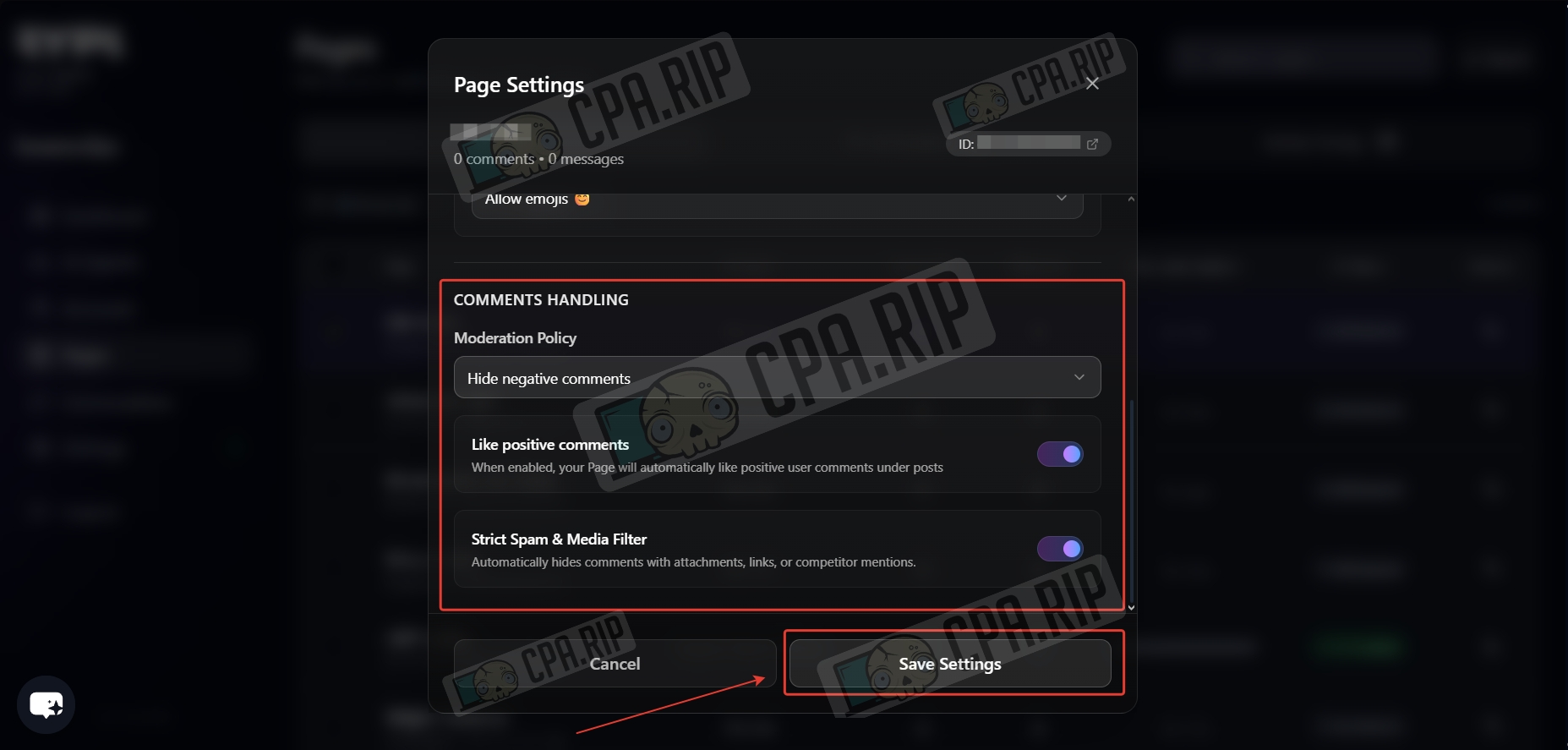
- Select actions for comments and click ‘Save Settings’