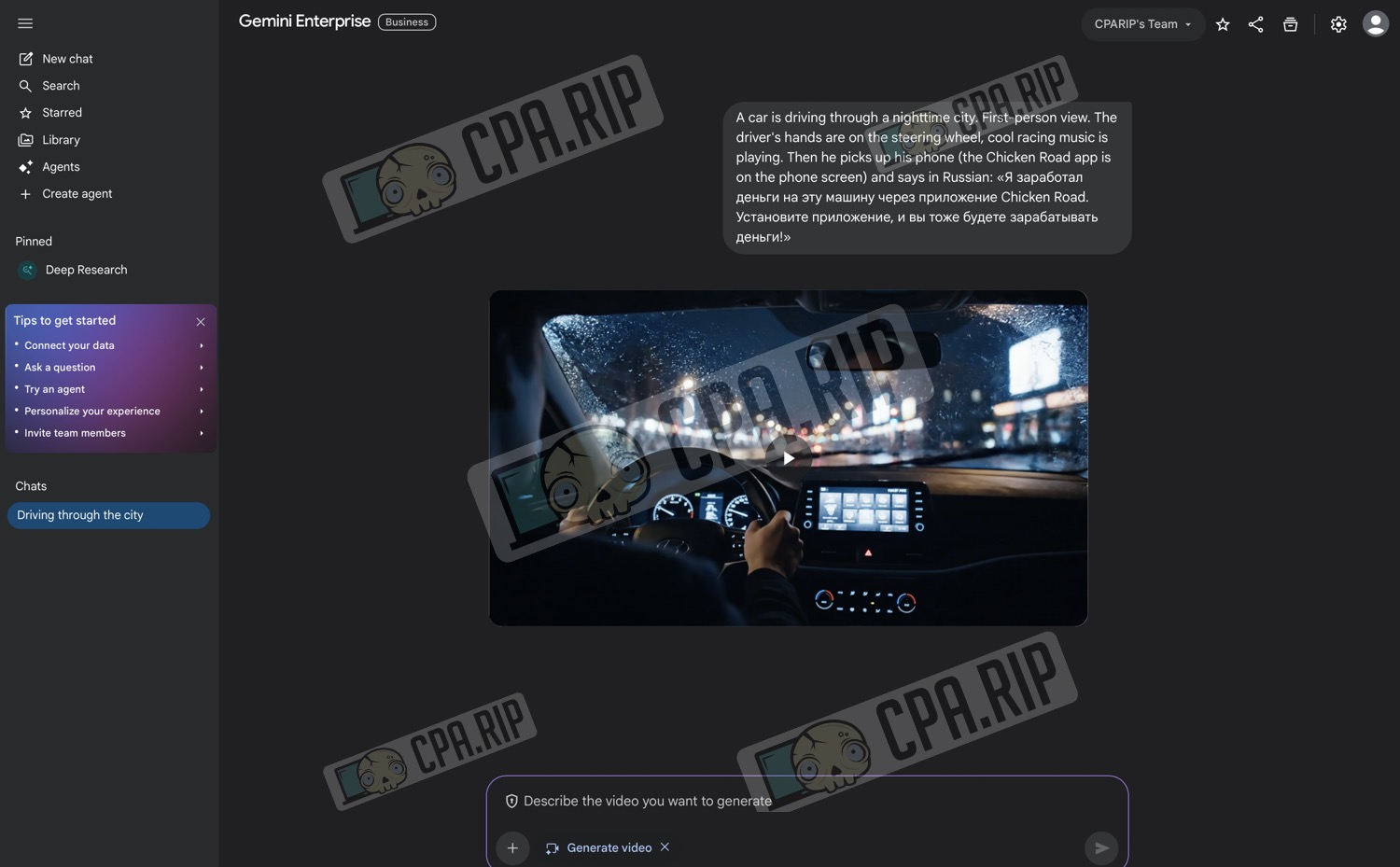



Step-by-step instructions on how to start a 30-day trial of Gemini Enterprise, the business version of Gemini from Google with access to Deep Research, image generation (NanoBanana Pro), and video generation (VEO), as well as the latest models such as Gemini 3 Pro.
What Gemini Enterprise offers
Gemini Enterprise is a corporate plan that offers:
- access to Gemini 2.5 Flash, Gemini 2.5 Pro, and Gemini 3 Pro (preview) models;
- a separate Deep Research tool for long/complex queries;
- built-in Google search directly from the chat;
- image generation (NanoBanana Pro) and video generation (Generate video);
- work in a business environment (separate workspace, agents, library, etc.).
Next, we will take a step-by-step look at how to get 30 days of trial access in just a few clicks.
Free registration for Gemini Enterprise
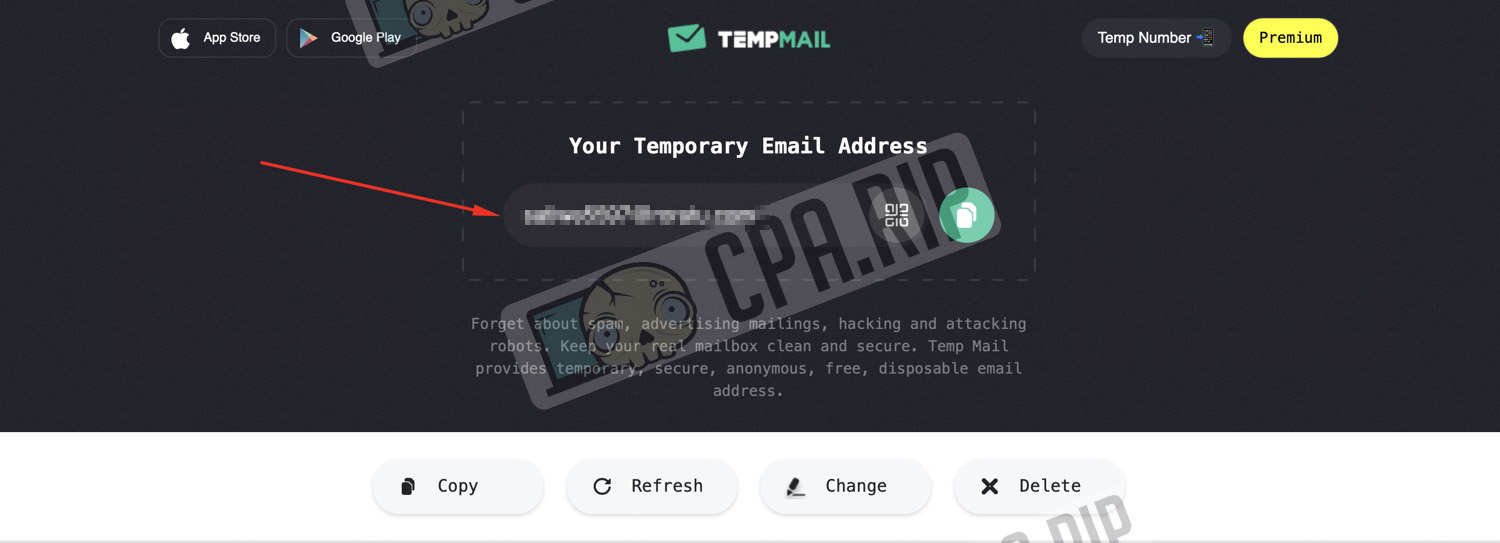
- Go to the Temp Mail website or any other temporary email service, or use your corporate email.
- Copy the email you’ve received, as you will need it to register with Gemini Enterprise.
If it is important to keep your account and not lose access, it is better to use your corporate email on your domain.
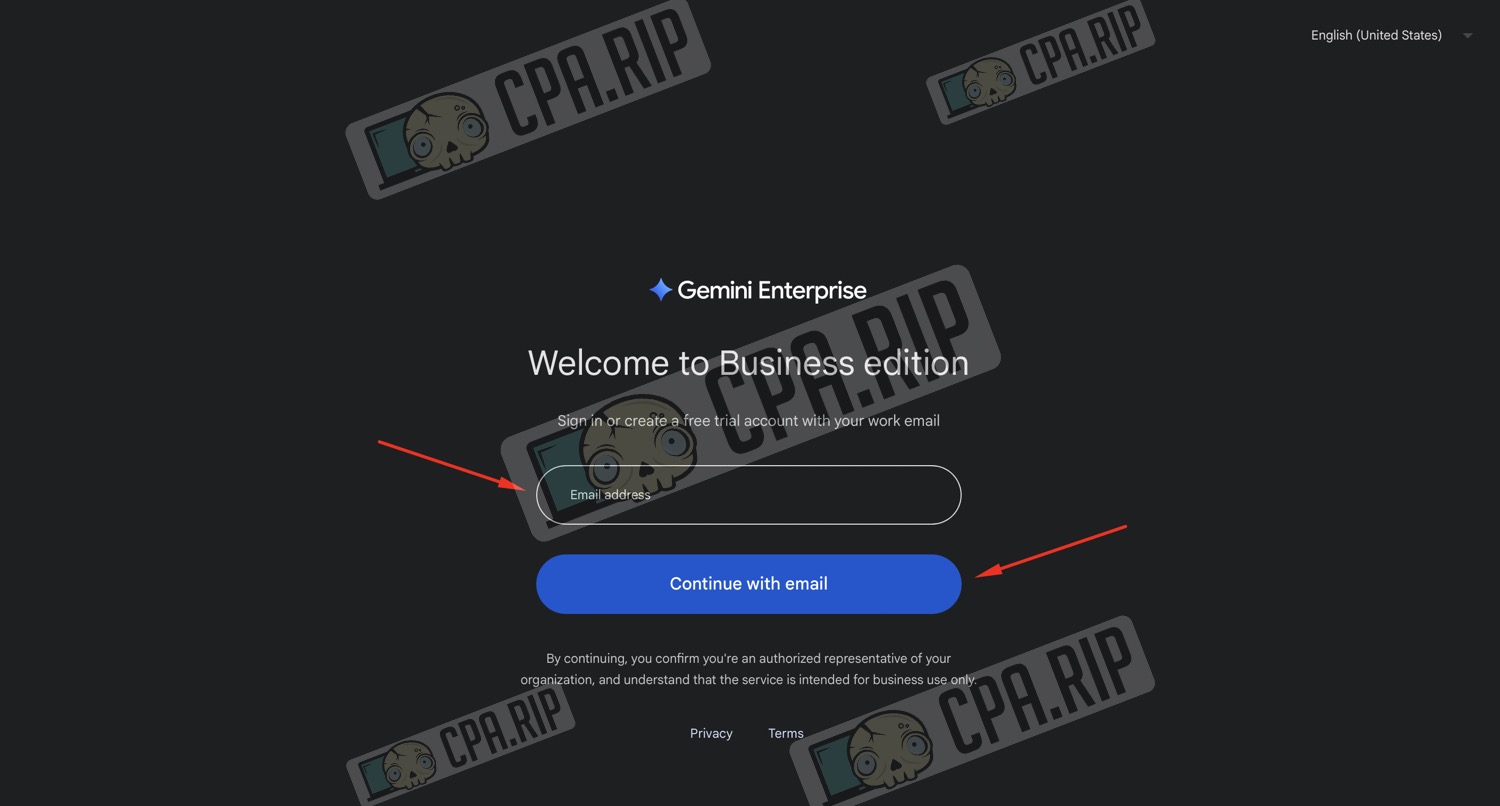
- Open the Gemini Enterprise (Business edition) website;
- Paste the copied email into the “Email address field”.
- Click the “Continue with email” button.
The service will then send a confirmation code to the specified address.
- Without closing the Gemini tab, return to your temporary/corporate email.
- Open the email from Google with the code.
- Copy this code.
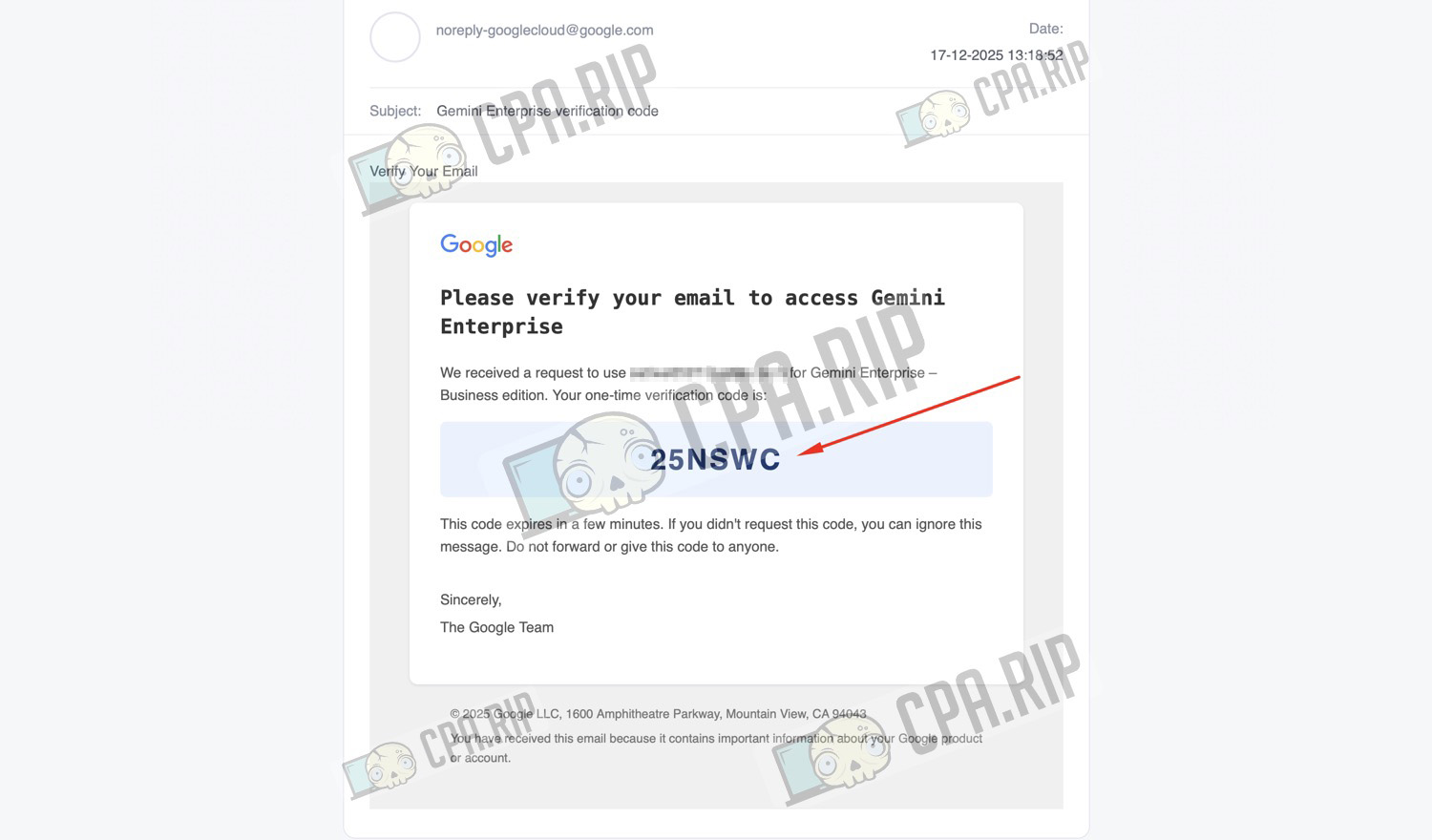
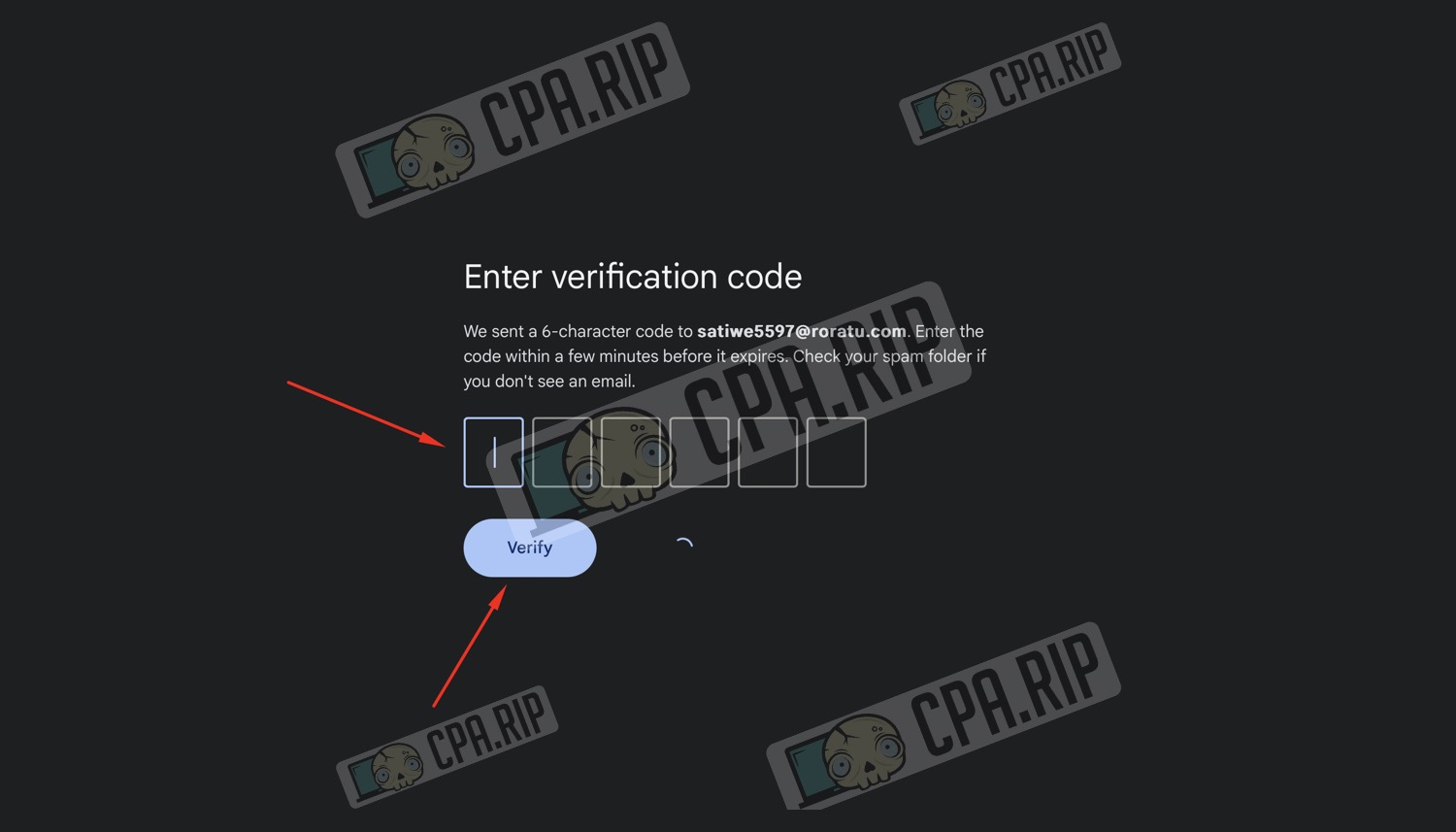
- Return to the form tab, paste the code, and click Verify.
If everything is OK, your email will be confirmed and you will be redirected to the trial connection step.
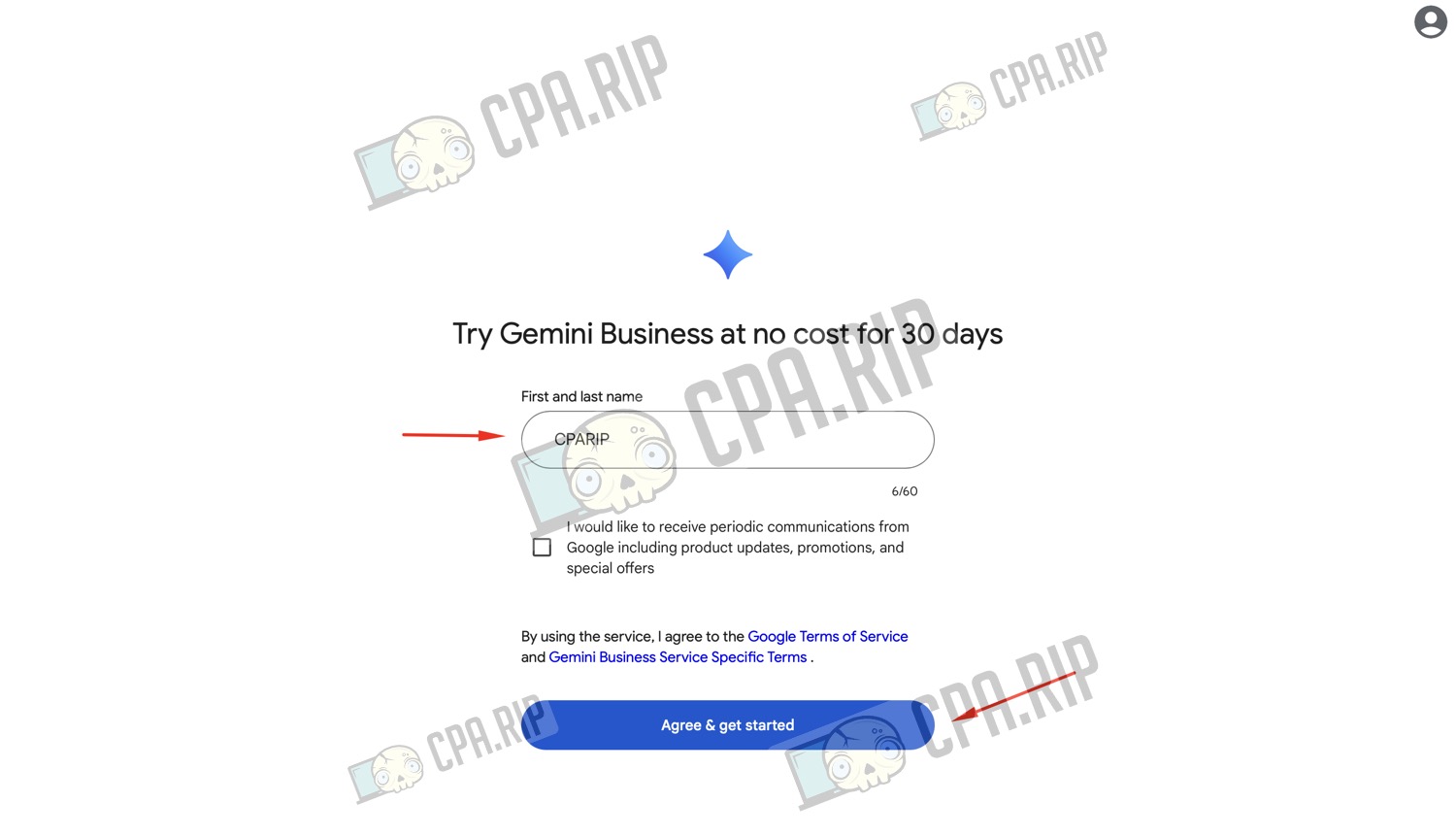
- In the First and Last Name field, enter your first and last name or the name of your project/company.
- Click “Agree & get started” to start your 30-day free access to Gemini Business/Enterprise.
After that, your account will be created, and you will be taken to the working interface.
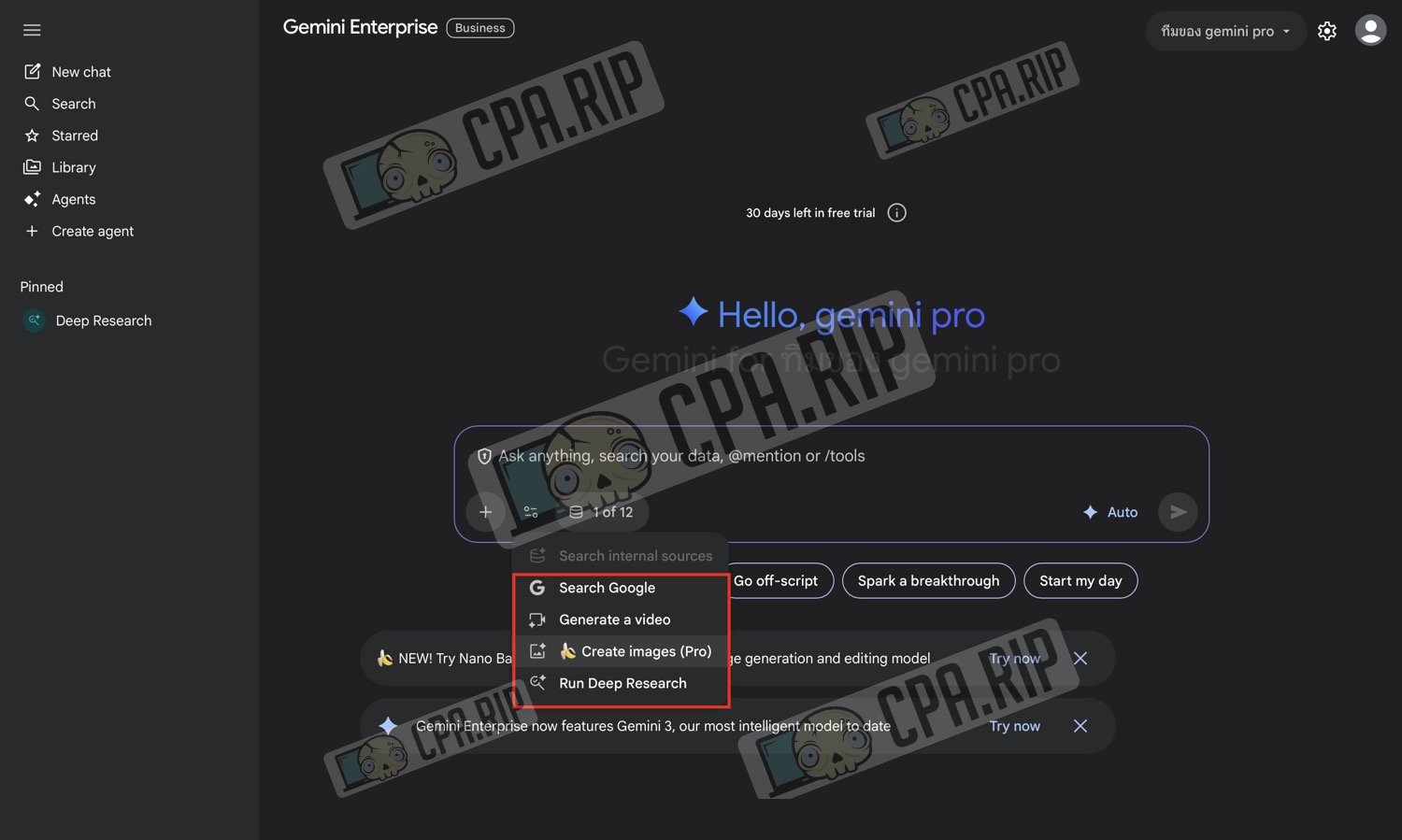
Gemini Enterprise interface and tools
The tool menu opens under the input line on the left:
- Search Google — web search;
- Generate a video — video generation (VEO);
- Create images (Pro) — image creation (NanoBanana Pro);
- Run Deep Research — launch in-depth analytics on complex issues.
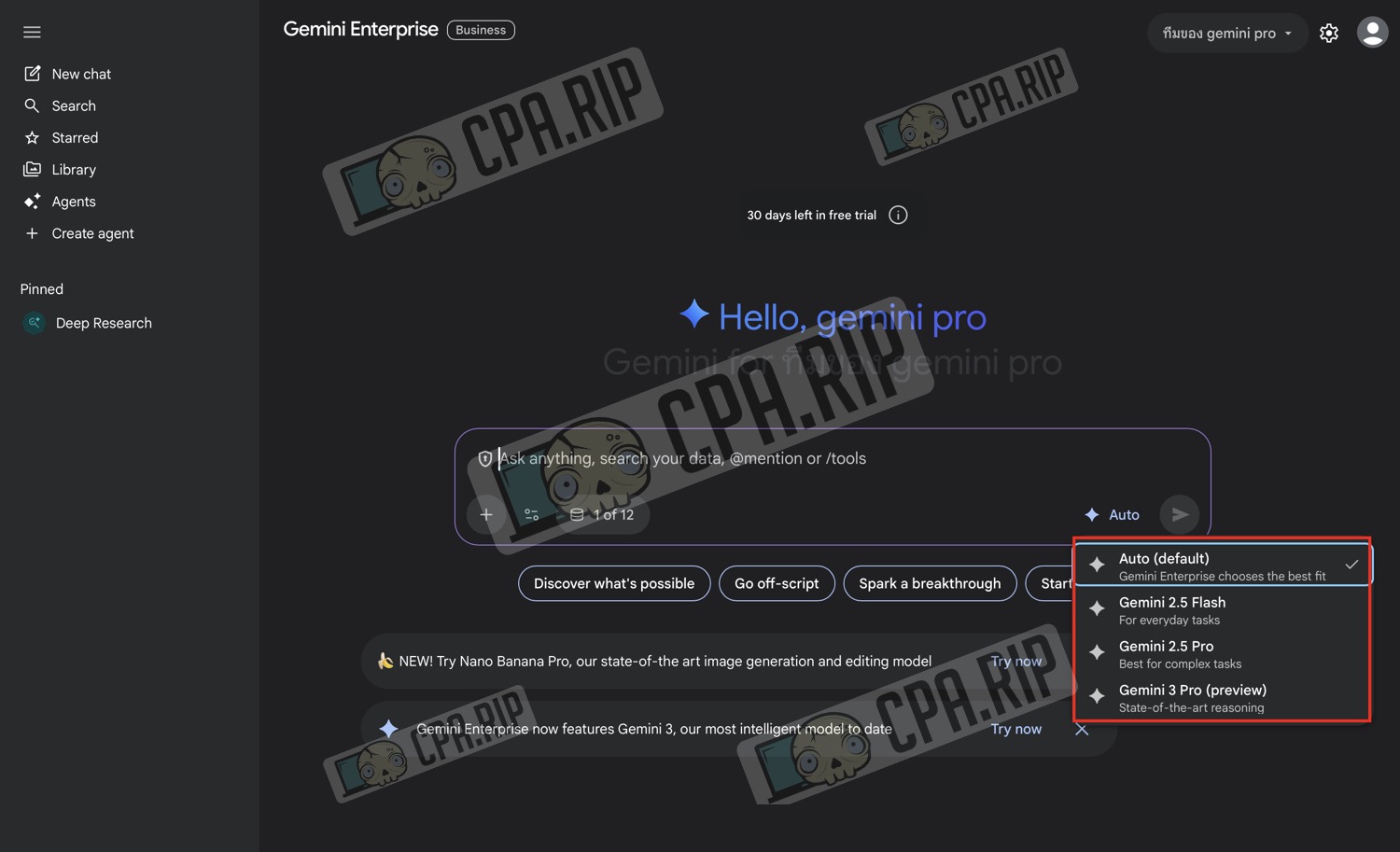
Below the input bar on the right, a model selection menu opens:
- Auto (default) — Gemini selects the model for the task itself;
- Gemini 2.5 Flash — fast mode;
- Gemini 2.5 Pro — model for more complex tasks;
- Gemini 3 Pro (preview) — a new model with improved ‘thinking’.
Generation examples
Nano Banana Pro for free
Here we are already working with the Nano Banana Pro model: an example from our guide https://cpa.rip/en/prompts/prompt-creative/
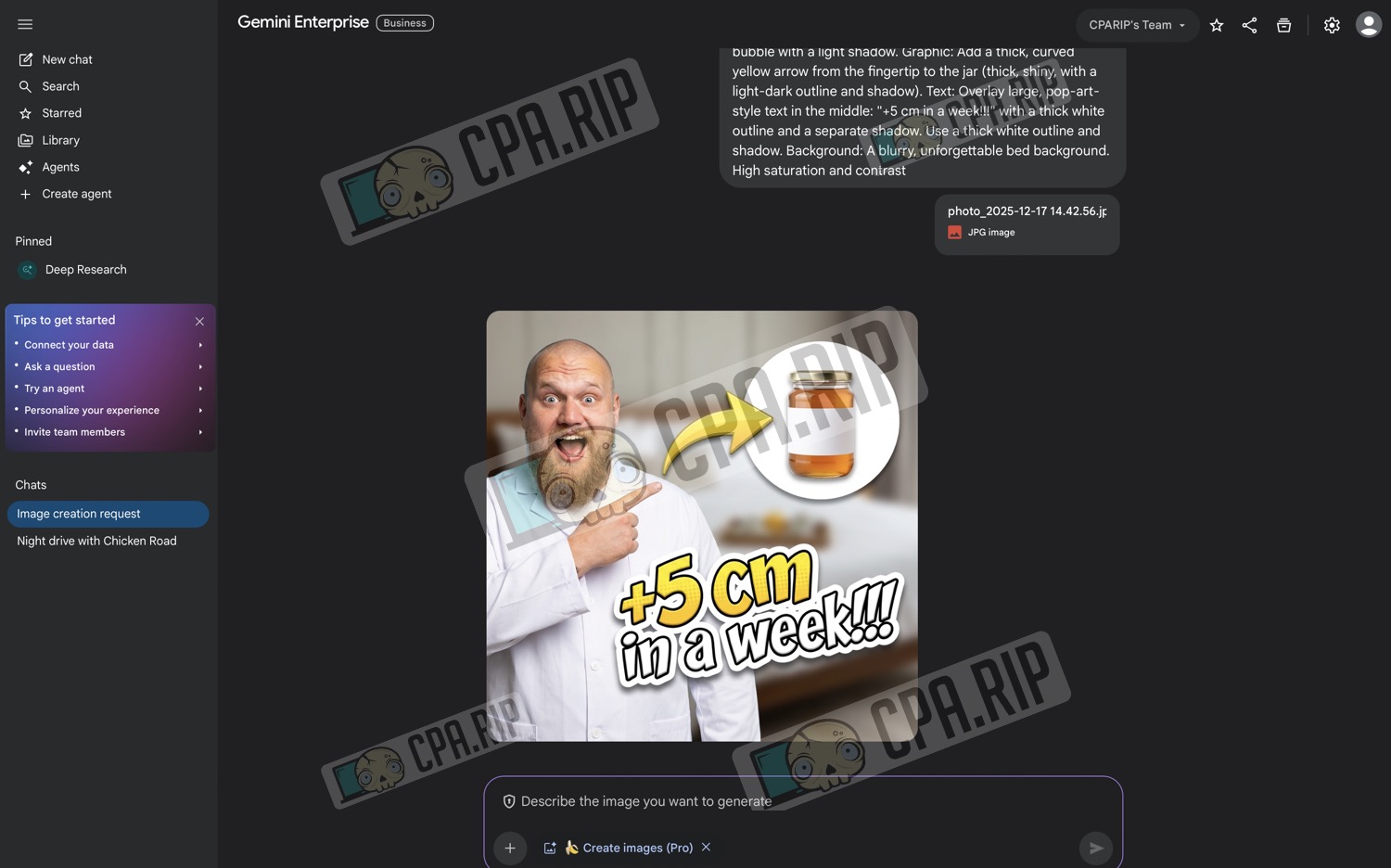

Generate video / Veo for free
In this example, we are testing the Generate video tool in Gemini Enterprise: based on a text description of the scene (‘night-time city from a first-person perspective, hands on the steering wheel, Chicken Road app on the phone, and Russian voiceover’), the model compiles a full-fledged video. It is not mentioned that the video generator is Veo, but judging by the quality of the generation it is Veo.
Prompt example:
A car is driving through a nighttime city. First-person view. The driver’s hands are on the steering wheel, cool racing music is playing. Then he picks up his phone (the Chicken Road app is on the phone screen) and says in Russian: “I earned money for this car through the Chicken Road app. Install the app and you can earn money too!”