



Binom v2 has implemented a tool for automatically transferring basic settings and data from Keitaro to Binom: campaigns, landing pages, offers, affiliate networks, traffic sources, domains, users, and custom rotations. We have broken down the transfer process step by step.
Use the promo code CPARIP to get one month of Binom free and a 40% discount on the second month’s payment for new users.
Choosing server for Binom v2
To deploy the tracker, you will need a dedicated server or VPS that meets the following technical requirements:
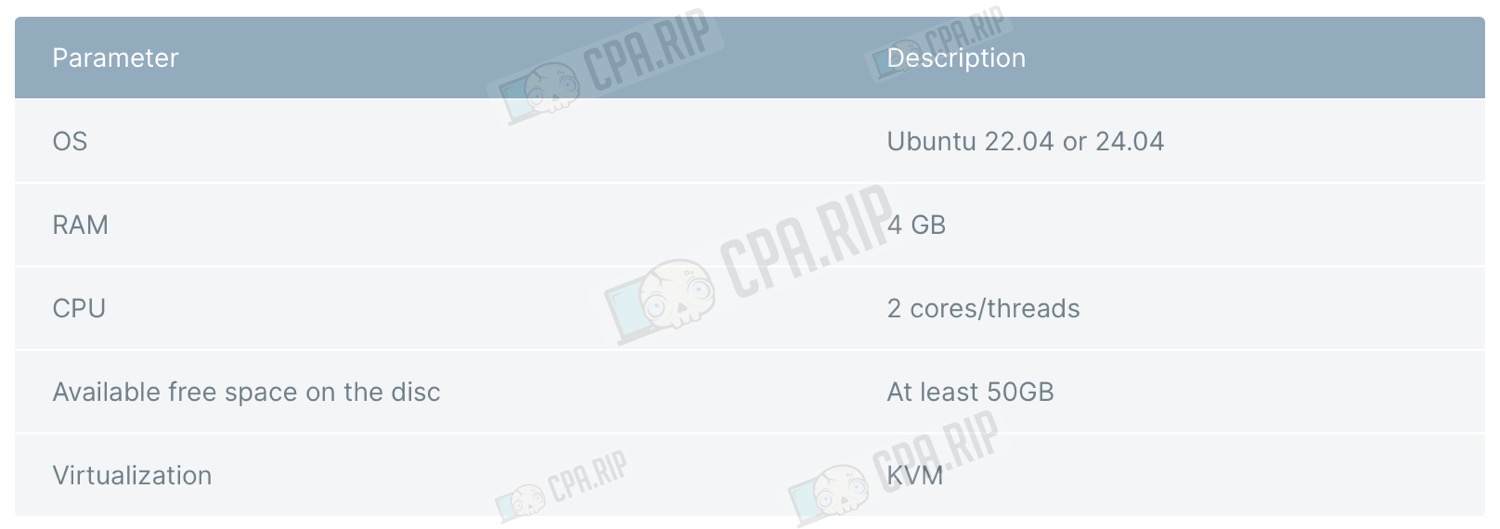
- Operating system: Ubuntu 22.04 or 24.04
- RAM: 4 GB
- CPU: 2 cores/threads
- Available free disk space: At least 50GB
- Virtualization: KVM
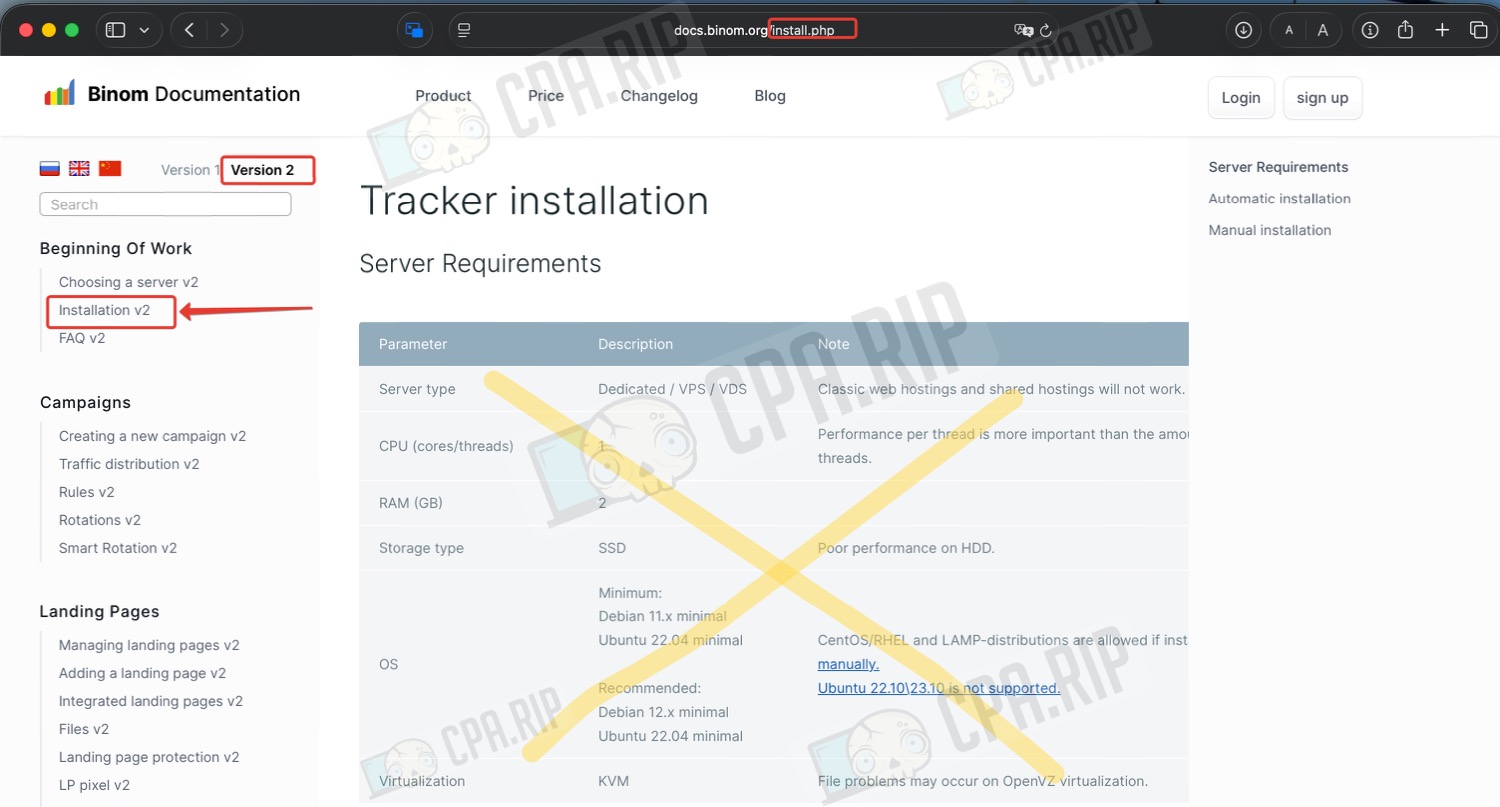
If you go to the documentation from the Binom homepage, the instructions and requirements for Version 1 will open, so switch to the Version 2 page to see the correct information:
To install the Binom tracker, we recommend getting a server from https://friendhosting.net/. The Business NVMe server meets the minimum requirements:
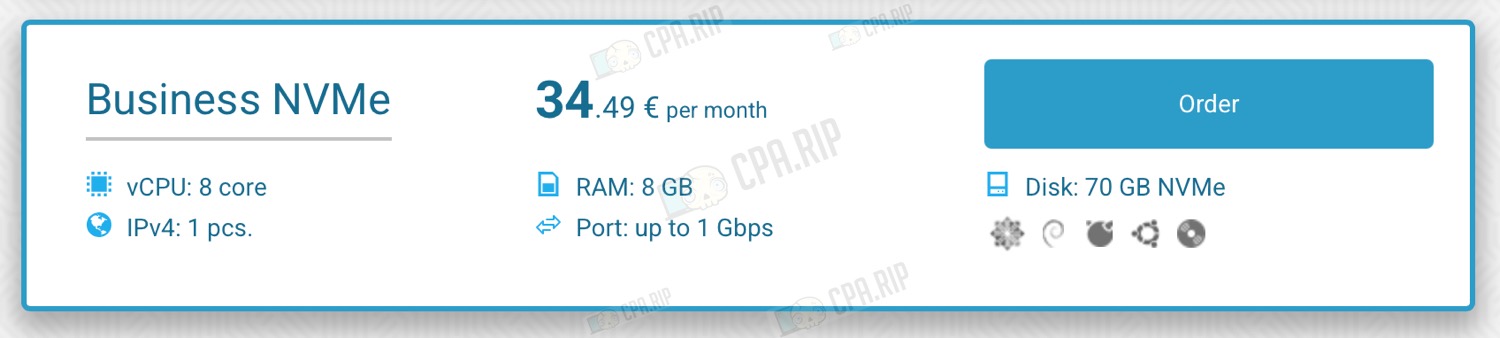
Be sure to select the Ubuntu 22.04 or 24.04 operating system and do not install any control panels (ISP Manager, cPanel) — the server must be clean.
After purchasing the server, you will receive SSH access details via email.
Installing Binom v2
To install Binom v2, you need to connect to the server via SSH using the login details provided. On Windows, we recommend using the PuTTY application: Telnet/SSH Client. On macOS, the connection is made via the Terminal; we will walk you through the installation process step by step using this as an example.
Open Terminal and enter the command:
ssh login@IP
Where login is your username, and IP is your server’s IP address.
If your server’s port is different from 22, use the following command:
ssh -p port login@IP
Where port is the port used to connect to your server
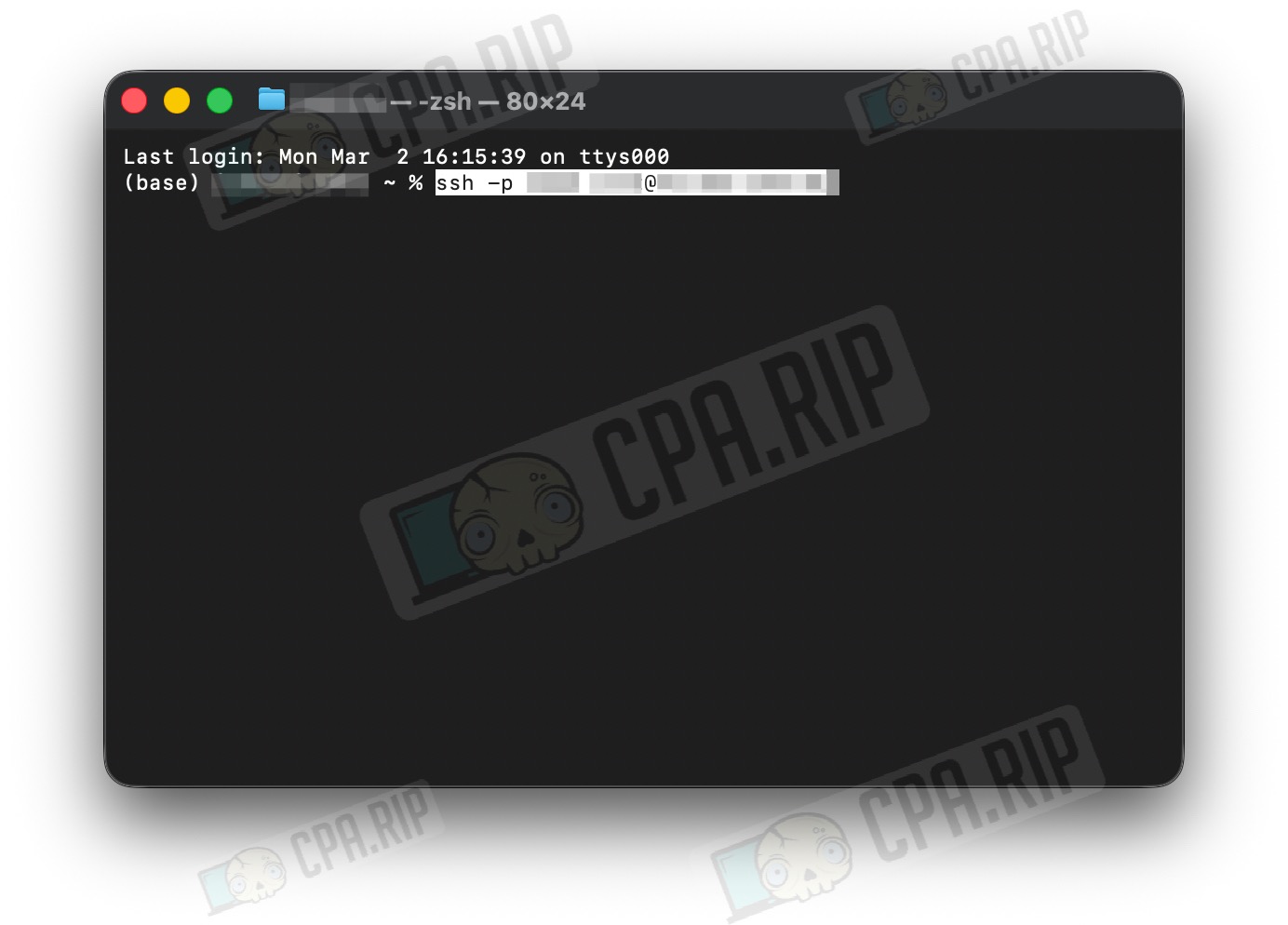
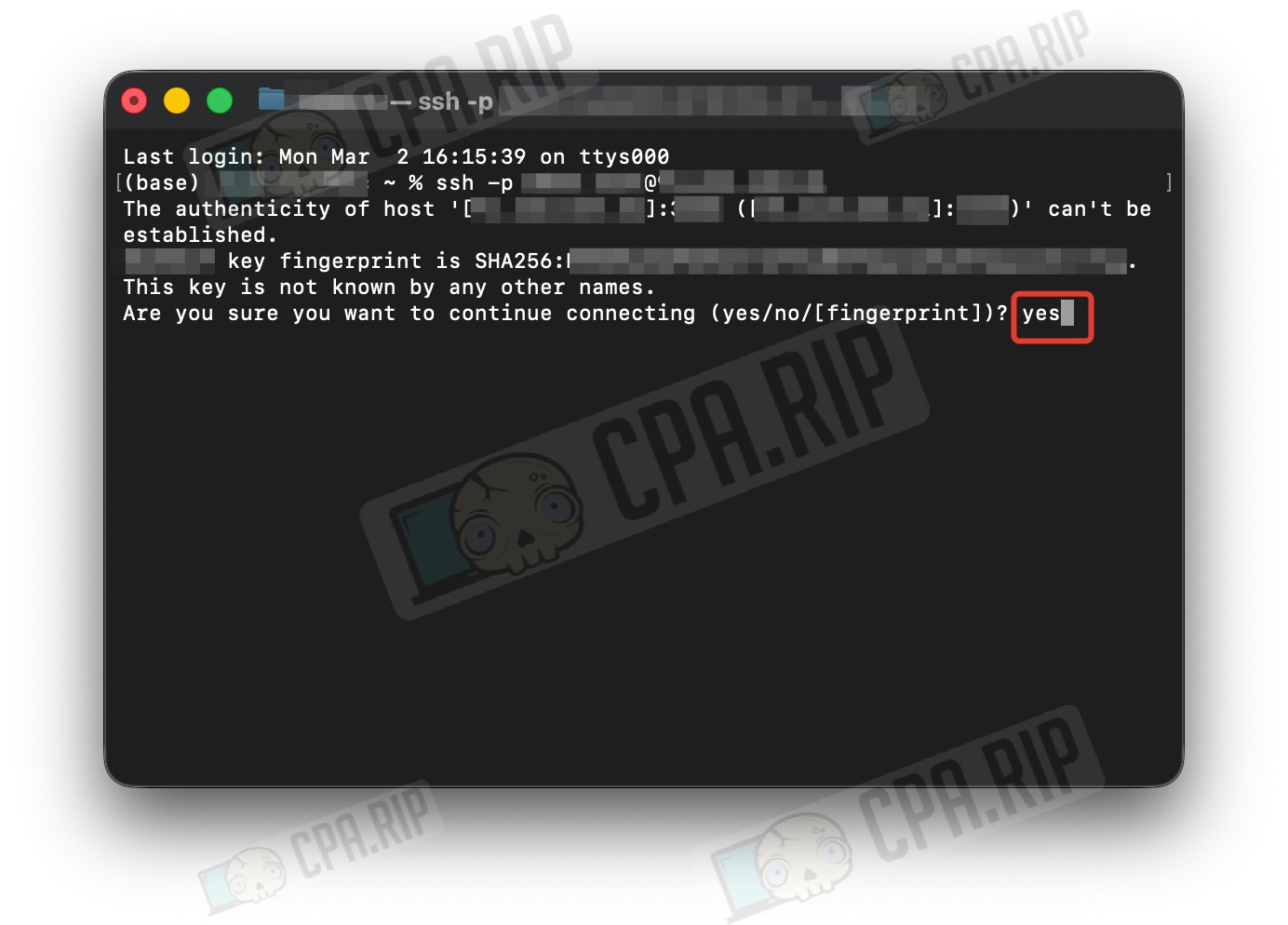
Type ‘yes’ and press ‘Enter’
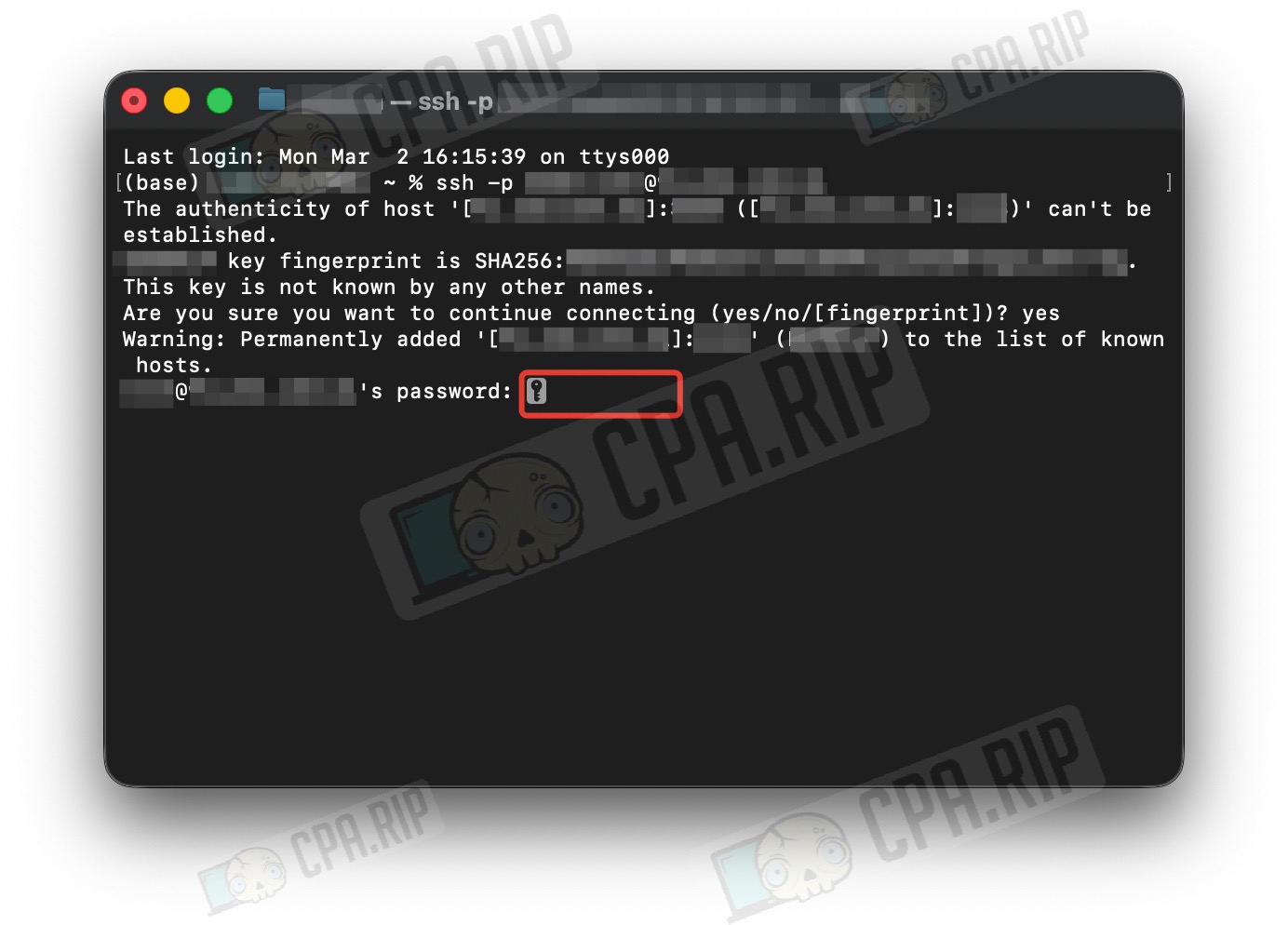
Enter your password and press ‘Enter’. Please note: the password will not be displayed as you type it!
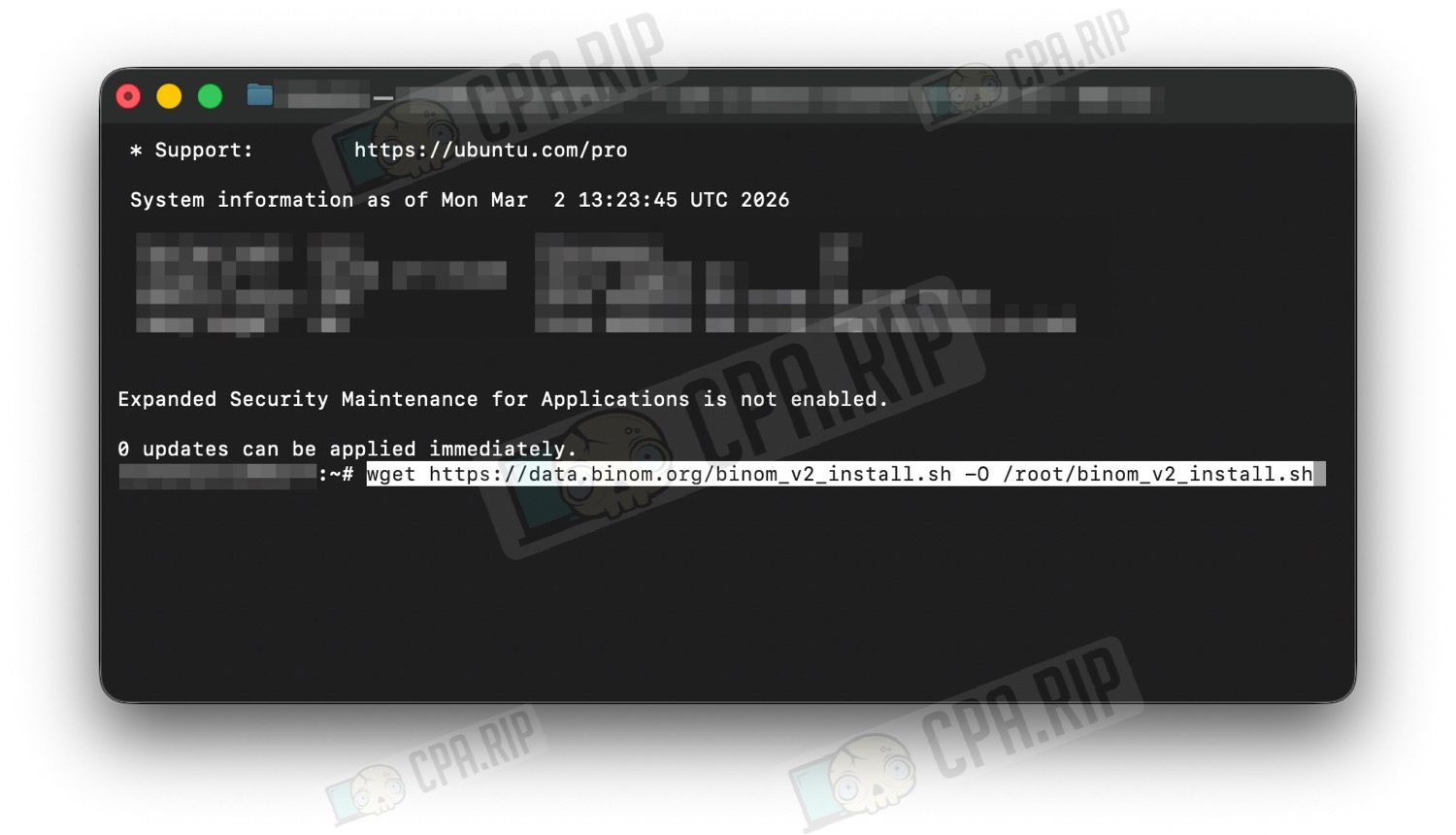
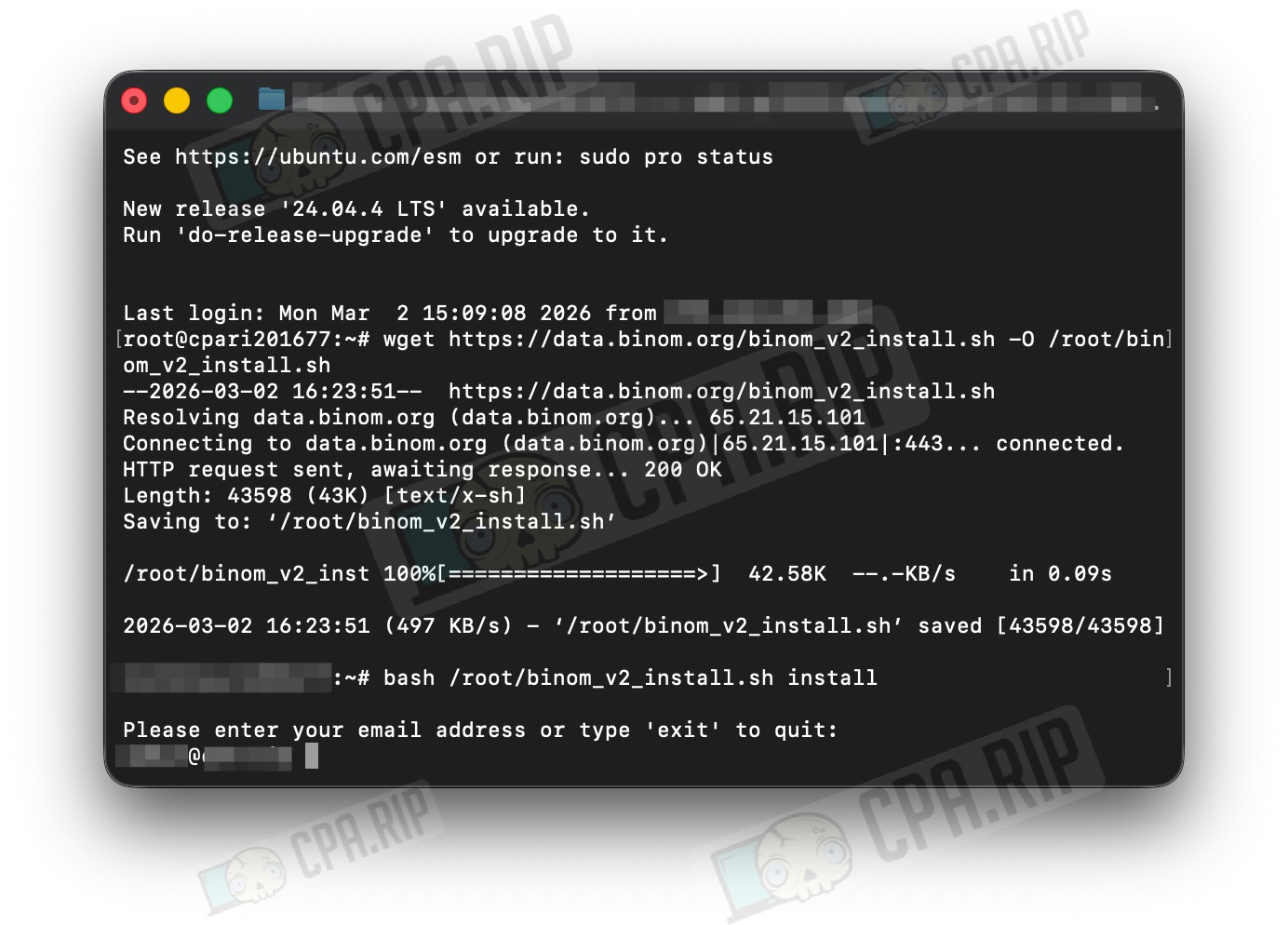
Run the command to download the installation script:
wget https://data.binom.org/binom_v2_install.sh -O /root/binom_v2_install.sh
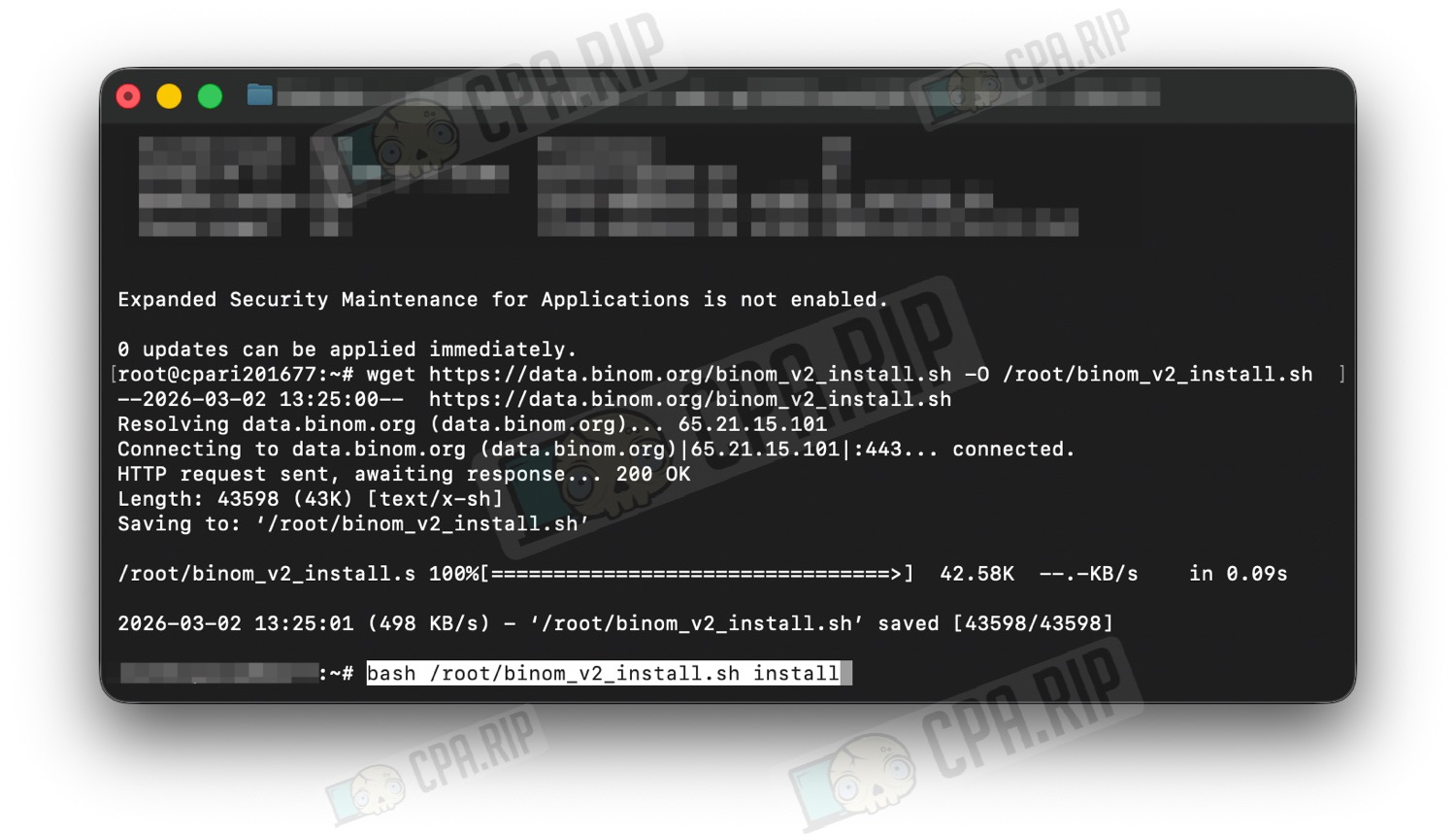
Run the installation command:
bash /root/binom_v2_install.sh install
At the final stage of the installation, enter your email address
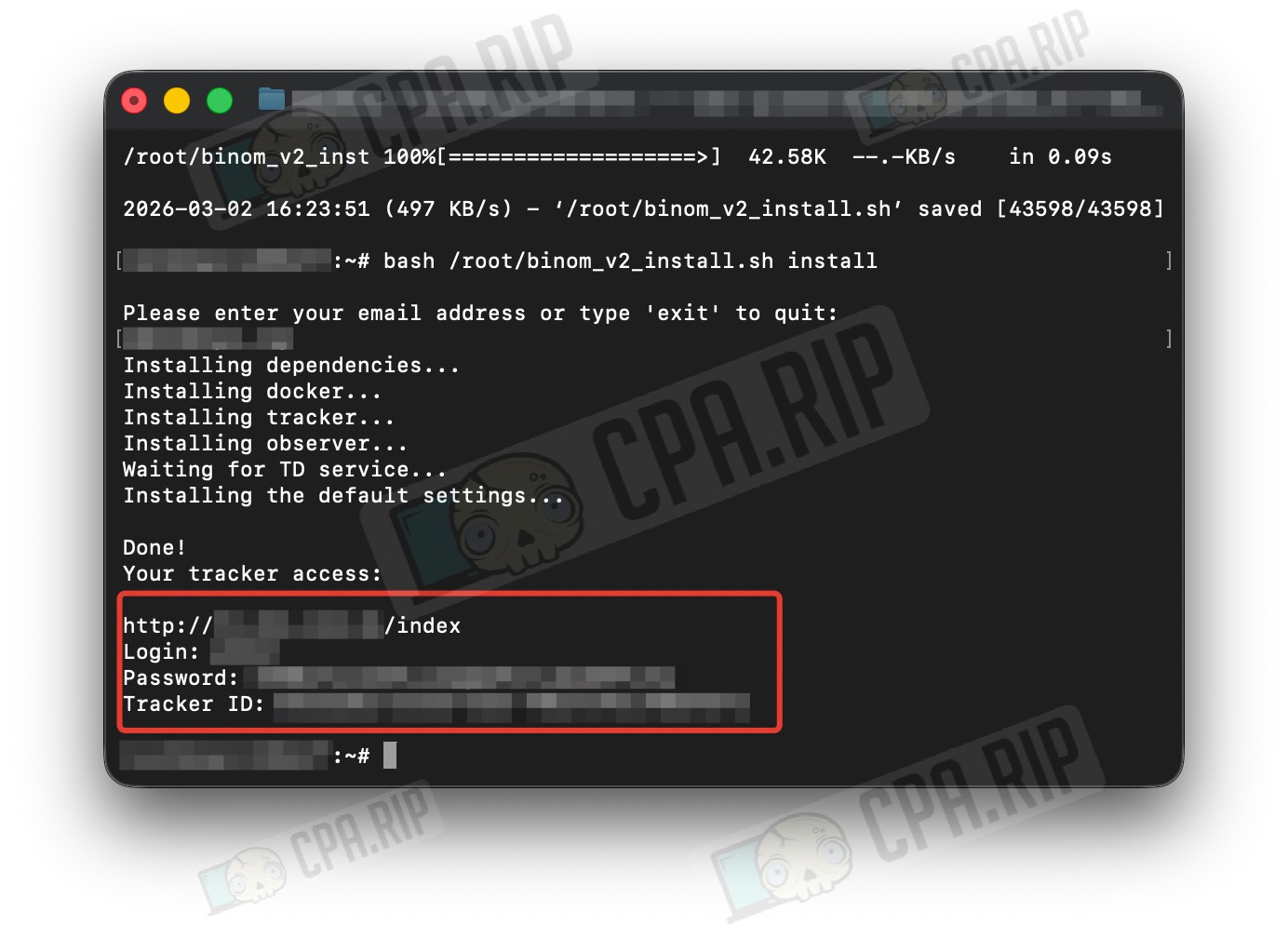
Wait for the installation to complete and make sure you save your login details (these are generated during installation and cannot be recovered)
Follow the link provided to access the tracker. A message will appear stating that there is no licence and no Tracker ID.
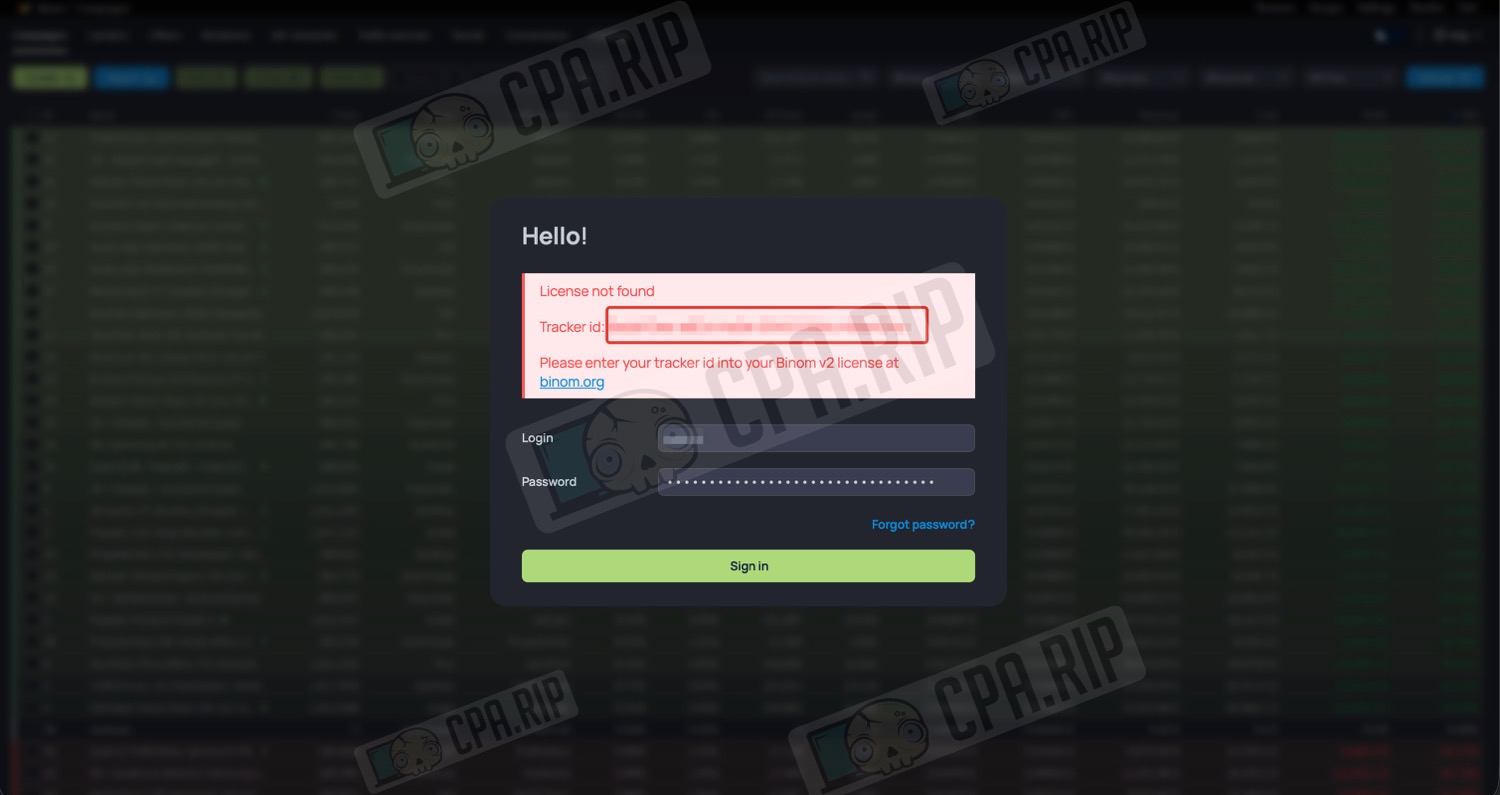
In your account on the Binom website, add the Tracker ID to the licence you have purchased. Then log in to the installed tracker.
Transferring data from Keitaro tracker to Binom v2
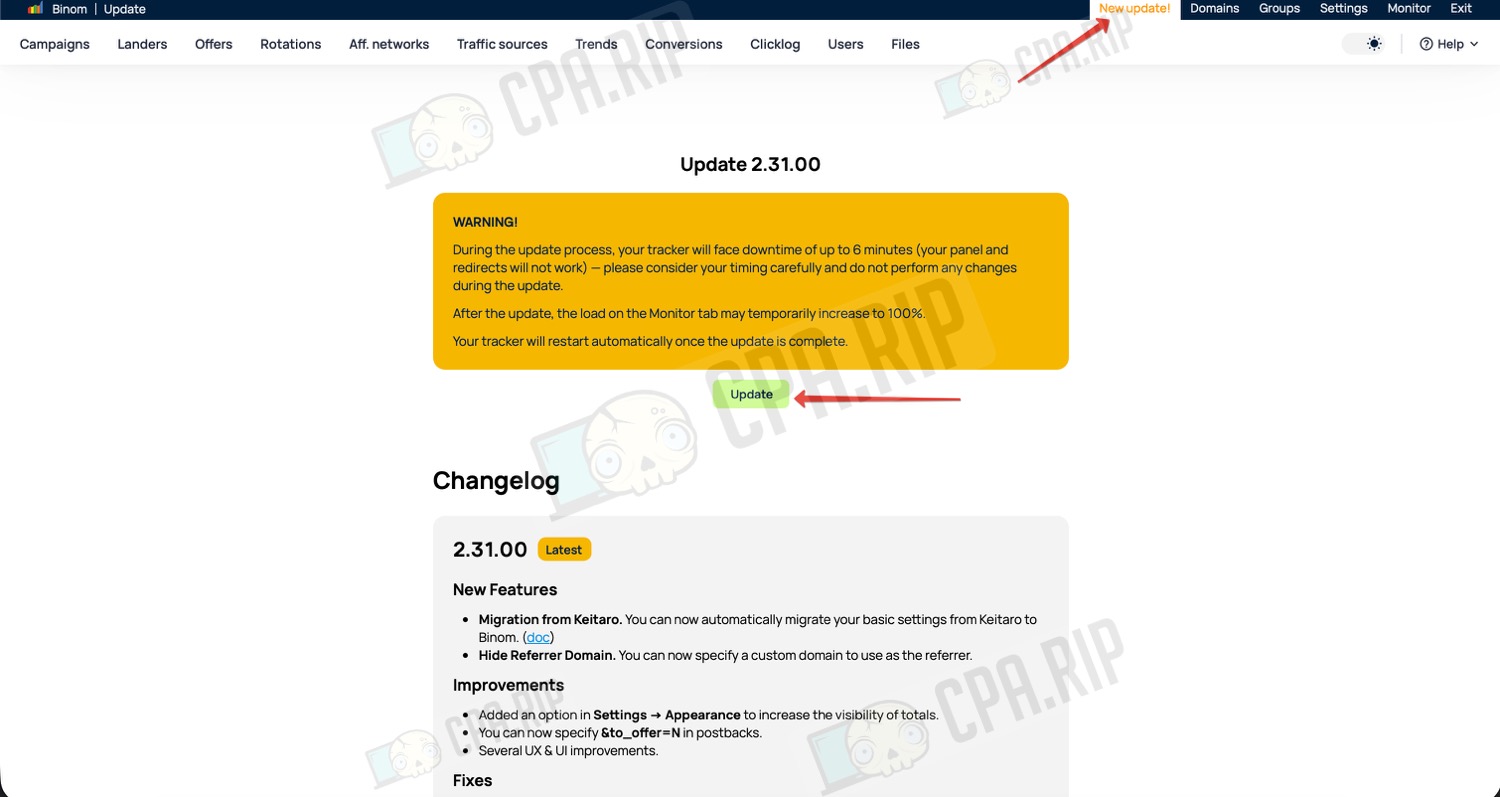
The Binom 2.31.00 update includes a tool for automatic data migration from Keitaro.
The import can only be performed on a clean tracker!
The following will be transferred: campaigns, landing pages, offers, affiliate networks, traffic sources, domains, users, and custom rotations.
Update the tracker to the latest version:
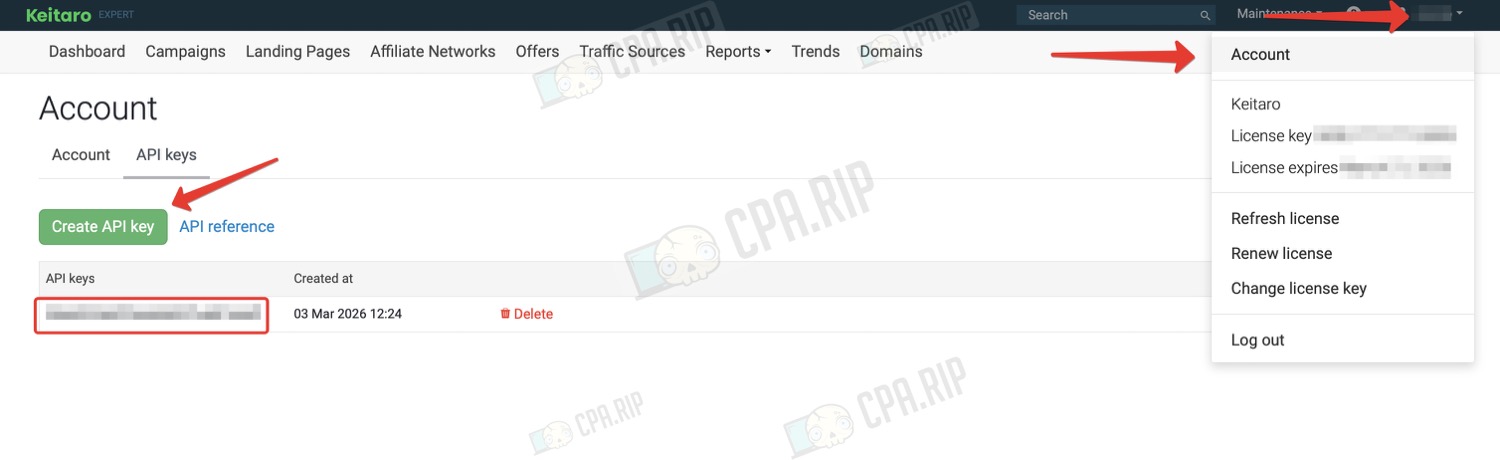
Go to your profile settings in the Keitaro tracker
Create an API key by clicking the ‘Create API key’ button
Copy the key you’ve received:
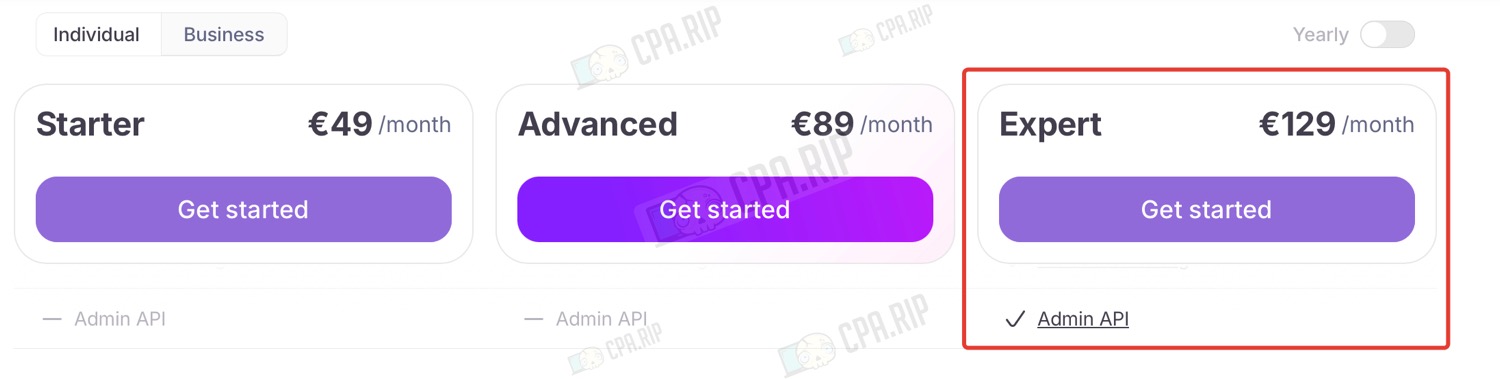
Important: The admin API is only available on the ‘Expert’ plan
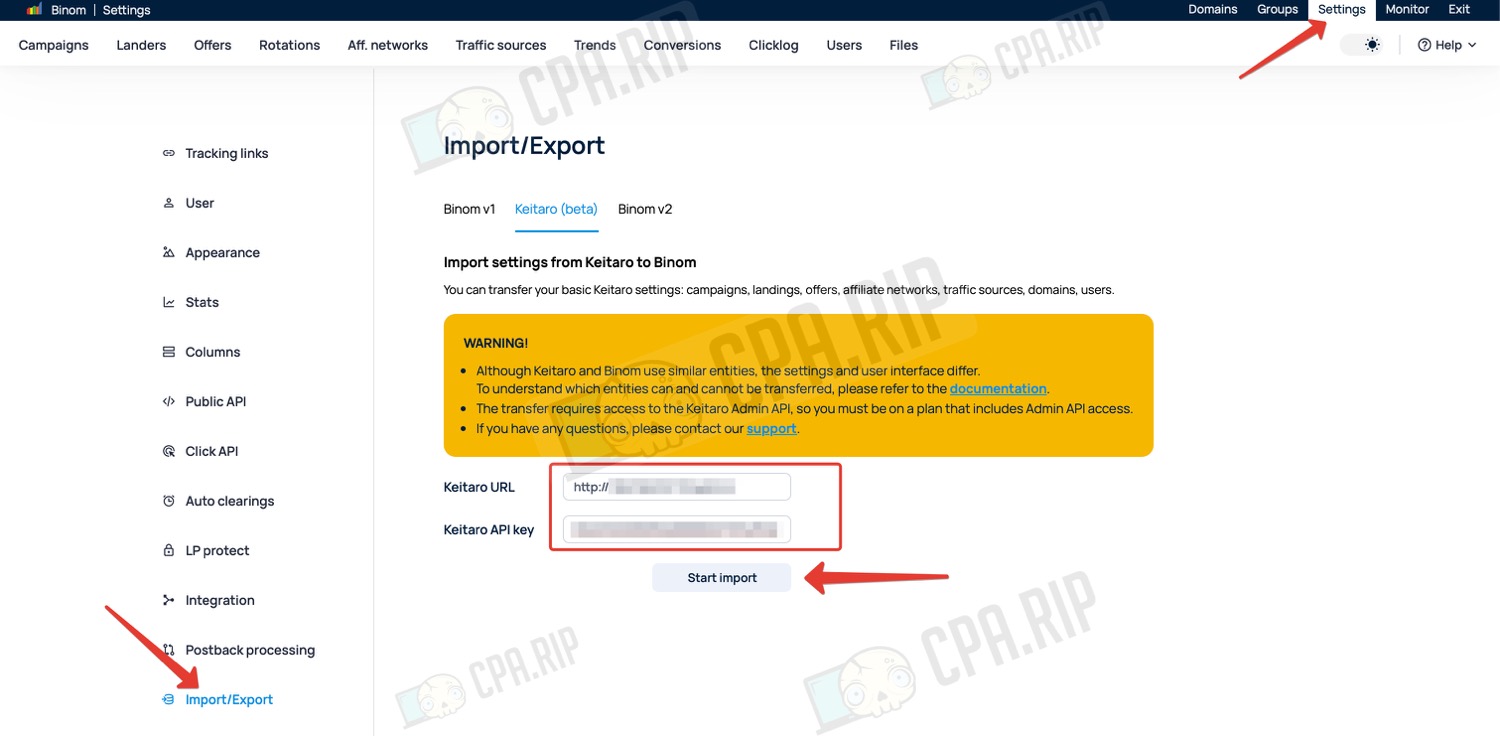
In the Binom tracker, go to the Settings — Import/Export page
Paste the link to your Keitaro tracker and the API key you created earlier
Click ‘Start import’
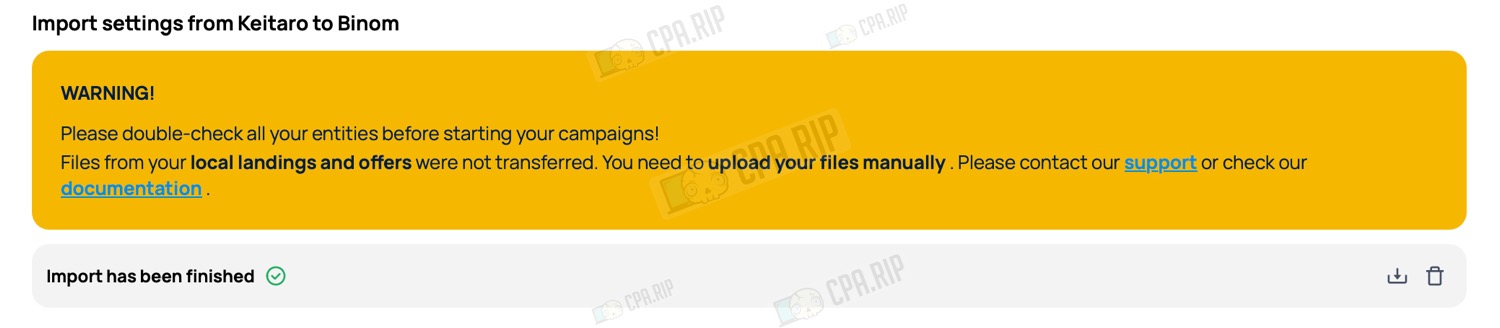
The import process will then begin:

The transfer process took us a few minutes
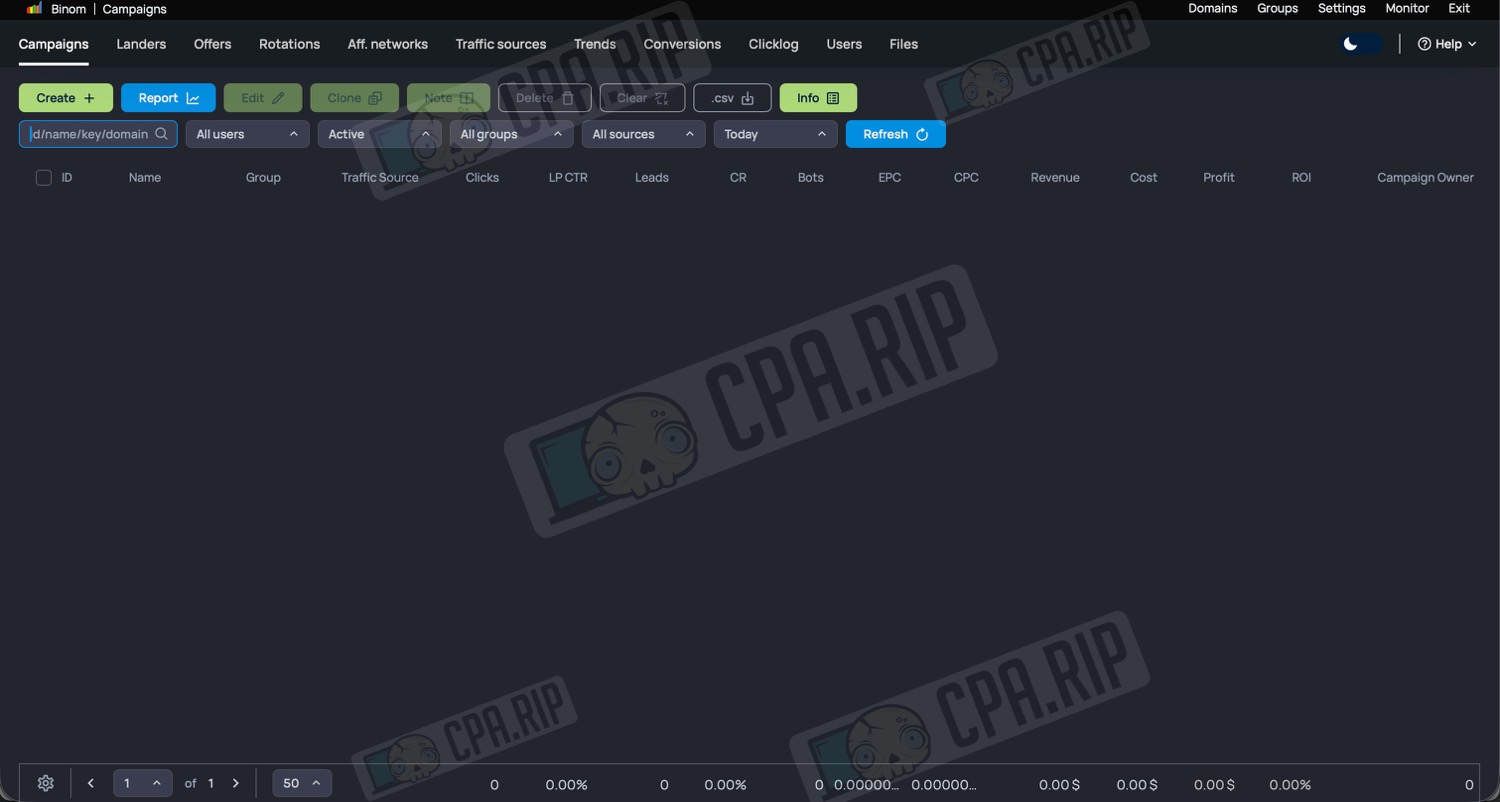
Go to the campaigns tab to see the result:
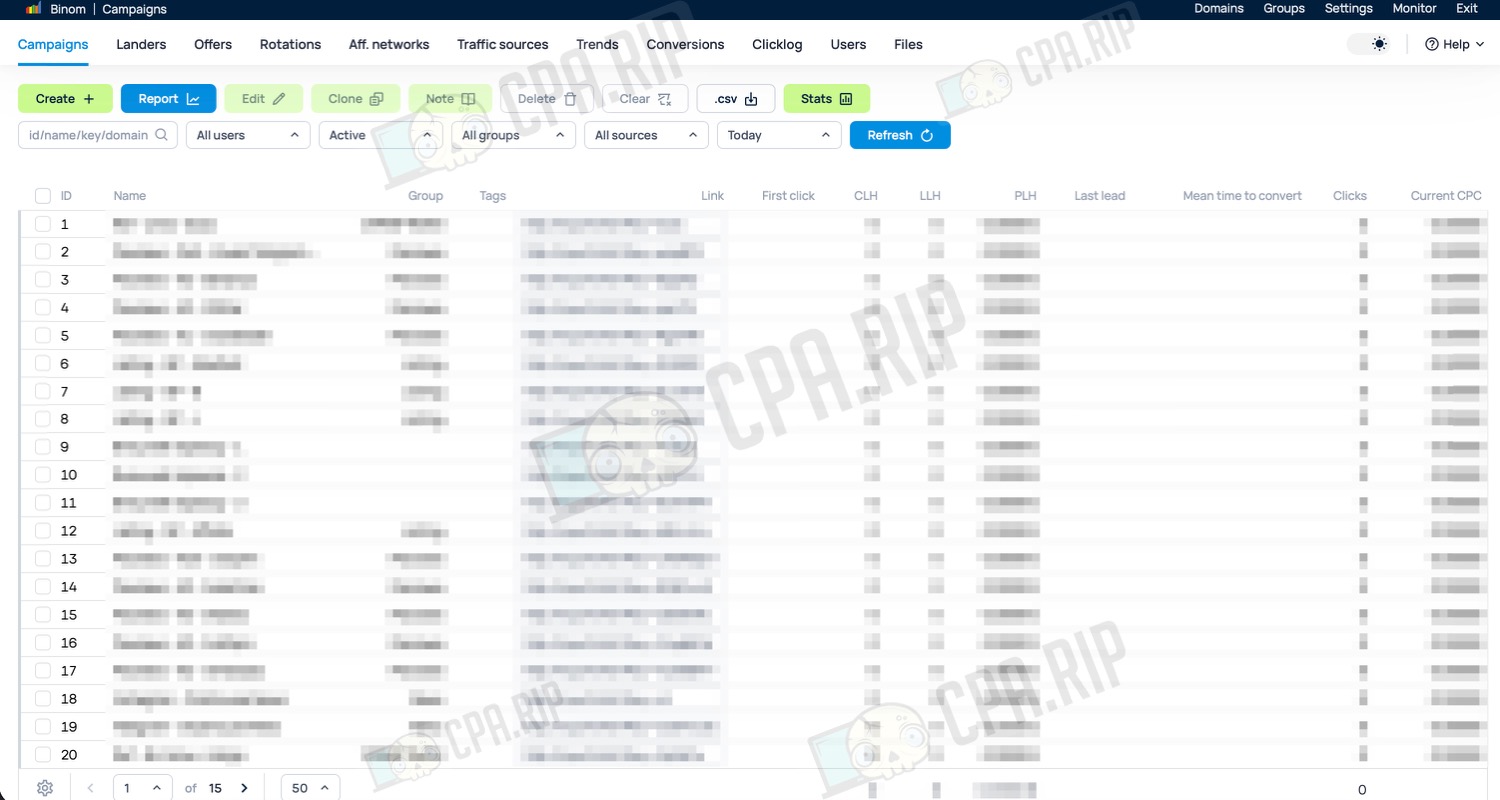
Be sure to check all your objects before launching campaigns!
Binom and Keitaro trackers use similar entities, but there are some nuances regarding the transfer of settings. Be sure to familiarise yourself with them on this documentation page: https://docs.binom.org/import-keitaro-v2.php
Use the promo code CPARIP to get one month of Binom free and a 40% discount on the second month’s payment for new users.