
![[FBM] CARDS](https://cpa.rip/wp-content/uploads/cr-a1/fbm-cards-v1/fbm-cards-logo.svg)


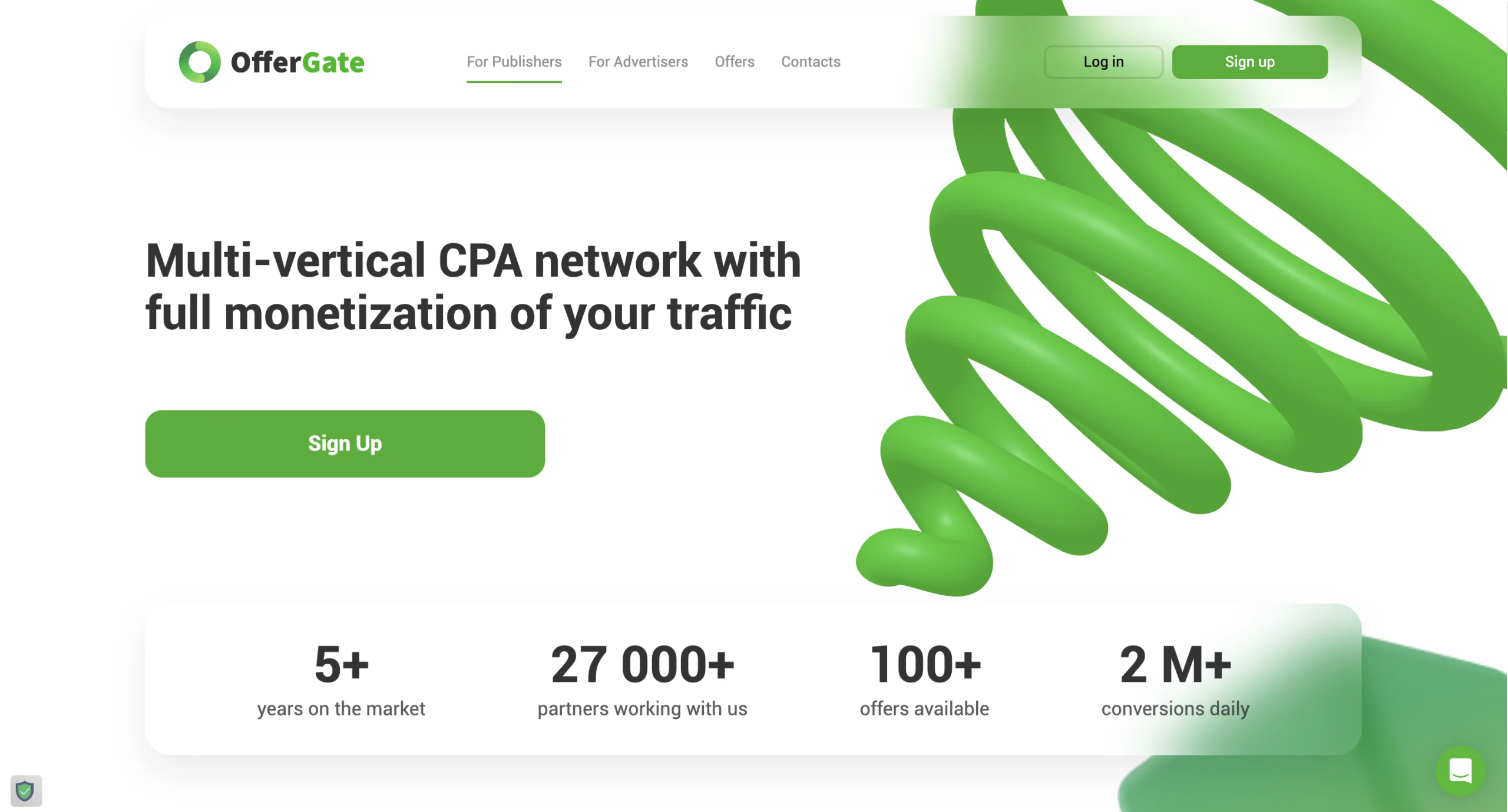
Registration and Getting Started
OfferGate offers fast registration. Go to the affiliate program website and click “Register.” A form will open where you need to complete the required fields:
- Login;
- Email;
- Contact: Telegram or Teams;
- Password.
Be sure to leave a messenger contact to learn about hidden and exclusive offers.
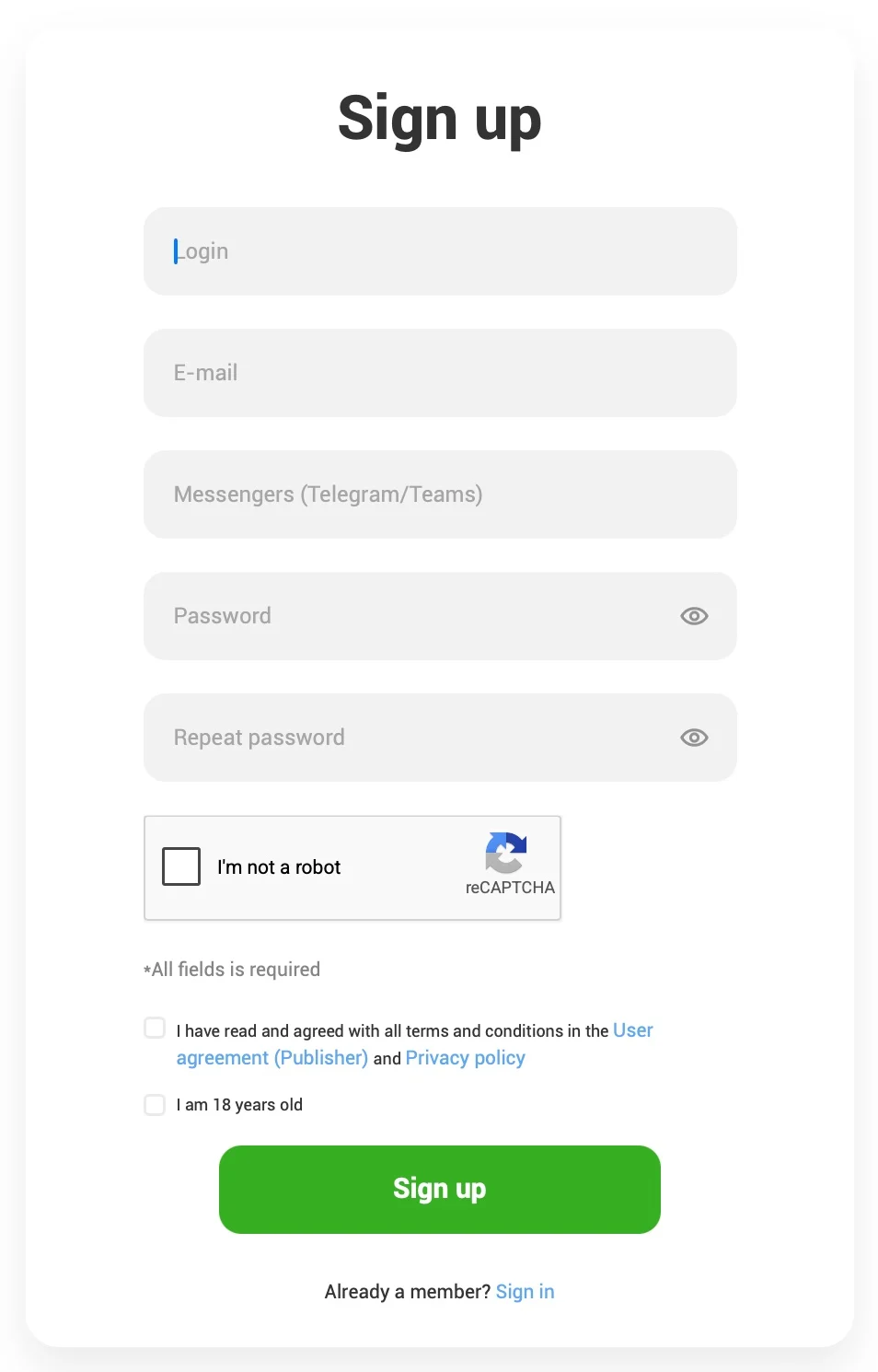
Once you have completed all fields, click “Register.” You will then be redirected to your dashboard, where you will immediately see a notification that you need to add a traffic source to connect offers.
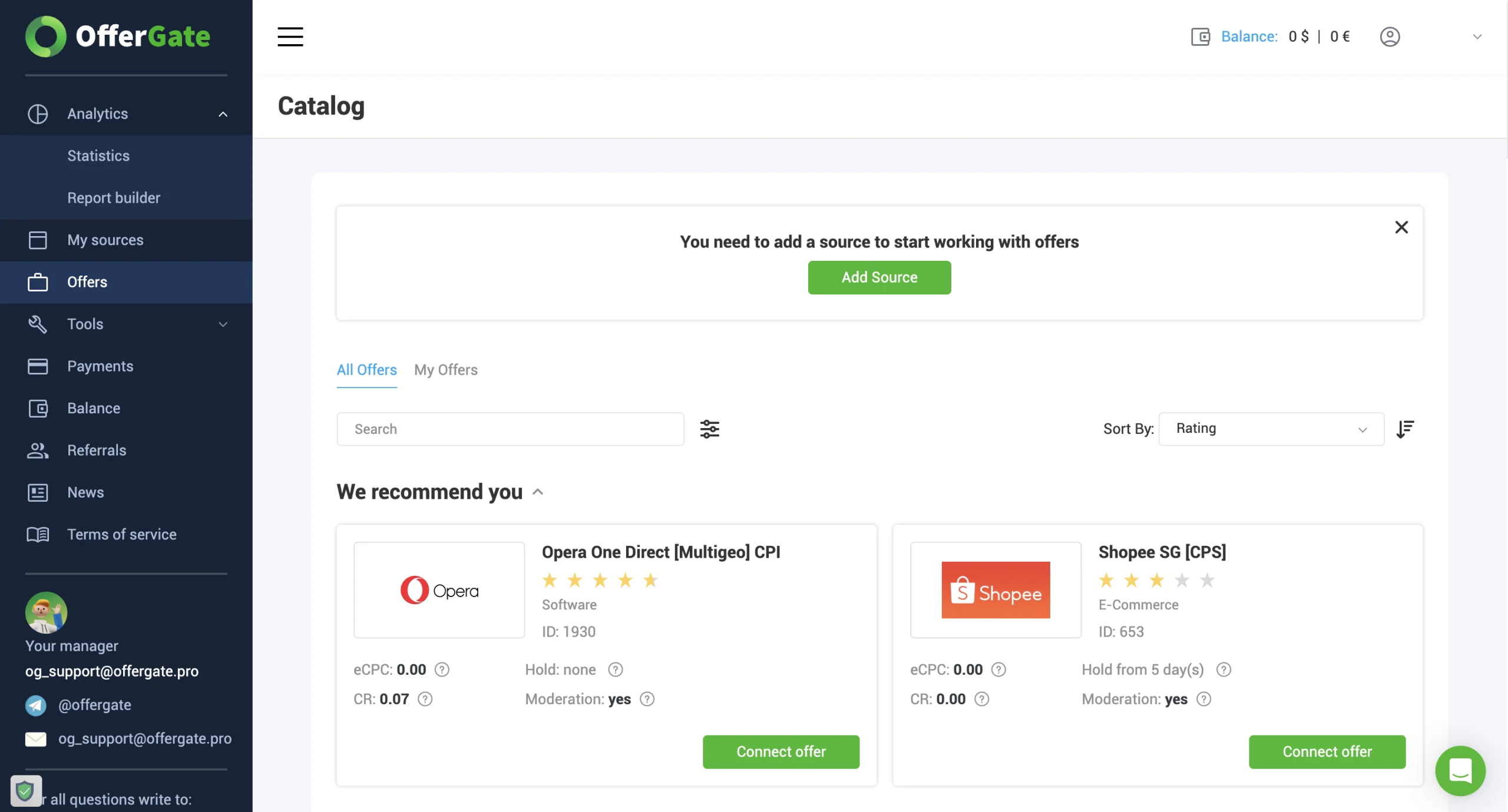
Click “Add Source.” A short form will open. If you plan to drive traffic from your own website, you need to provide the full URL and statistics.
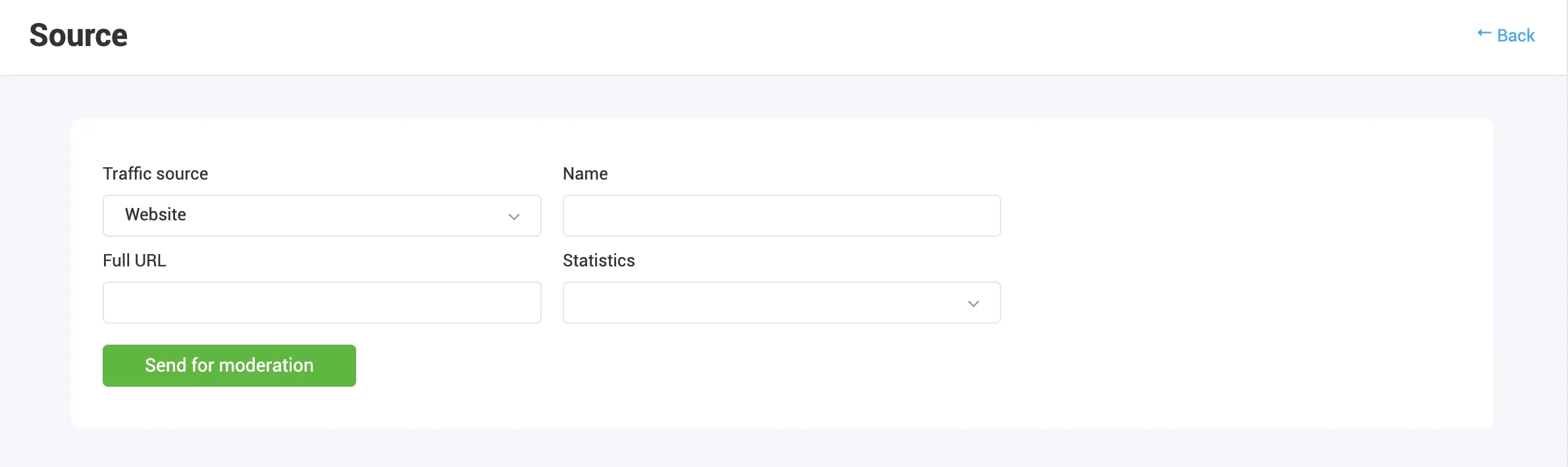
A different form will open for traffic arbitrage. You need to specify the ad network and describe your traffic.
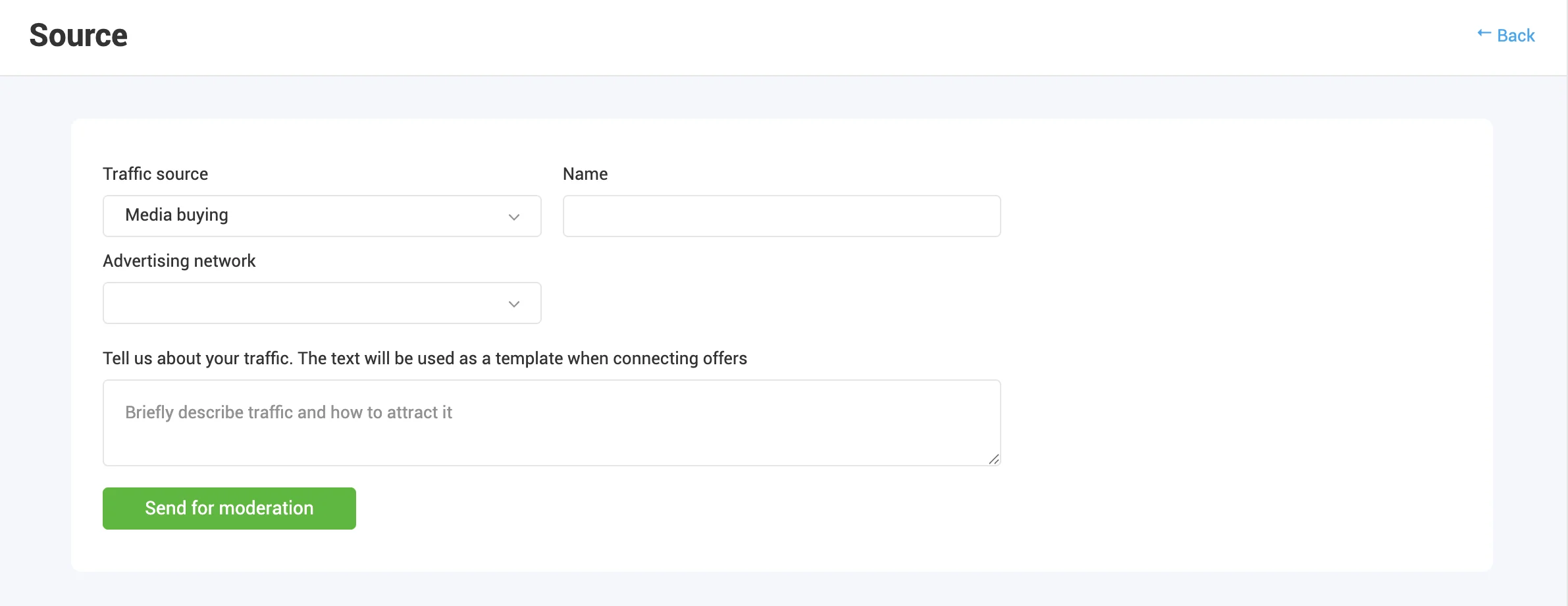
After completing the form, click “Submit for Moderation.” If you work with multiple sources, add each one and submit it for moderation. A manager usually reviews a source within 2 hours, though verification is often faster. If there are any questions, they will contact you using the details provided. The source will then be approved.
Available Offers
The affiliate program features e-commerce, software, games, and mobile app offers. Exclusive and hidden offers are also available. To view CPA offers available for promotion, go to the relevant page.
The “Offers” page lists recommended offers and all available offers. Connected products are displayed in a separate section.
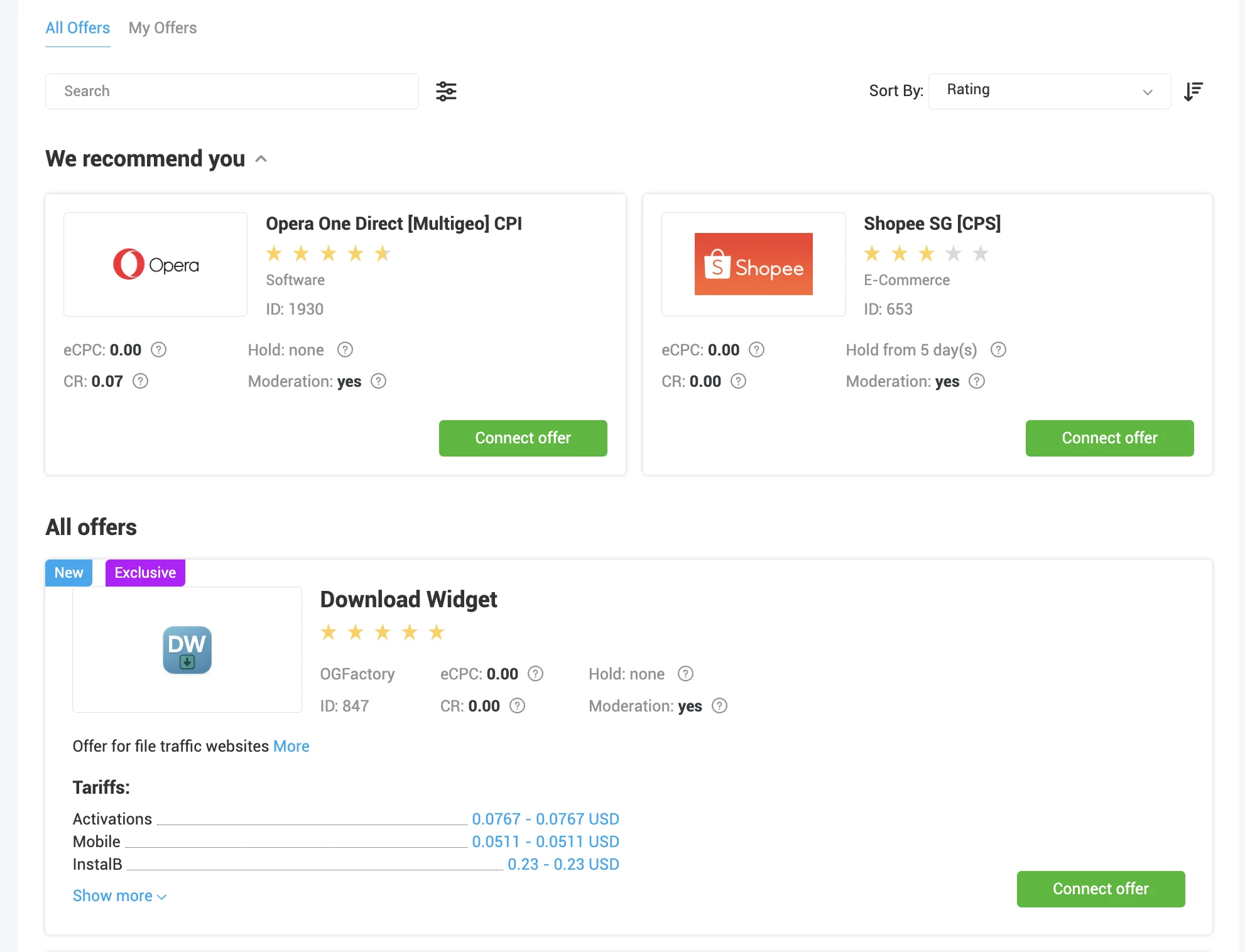
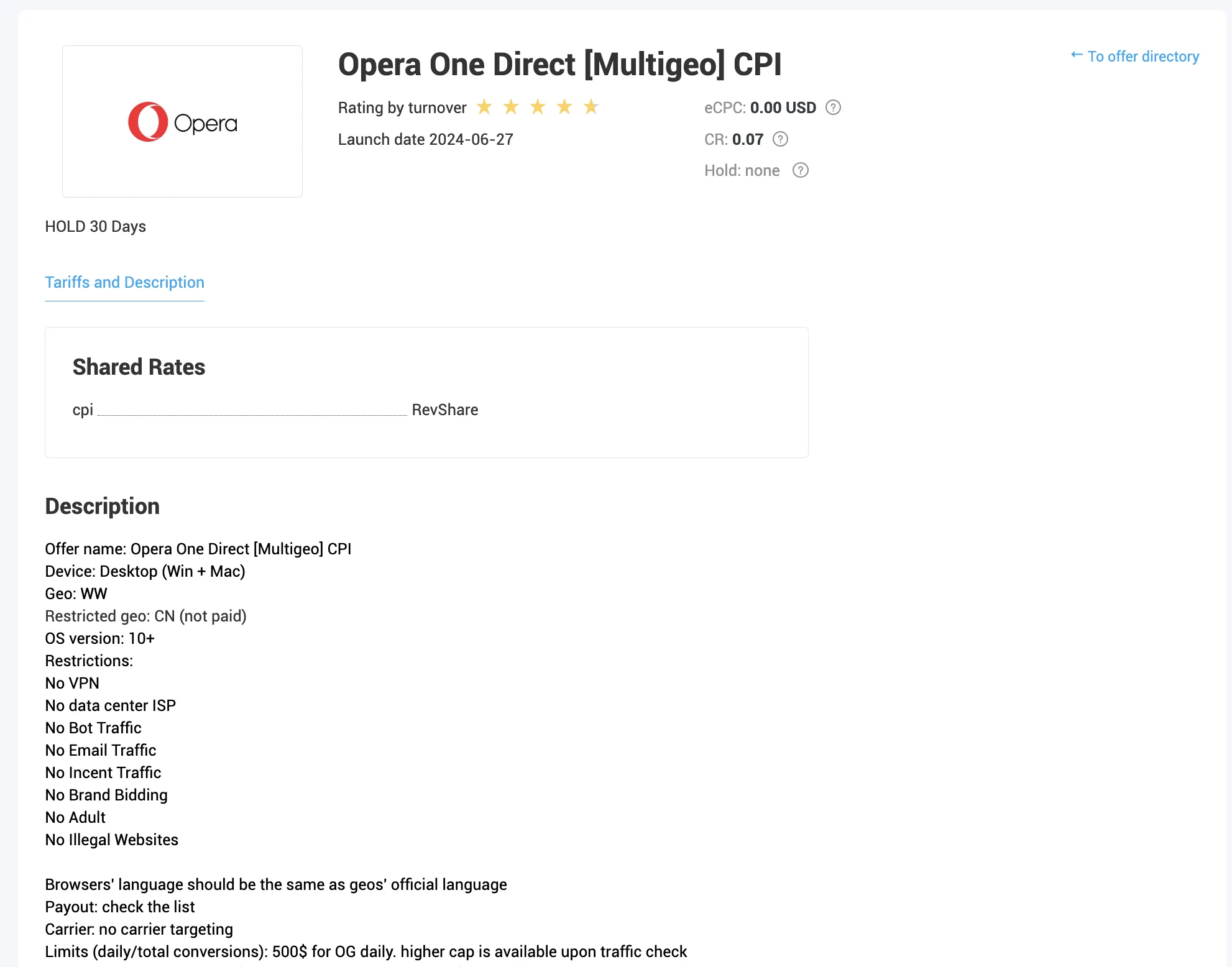
In the general list, each offer displays its name, short description, payout rates, average CPC, and CR metrics. To view detailed terms, open the offer card. For example, let’s open the “Opera One Direct [Multigeo] CPI card.
In addition to general information, the card includes a detailed description: devices, OS version, GEOs, restrictions, and more. Note that the information in the card depends on the specific product.
To get started, submit a connection request. Select a source and click “Connect Source.” In the form that opens, explain how you plan to drive traffic and submit the request for moderation.
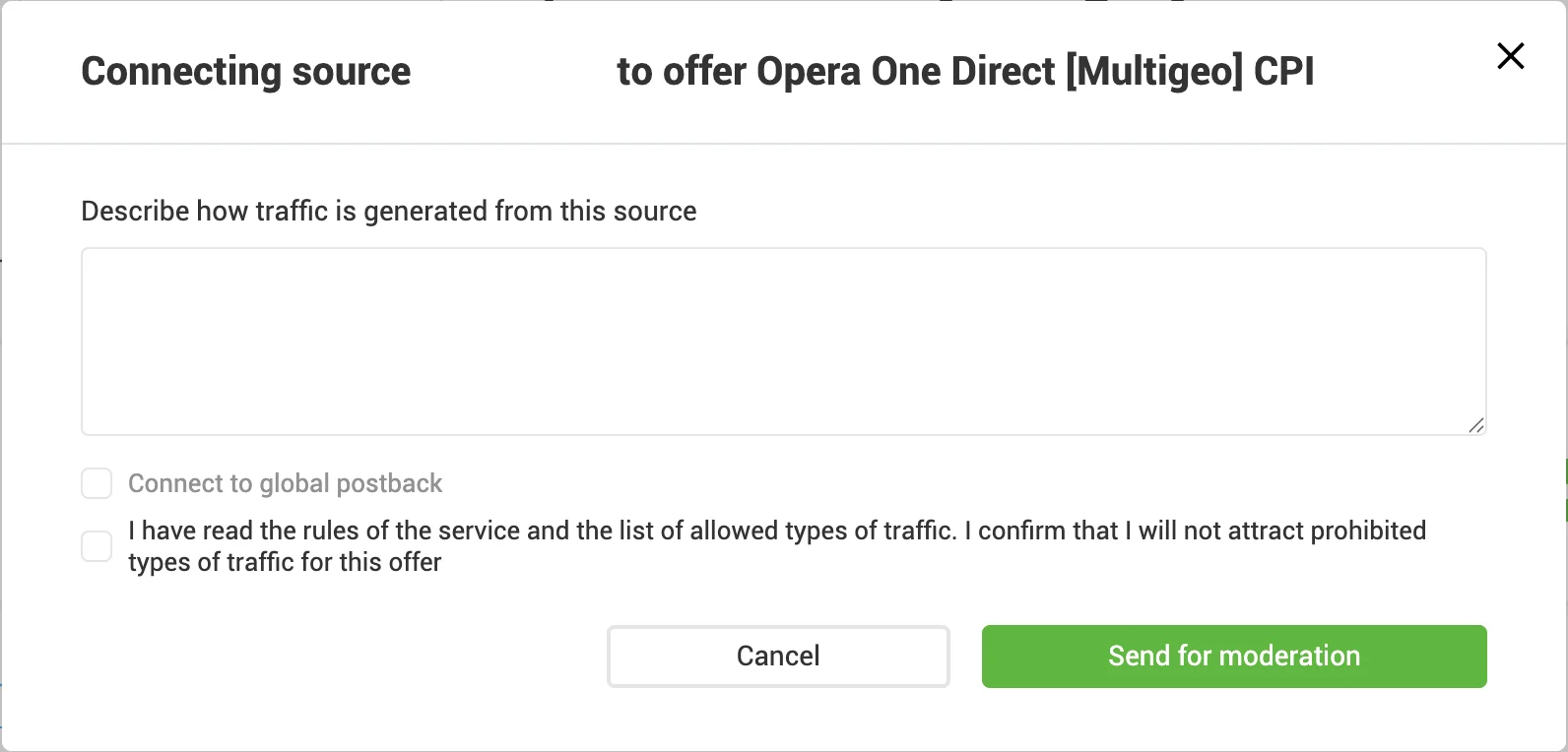
A manager will review the request and connect the offer. You can then generate an affiliate link. To do this, open “Offers,” then “My Offers,” and go to the card of the desired product. In the “Landings” section, you can select a landing page and get the link.
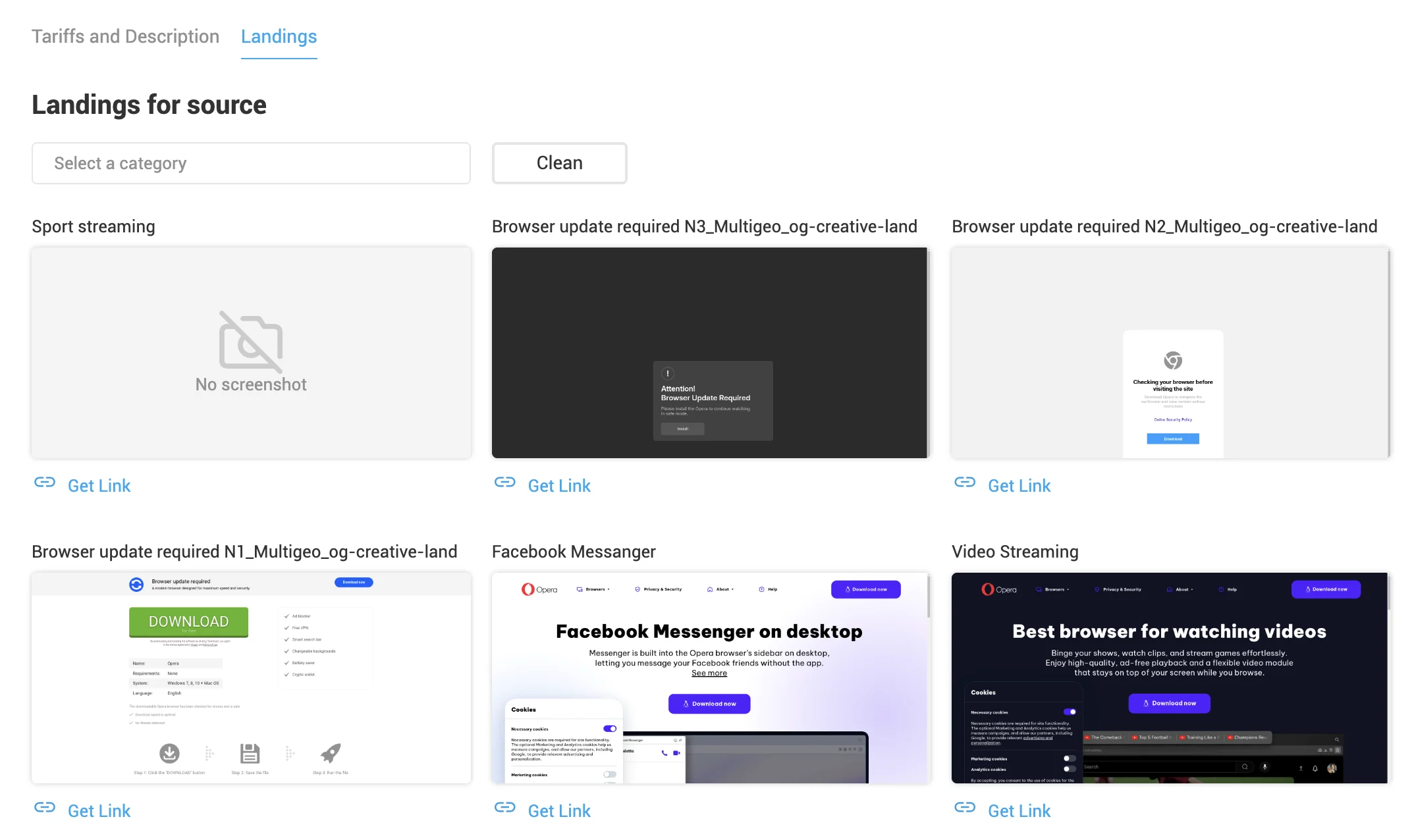
The OfferGate CPA network has ready-made landing pages where you can send traffic. Depending on your traffic source and approach, you can select a suitable landing page. To view the full version, hover over the icon and click “Show Landing.”
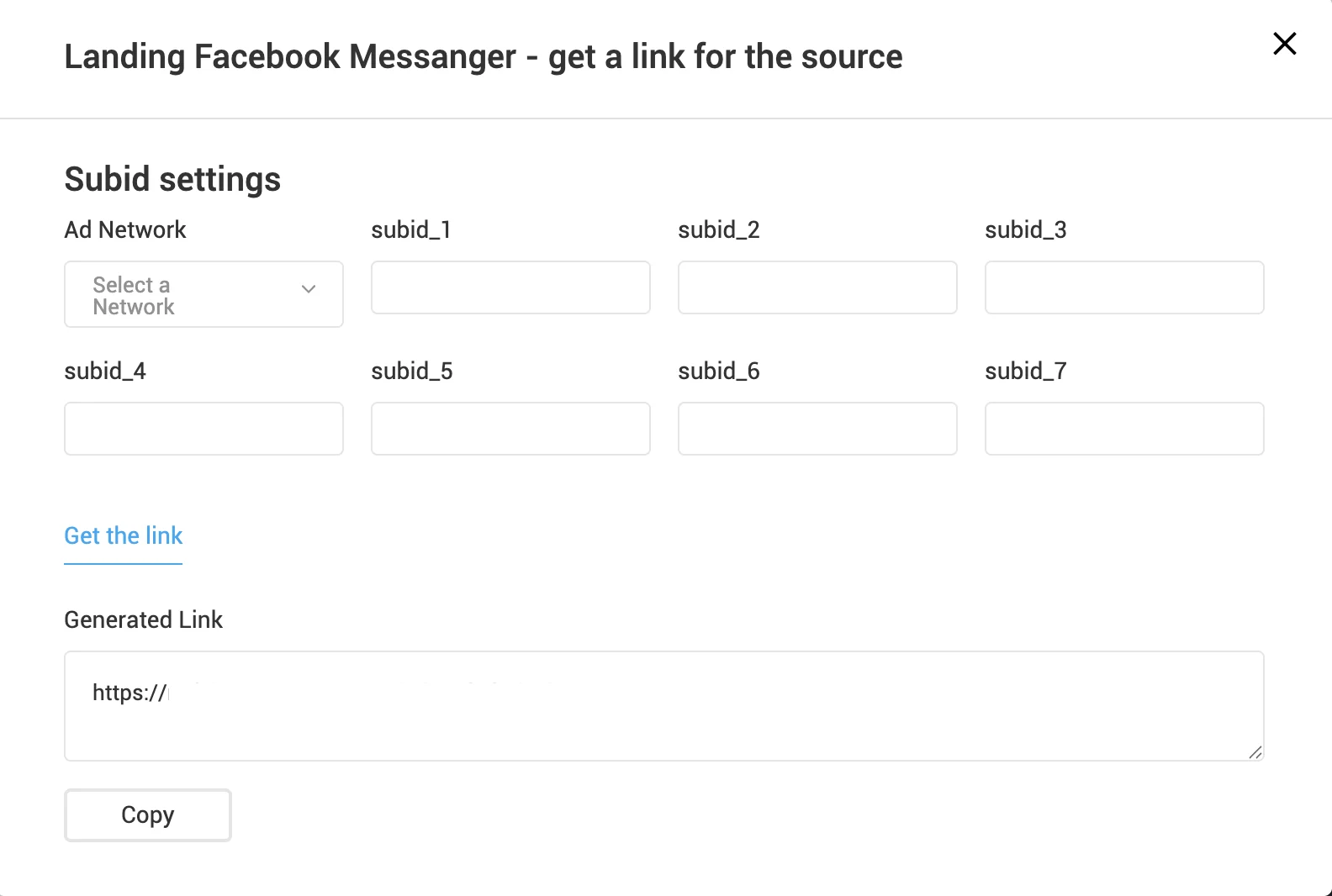
Click “Get Link” to add UTM tags and copy the link.
Statistics
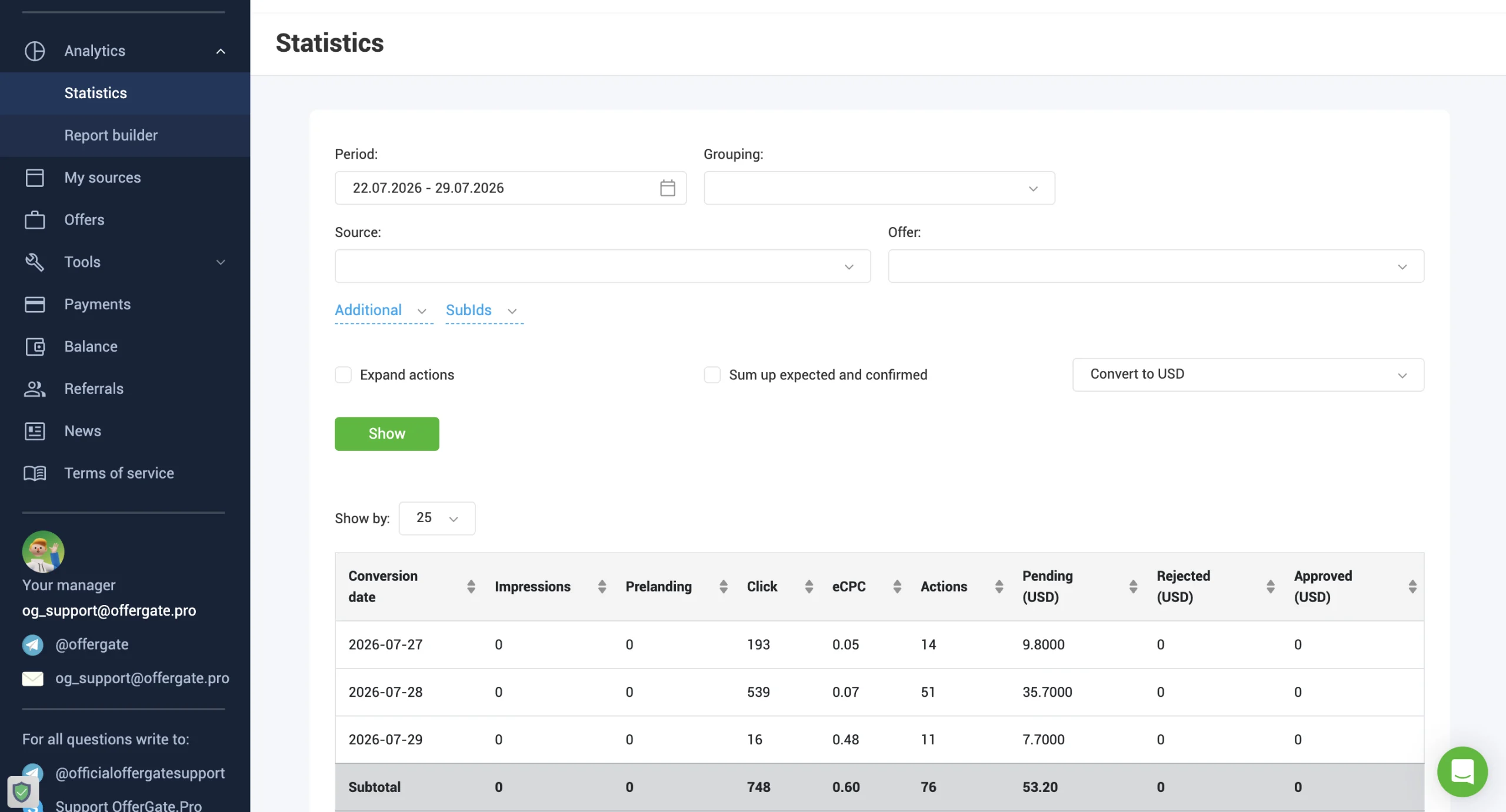
After launching ad campaigns and receiving traffic, you can track results on the “Statistics” page. Statistics are displayed by date by default, but you can filter the data by source, offer, landing page, and other parameters.
Displayed data:
- Date;
- Impressions;
- Pre-lander;
- Clicks;
- eCPC;
- Actions;
- Pending (USD);
- Declined (USD);
- Approved (USD).
Setting Up Postback in OfferGate
To analyze and optimize ad campaigns, you can connect a postback. OfferGate provides ready-made templates for popular trackers. Let’s review how to add a postback using the Keitaro tracker as an example.
Open Keitaro, go to the “Affiliate Networks” section, and click “Create.” Type “OfferGate” in the dropdown menu and select the template. The system will automatically fill in all values.
There are two types of postback available here: a local postback for specific cases and a global postback that works across all offers and sources.
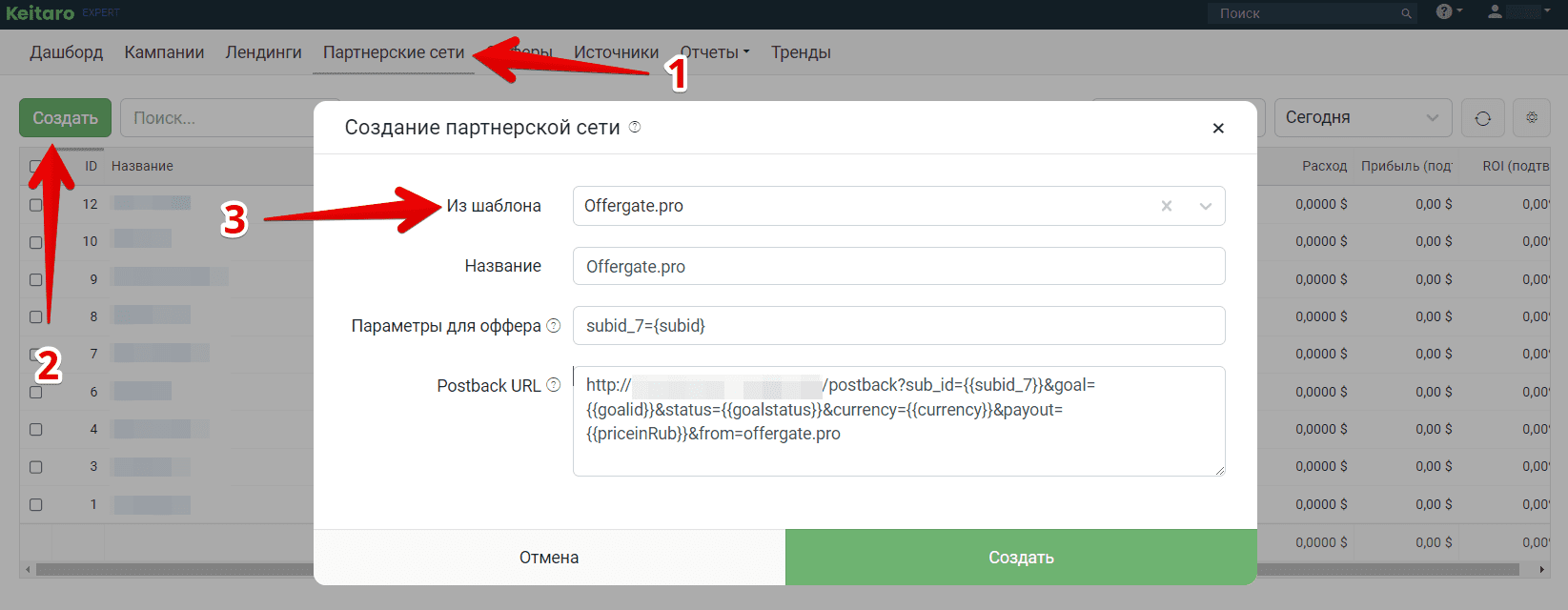
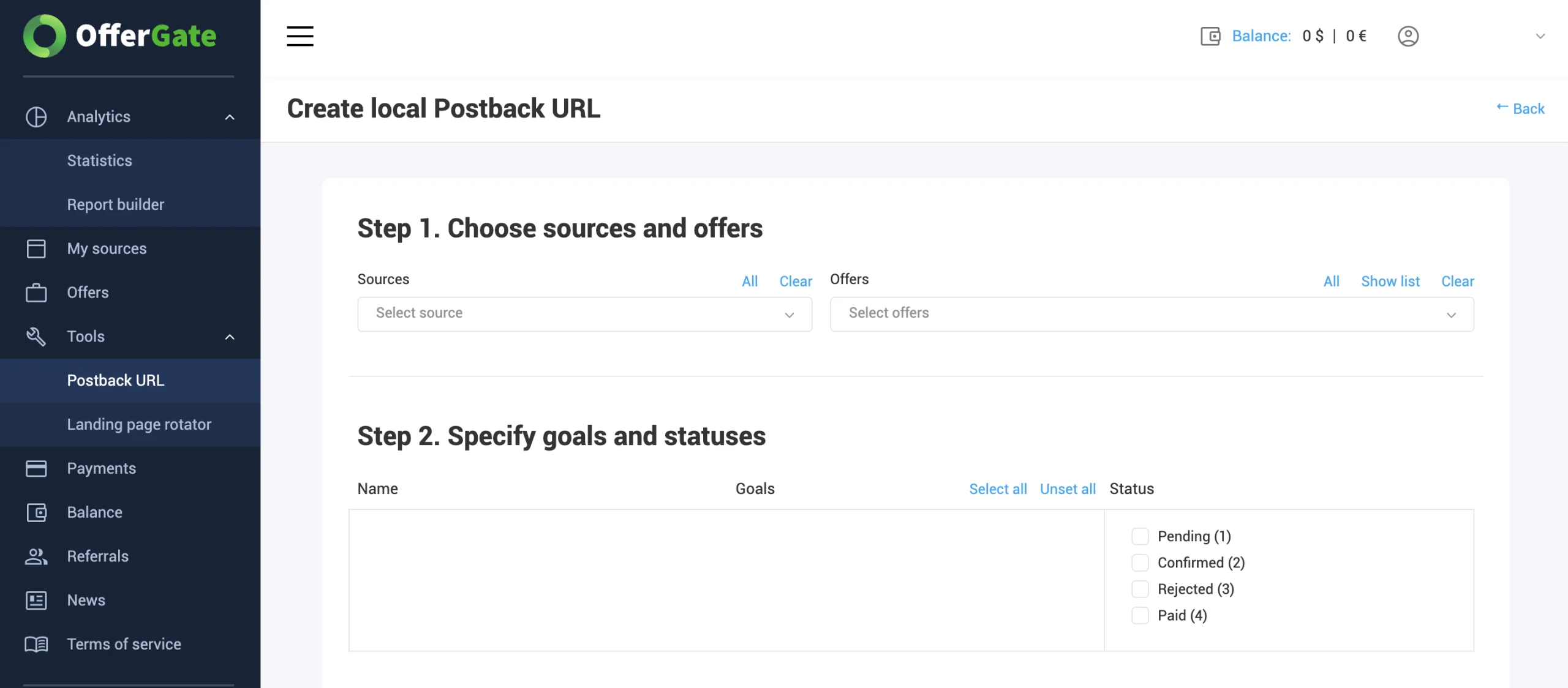
Copy the Postback URL and click “Create.” The affiliate network will be added to the tracker. Then open the CPA network dashboard, go to the “Postback” page, and click “Add.”
At the first step, specify the sources and offers for which you are setting up the postback. The name and goals in the second step are filled in automatically. You need to specify the statuses that will be sent to the tracker.
At the third step, paste the Postback URL and, if needed, add macros from the list.
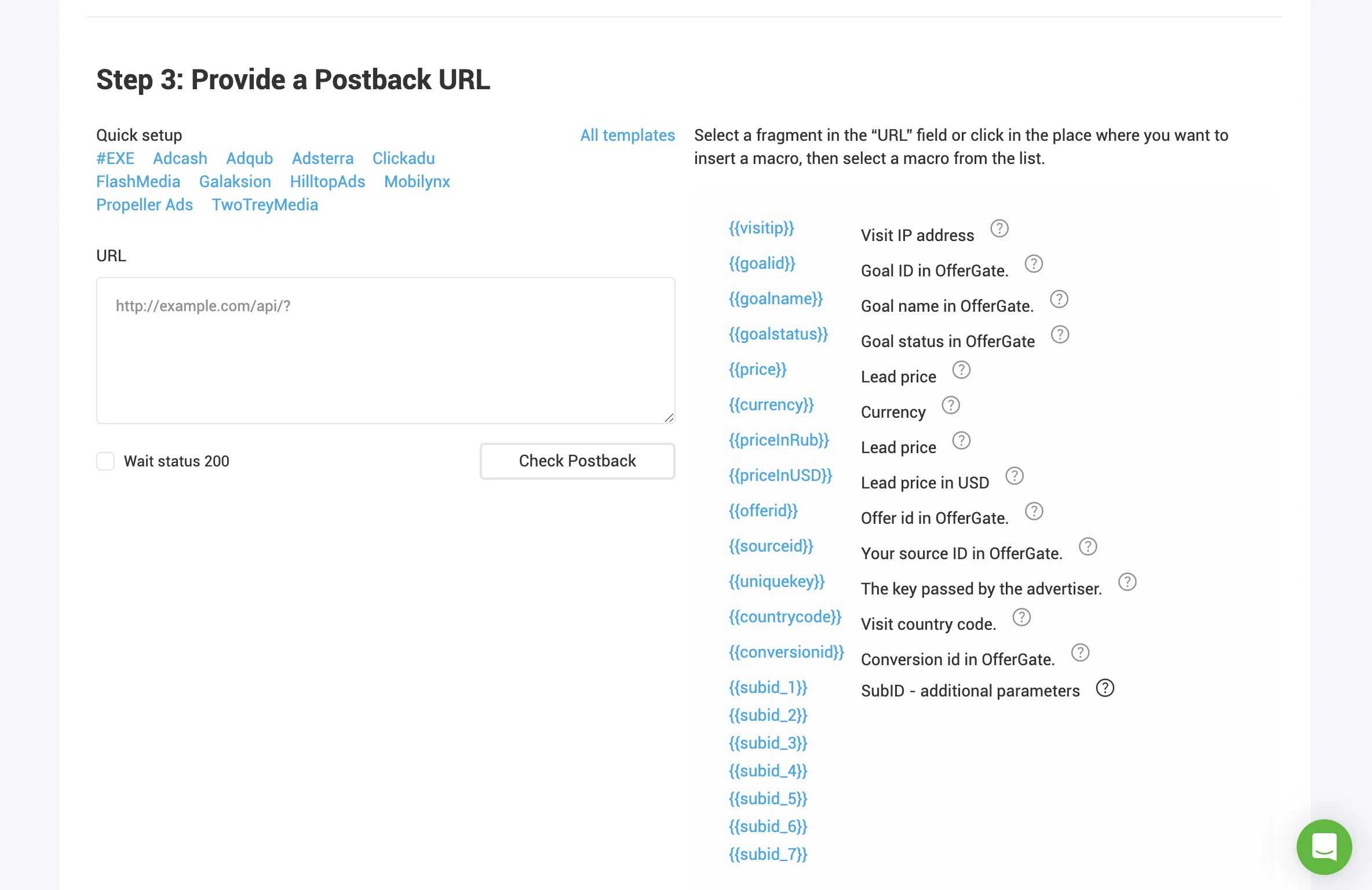
Check the postback and click “Save.”
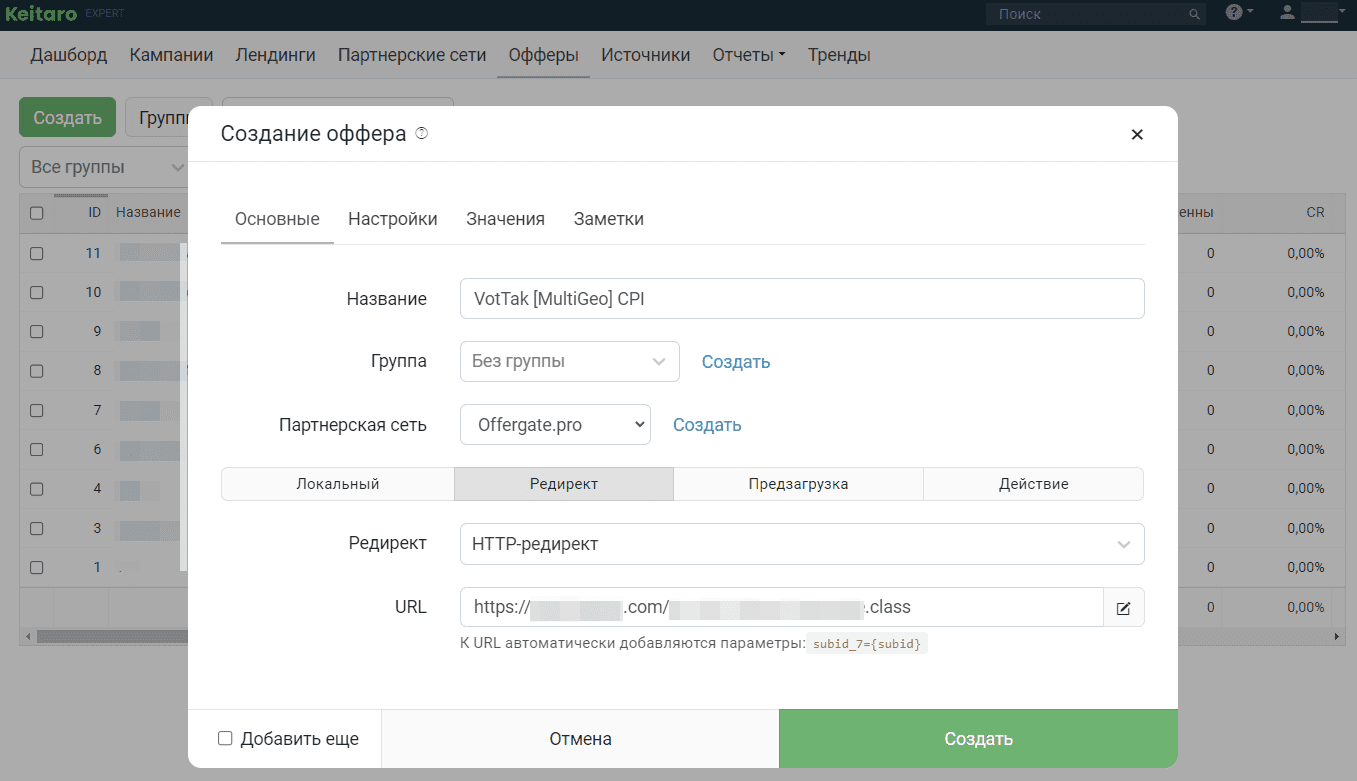
Return to the tracker and add the offer. To do this, open “Offers” and click “Create.” Enter a name, select the affiliate network, and paste the URL (copy it from the OfferGate offer card). Click “Create.”
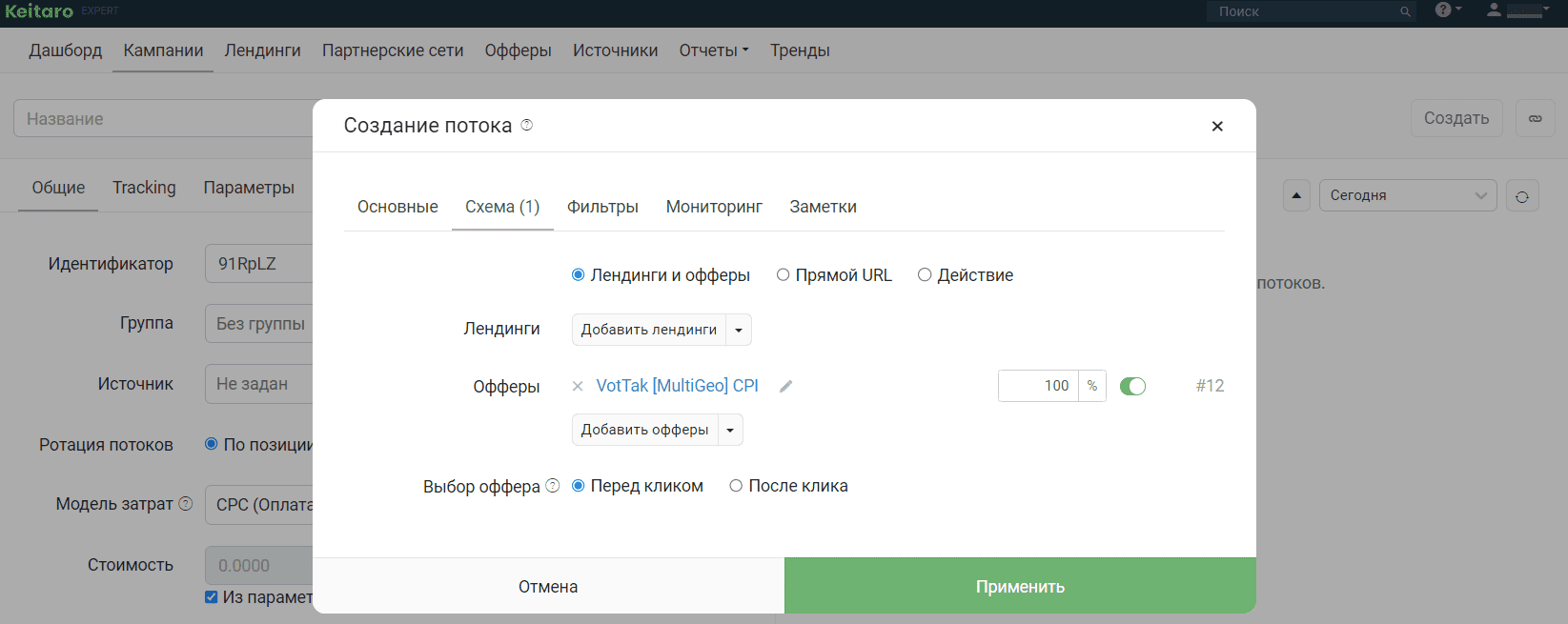
The final step is to create a campaign. Open the “Campaigns” section and click “Create.” Enter a name and create a stream. In the stream creation form, go to “Schemes” and select offers. Click “Apply” and create the campaign.
The “Tracking” section of the created campaign contains an affiliate link that can be used to promote offers. Check the postback before getting started.
Payouts
Minimum payout: $20.
Hold: from 0 to 30 days.
Payment systems:
- Bank Transfer;
- Paxum;
- Capitalist;
- USDT;
- WebMoney.
Technical Support and Social Media
The affiliate program does not require account moderation, although managers may conduct additional checks in some cases. If you encounter difficulties at any stage, you can contact technical support. Support usually responds instantly.
Contacts:
- Personal manager contact details
- Email: og_support@offergate.pro
- Teams: live:offergate
- Telegram chat: https://telegram.me/offergate_chat
Social media:
- LinkedIn: linkedin.com/company/offergate-pro
- Instagram: instagram.com/offergate
- Facebook: facebook.com/official.offergate
Register with the OfferGate affiliate program.