

![[FBM] CARDS](https://cpa.rip/wp-content/uploads/cr-a1/fbm-cards-v1/fbm-cards-logo.svg)




Different ways to transfer a Fan Page to another Facebook or Business Manager account with step-by-step instructions.
Transfer Fan Page to Facebook account
- Select the Fan Page you want to transfer.
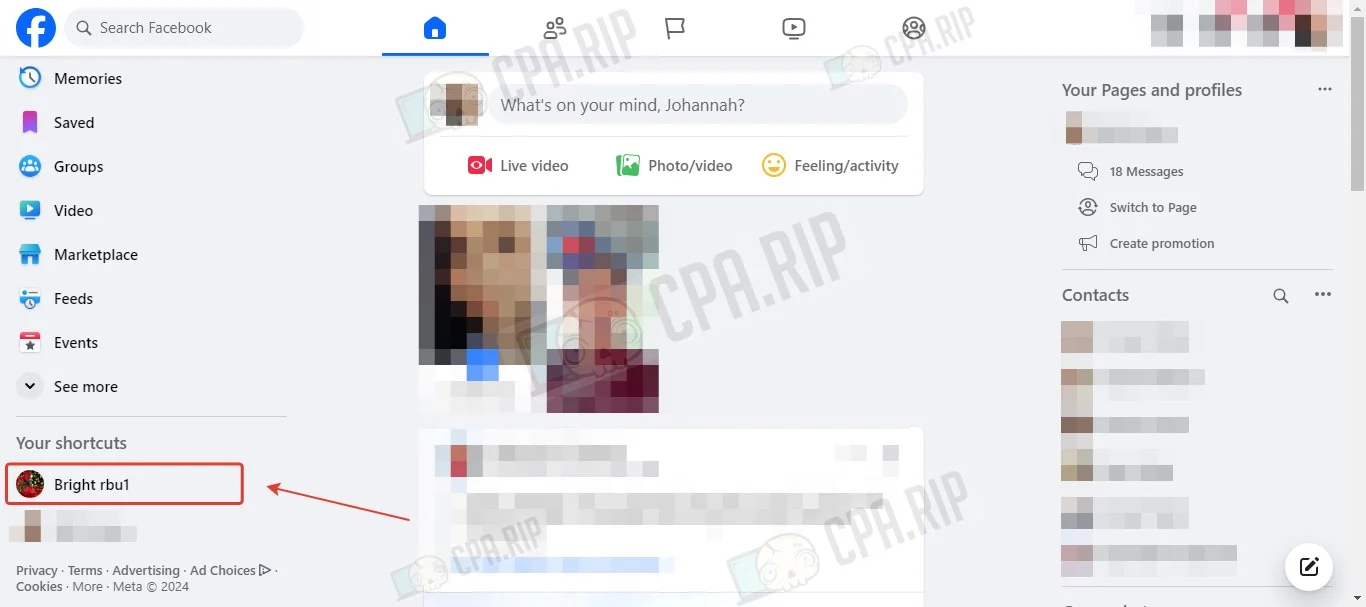
- Click “Switch Now”.
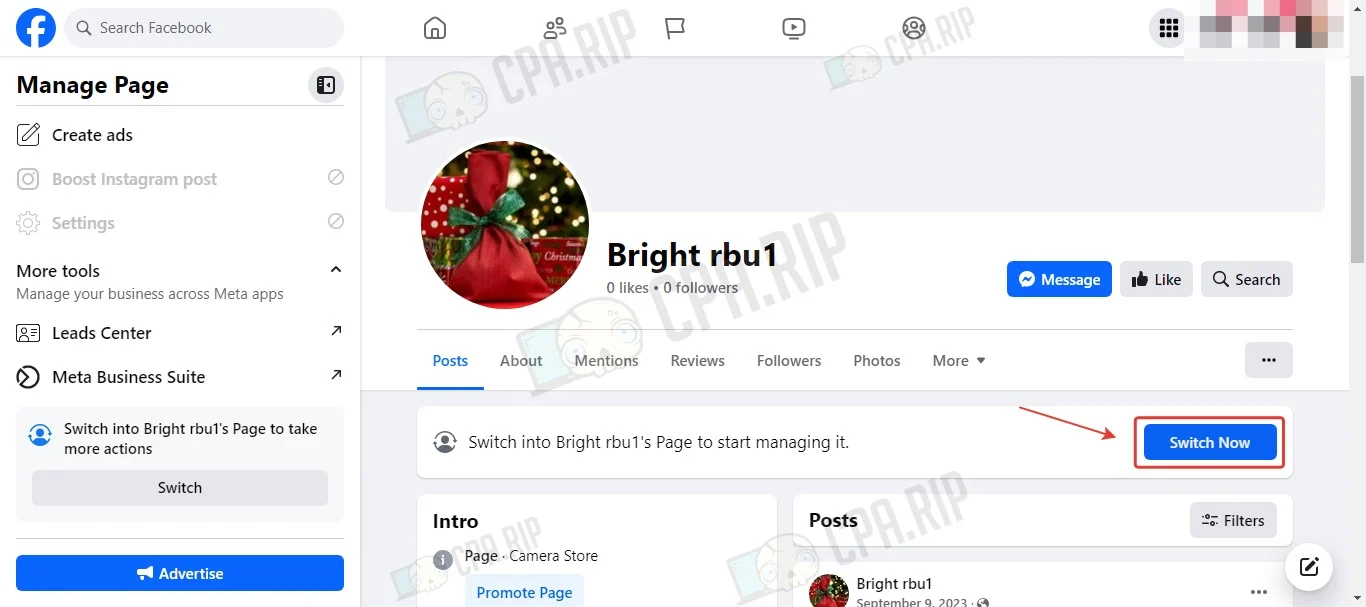
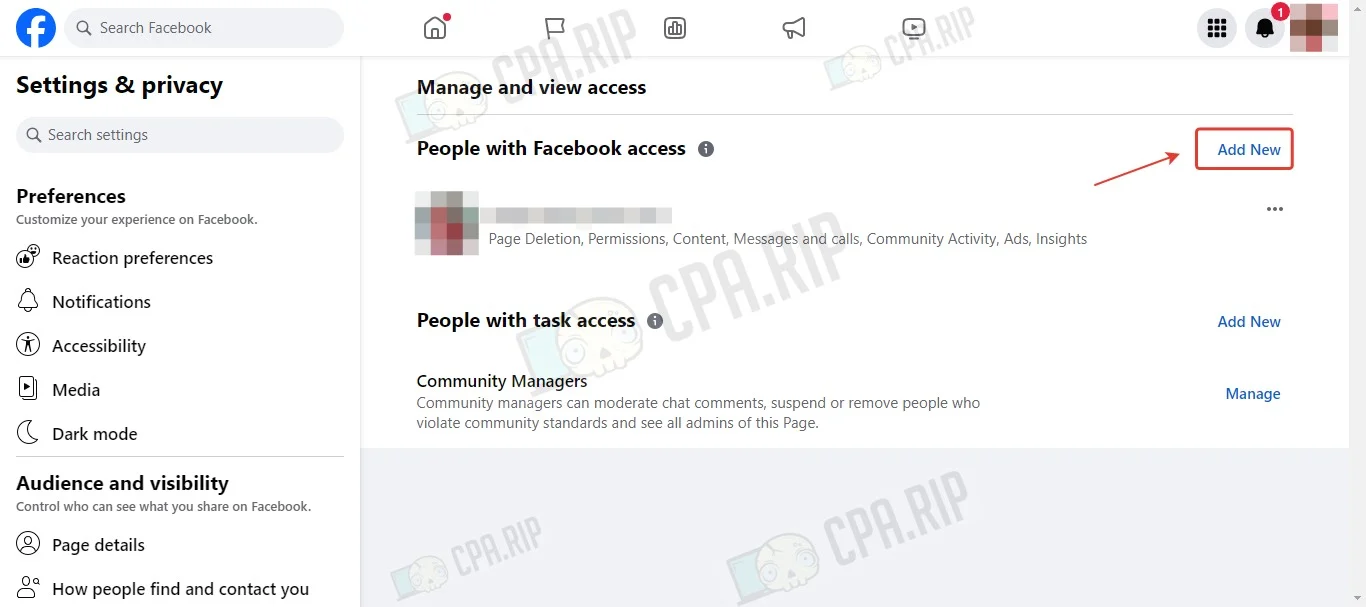
- Follow the link https://www.facebook.com/settings/?tab=profile_access.
- Click “Add New”.
- Click “Next”.
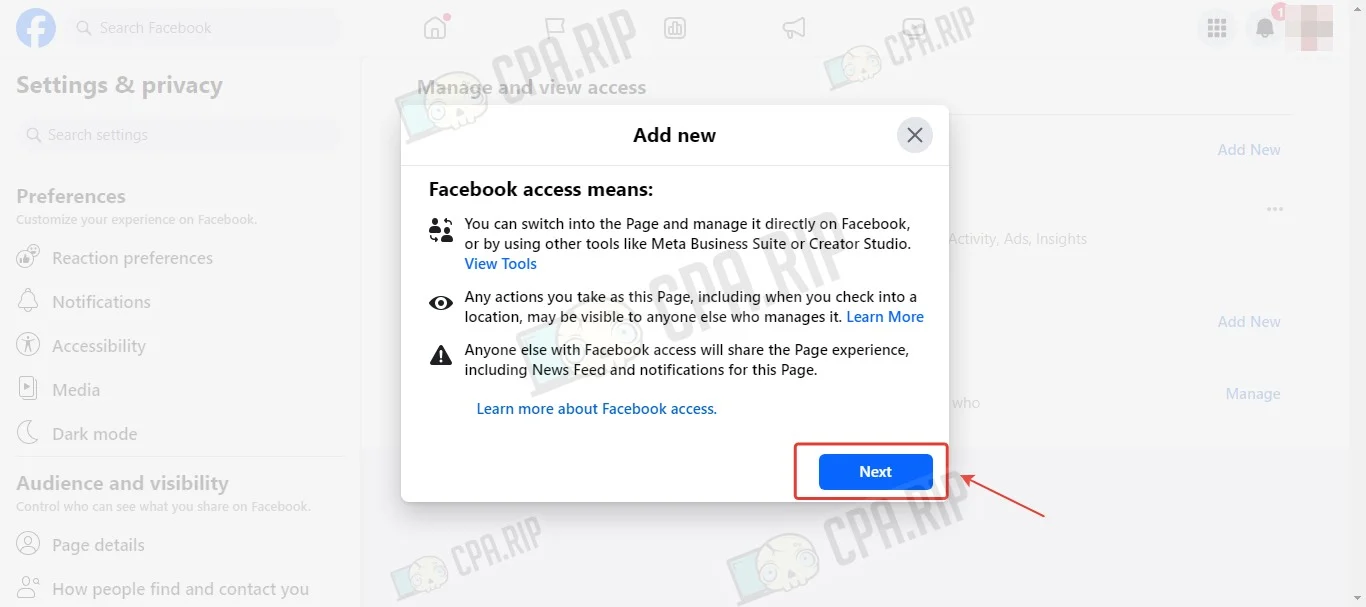
- Insert the profile link, name, or email.
- Next, select the profile you want to add to the Fan Page administrators.
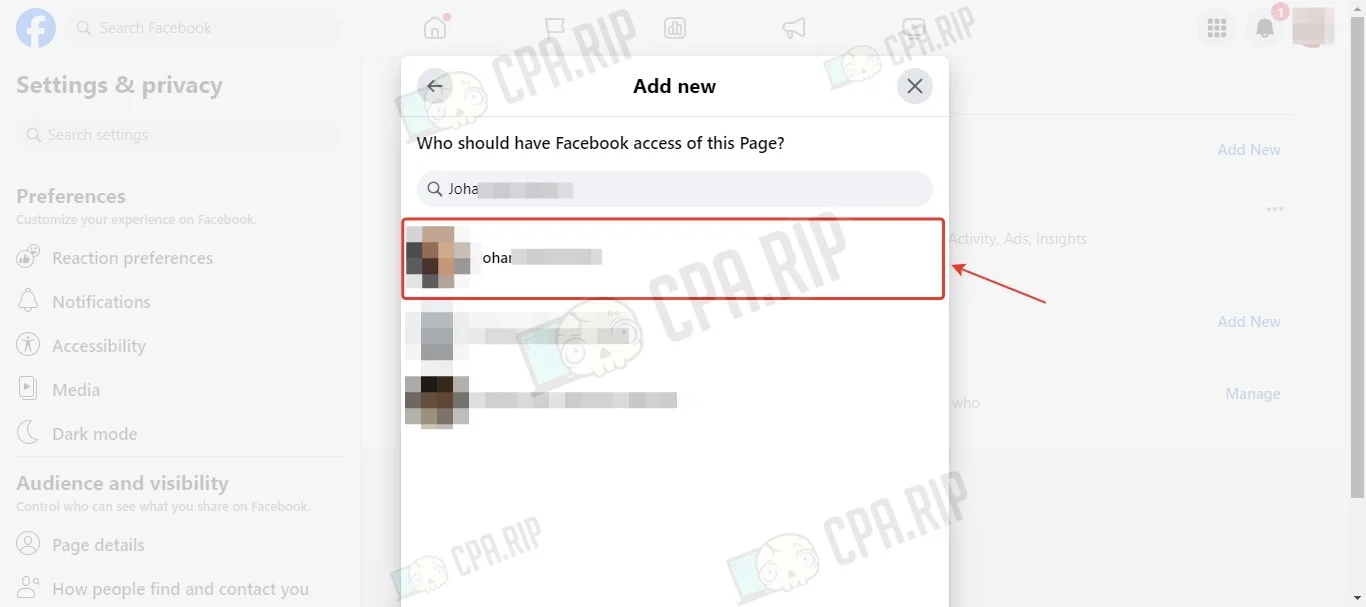
- Check the “full control” box and click “Give Access”.
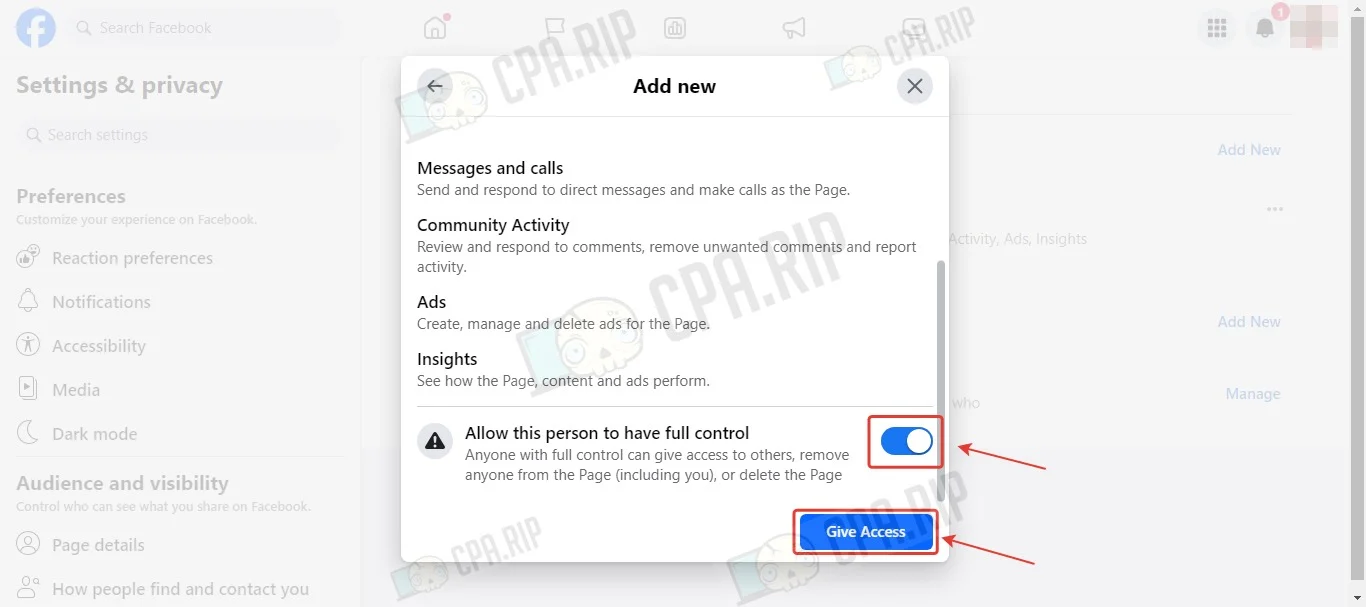
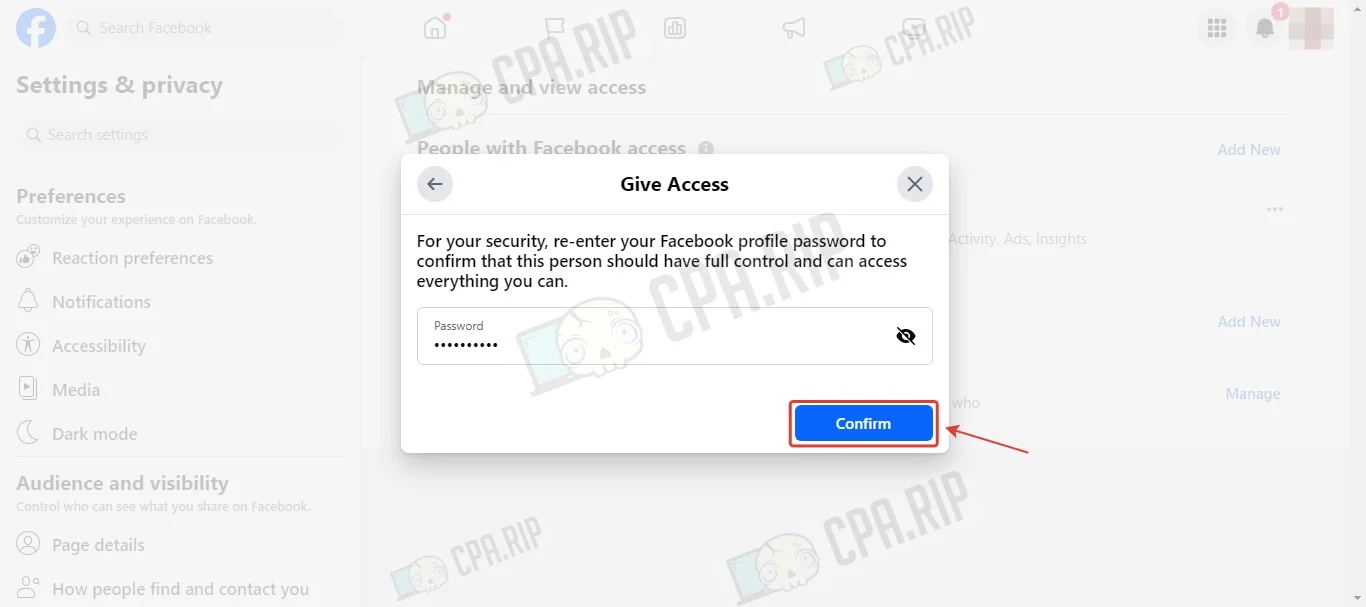
- Enter the password and click “Confirm”.
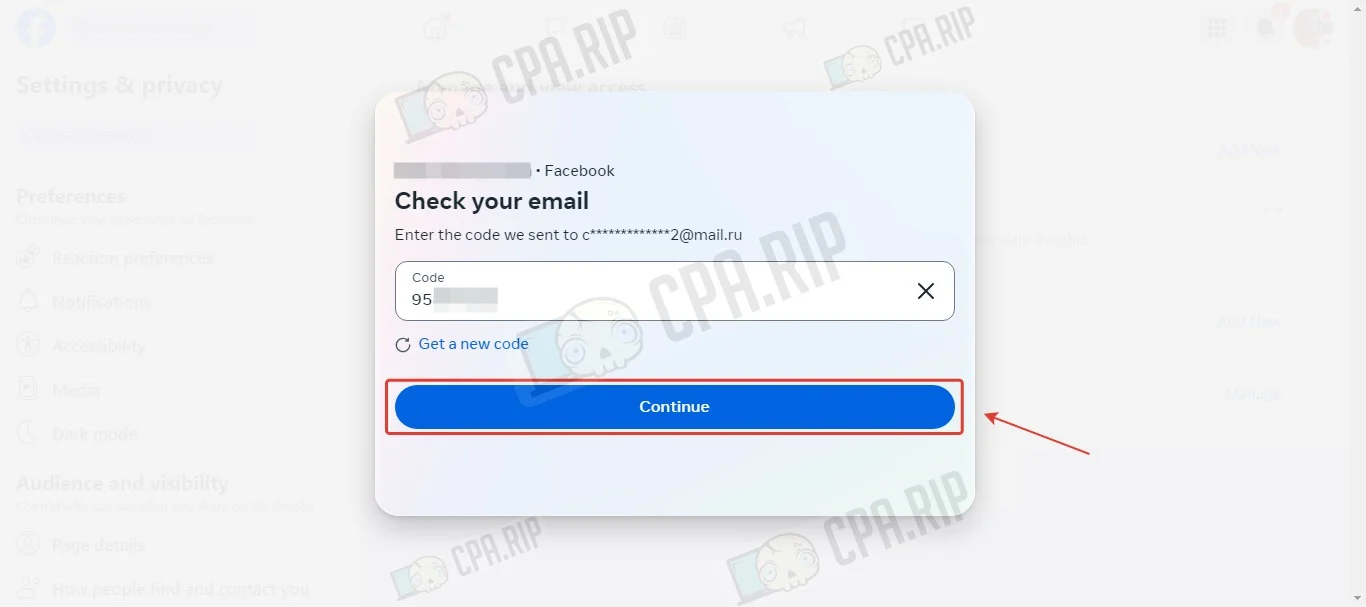
- Confirm the action with the code from the e-mail.
- Go to the account where you want to accept the invitation. Look for the notification about granting access to the page and click on it.
- If there is no notification, go to the Fan Page using the URL.

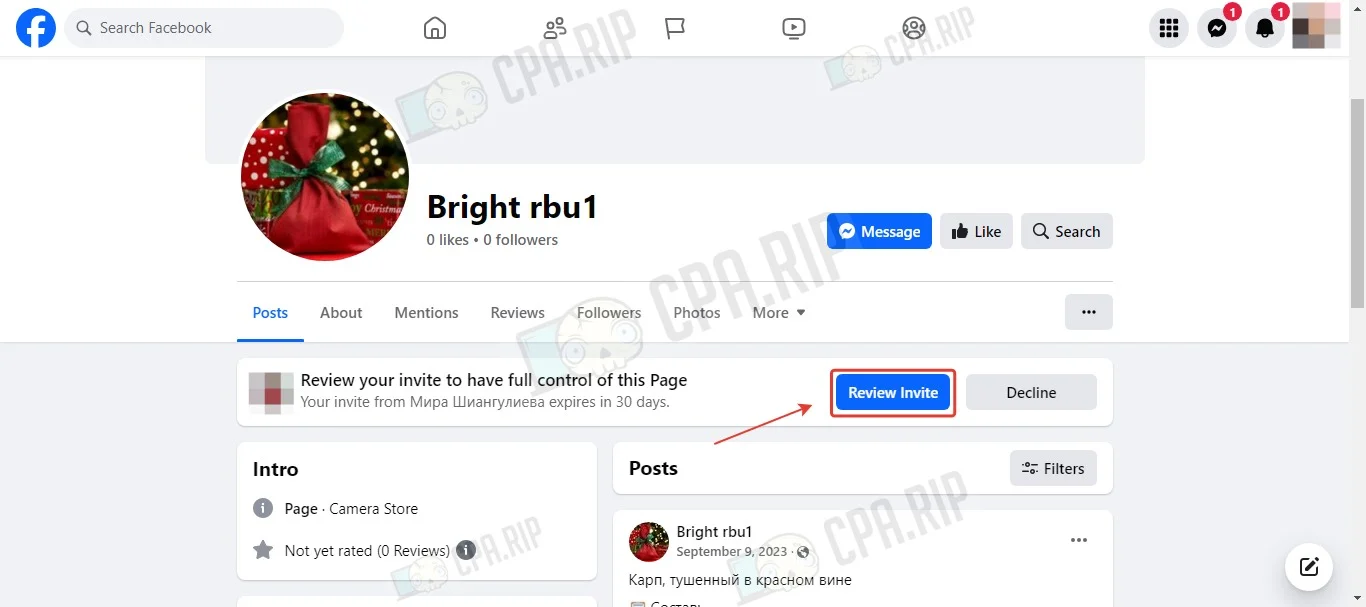
- Click on “Review Invite.”
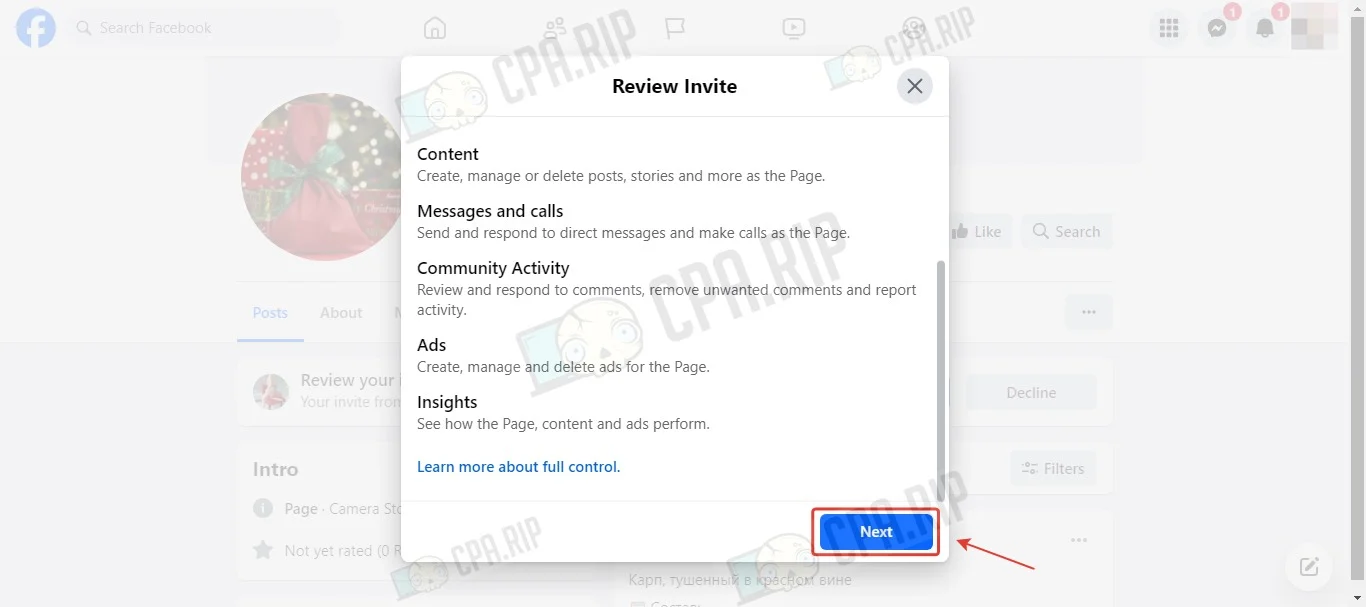
- Then click “Next.”
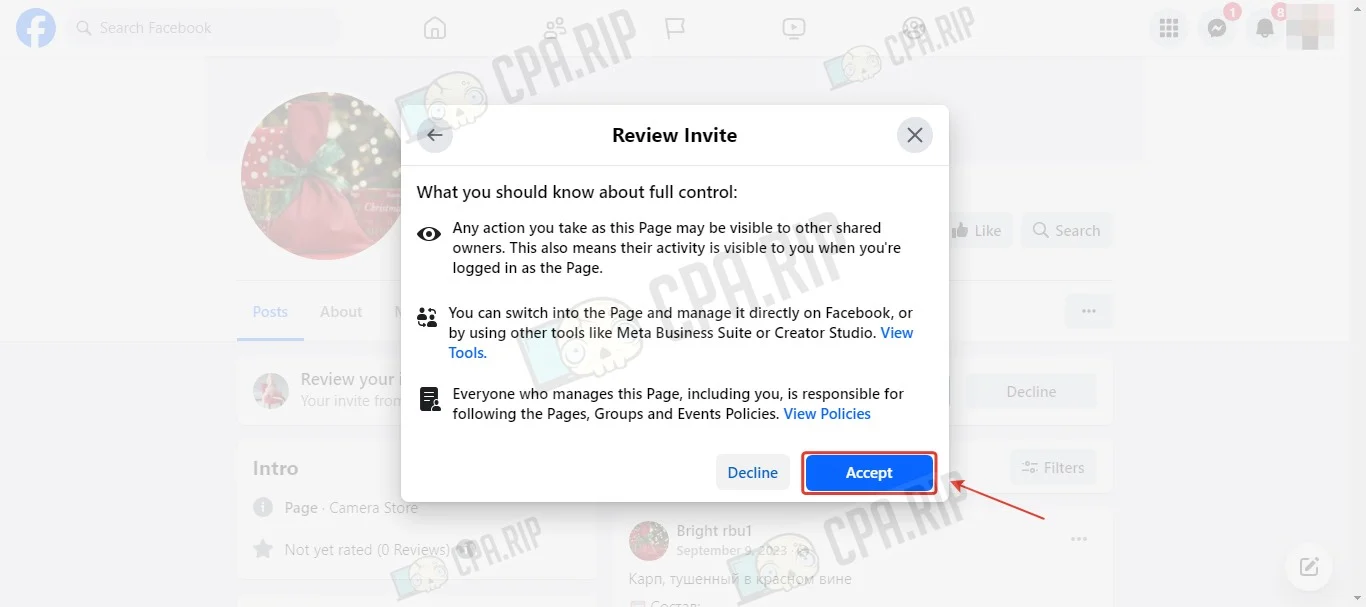
- Click “Accept.”
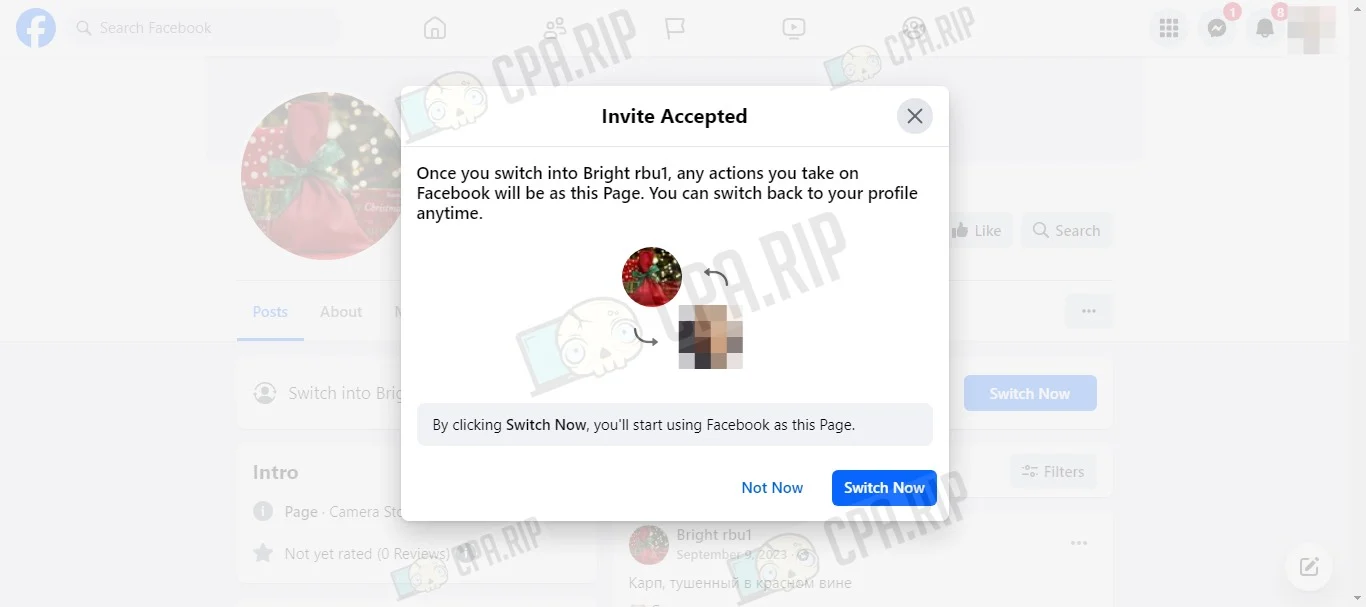
- Access to the page has been transferred:
Transferring Fan Page to Business Manager
Method #1
Transferring a Fan Page to BM from a third-party account with subsequent confirmation by the page administrator.
- Open the “Pages” section and click “Add”.
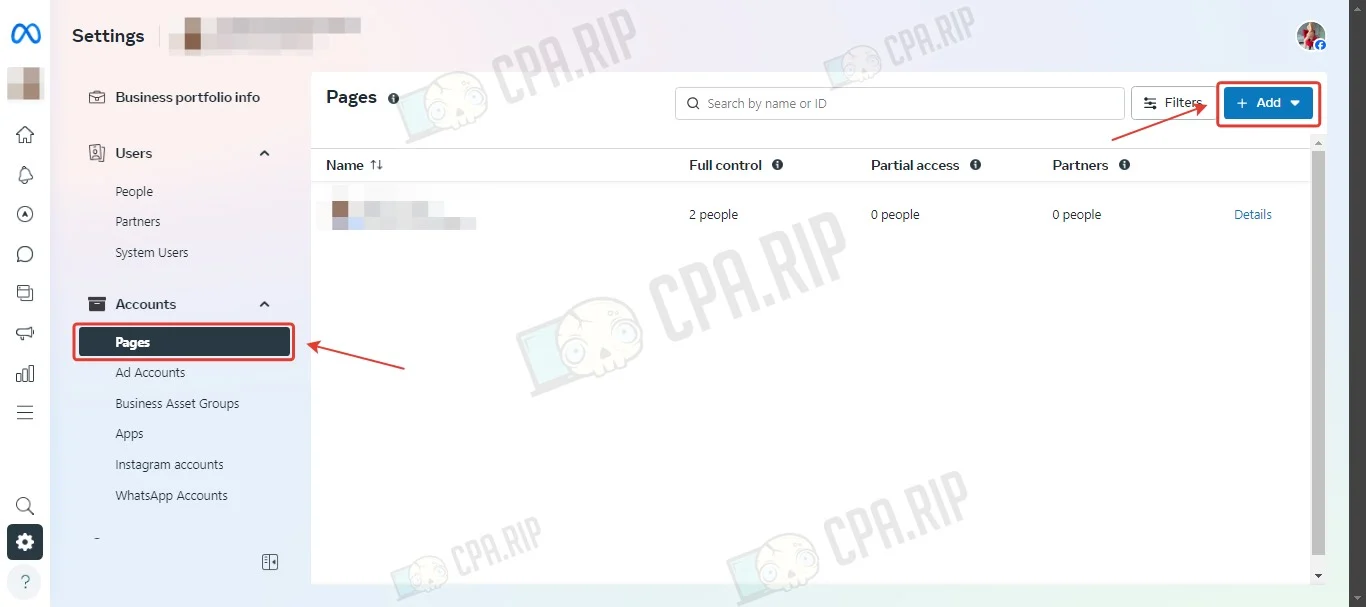
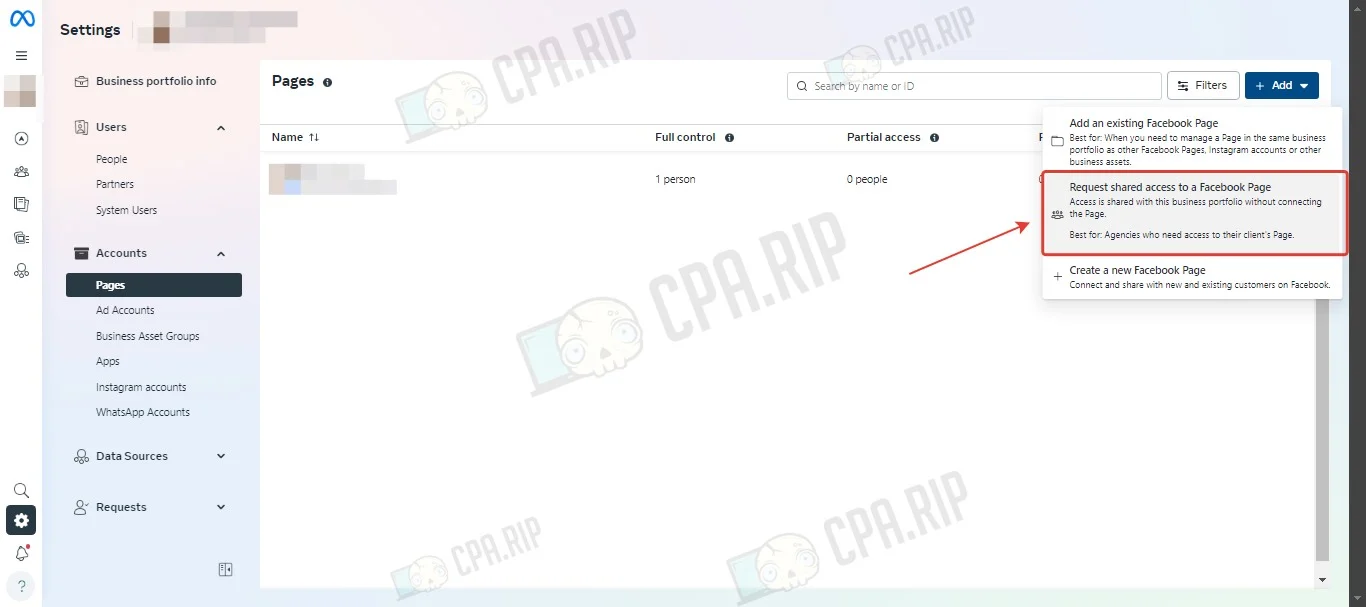
- Select “Request to access Facebook Page”.
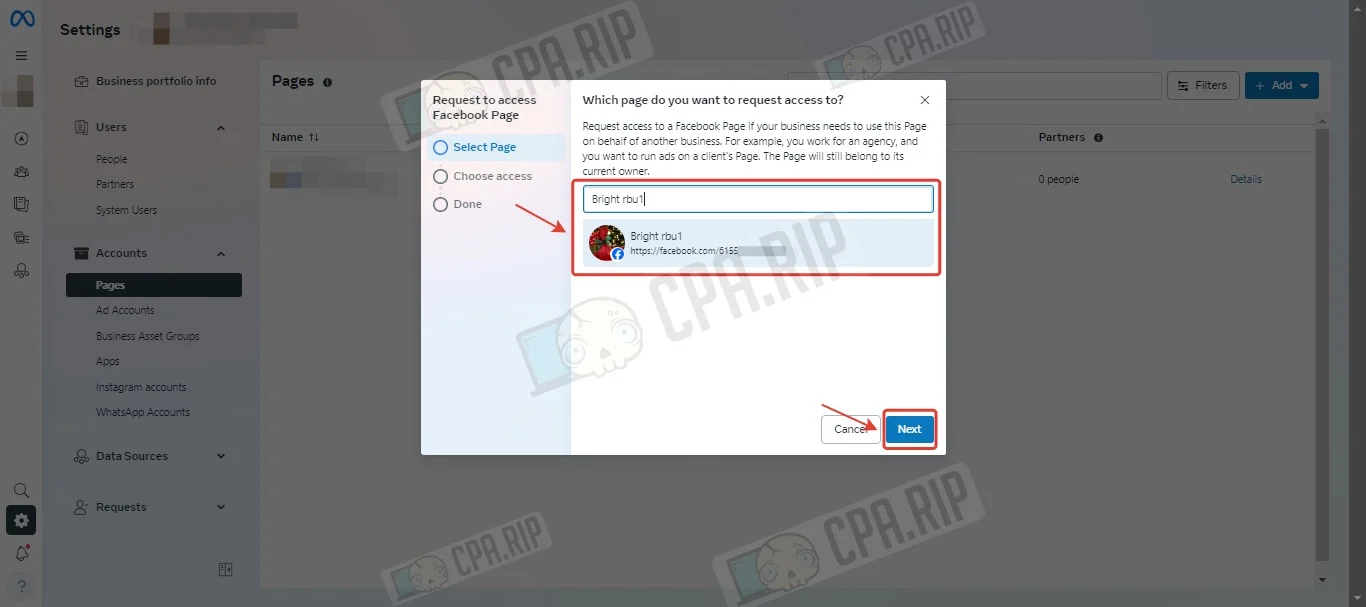
- Insert the URL of the Fan Page, select the desired page, and click “Next”.
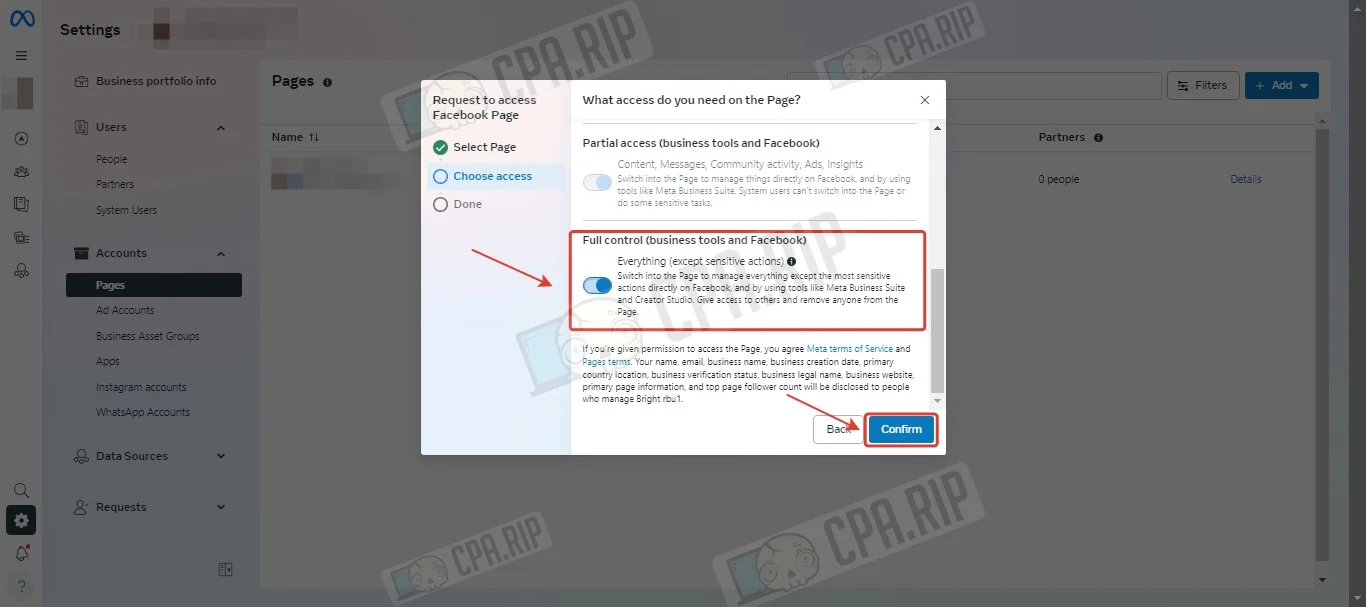
- Turn on “Full Control” and click “Confirm”.
- The request for adding a Fan Page has been sent, click “Done”.
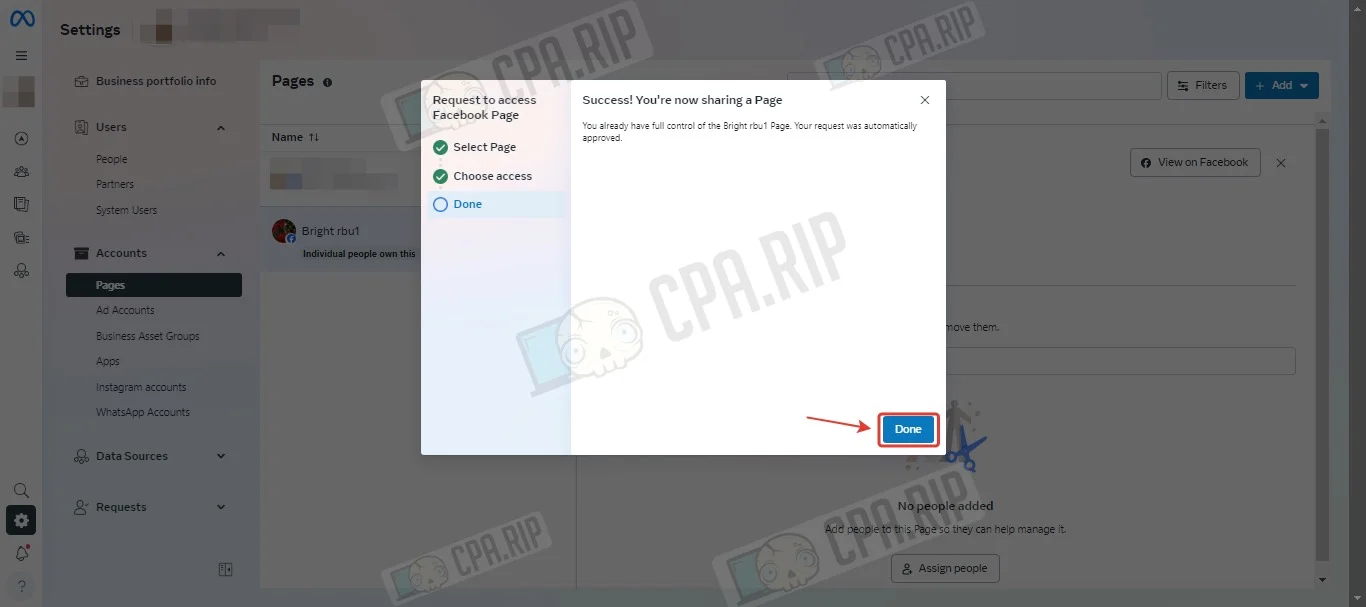
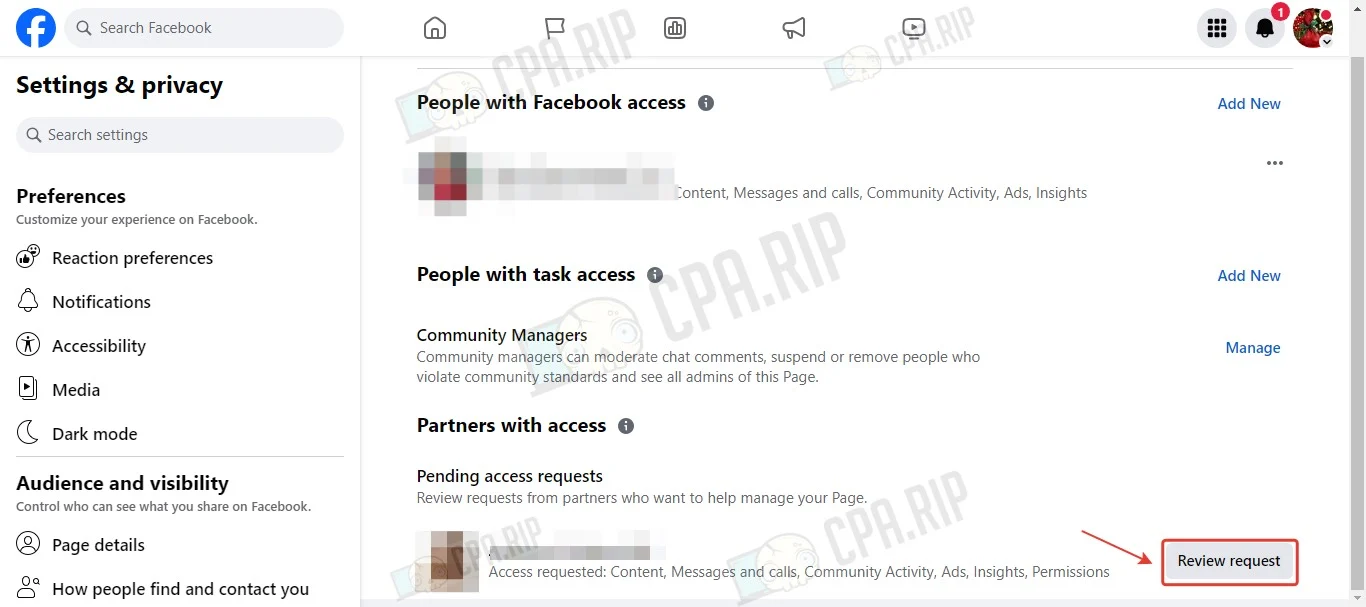
- On the account of the Fan Page holder, switch to the page and follow the link https://www.facebook.com/settings/?tab=profile_access.
- In the “Partners with access” section click “Review request”.
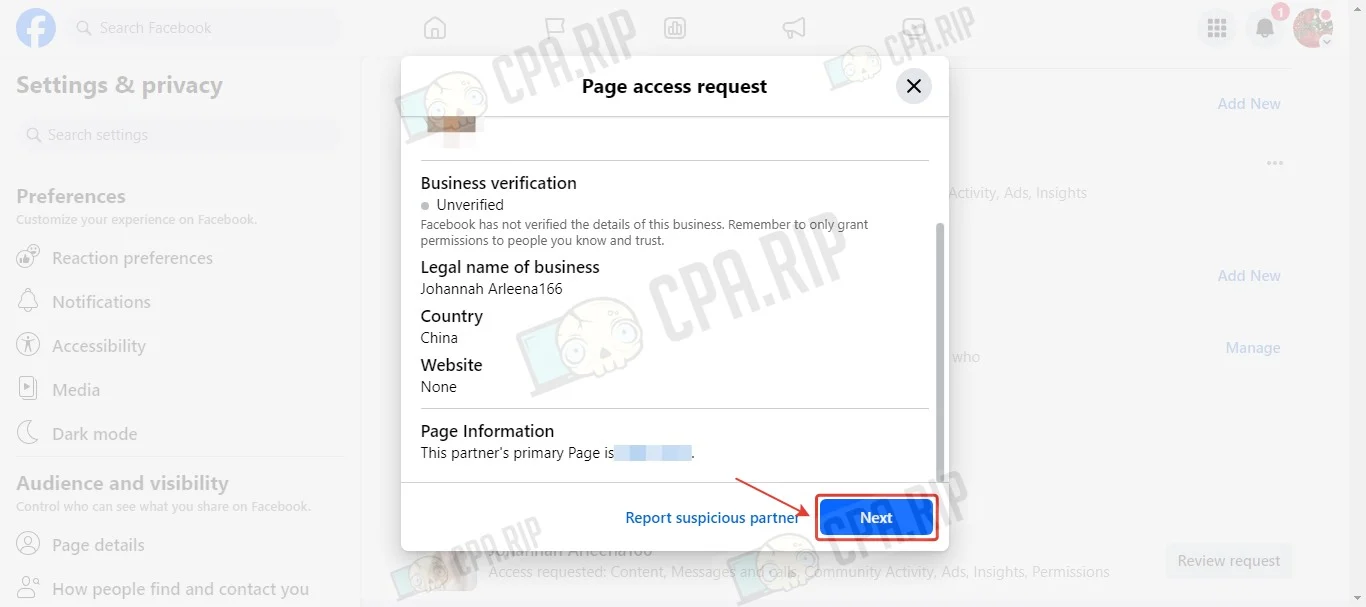
- Click “Next”.
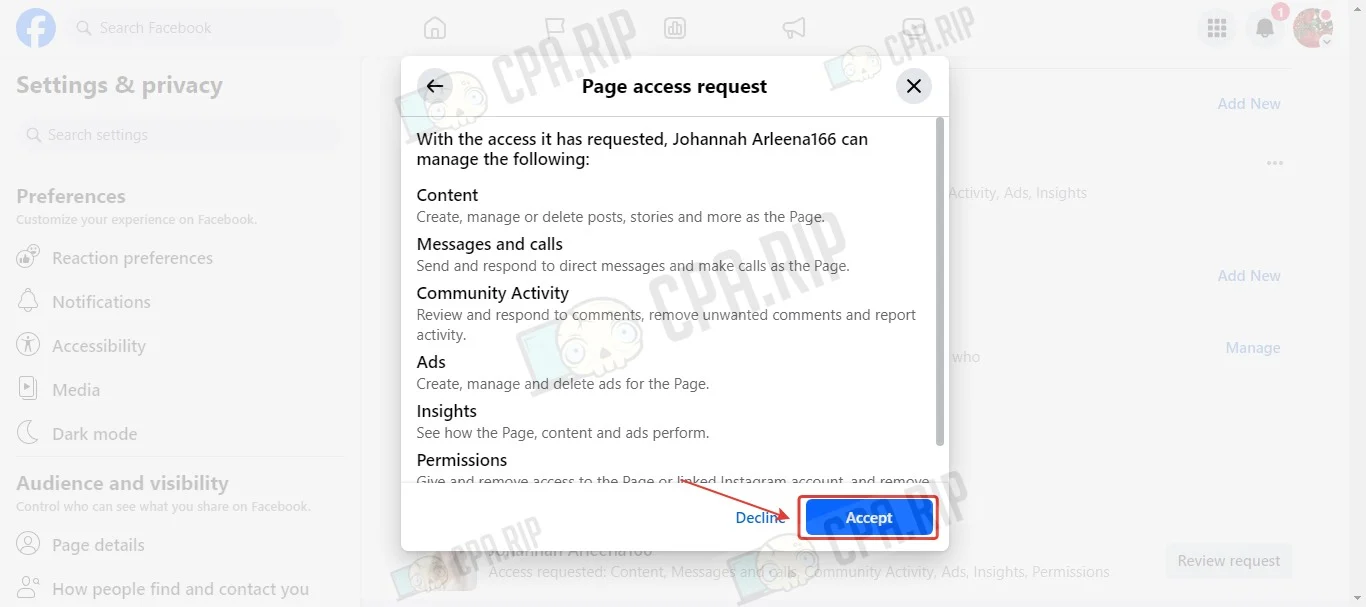
- Click “Accept.”
- Enter your Facebook account password and click “Confirm”.
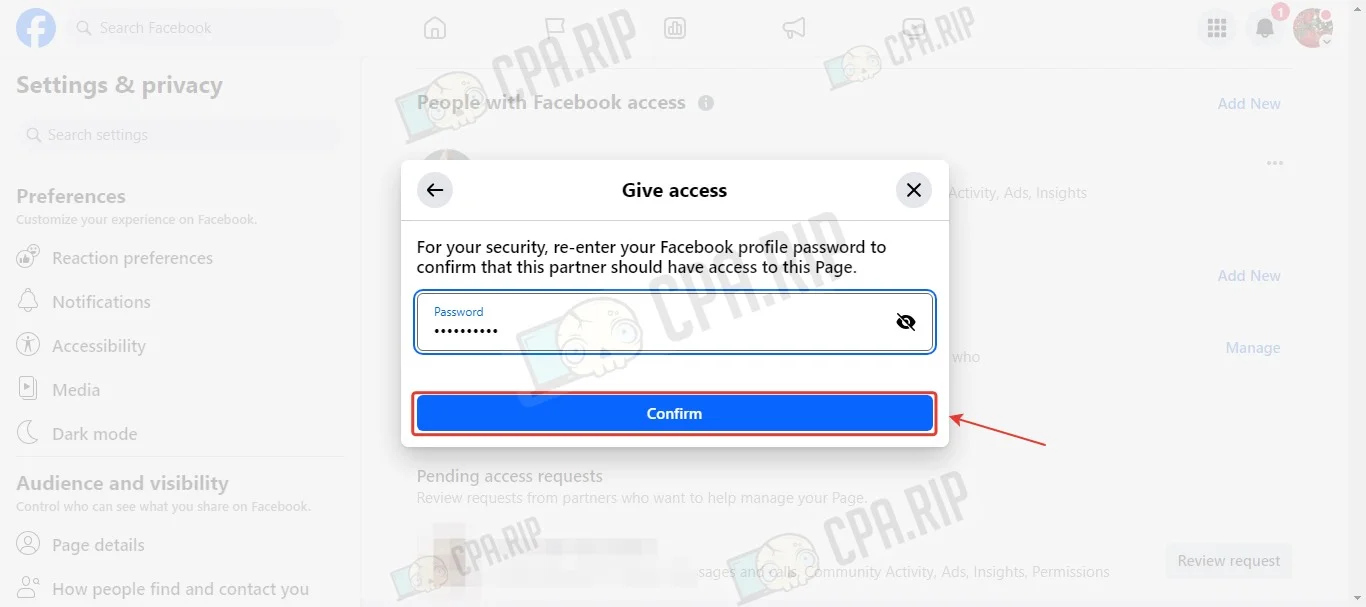
Fan Page is added to BM.
Method #2
First, add the Fan Page owner’s account as an administrator in BM and follow all the steps from method #1 to complete it:
This method eliminates the need to confirm adding the page to BM.
Method #3
If the Fan Page account has been added to Business Manager as an administrator for more than 7 days, you can add the page as follows.
- In the “Pages” section, click “Add”.
- Select “Add an existing Facebook Page”.
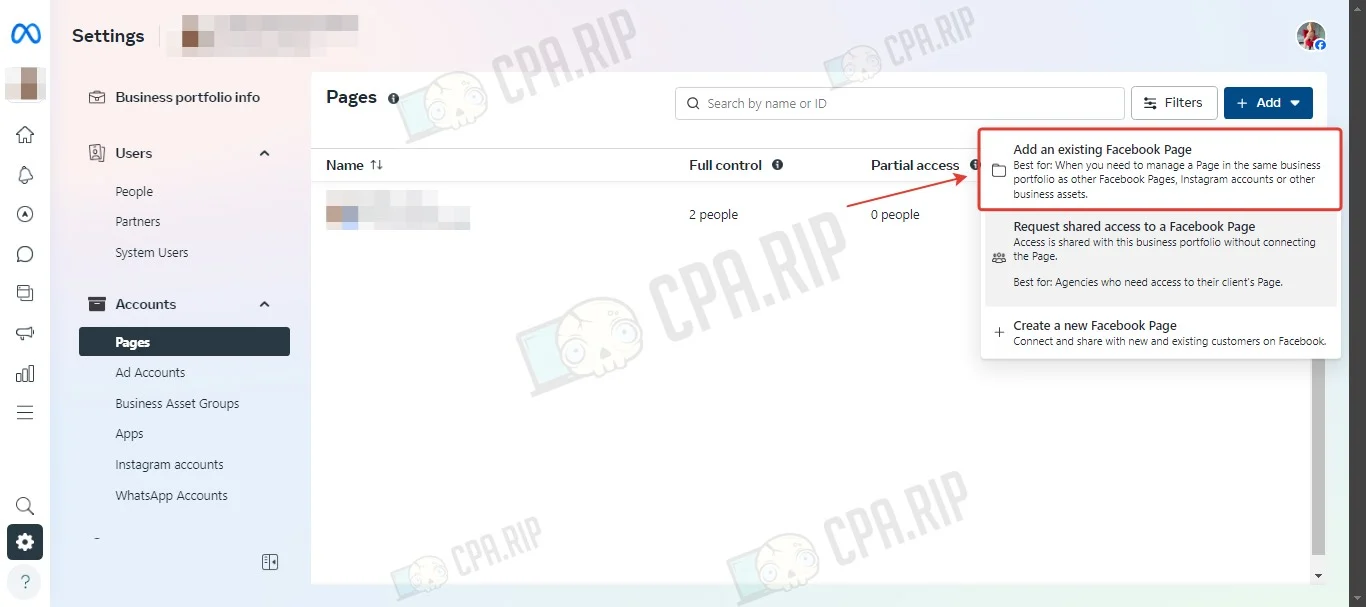
- Insert the URL of the Fan Page, select the desired page, and click “Next”.
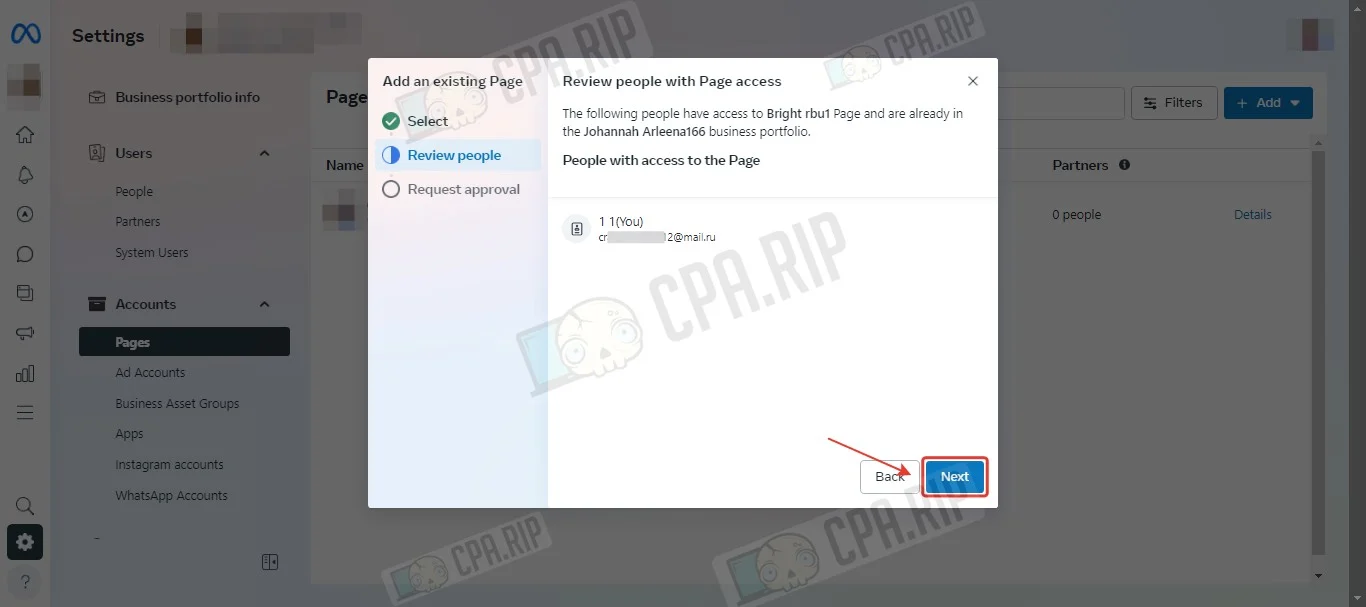
- Click “Next”.
- Accept the terms and conditions and click “Claim Page”.
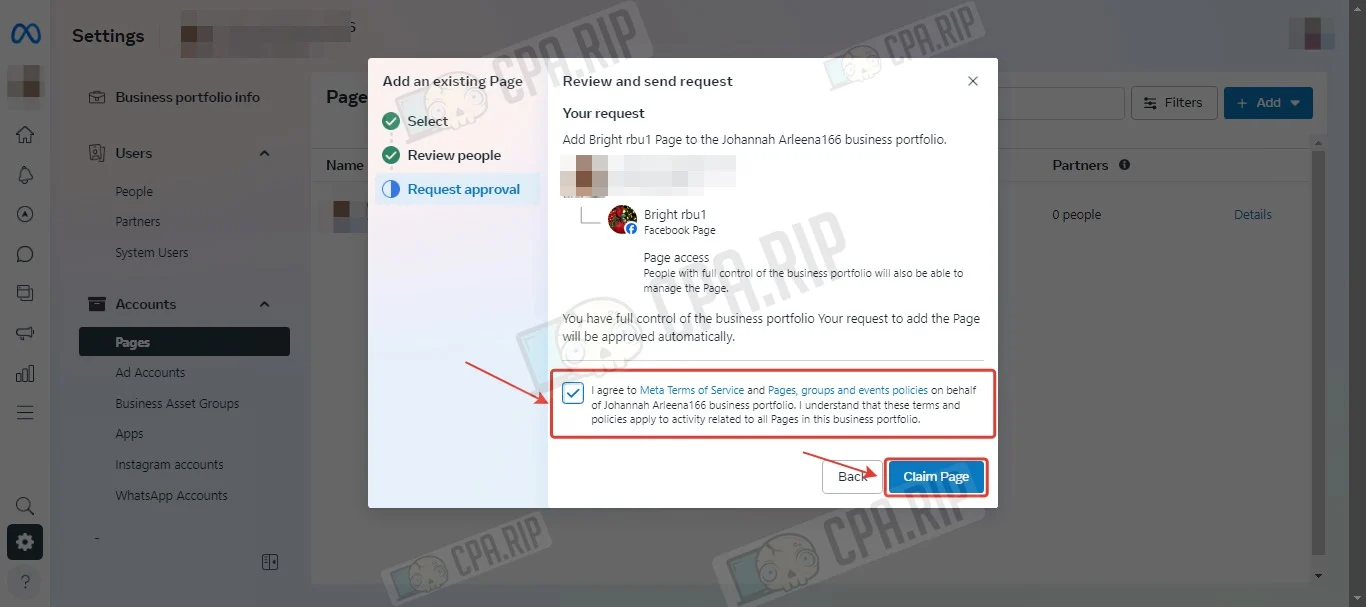
Fan Page is added to BM.
Transferring Fan Page to another Business Manager
To transfer a Fan Page to another Business Manager, you need to create an invite link by following the steps below:
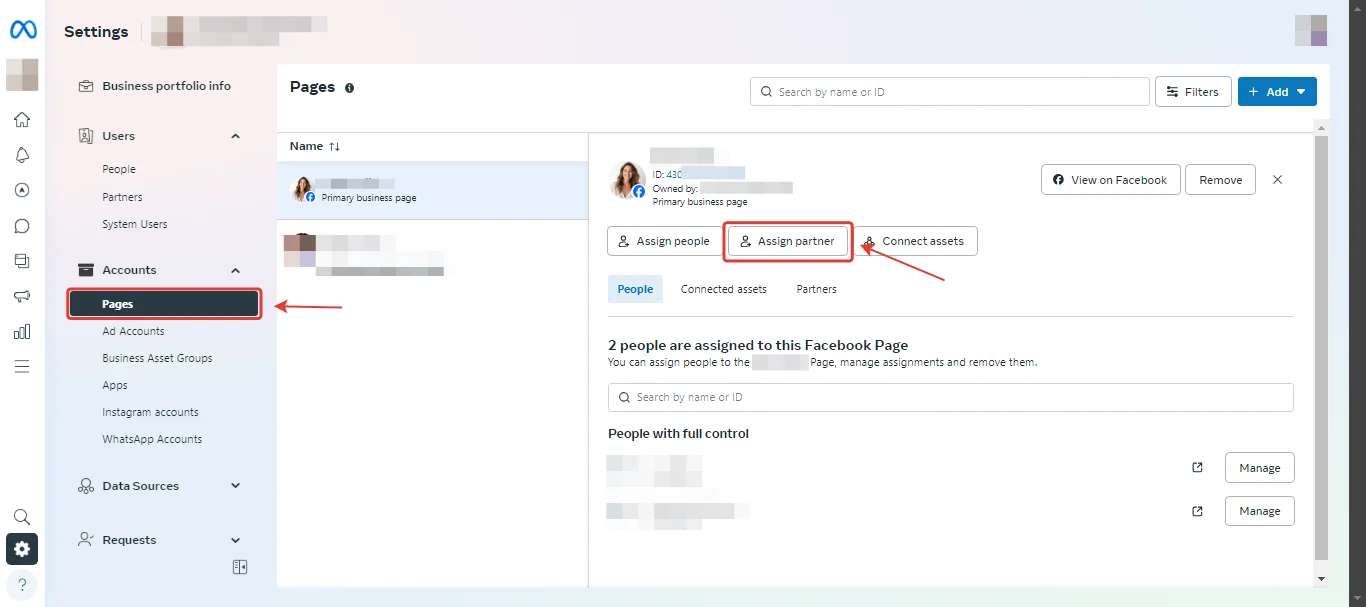
- Go to Company Settings on Business Manager.
- In the “Accounts” section select “Pages”.
- Click on the page we want to share and click on “Assign Partners”.
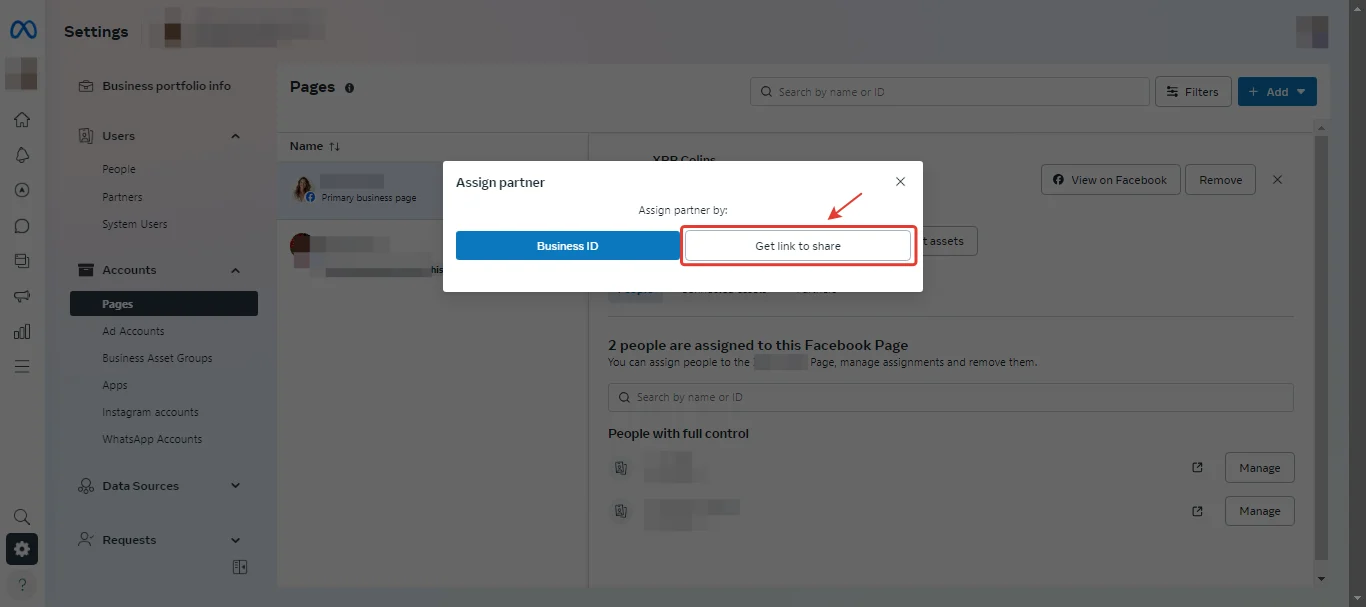
- Select “Get link to share”.
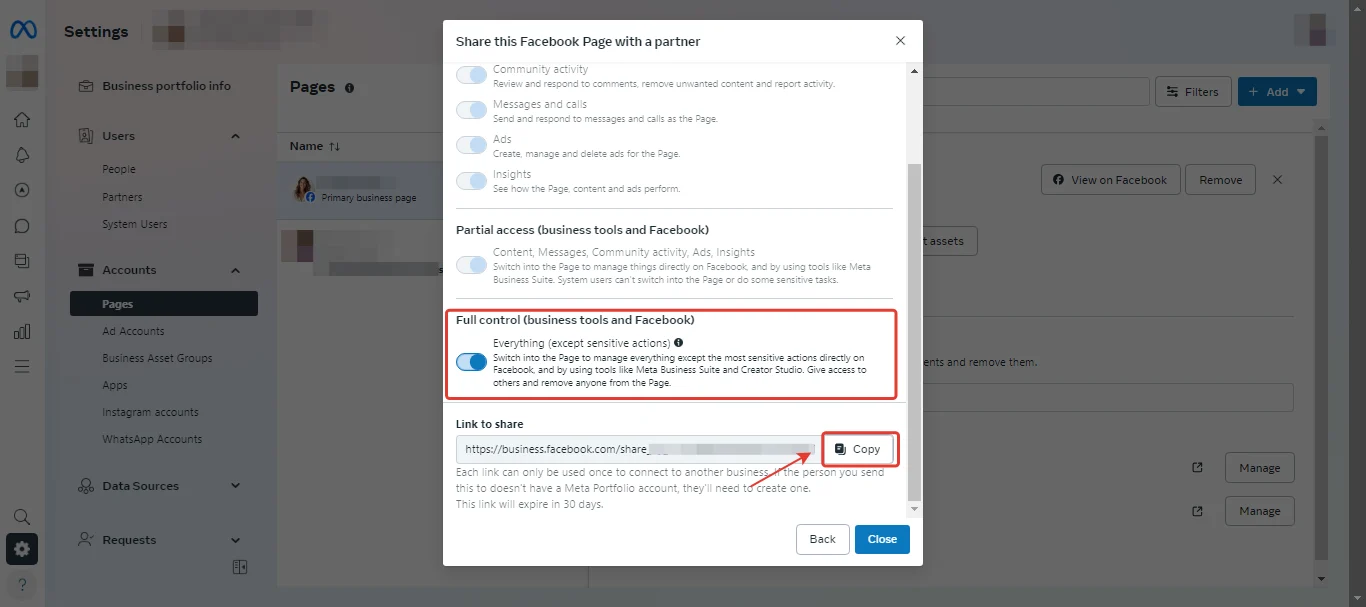
- To transfer full rights to the Fan Page, move the slider in the “Full Control” line.
- Then copy the generated link to transfer access to the page.
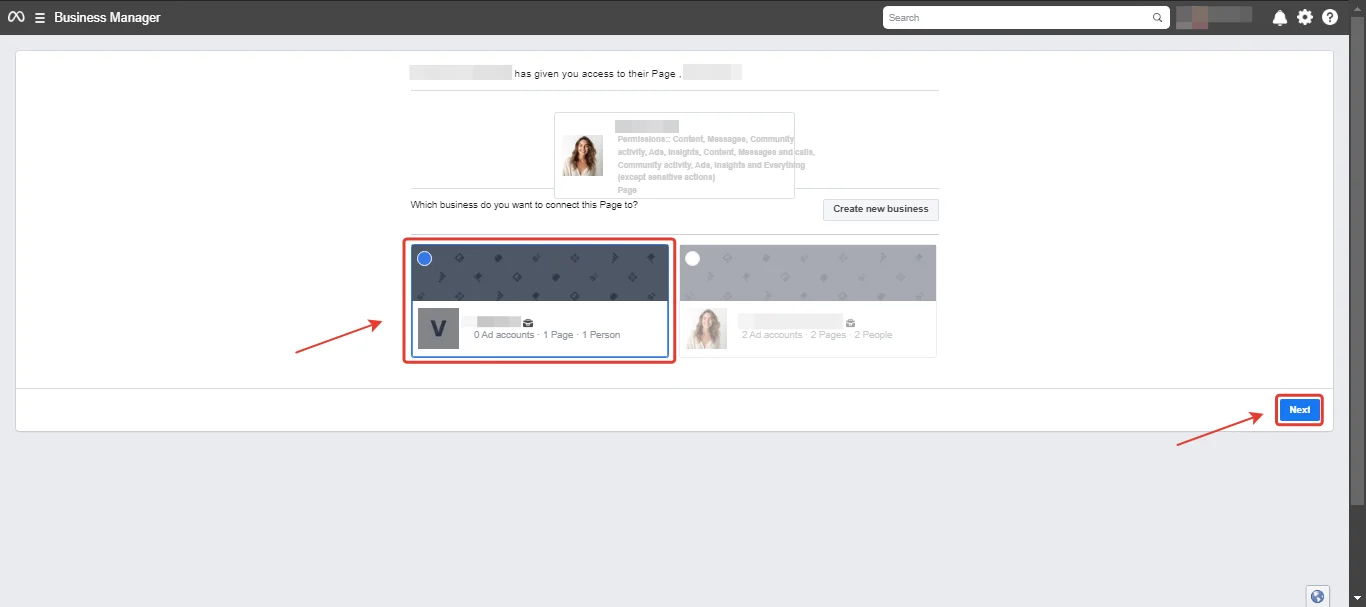
- Click on the link, select the Business Manager to which we want to accept the Fan Page, and click on “Next”.
- Click “Confirm”.
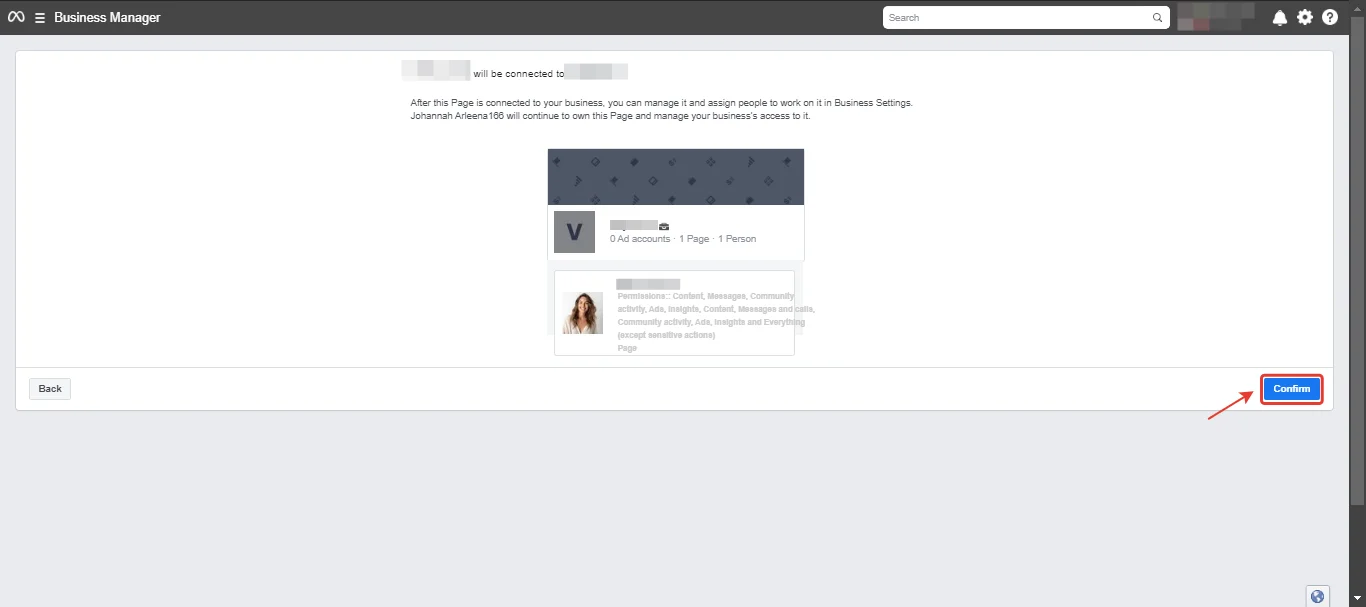
The page has been successfully accepted.
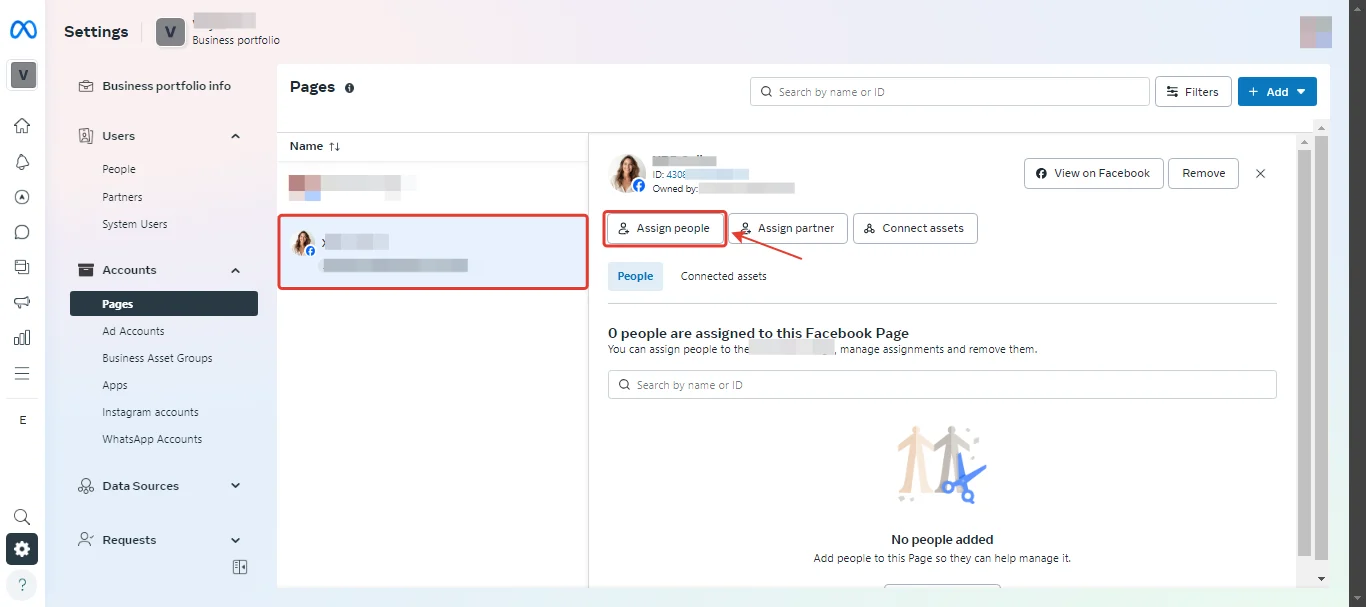
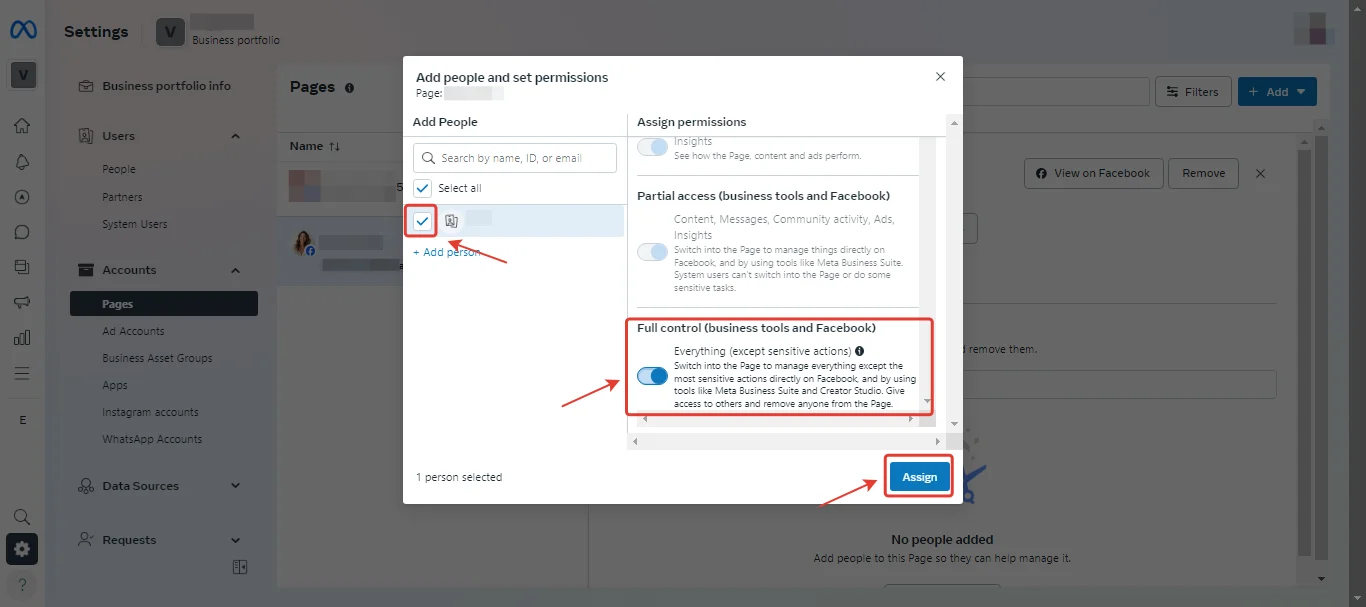
- To give the administrator access to the page, in the new BM go to “Assign People”.
- And give the necessary administrator all rights.








Comments