
![[FBM] CARDS](https://cpa.rip/wp-content/uploads/cr-a1/fbm-cards-v1/fbm-cards-logo.svg)



Registration
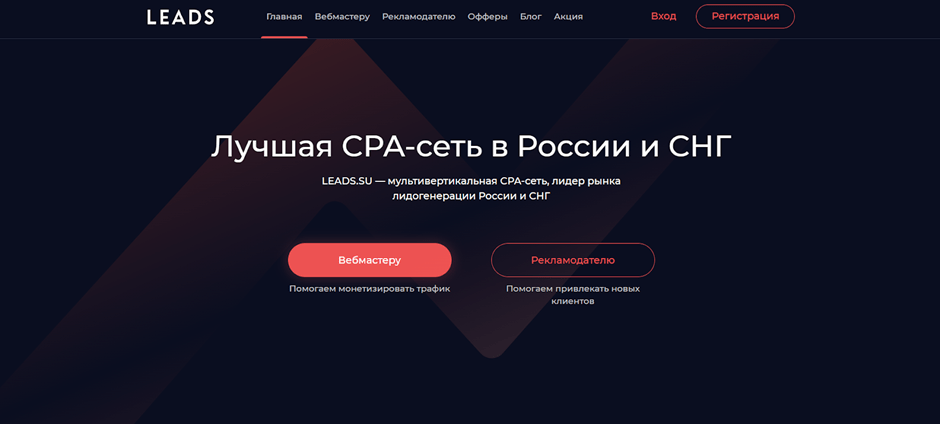
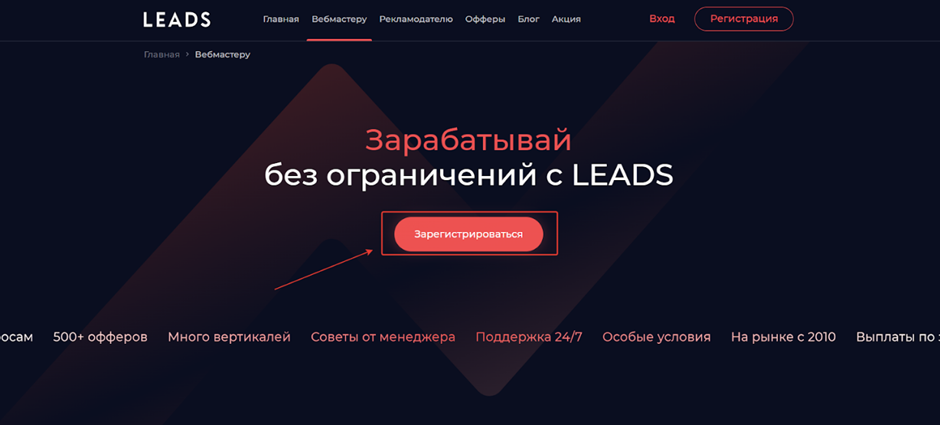
On the Leads website, select “Webmaster”, then click “Register”.
Fill out the simple registration form with the required fields: First Name, Last Name, Country, Email, Telegram Nickname, Password, Confirm Password and Phone Number.
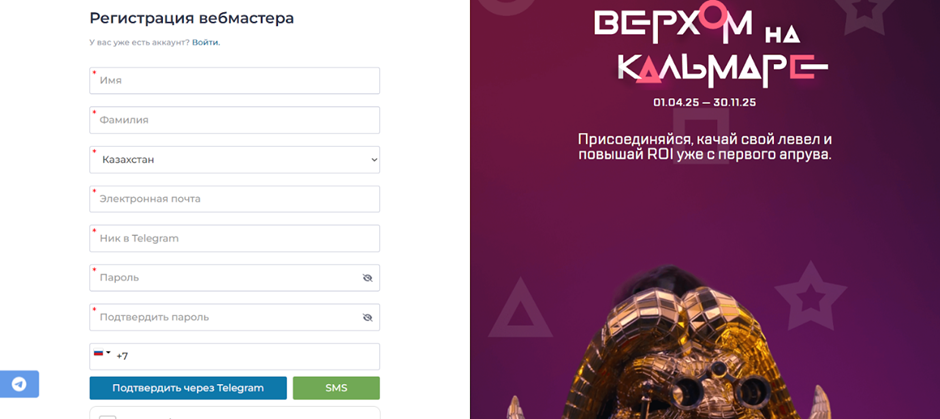
Fill in all fields and click “Register”.
Mechanics of working with Leads AP
- Register
- Create a site
- Choose an offer (you can be guided by the week’s top in the TG channel, which comes out on Tuesday)
- Connect to the desired offers
- Attract traffic to the offers
- Get targeted actions from customers
- Pass the quality control of traffic from the advertiser
- Get paid
Available offers
The affiliate network offers a wide selection of offers in the Finance, HR, Betting, Real Estate, and Sweepstakes verticals.
For example: eKapusta, Boostra, Zaymer, Lime Zaim, Webzaim, MoneyMan.
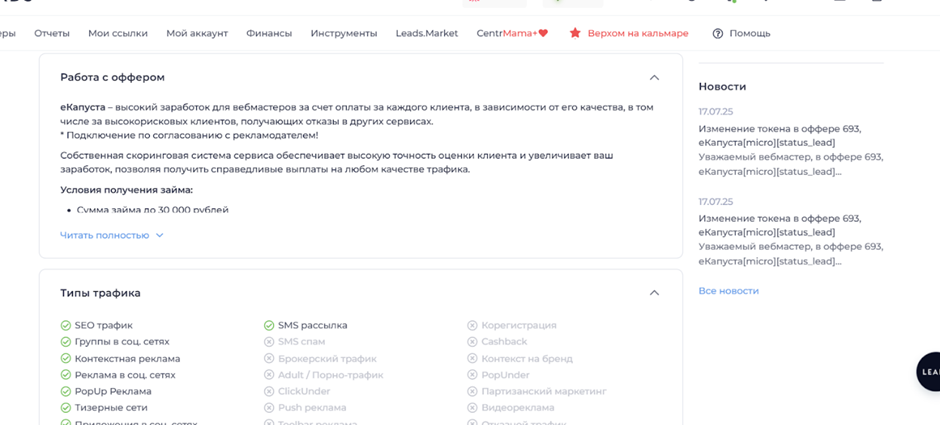
Brief information is displayed opposite each offer – name, payment, goal, status updates, hold, limits, and GEO.
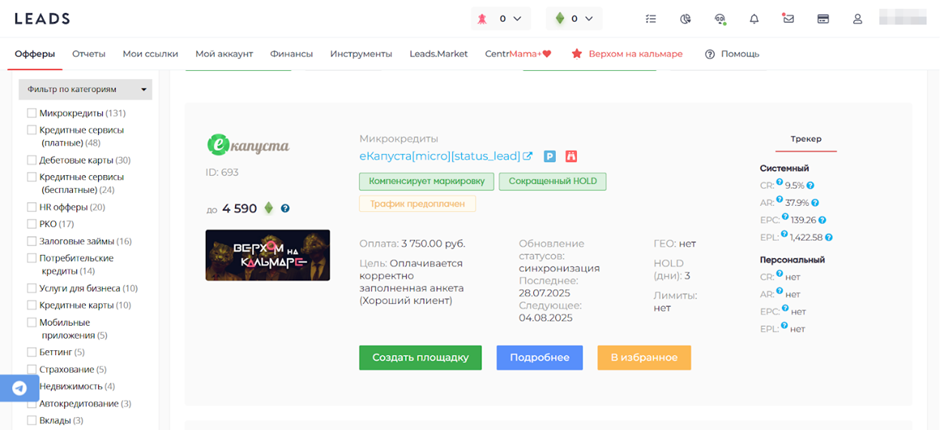
On the card of the offer, there is detailed information on rates, conditions, description, bans, and other information.
Creating site
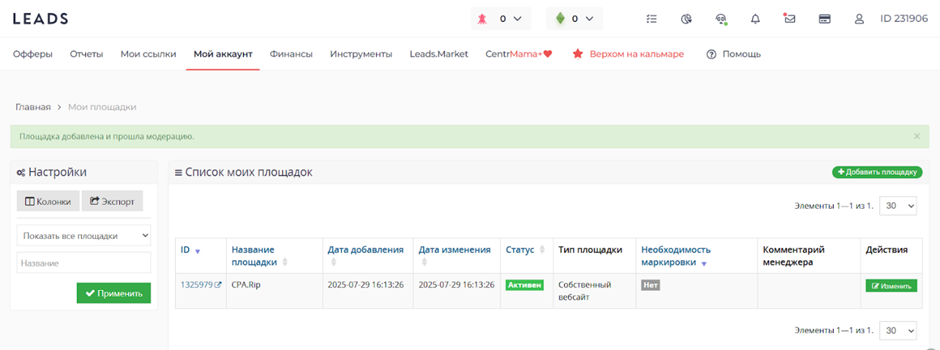
Click on “My Account” and click on “Sites”.
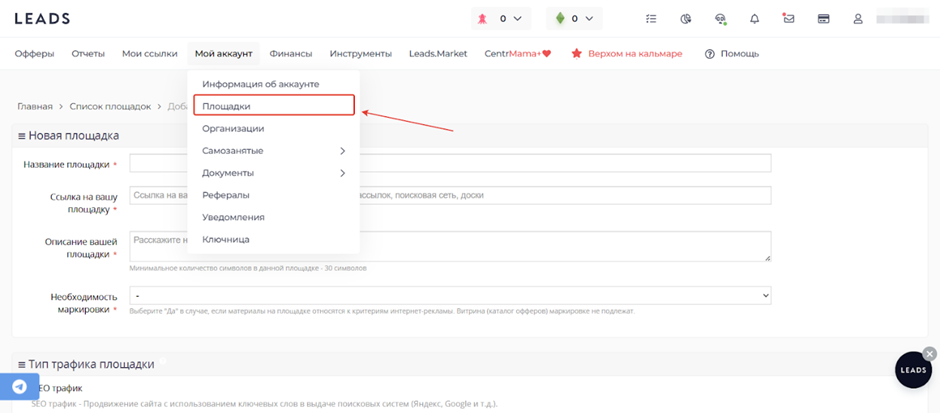
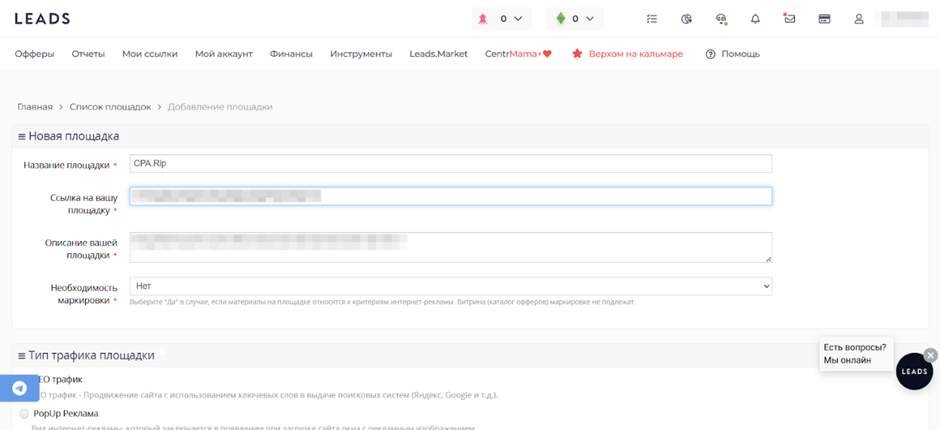
- Fill in the required fields: Name of the site, Link to your site, Description of your site, Labeling requirement.
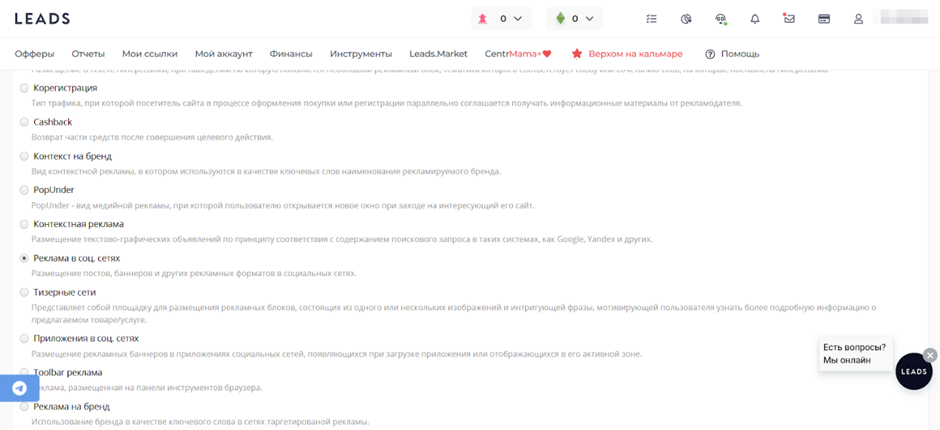
- Select the type of traffic and click “Add”.
The site will appear in the “Sites” section.
Connecting offer
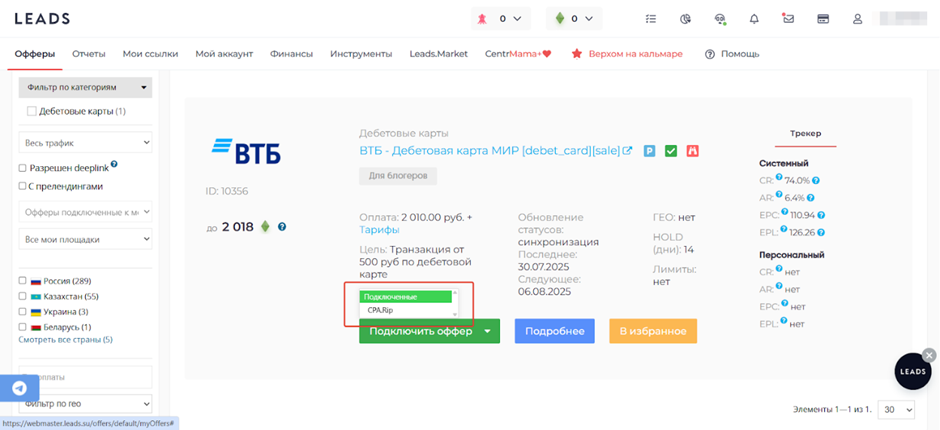
- Click “Connect Offer” on the selected offer.
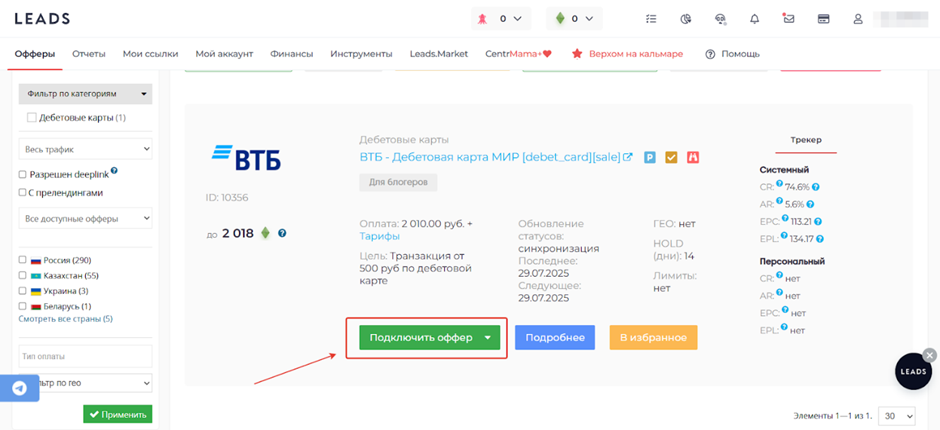
- Click “Connect Offer.”
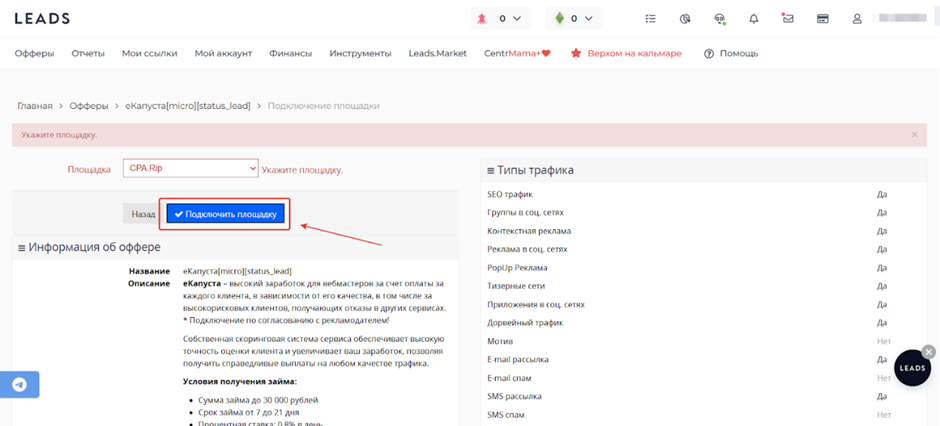
The offer will go to moderation for the selected site.
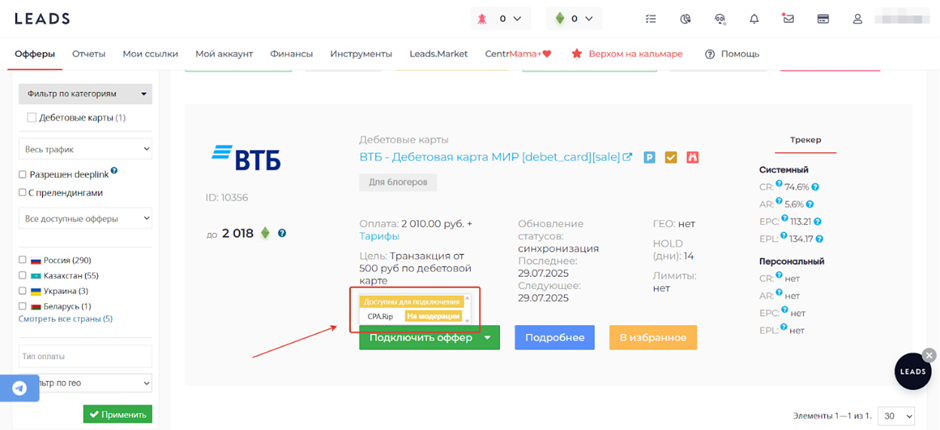
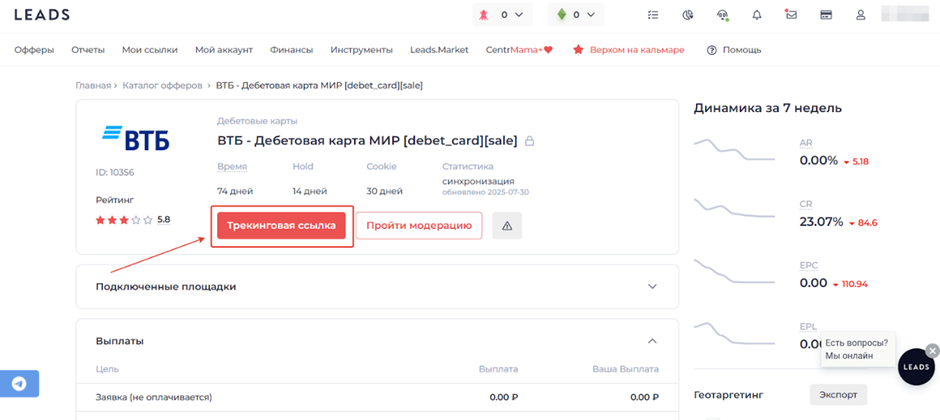
After successful moderation, the offer will appear in the “My Offers” section. To generate a tracking link, click “More details”.
- Click “Tracking Link.”
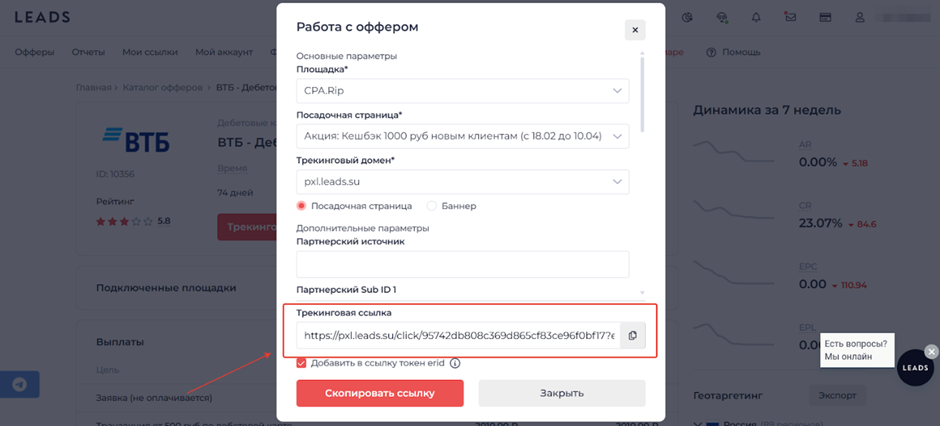
Fill in the basic parameters: Site, Landing Page, Tracking Domain, and fill in additional parameters if needed. Once all the details are filled in – the link is generated.
Showcase Creation
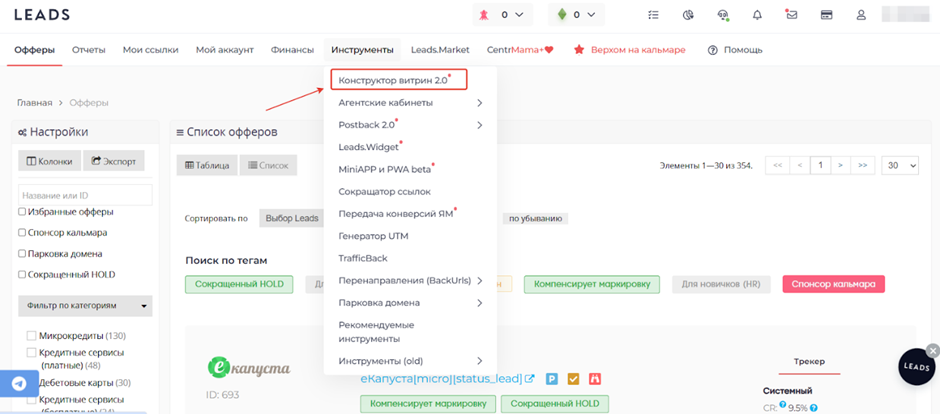
- Select Showcase Builder 2.0 in the “Tools” section.
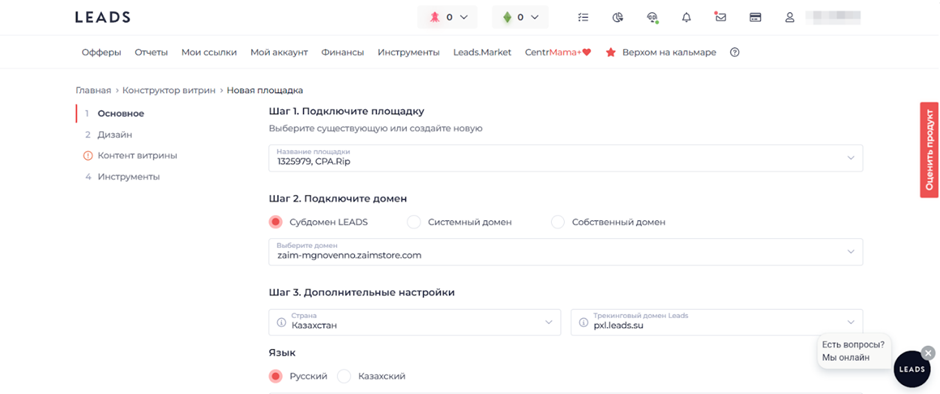
- Fill in the basic steps in the “Basic” section.
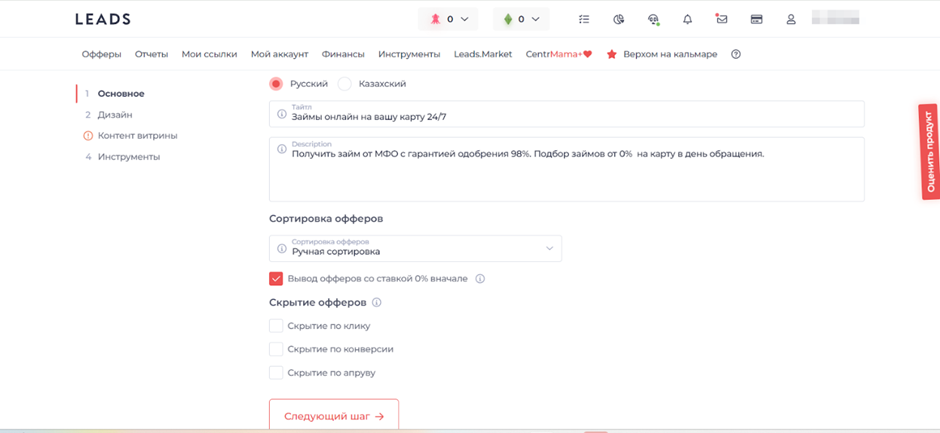
- Select Language, fill out the Title and Description, choose offers sorting and offers hiding. Go to the next step.
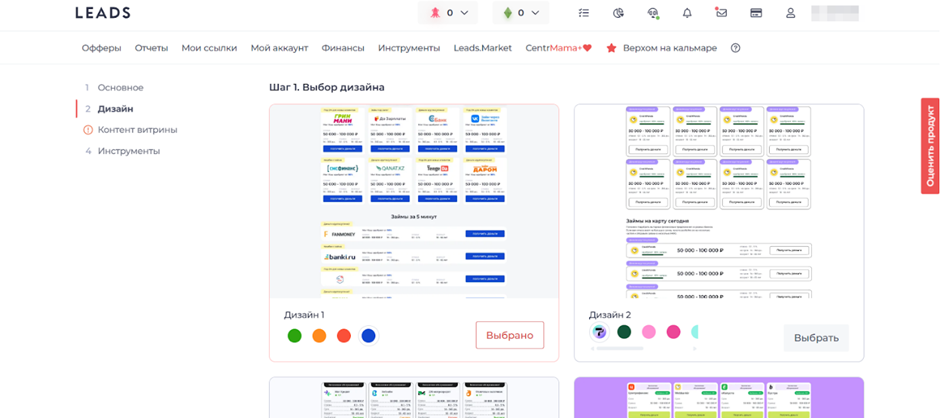
- Choose a design.
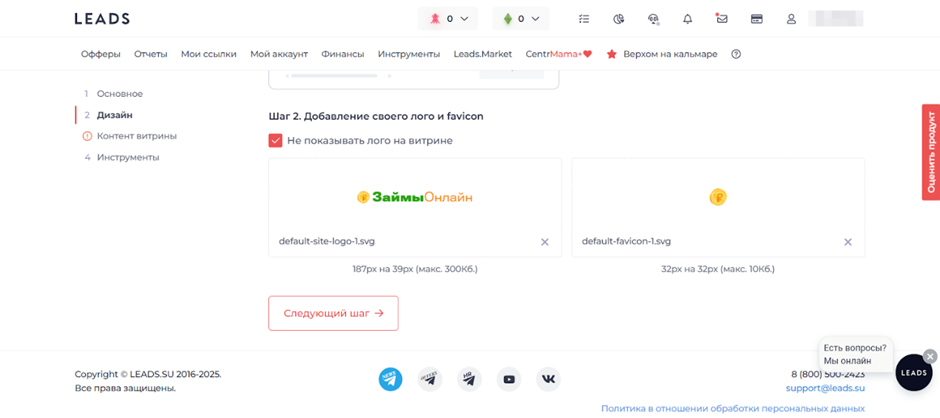
- Add your logo and favicon.
- Fill the showcase with content and add offers.
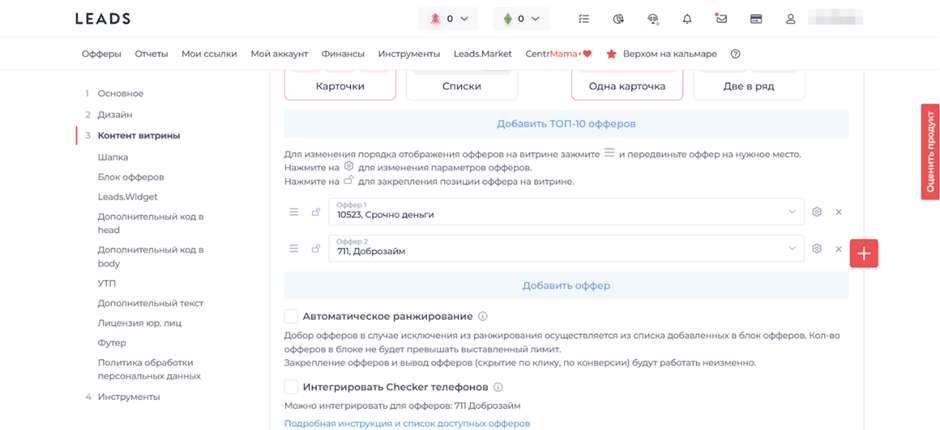
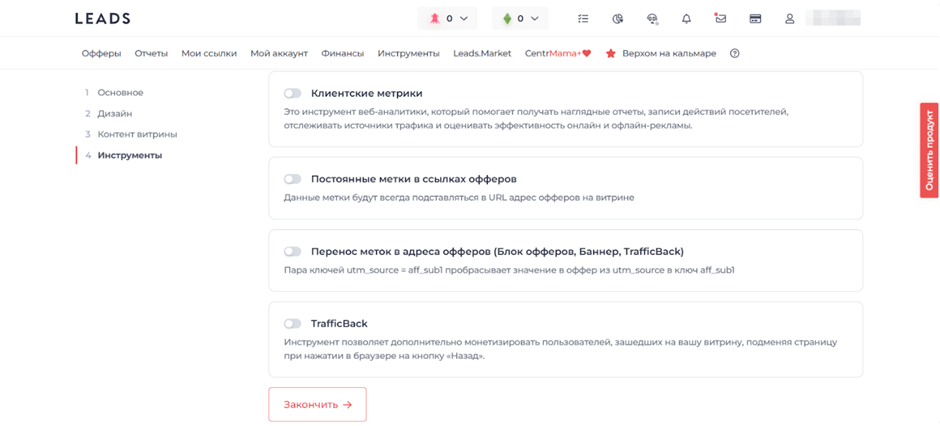
- Add the required tools and click “Finish”.
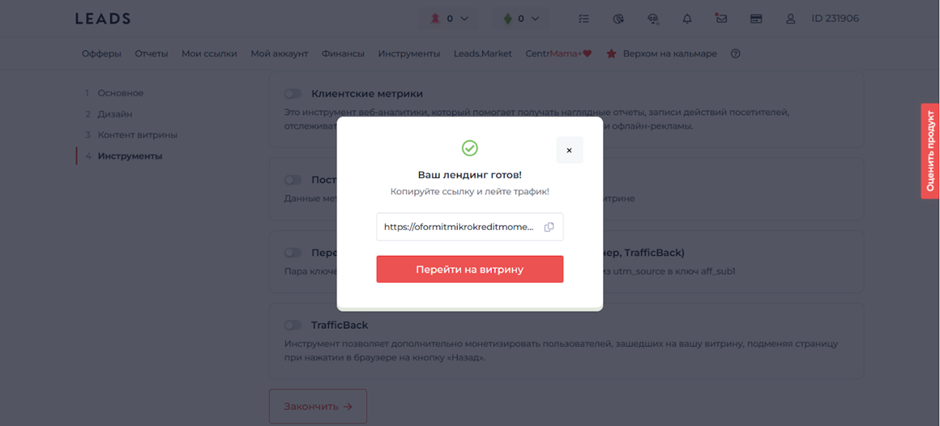
- The showcase is ready.
Leads.Widget
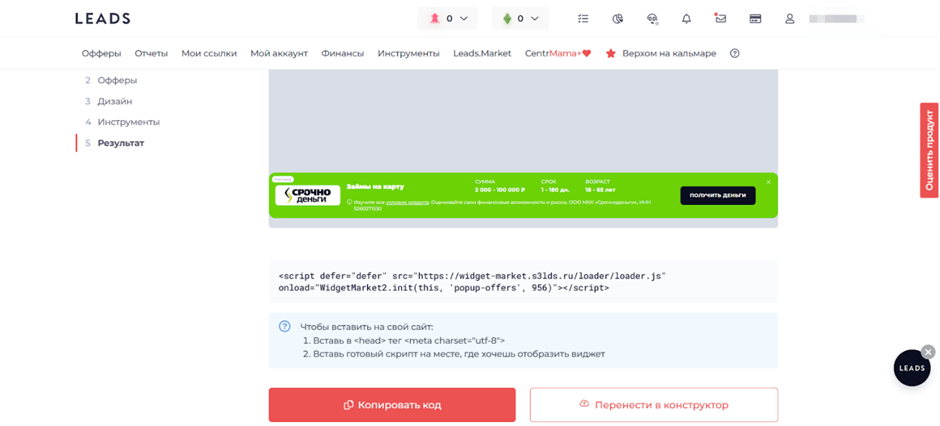
- In the tools section, select Leads.Widget.
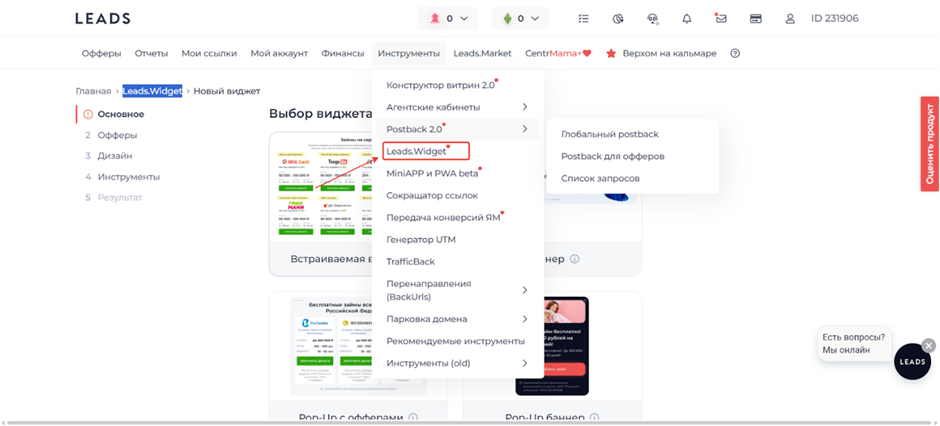
- Select the widget and make a link to an existing site.
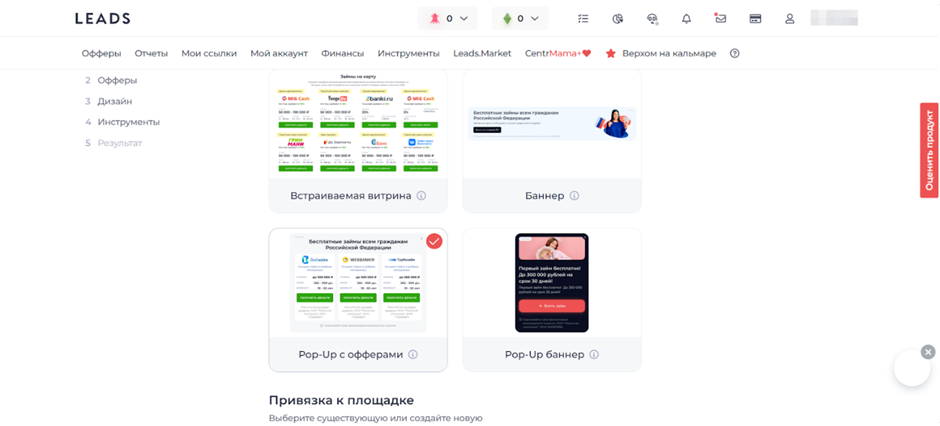
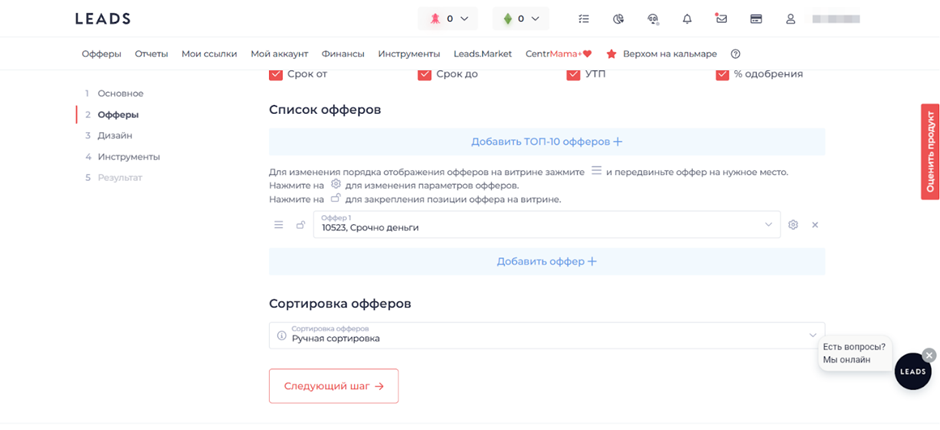
- Add Offers.
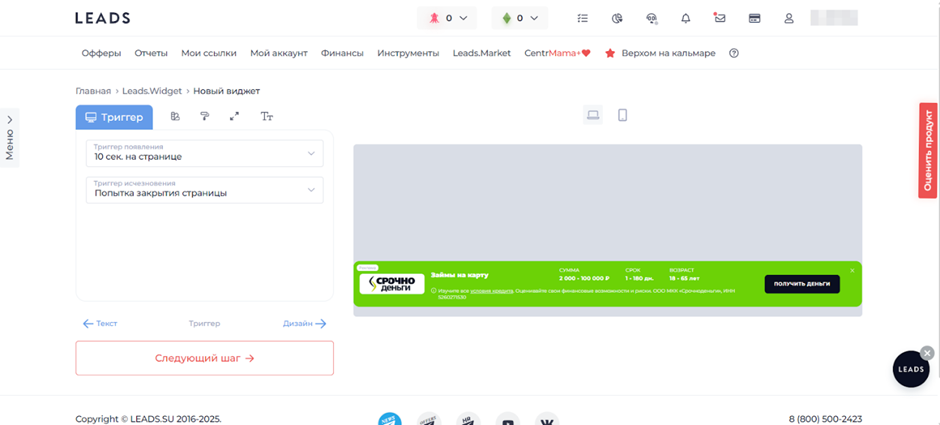
- Customize Trigger and Design.
- Add tools if necessary.
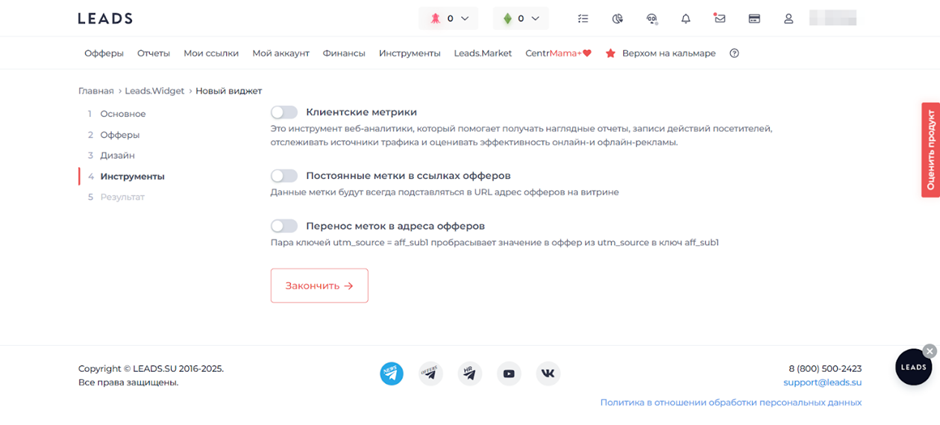
- The widget is created, you can place it on the site via code or move it to the builder.
Which geos pay attention to:
- Russia and CIS
What traffic is not paid
- Accepted: Context, SEO, social networks, teasers, pop-up, email, SMS, Influencers, apps, ACO, brokers, Telegram, rejected traffic.
- Not accepted: Fraud, incent traffic, aggressive, and gray schemes.
Statistics
Leads.su has detailed reports by: Offers, days, geo, questionnaires, and a dynamic report.
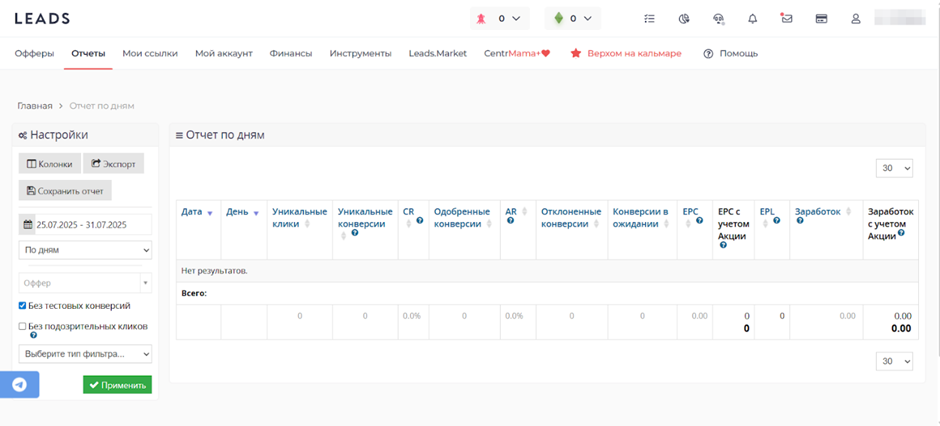
Statistics parameters: Date, Day, Unique clicks, Unique conversions, CR, Approved conversions, AR, Rejected conversions, Conversions pending, EPC, EPC with promotion, EPL, Earnings, and Earnings with promotion.
Customizing Global Postback
Let’s configure postback on Leads using the Keitaro tracker as an example.
- Open the tracker, go to “Affiliate Networks” and click “Create”;
- Select a ready-made template in the From template section;
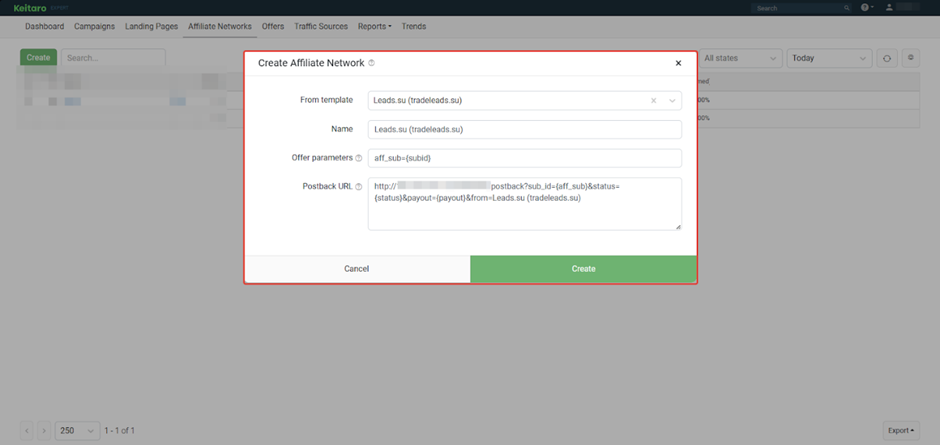
- Copy the Postback URL and click “Create”;
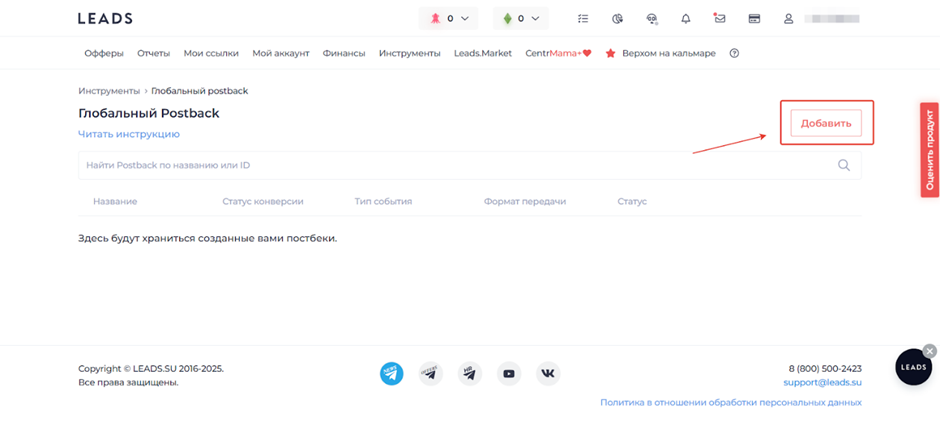
- Open Leads, in the tools tab click “Postback 2.0” and select Global Postback.
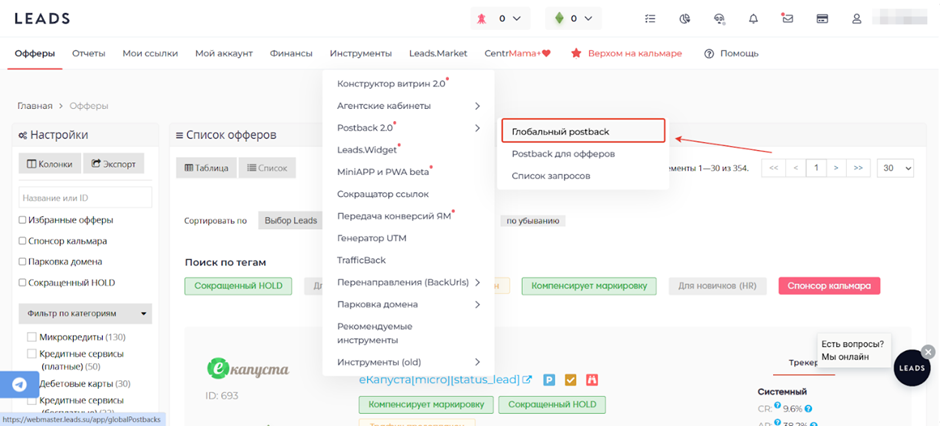

- Click “Add.”
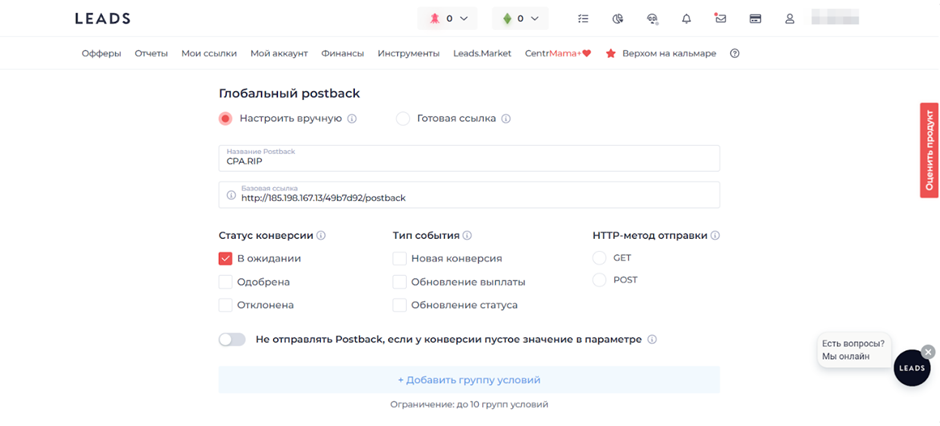
- Paste the URL without parameters, select the status.
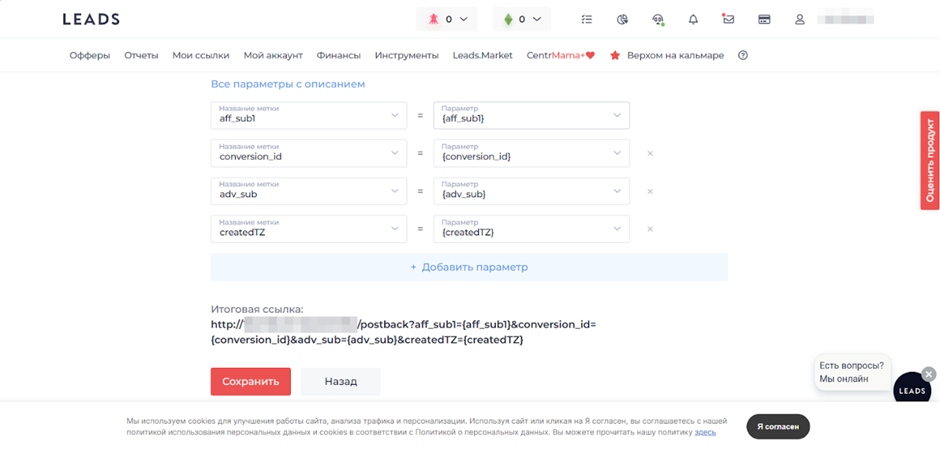
- Add parameters according to the template and click “Save”. Repeat like this with each status to be transferred. You can contact your manager to set up Postback.
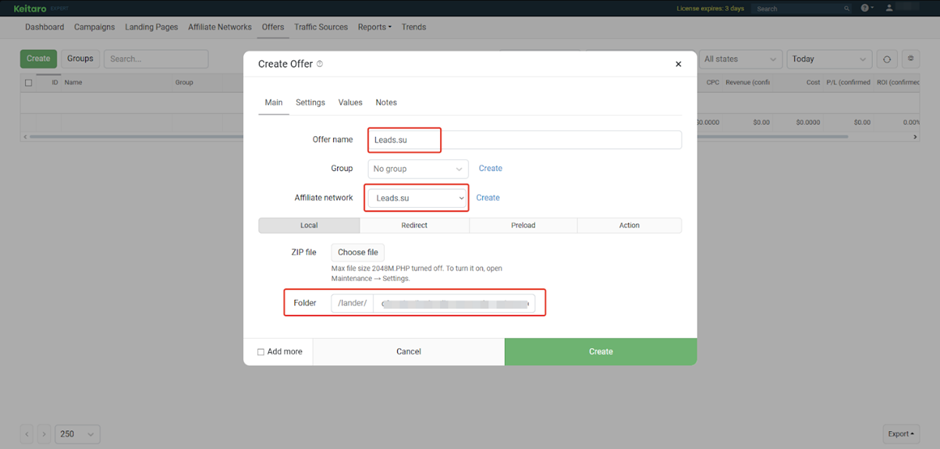
- Open the tracker, go to the “Offers” section, and click “Create”;
- Type the name of the offer, choose an affiliate program, provide a link to the landing page (copy it in the affiliate program), and create an offer;
- Open the “Campaigns” section and click ‘Create’;
- Specify the name of the campaign, click “Create Flow”;
- In the form that opens, go to “Schema” and select the offer;
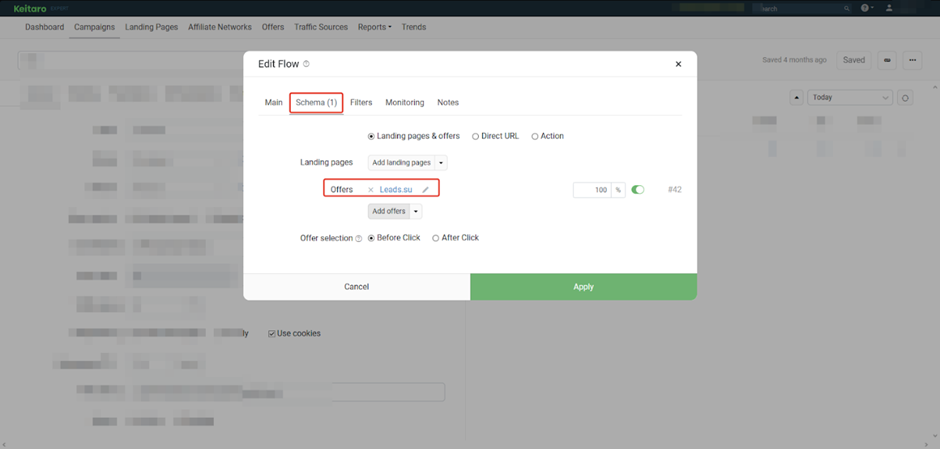
- Create Campaign.
Before launching the traffic, check if the postback is working.
Payouts
- Hold: 14 days
- Payouts: 2 times a month
- Minimum amount – 1200
Payment systems:
- Bank cards and transfers
- Advertising network (VK, Yandex.Direct, MyTarget)
- ZaleyCash
- TrafficBank
- Zvonobot
Technical Support and Social Media
Tech support contacts:
- Telegram: https://telegram.me/leads_su_reg
Social Media:
- Telegram: https://telegram.me/leadssulive
- Youtube: https://www.youtube.com/@LEADS_SU