

![[FBM] CARDS](https://cpa.rip/wp-content/uploads/cr-a1/fbm-cards-v1/fbm-cards-logo.svg)

Meta has introduced Ads AI Connectors – integrations that allow advertisers to manage campaigns in Ads Manager using AI tools. This works via the Meta Ads MCP server. At the time of publication, AI Connectors are available for Claude, ChatGPT, and Perplexity. In this article, we’ll show you how to connect the Meta Ads AI Connector via MCP and what tasks you can then perform in Claude.
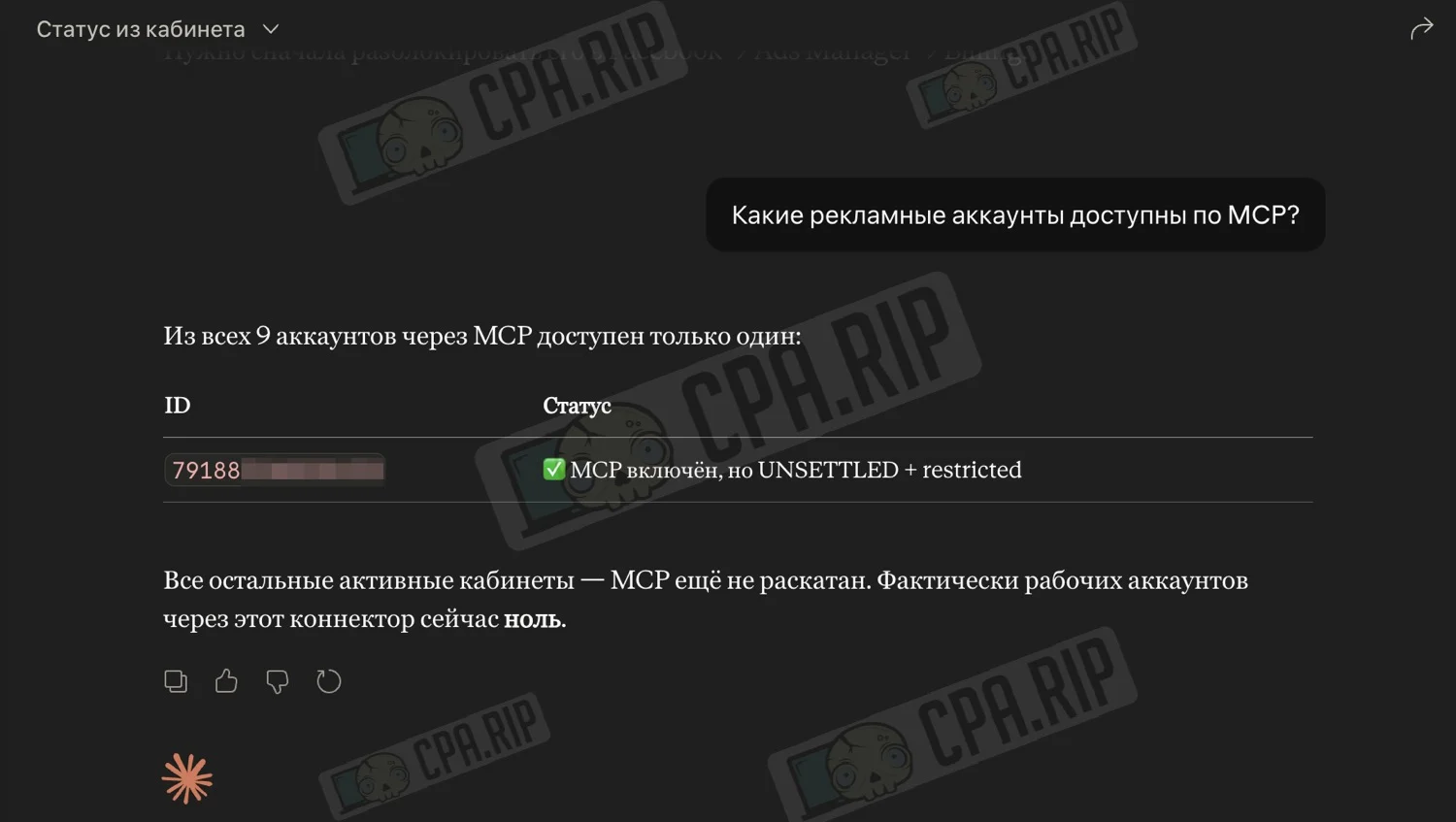
It’s important to note that not all Facebook accounts currently have direct access to the MCP. We went through many accounts before we found even one where Meta’s MCP server was actually accessible.
Many nuances affect successful connection and operation. For example, if you need to pull data from an ad account, it must be active, paid for, etc. It’s not a case of “connect it in and everything works.”
MCP and CLI are not the same
It’s important not to confuse the Meta Ads AI Connector with the Ads CLI.
Meta Ads AI Connector operates via the MCP server: https://mcp.facebook.com/ads and integrates within Claude, ChatGPT, or Perplexity as a connector. In this scenario, you type a task in natural language, and the AI tool leverages the available tools.
The Ads CLI is a separate command-line interface for the terminal. There, operations are performed using commands such as meta ads campaign list, meta ads campaign create, meta ads insights get, and so on.
Both scenarios are linked to the Meta Ads and Marketing API, but they are connected and used differently: MCP is for working via AI chat, while CLI is for working via the terminal and scripts.
What You Can Do via Claude
Before moving on to the connection, let’s look at examples of how you can manage ad campaigns via Claude with the Ads AI Connector.
Reports and Account Analysis
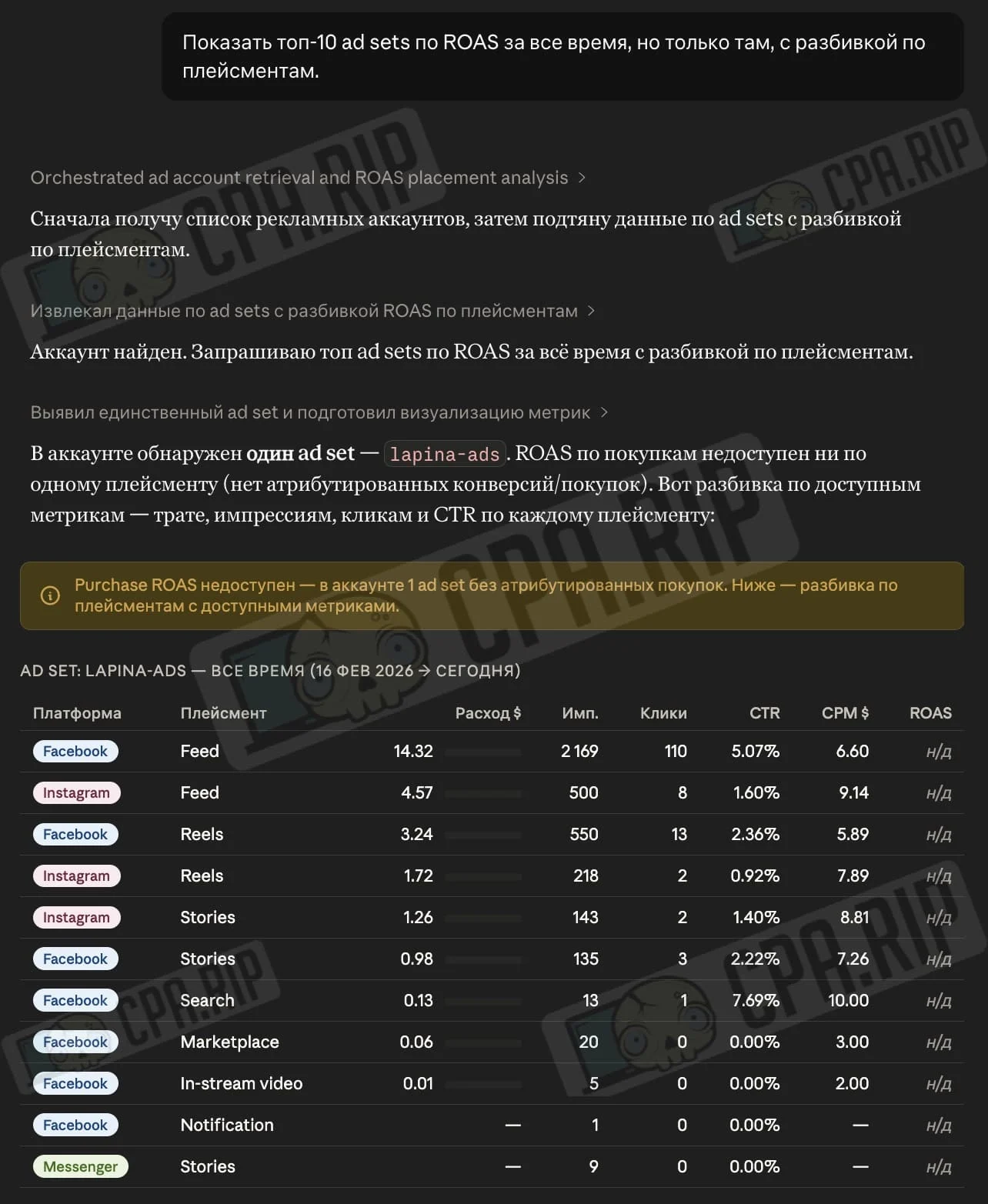
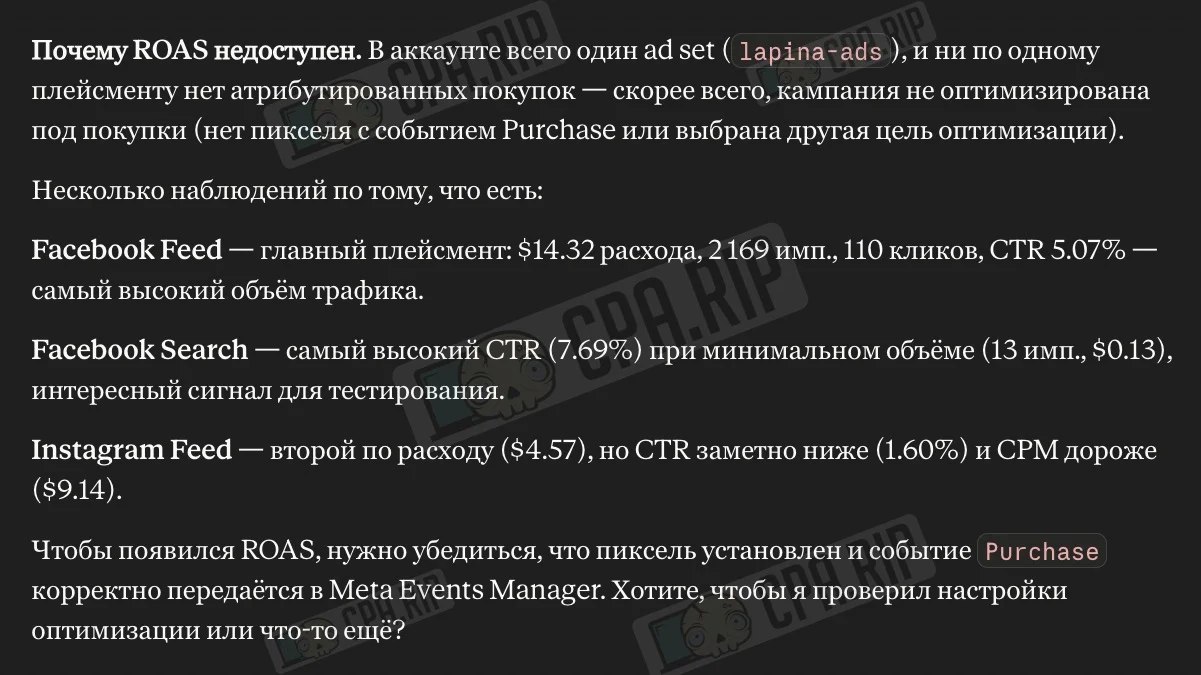
You can ask Claude to retrieve data for a specific time period at the account, campaign, ad group, or individual ad level. For example, you can sort campaigns by spend, ROAS, or CTR; filter by status, ad extensions, or specific thresholds; and break down the data by age, gender, placement, country, or device.
Example request: Show the top 10 ad sets by ROAS for the last 30 days, broken down by placement.
Diagnostics
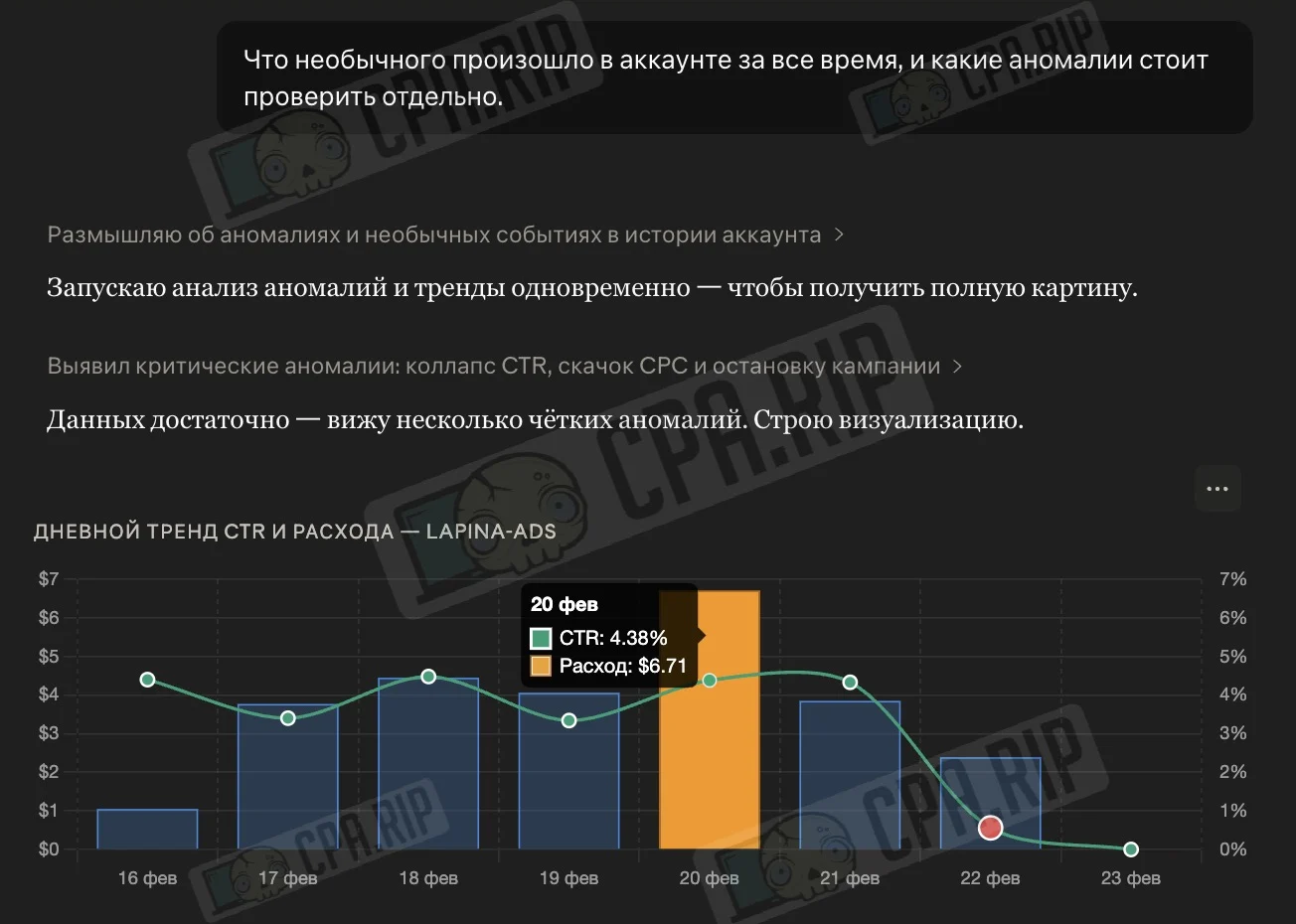
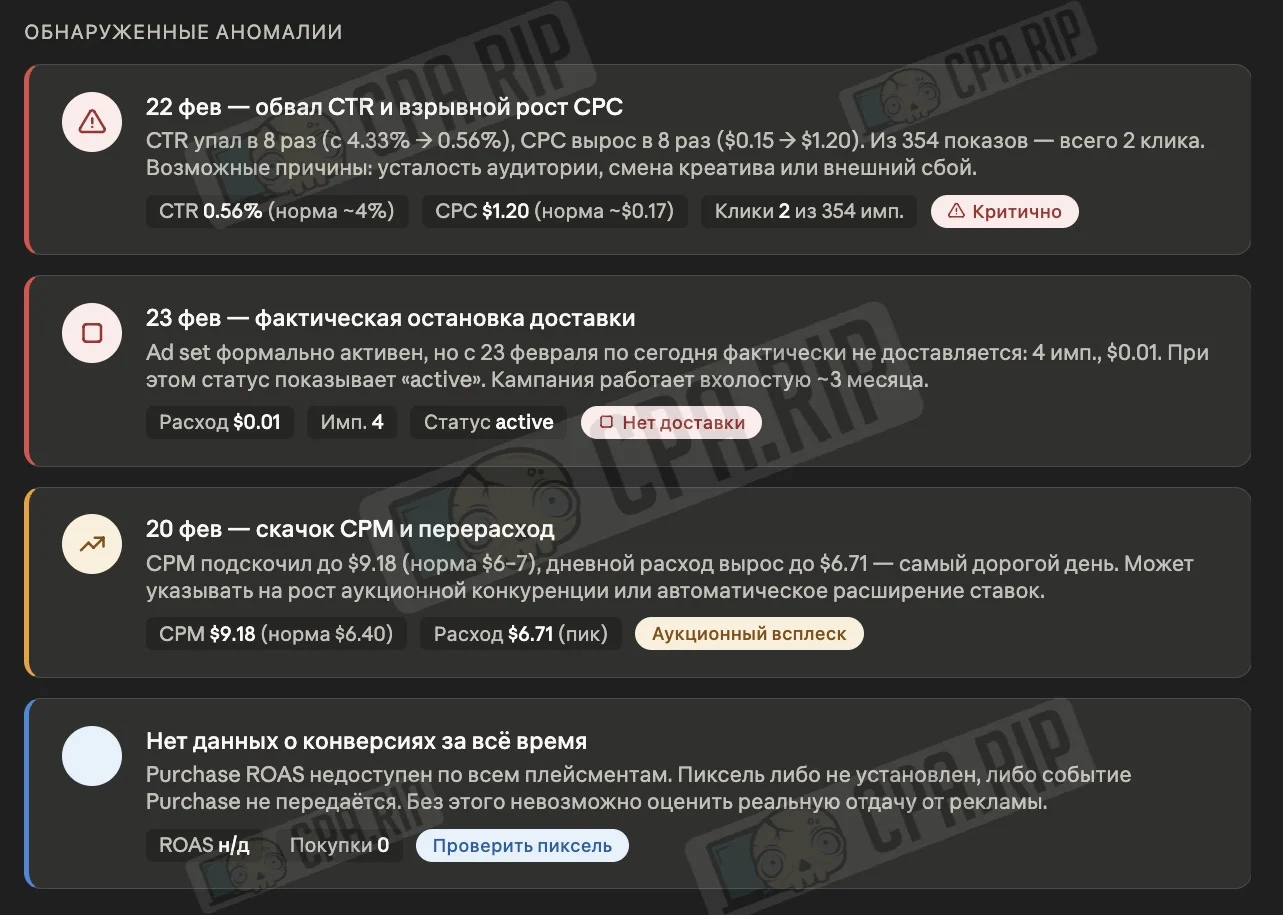
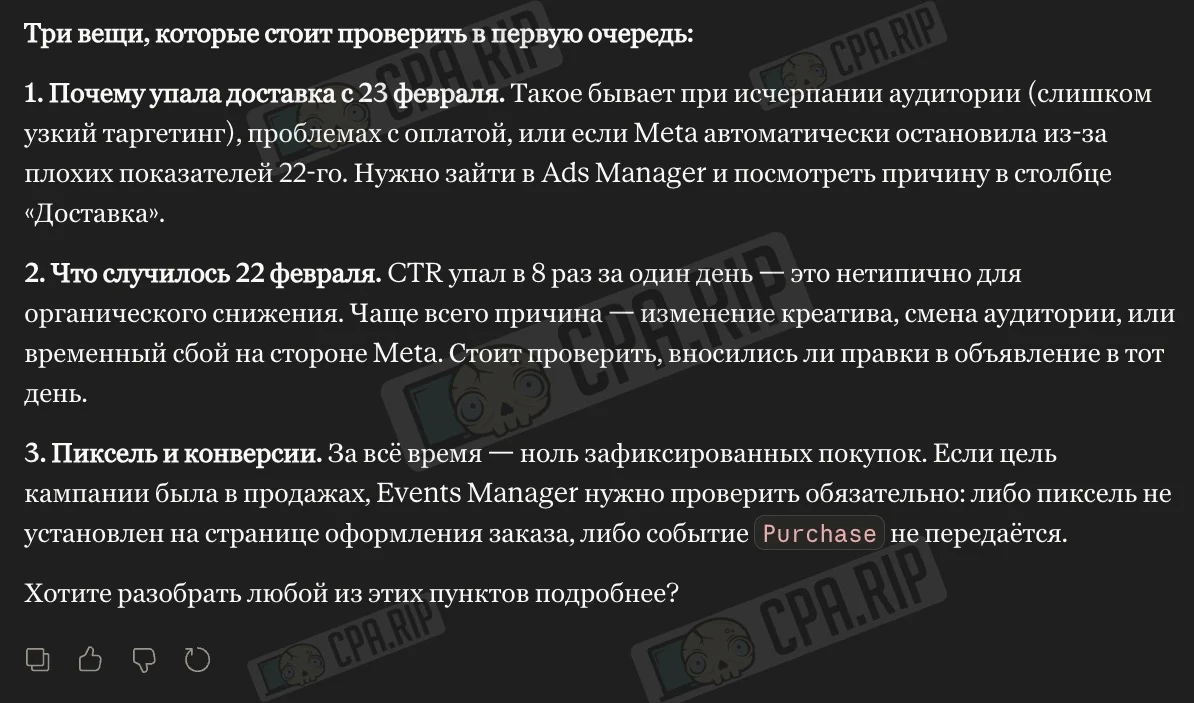
Claude can look for anomalies, sharp increases in CPM, frequency spikes, drops in conversions, and other deviations that are easy to miss manually. It can also analyze auction performance and benchmarks to understand how metrics compare to advertisers in similar categories.
Example query: What unusual events have occurred in the account over time, and which anomalies should be investigated separately.
Pre-launch check
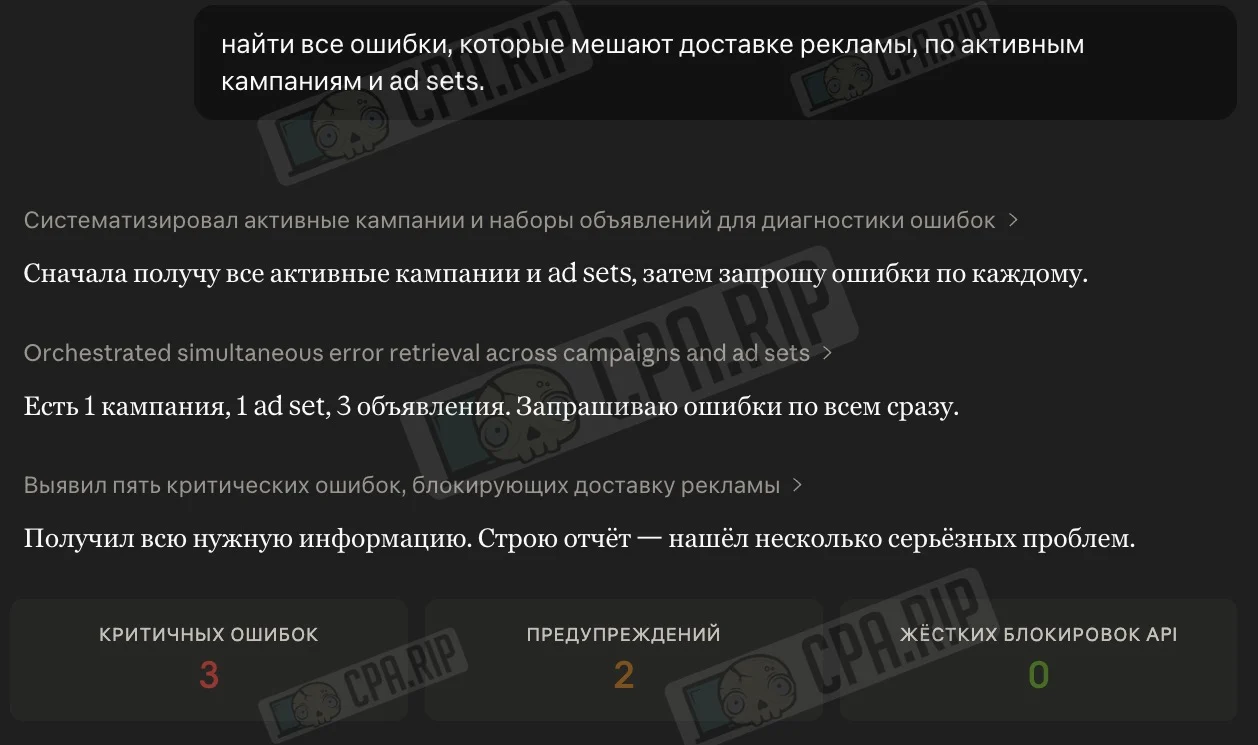
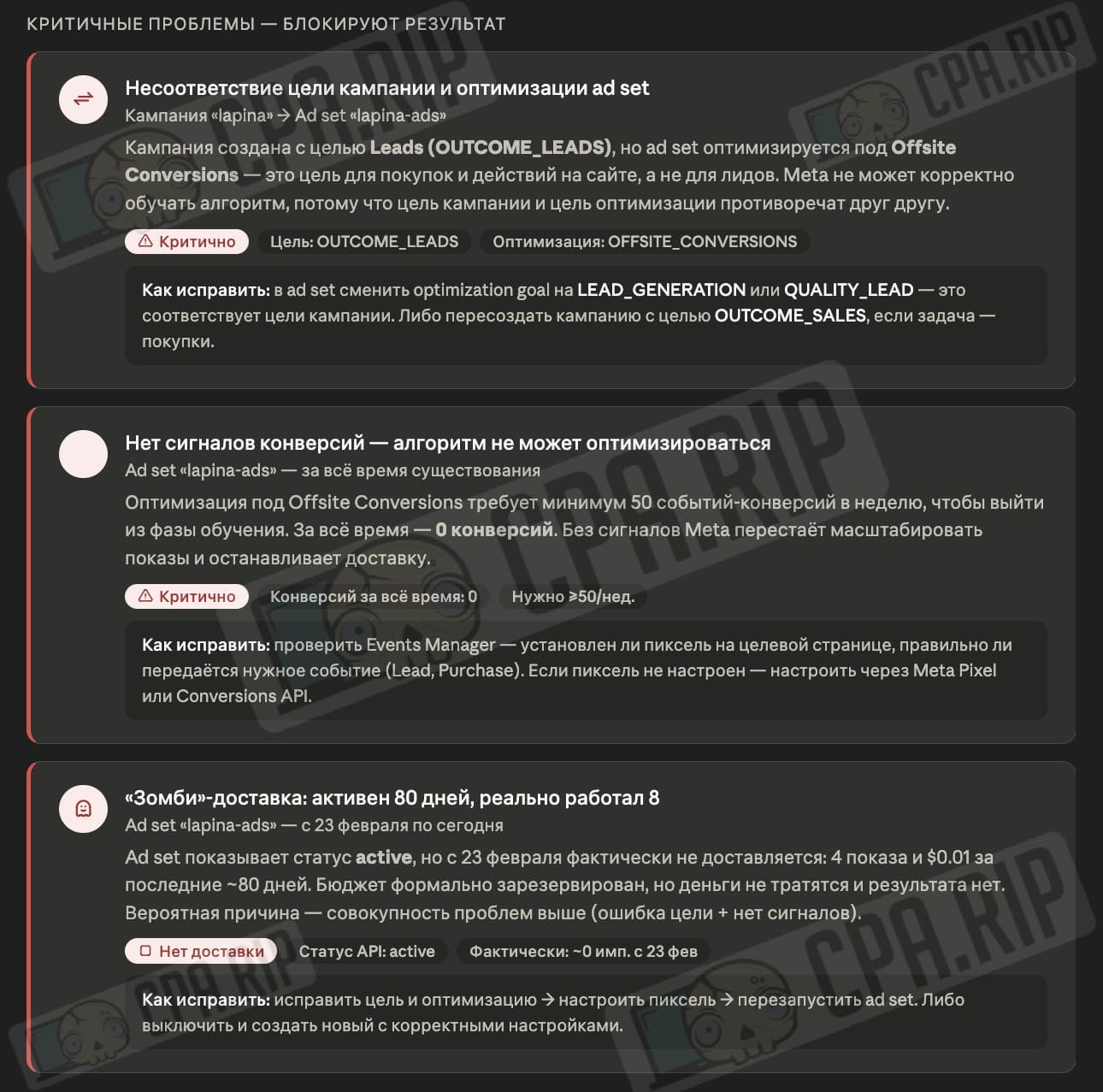
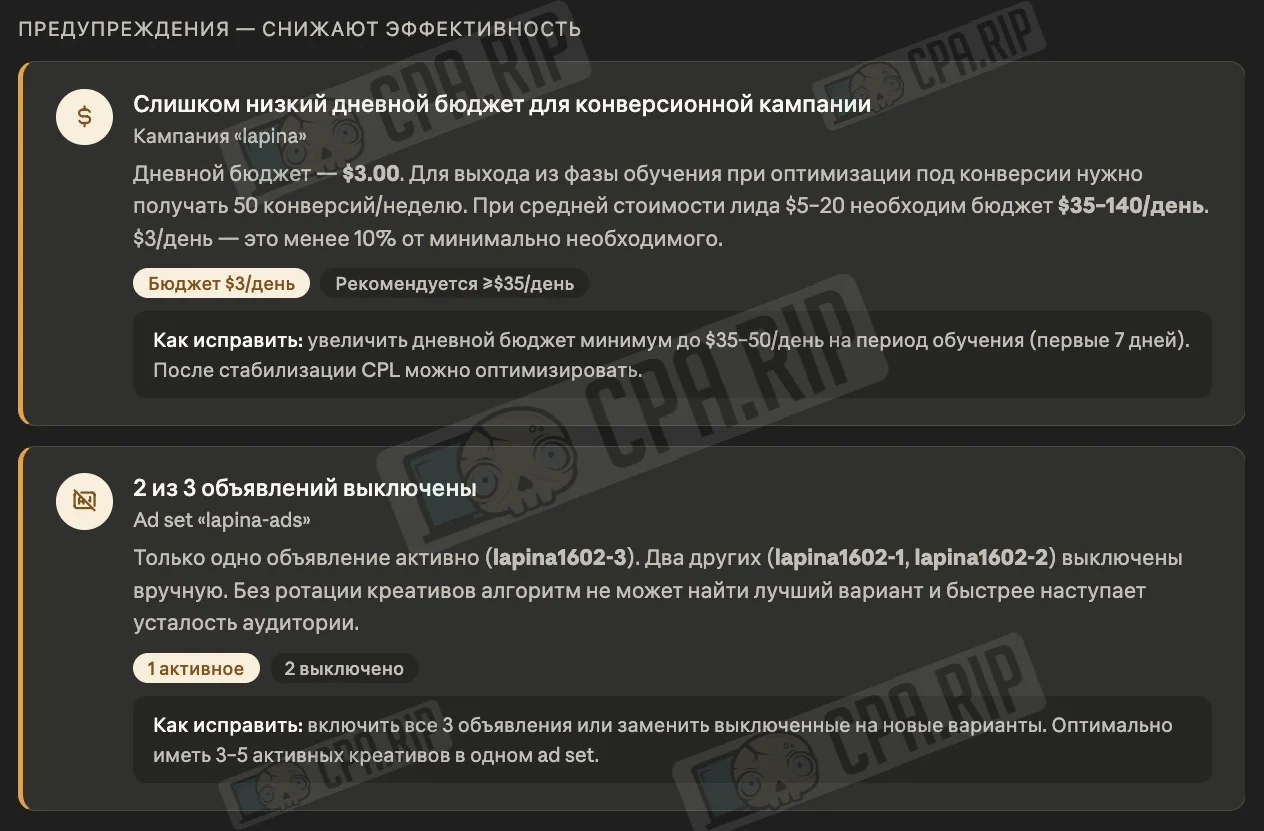
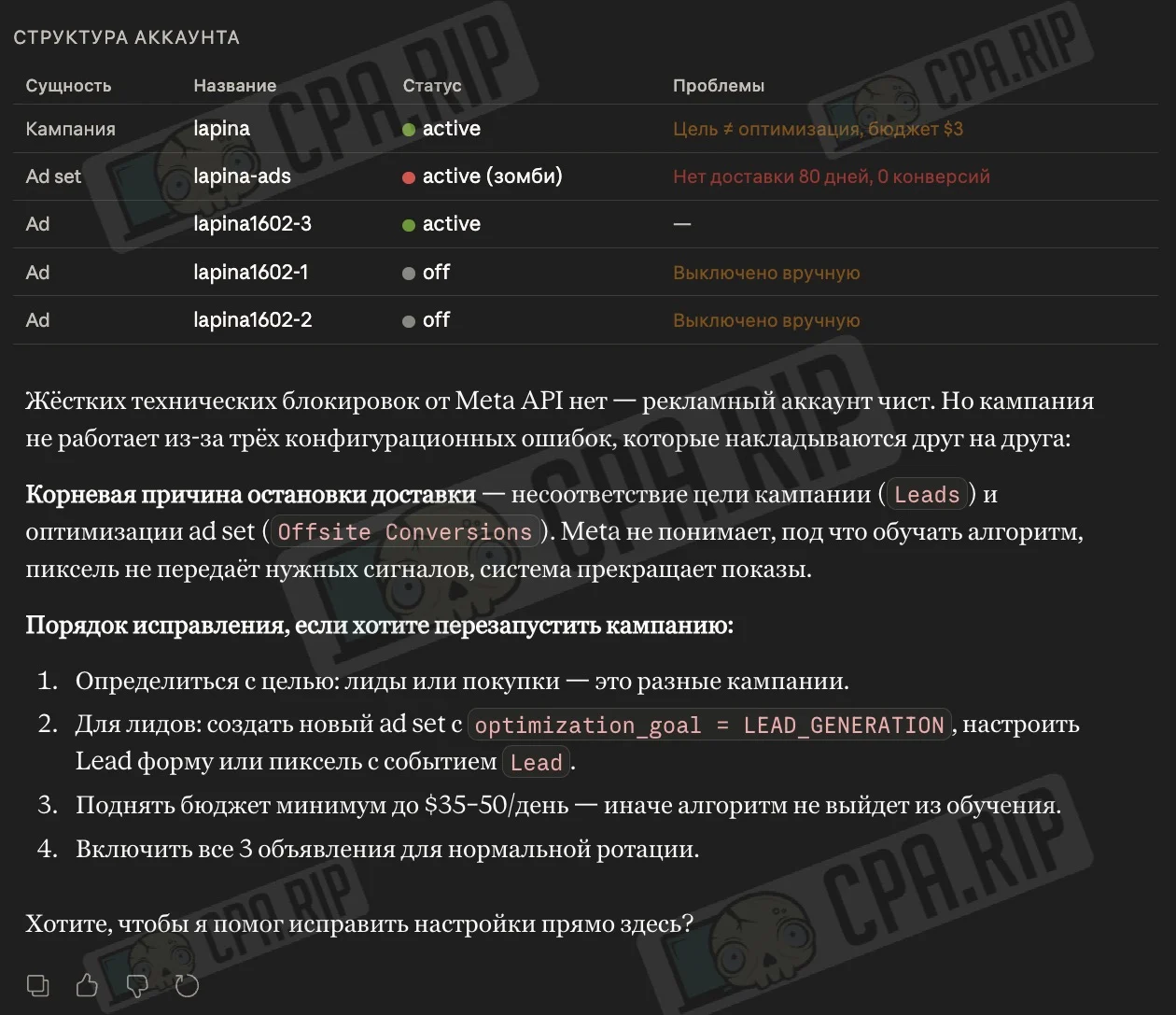
Through the connector, you can ask Claude to scan the account and find errors that prevent ad delivery at the campaign, ad set, and ad levels.
Example request: Find all errors that prevent ad delivery across active campaigns and ad sets.
Signal and Pixel Verification
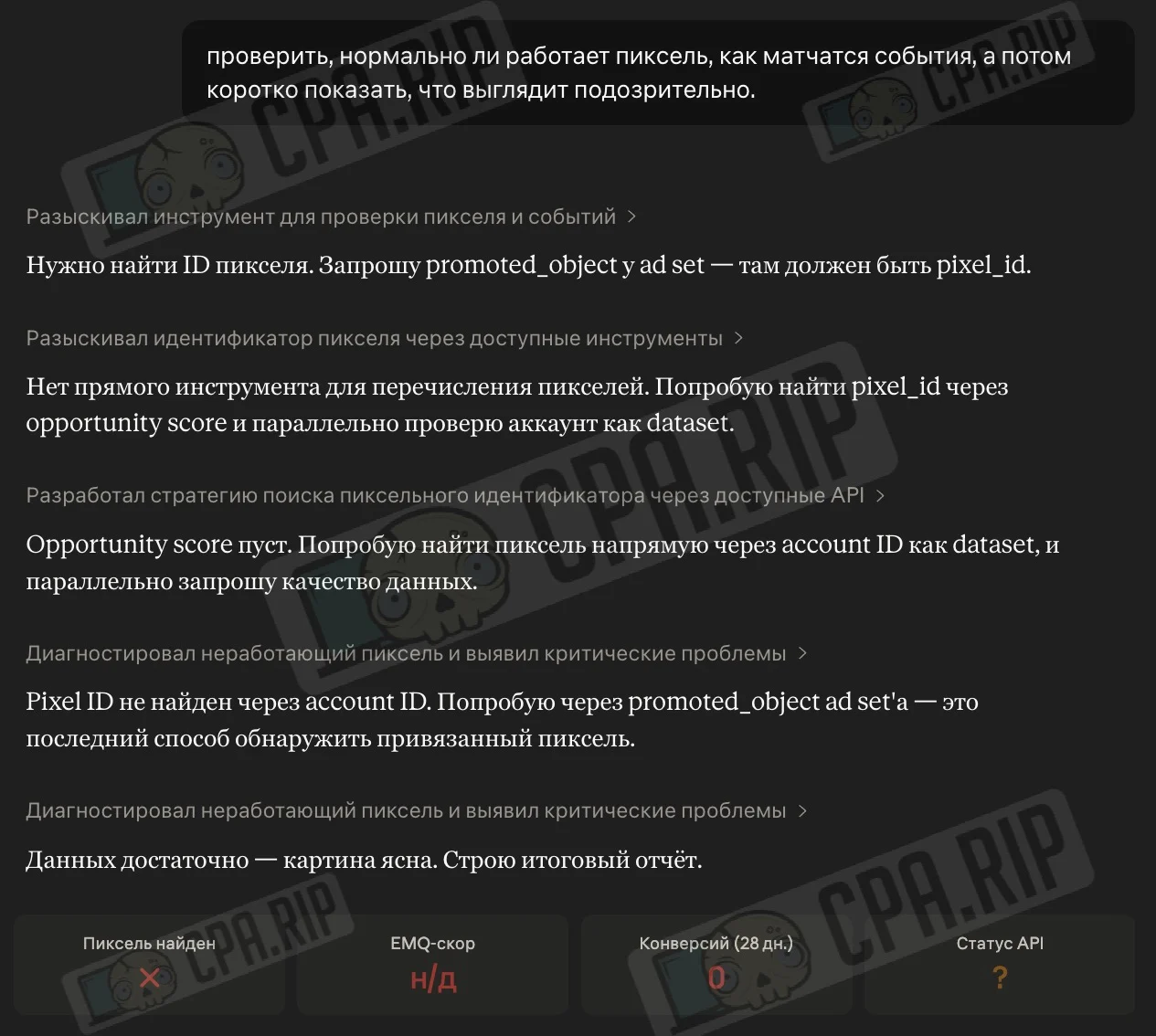
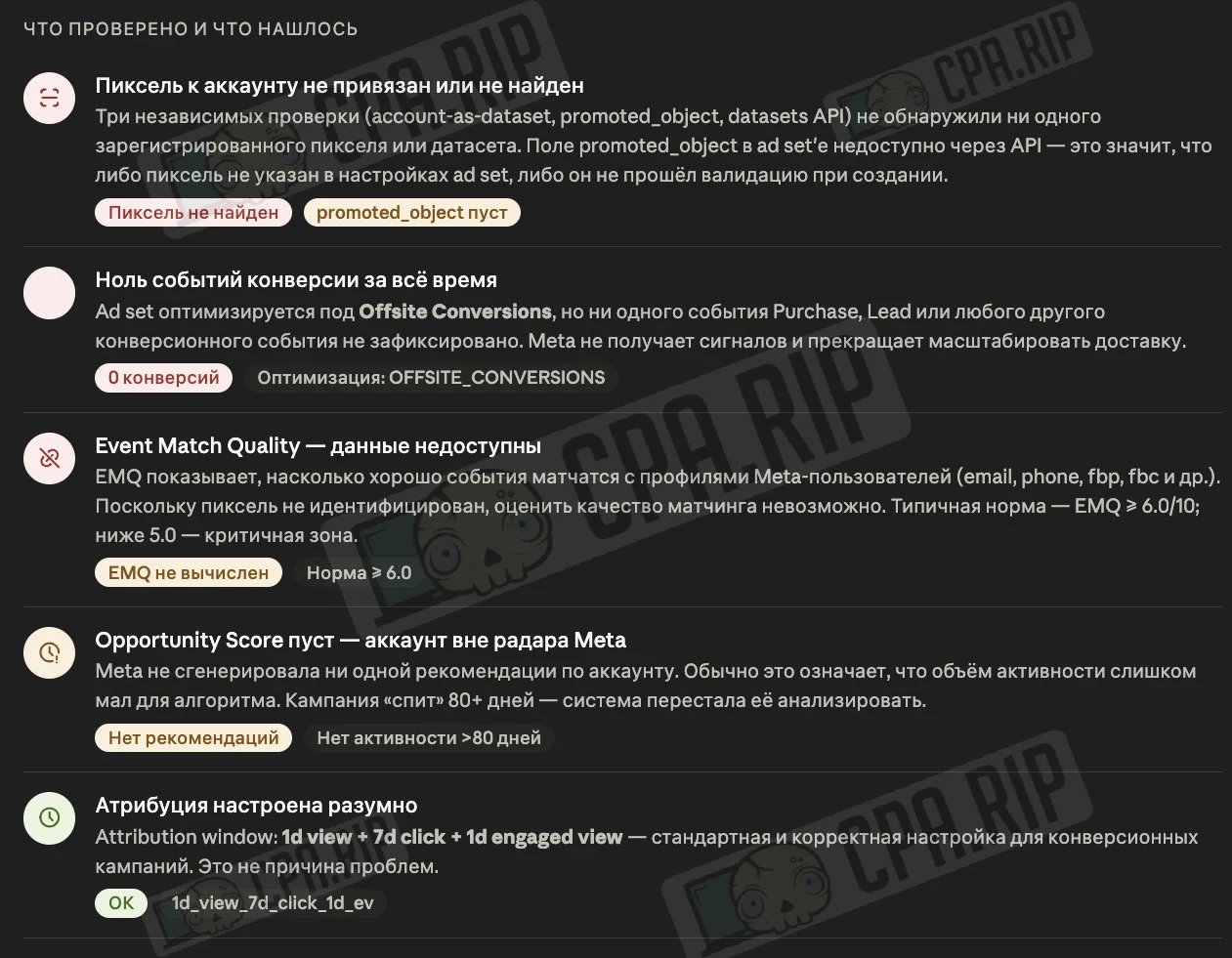
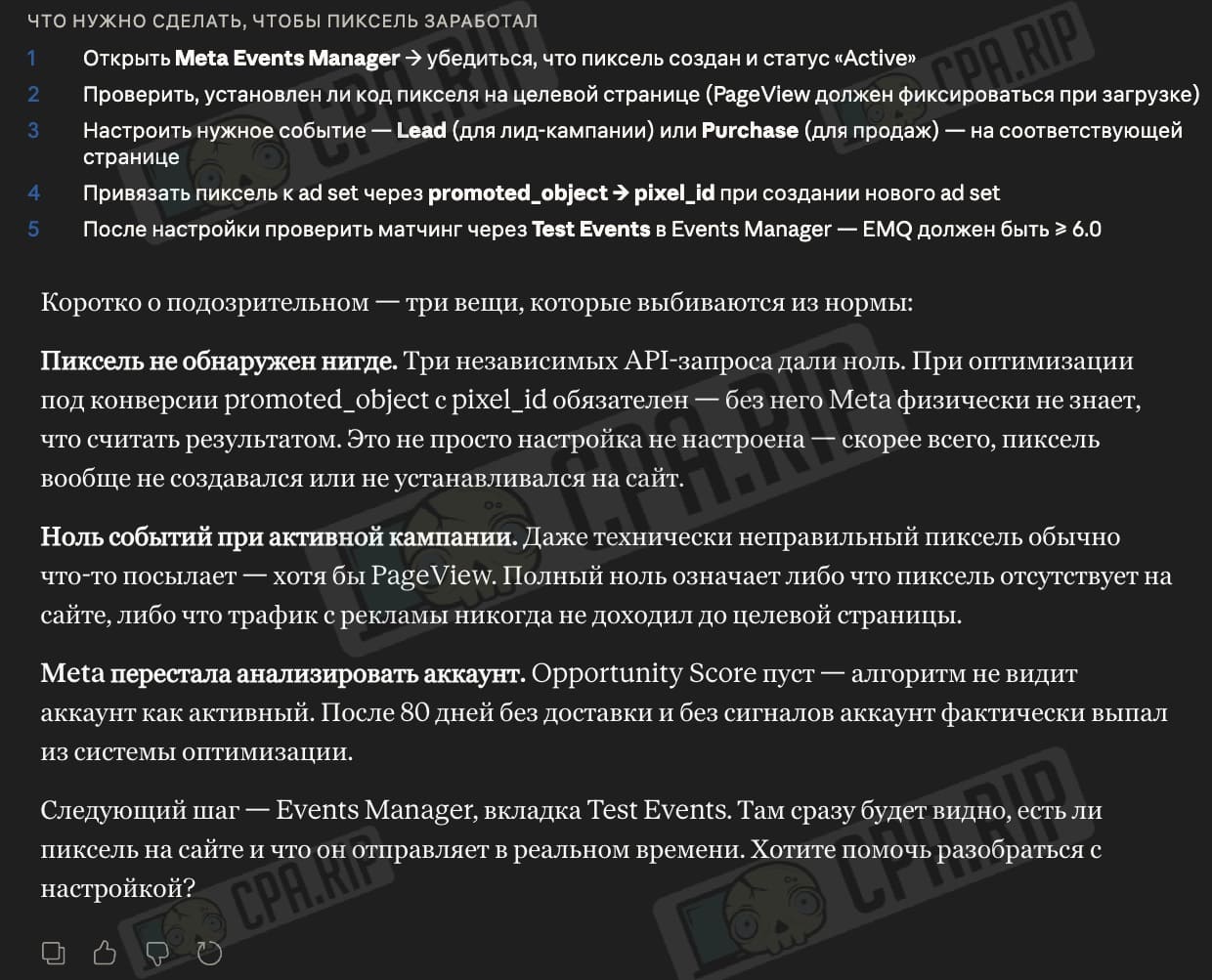
The connector includes three tools for auditing datasets and pixels: configuration metadata, signal quality assessment, and event volume statistics. This helps you quickly determine whether the pixel is functioning correctly, whether the matching quality is normal, and whether the expected volume of events is being received. This audit complements the CAPI check well.
Example request: Check if the pixel is working properly, how events are being matched, and then briefly highlight anything that looks suspicious.
Creating campaigns and ads
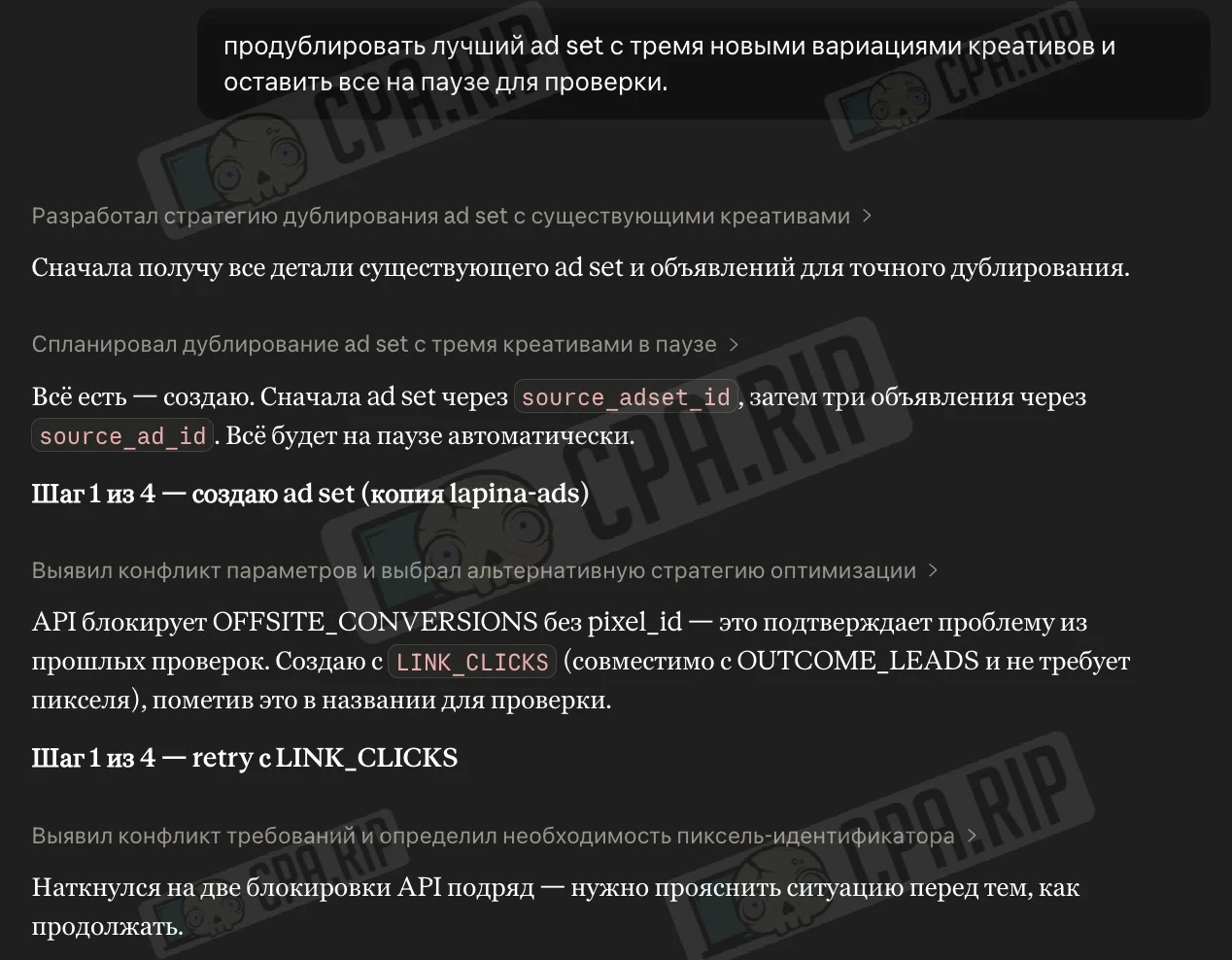
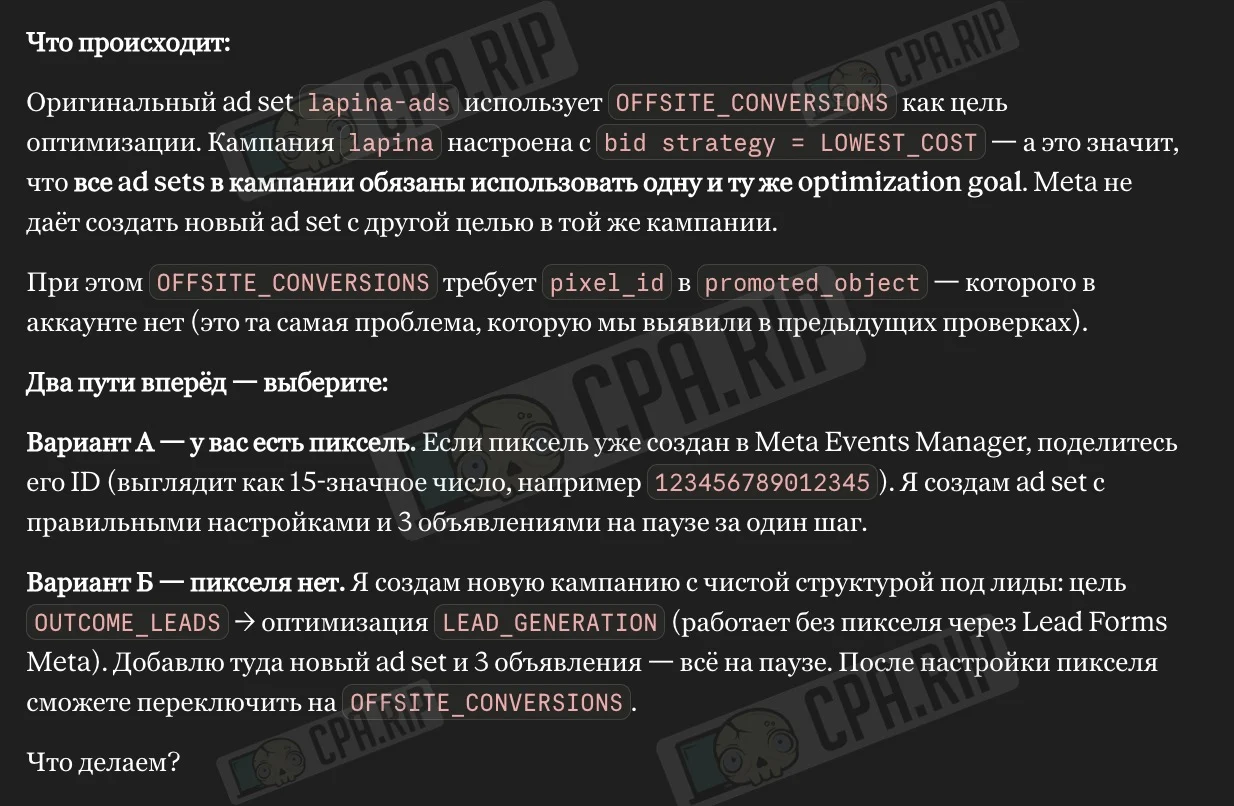
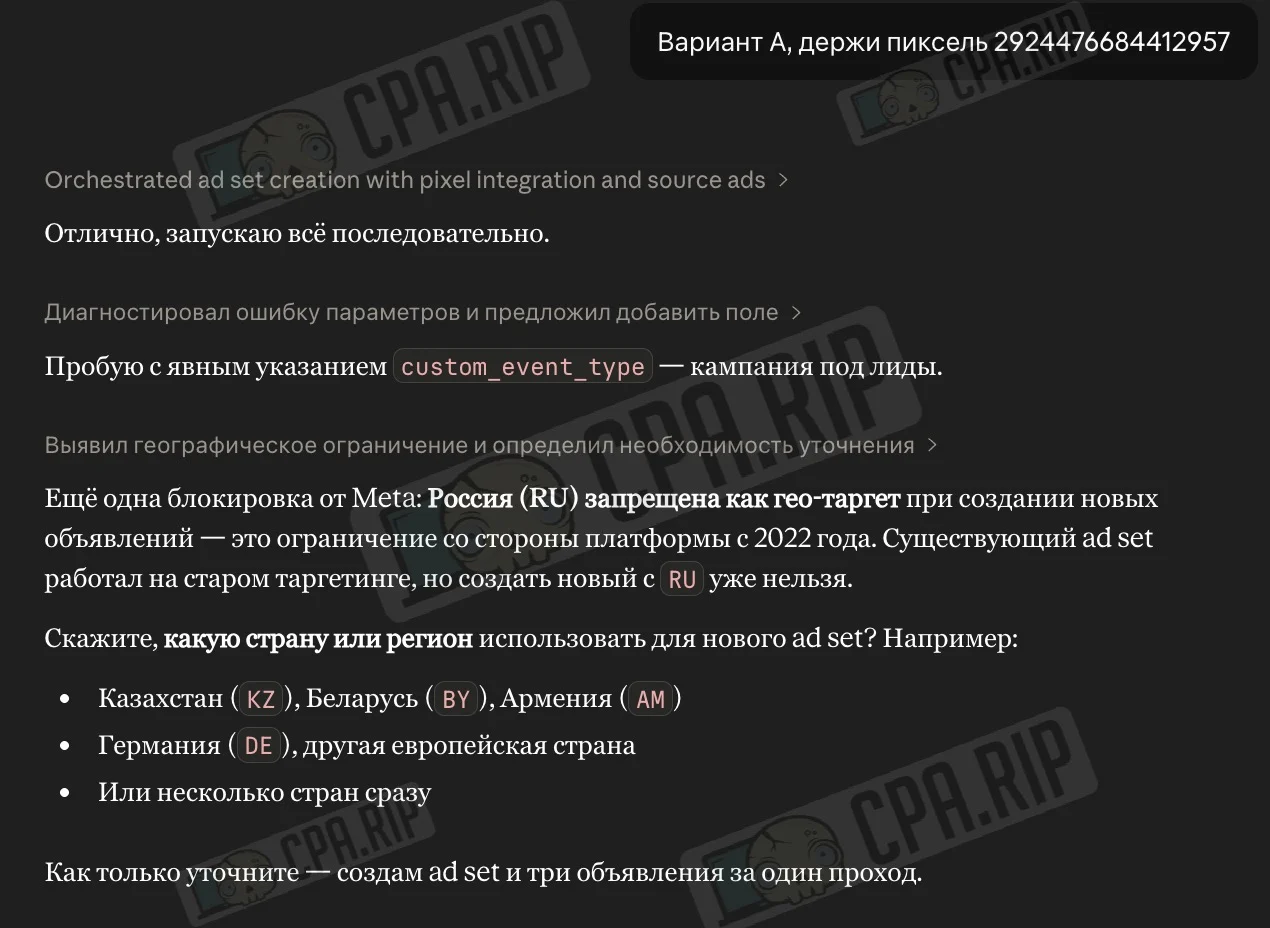
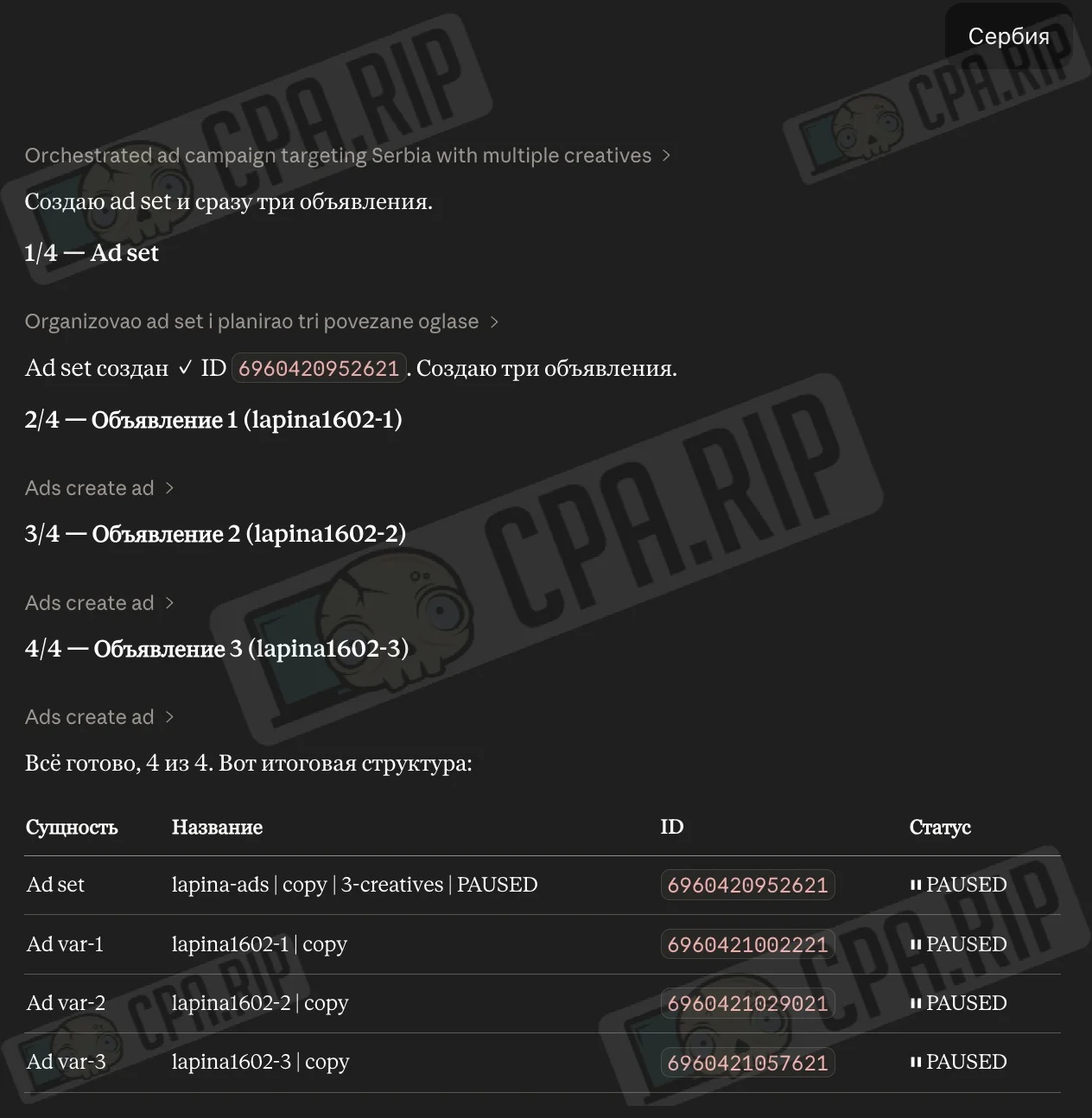
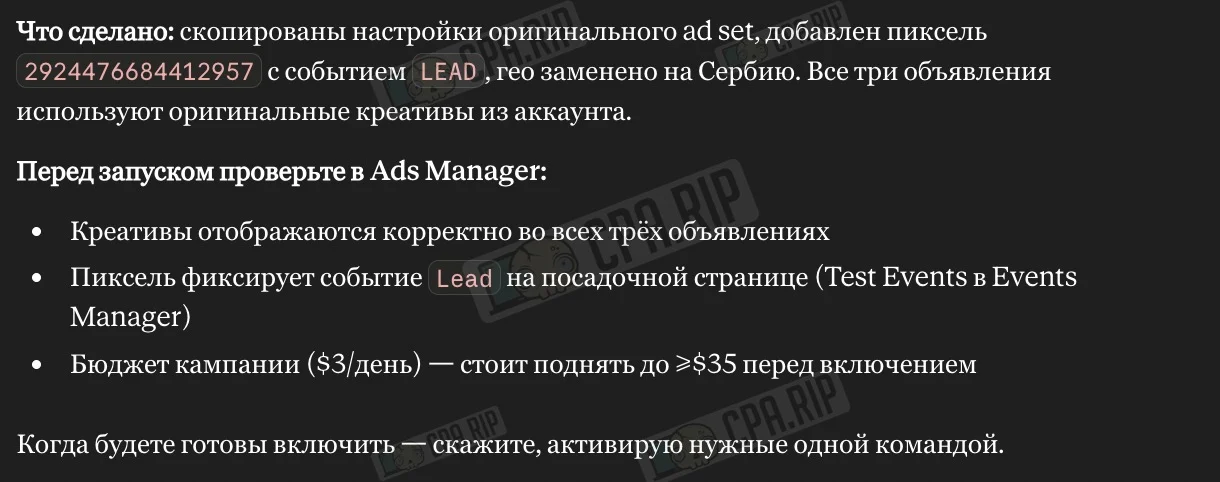
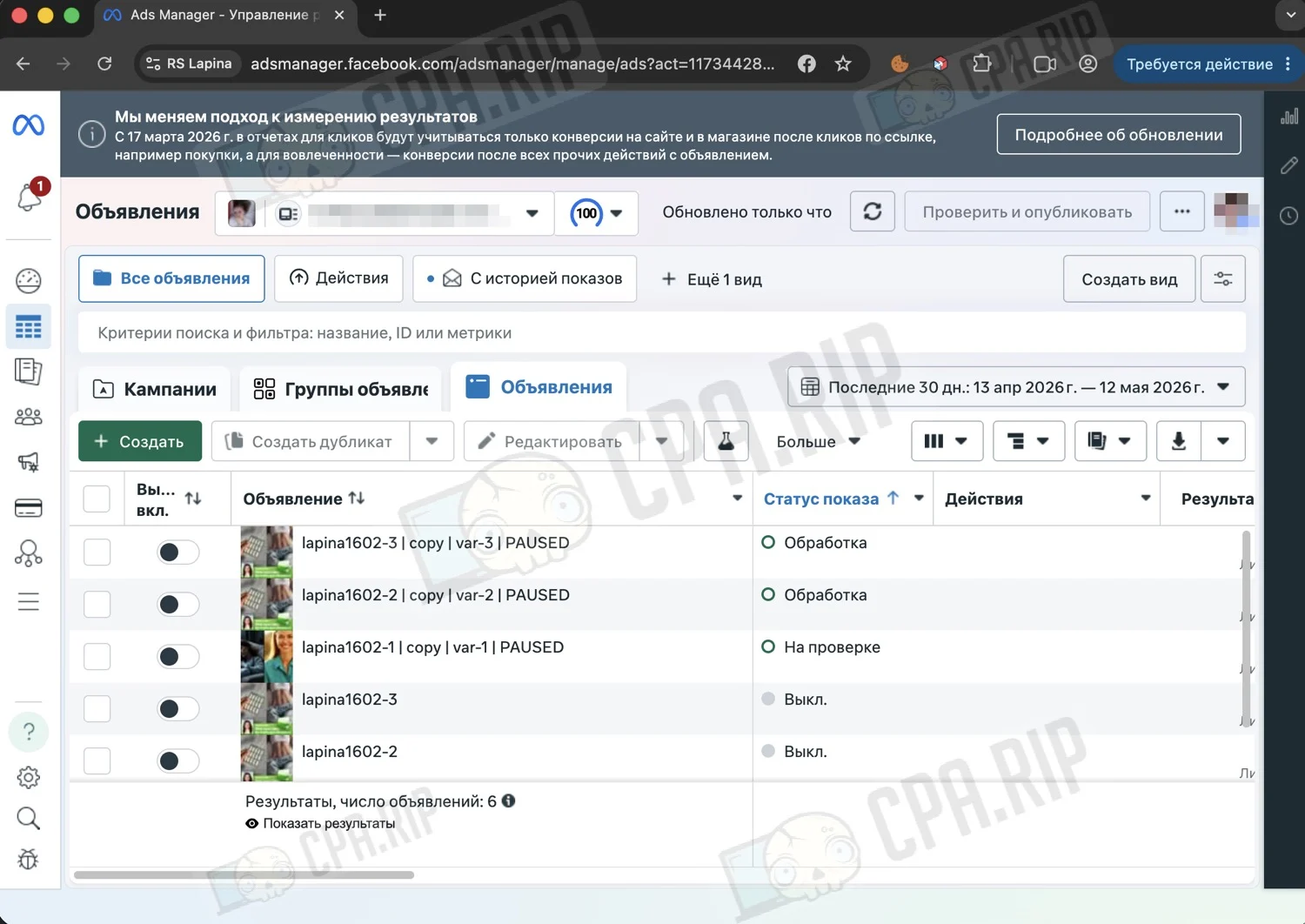
Claude can create campaigns, ad sets, and ads. All new objects are created with the PAUSED status by default, so the campaign won’t start running until you switch them to active status. Claude can also update existing objects: budgets, names, targeting and activate or pause them on request.
Example request: duplicate the best ad set with three new creative variations and leave everything on pause for testing.
Catalogs
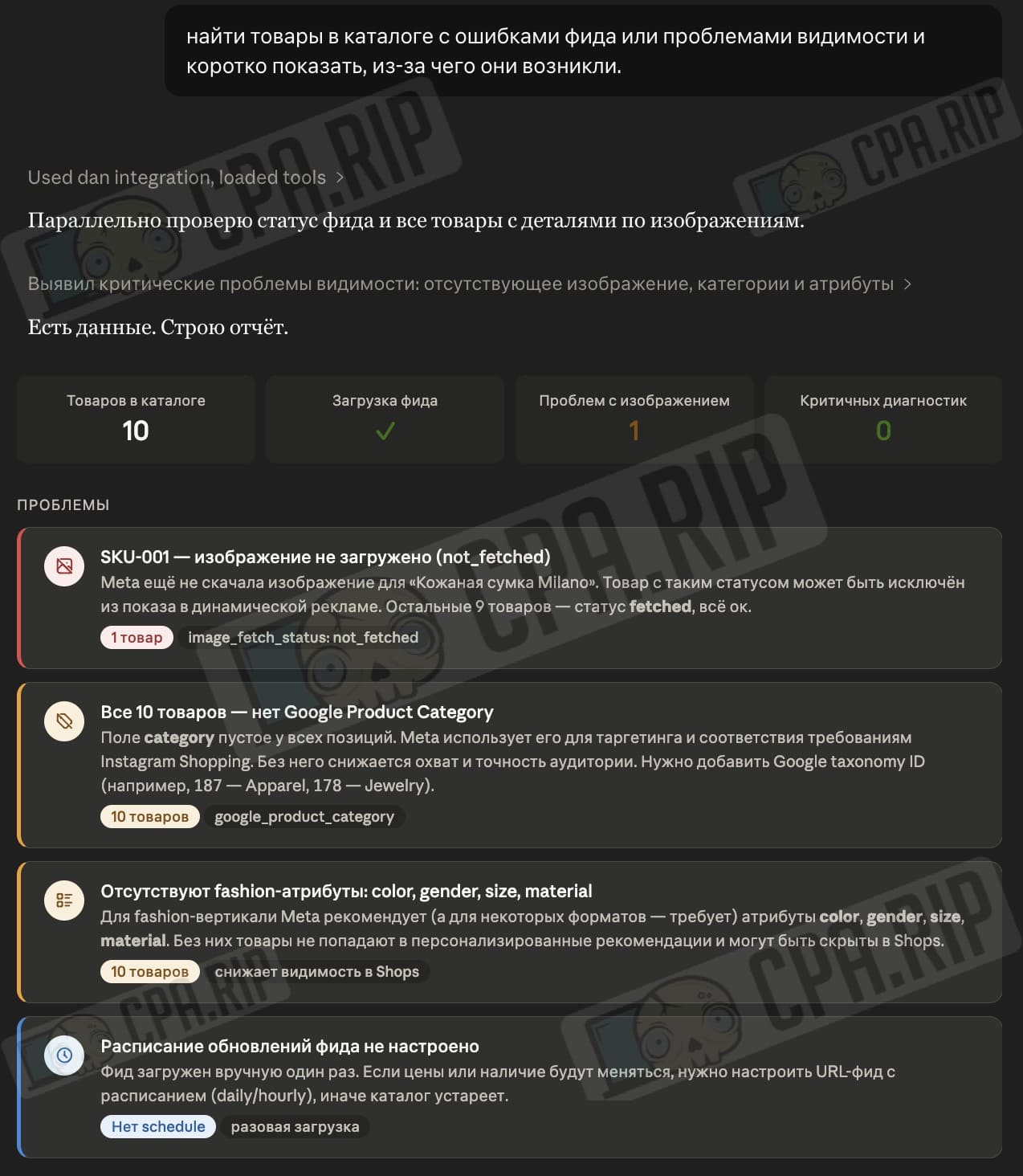
If you run e-commerce ads, the connector can create product catalogs, browse and search for products and product sets, and retrieve diagnostics on feeds and product visibility issues. You can also view data on individual products, feed settings, and upload rules.
Example query: Find products in the catalog with feed errors or visibility issues and briefly explain why they occurred.
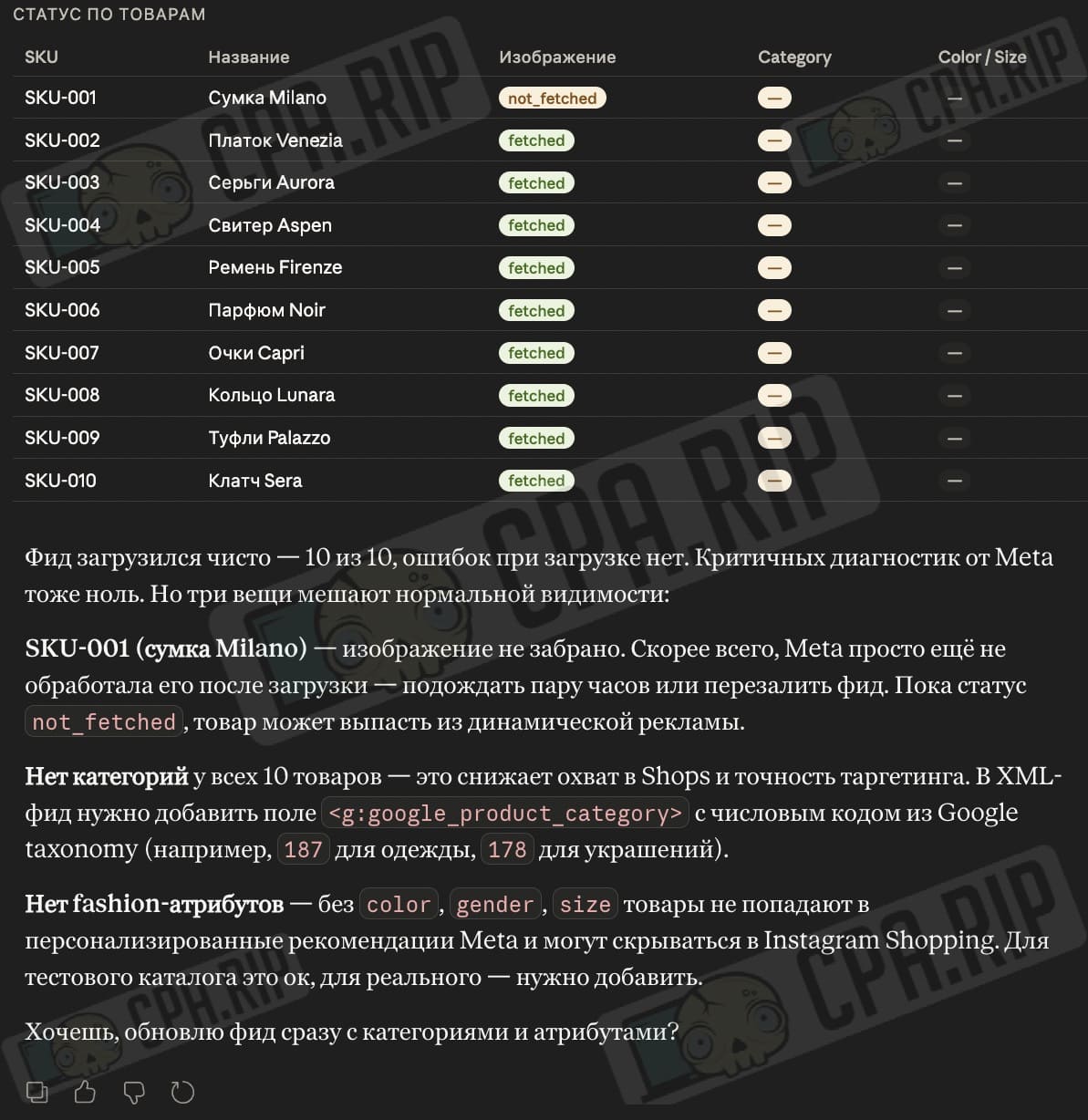
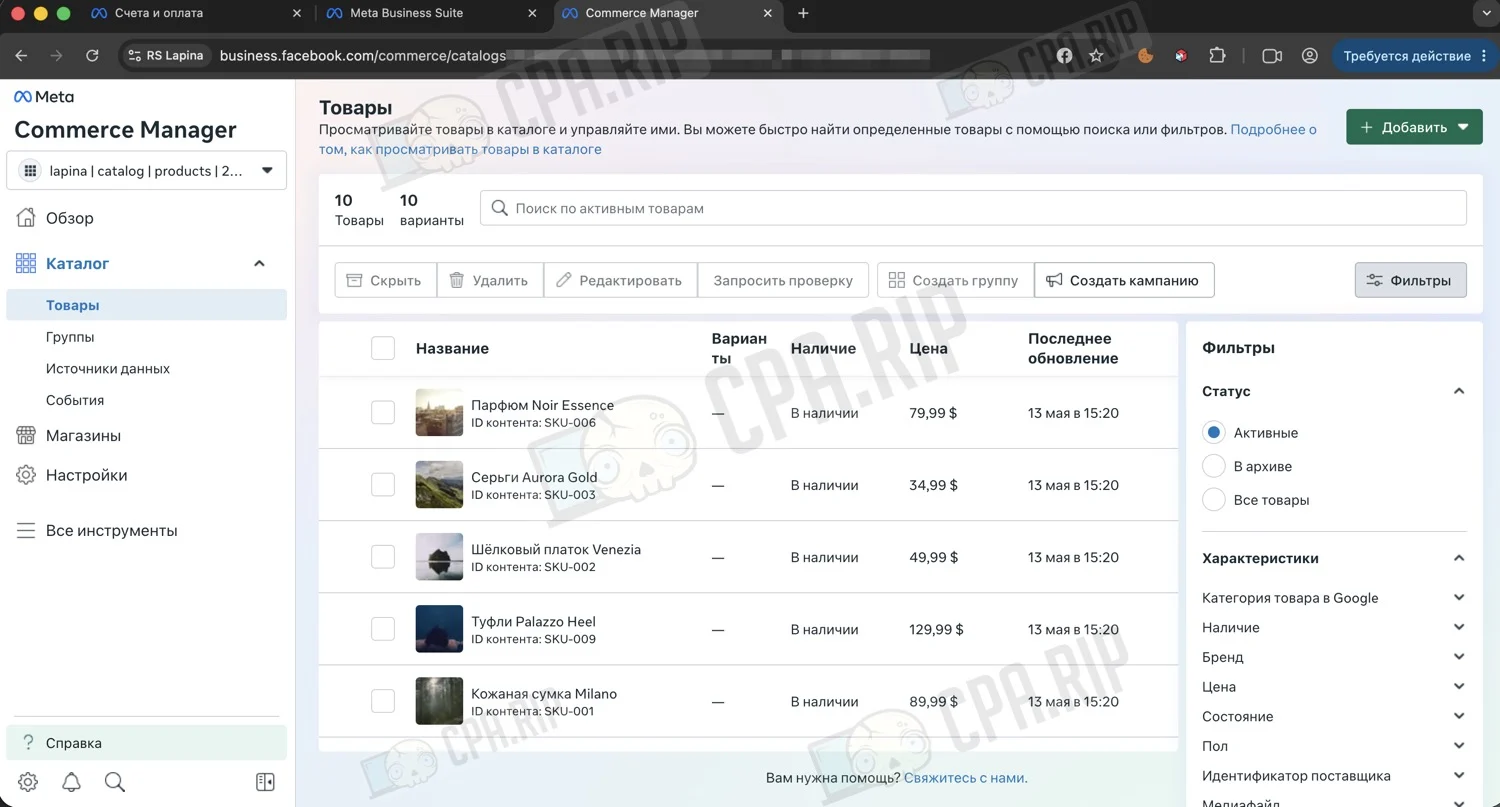
How to connect Meta Ads AI Connector to Claude via MCP
We connected the Meta Ads AI Connector via Claude Desktop. The process is simple: add a custom connector, specify the Meta MCP server, and log in via Facebook.
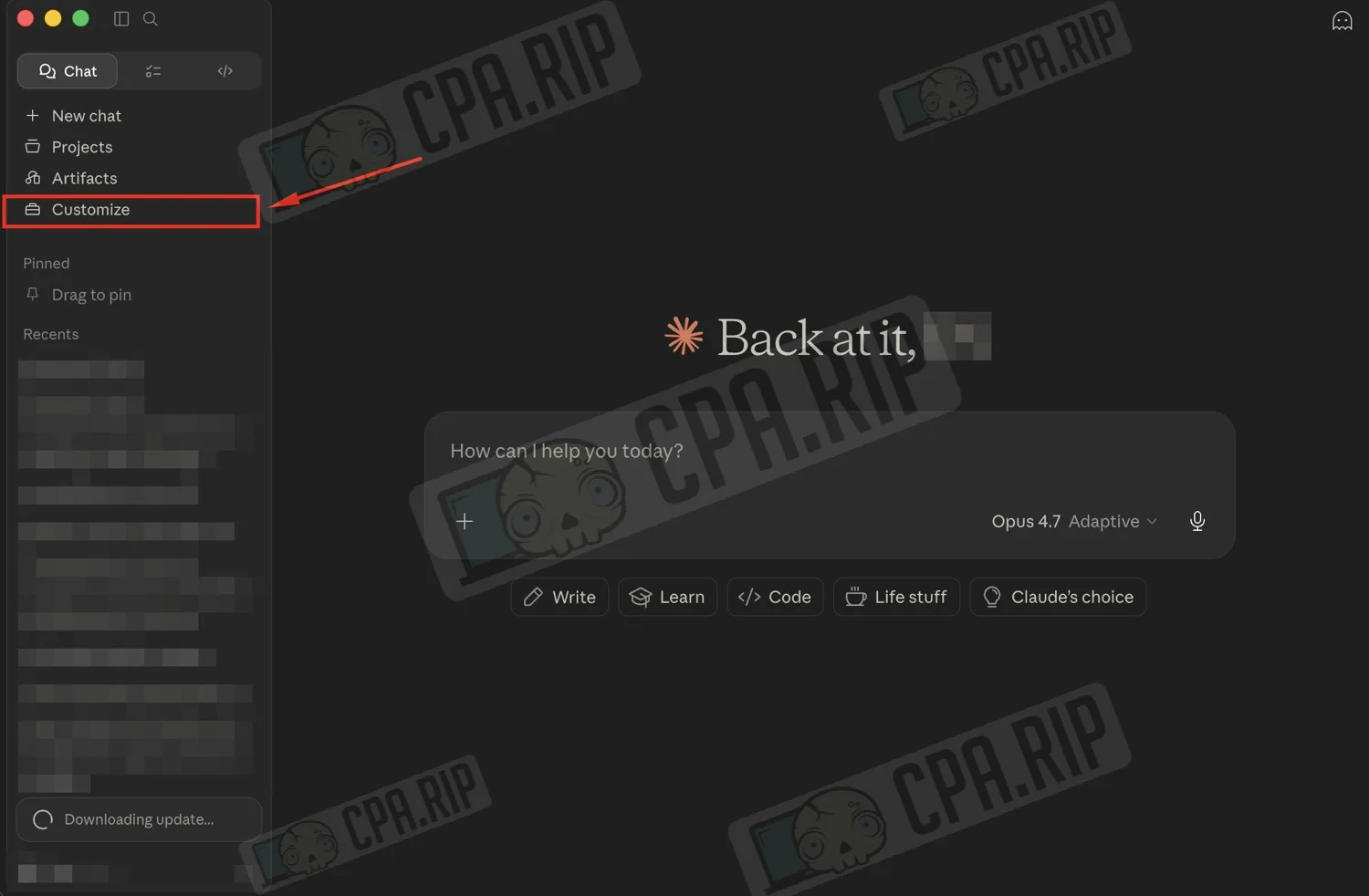
First, open Customize in the left menu in Claude.
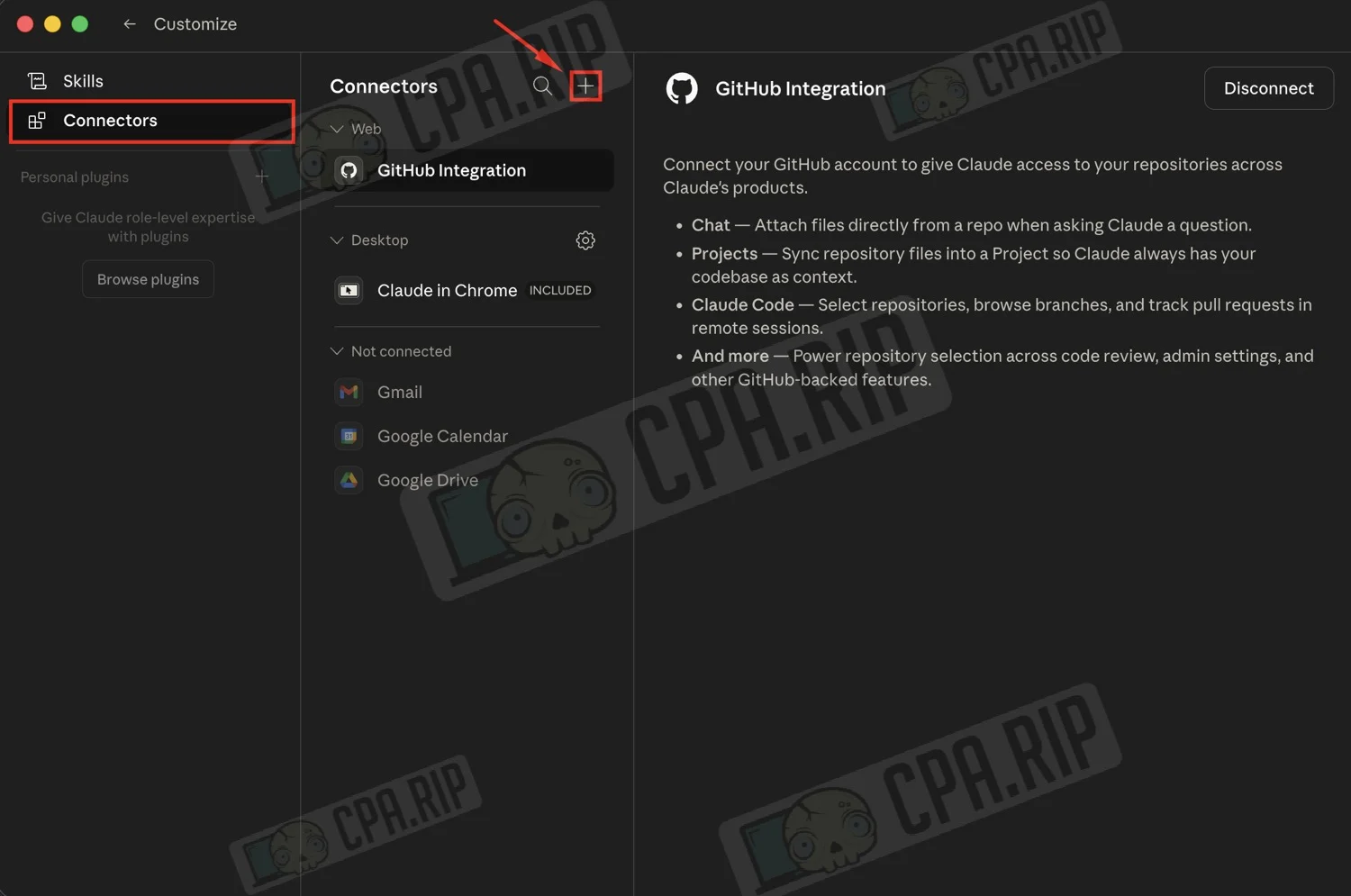
Next, go to Connectors and click the plus sign next to the search bar.
In the Add custom connector window, enter any name for the connector and paste the URL of Meta’s MCP server:
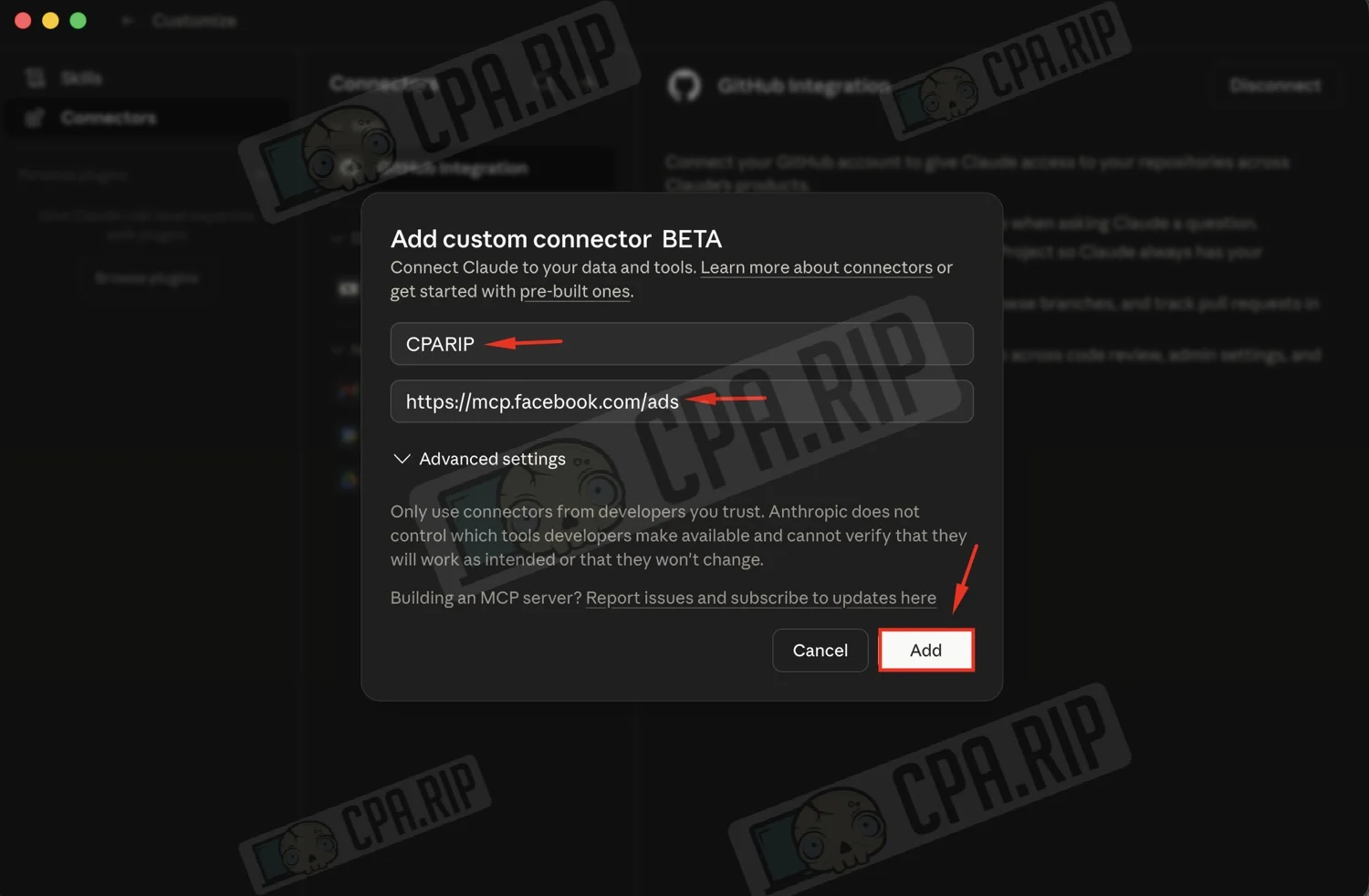
Then click Add. The connector will appear in the Not connected list. Open it and click Connect.
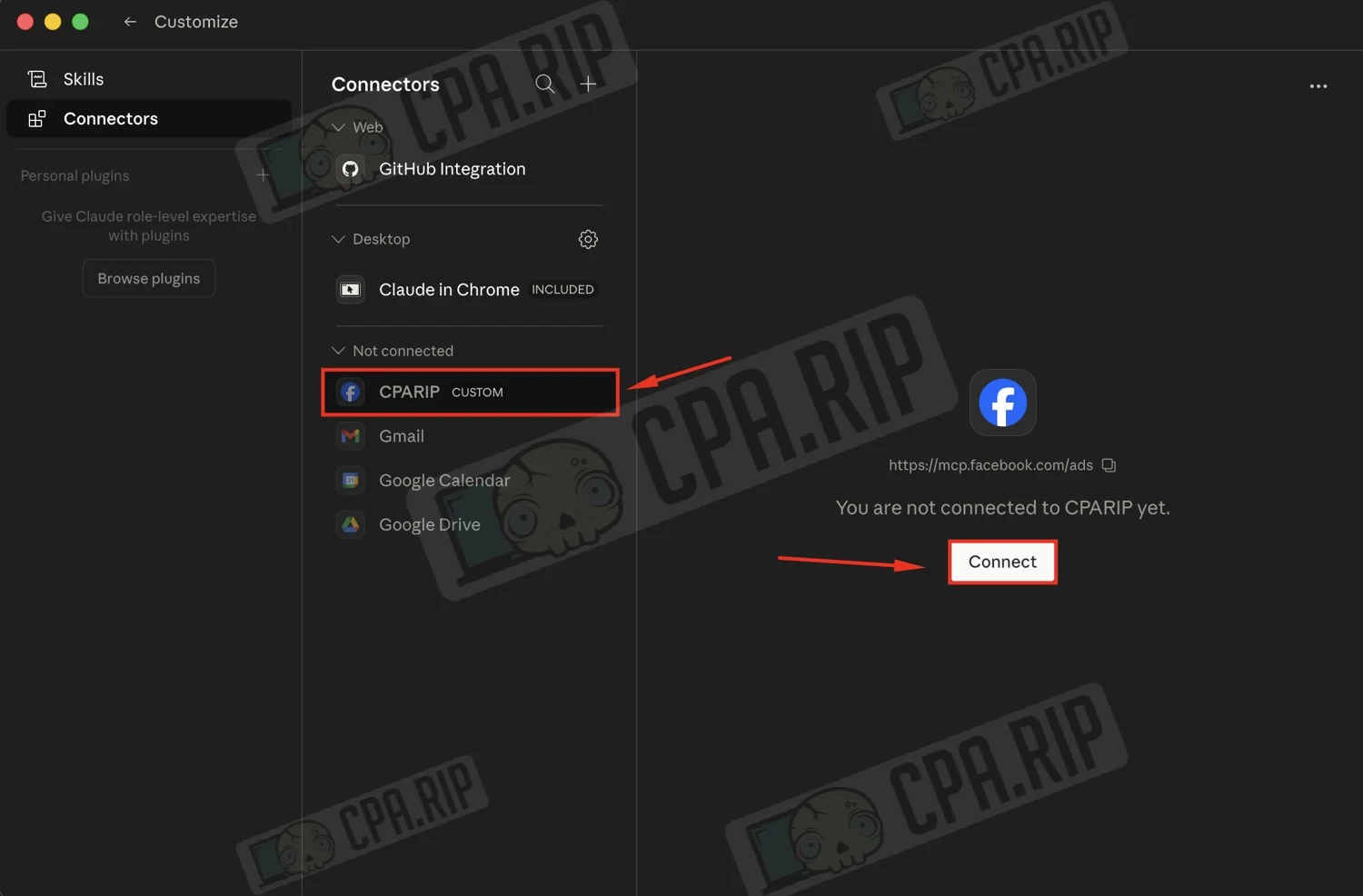
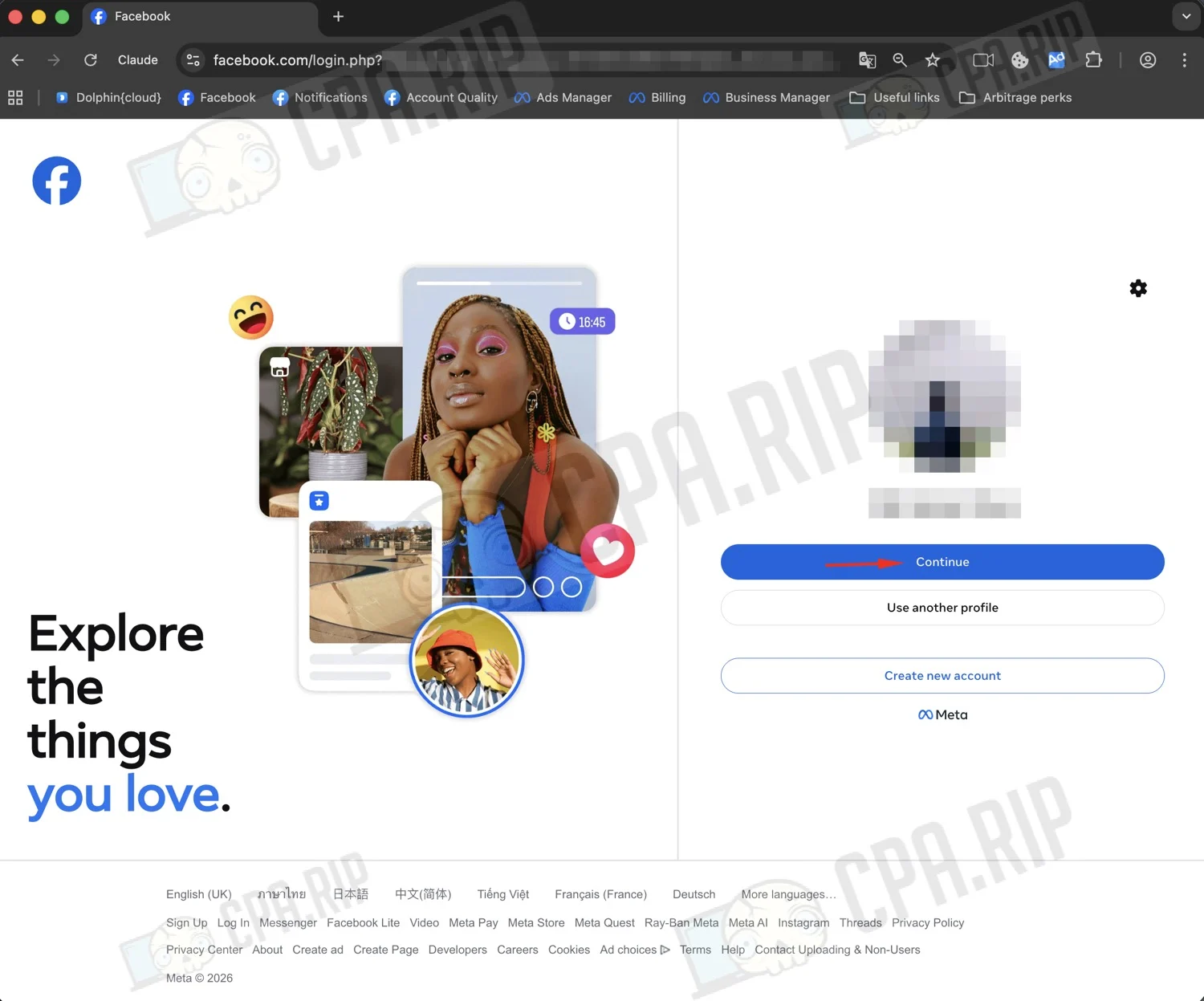
Next, Claude will redirect you to the Facebook login page. Select the desired Facebook profile and click Continue.
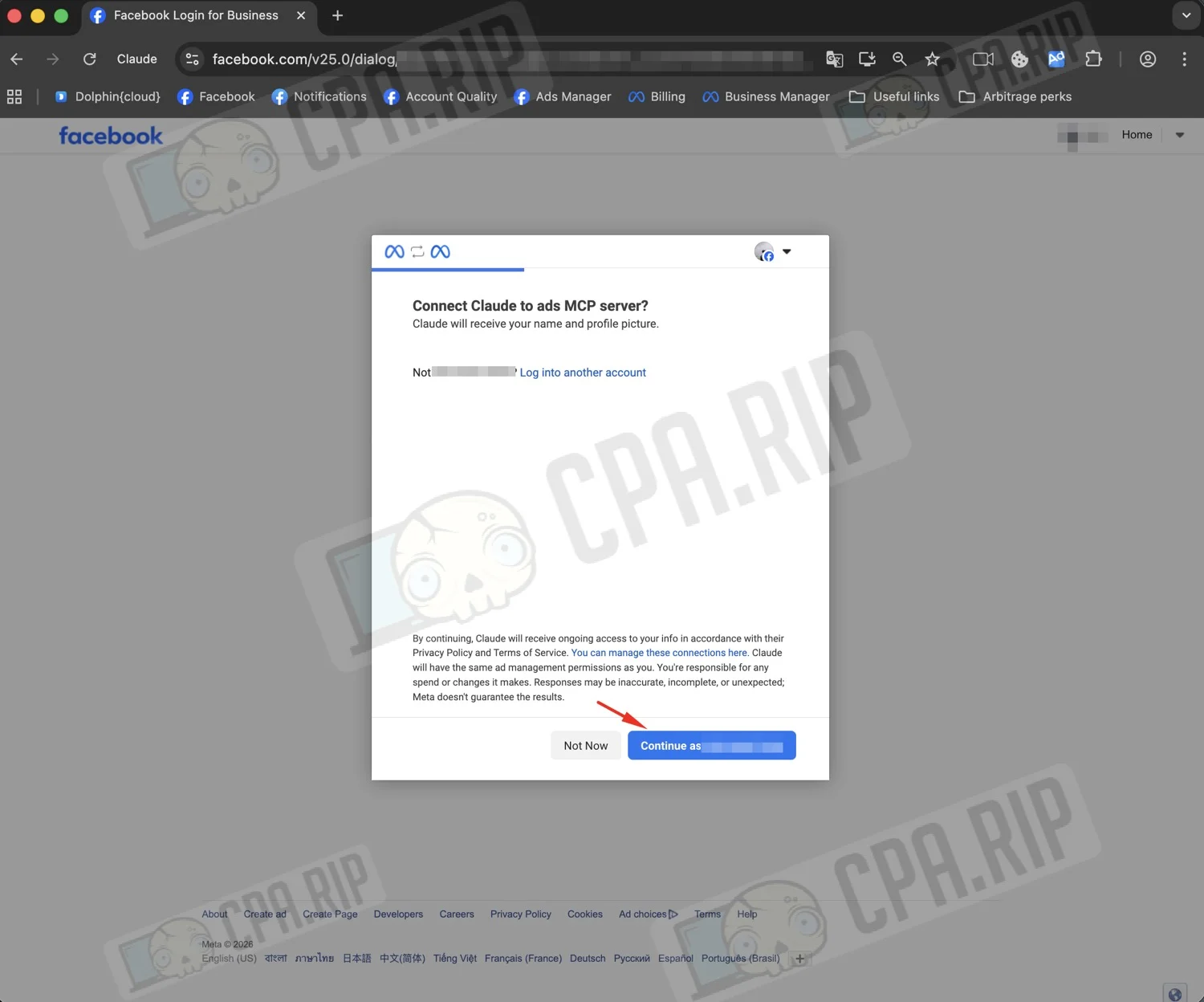
Confirm the connection to the ads MCP server.
In the next step, Facebook will ask which businesses to grant Claude access to.
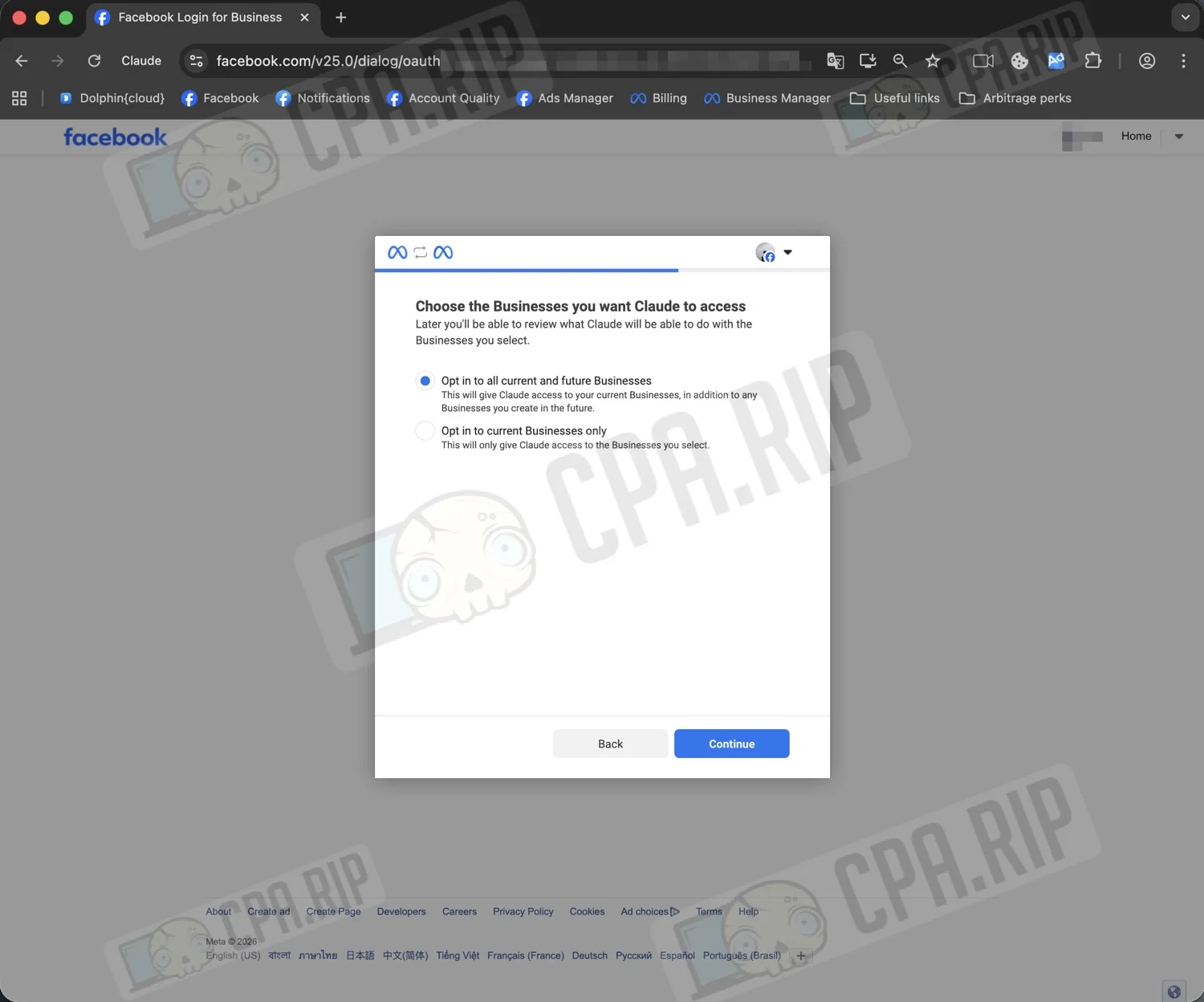
After that, Facebook will show which permissions Claude receives. In our case:
- managing product catalogs;
- managing ads for available ad accounts;
- access to Facebook ad statistics;
- business management.
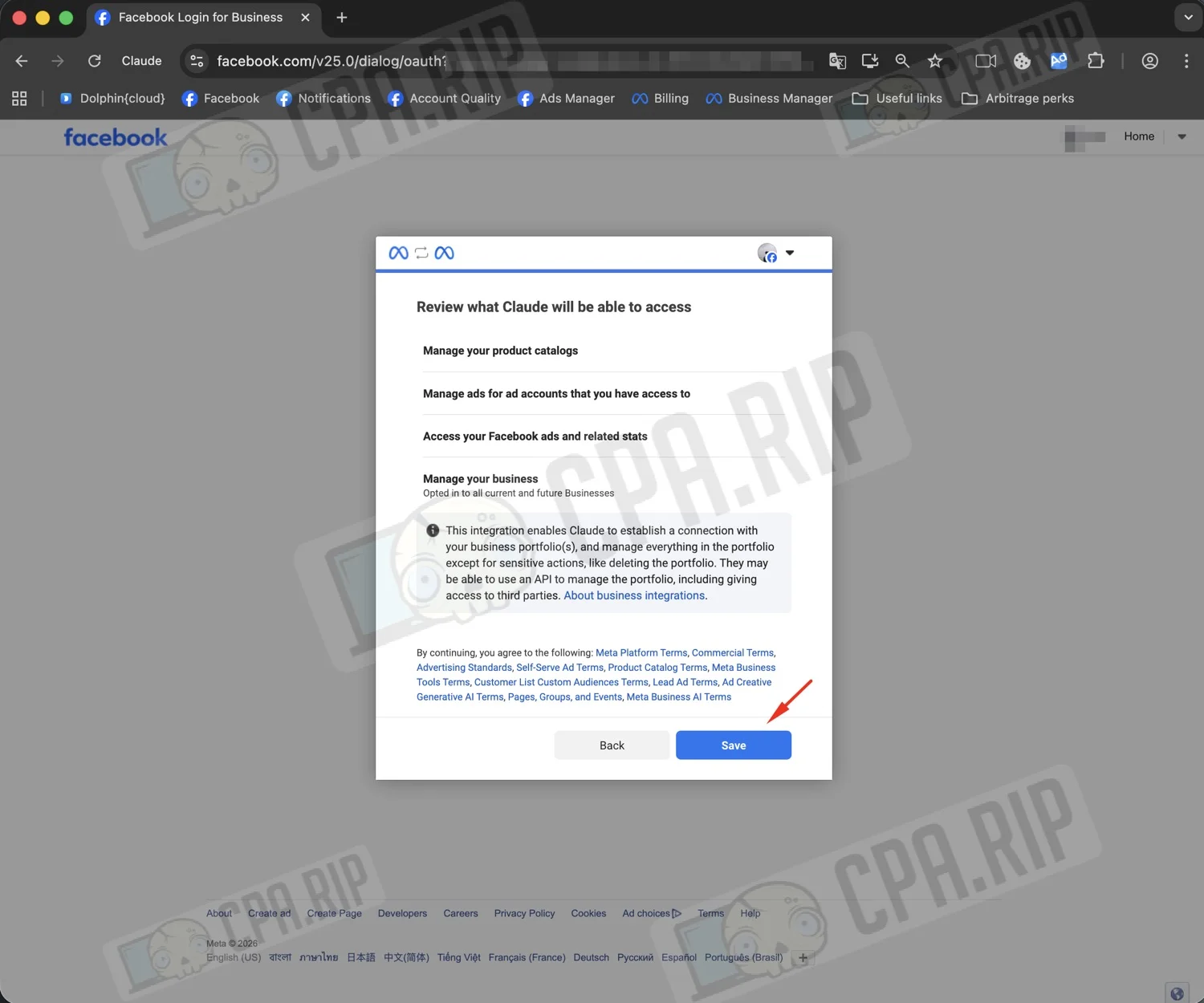
After clicking Save, a message will appear stating that Claude is connected to the ads MCP server. In Claude’s settings, the connector will be displayed as connected.
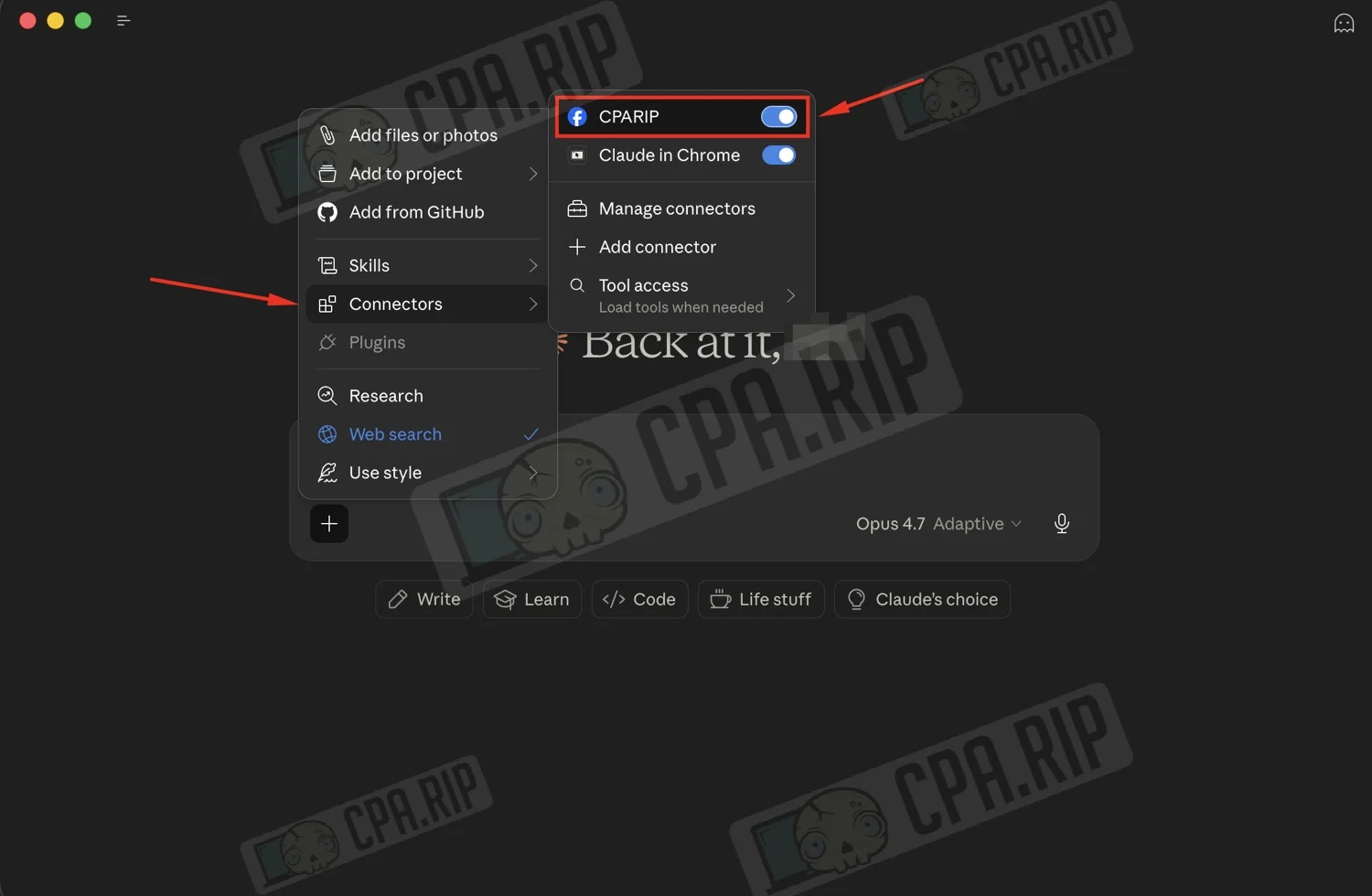
In the new chat, make sure the connector you’ve created is enabled.
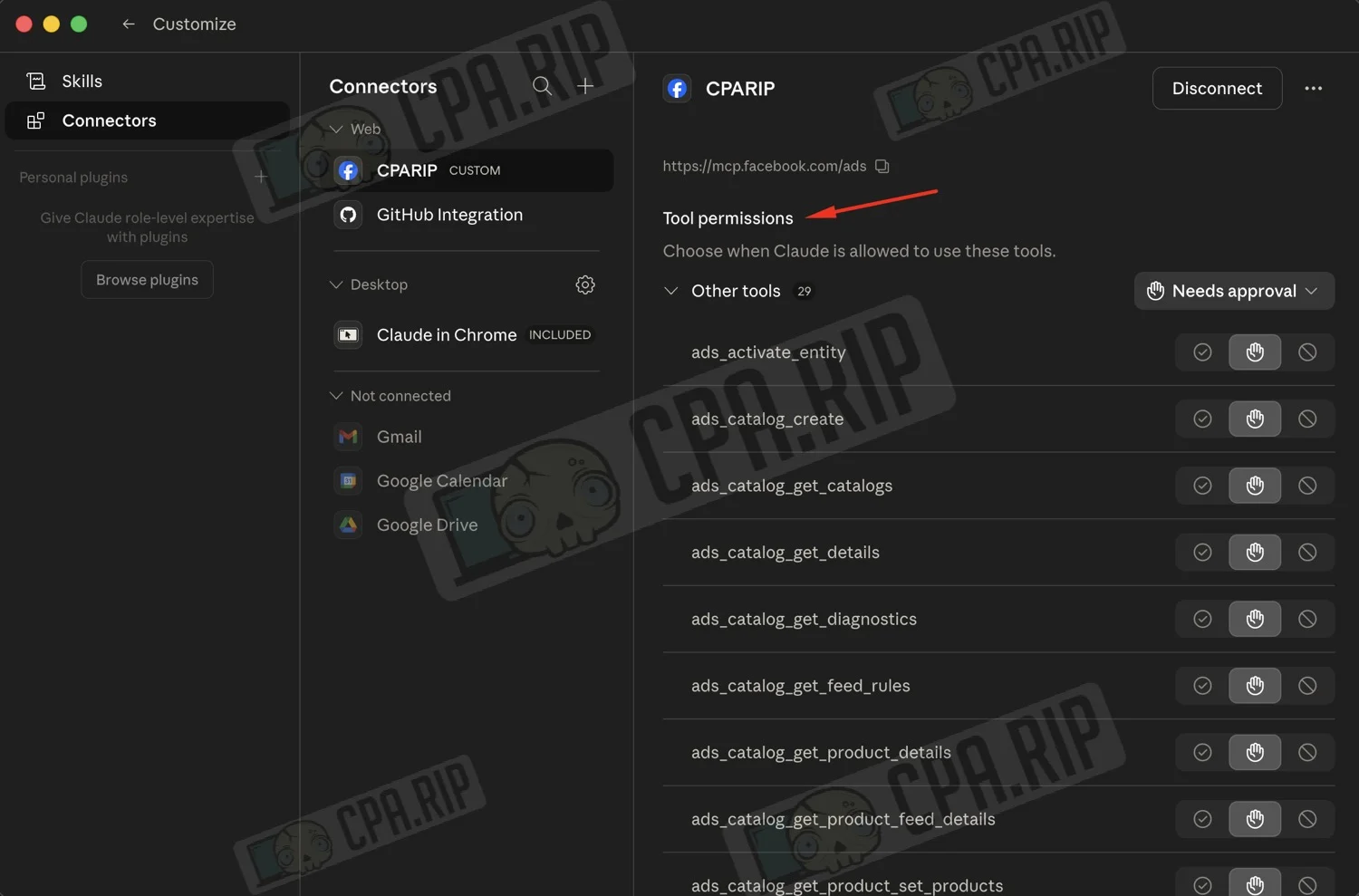
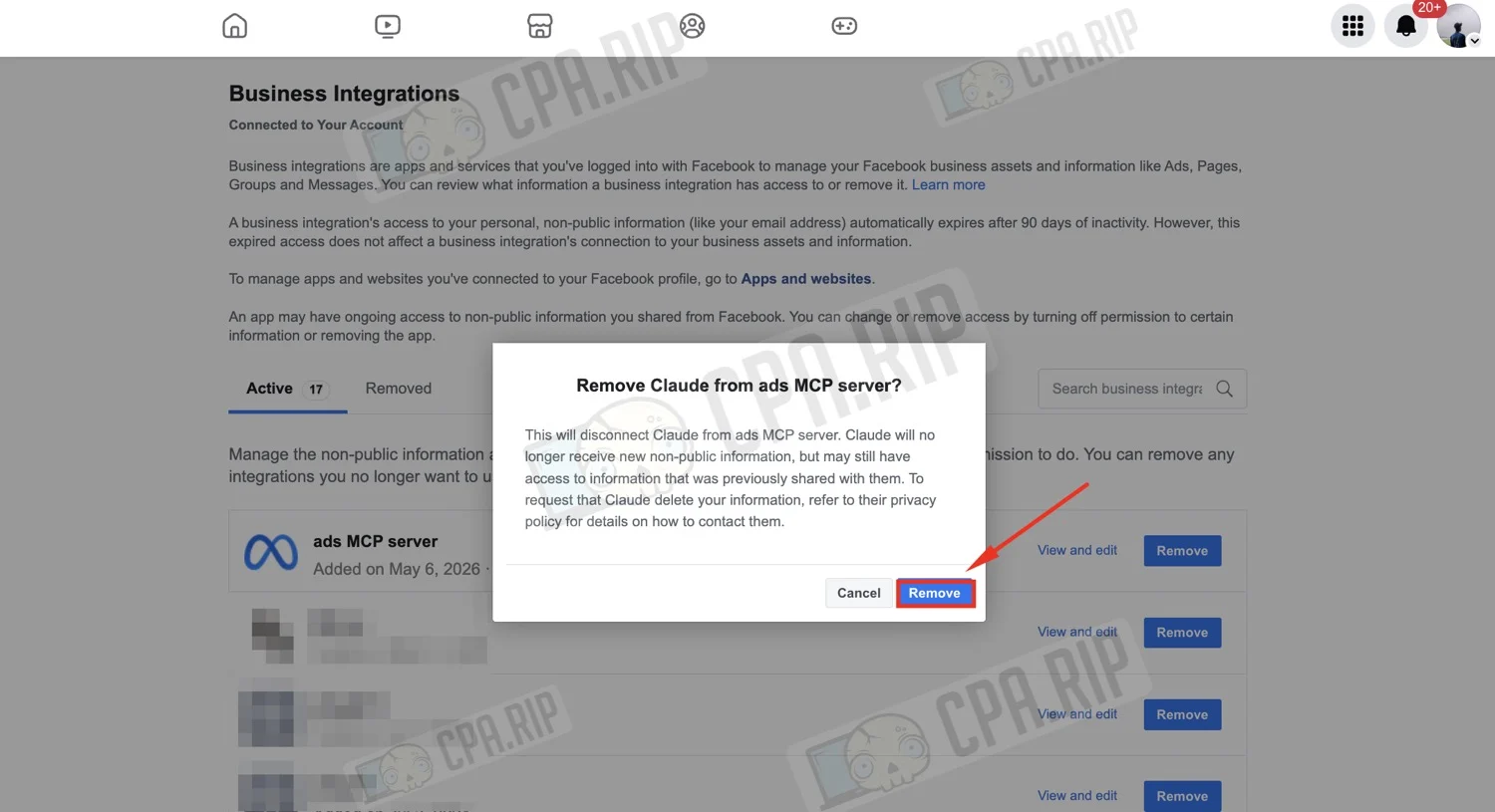
To disconnect Claude from the ads MCP server, you can do this via Connectors in Claude or directly in your Facebook account: https://www.facebook.com/settings?tab=business_tools. There, find the ads MCP server integration and click Remove.
What tools are available
Once connected, Claude gains access to the Meta Ads AI Connector toolkit. These are not terminal commands, but internal MCP tools that Claude invokes on its own when you issue a task in natural language.
These include tools for receiving ad data, analyzing performance, detecting anomalies, checking for errors, and working with catalogs and ad objects.
For example, if you ask Claude to create a campaign, it can use the ads_create_campaign tool. If you ask it to find delivery errors, it can use ads_get_errors. If you need to check a pixel or events, it can use tools from the datasets group.
The tools can be categorized as follows:
Ad Object Management
- ads_create_campaign — creating campaigns;
- ads_create_ad_set — creating ad sets;
- ads_create_ad — creating ads;
- ads_update_entity — updating ad objects;
- ads_activate_entity — activating objects.
Ad accounts, pages, and entities
- ads_get_ad_accounts — getting available ad accounts;
- ads_get_pages_for_business — getting Facebook Pages for Business;
- ads_get_ad_entities — getting ad entities and performance data.
Catalogs and products
- ads_catalog_create — catalog creation;
- ads_catalog_get_catalogs — getting a list of catalogs;
- ads_catalog_get_details — catalog details;
- ads_catalog_get_diagnostics — catalog diagnostics;
- ads_catalog_get_feed_rules — feed rules;
- ads_catalog_get_product_feed_details — product feed details;
- ads_catalog_get_products — list of products;
- ads_catalog_get_product_details — product details;
- ads_catalog_get_product_sets — product sets;
- ads_catalog_get_product_set_products — products within a set.
Datasets / Pixel / Events
- ads_get_dataset_details — dataset / pixel data;
- ads_get_dataset_quality — dataset quality;
- ads_get_dataset_stats — dataset / event statistics.
Diagnostics, errors, and recommendations
- ads_get_errors — errors that may interfere with delivery;
- ads_get_help_article — access to help articles;
- ads_get_opportunity_score — account recommendations.
Analytics and insights
- ads_insights_advertiser_context — advertiser context;
- ads_insights_performance_trend — performance trends;
- ads_insights_anomaly_signal — anomalies and deviations;
- ads_insights_industry_benchmark — comparison with industry benchmarks;
- ads_insights_auction_ranking_benchmarks — benchmarks for auctions and ad ranking.







Comments · 1
Можно ли интегрировать Claude с профилями, которые я изолировал в Dolphin{anty}? Или для каждого профиля Dolphin{anty} потребуется отдельный экземпляр Claude? Буду признателен за любые ответы.