



A guide to managing comments on Facebook Ads Manager: manual commenting, auto-replies, and hiding unwanted comments based on set criteria.
Ad post for commenting
To leave a comment, you first need to open the ad’s original post on Facebook. Here are two ways to do it.
Method #1
Opening the ad post through Ads Manager (on the same account)
- Go to Ads Manager and hover over the ad you need.
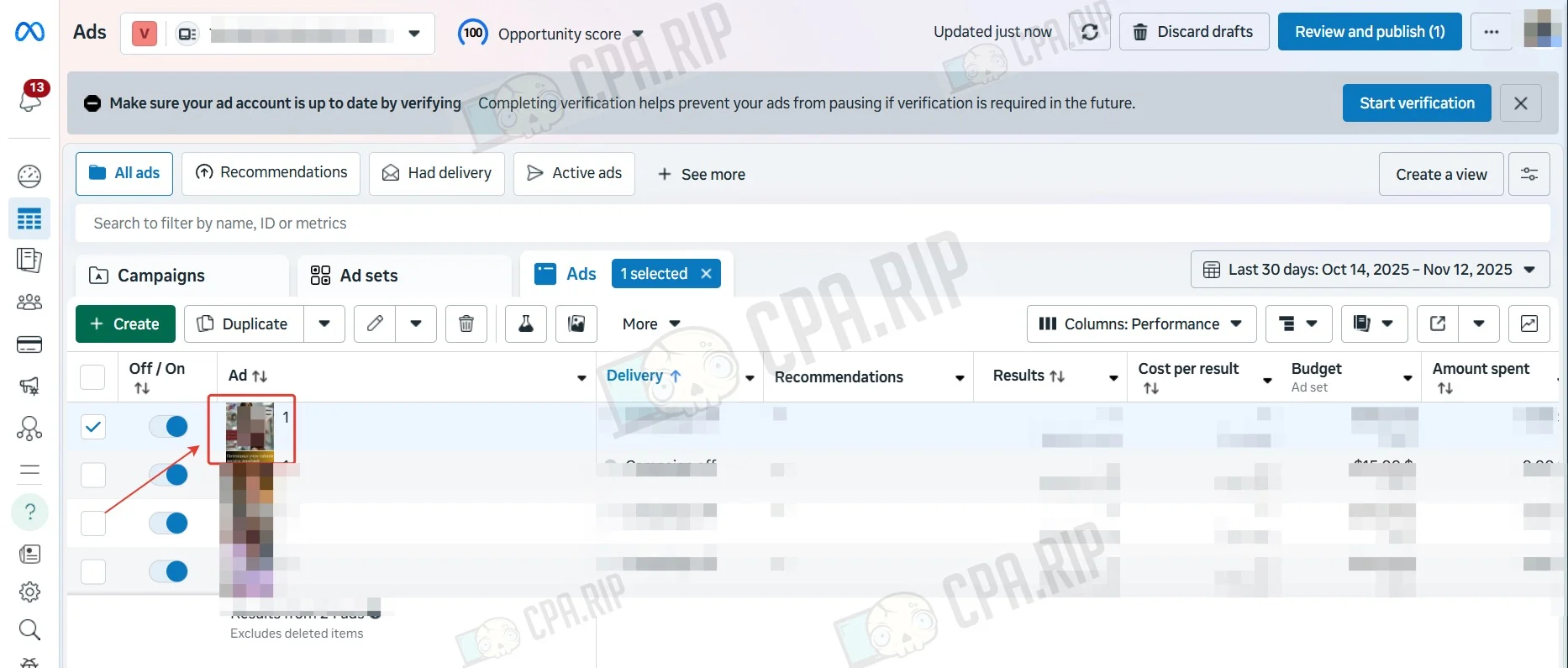
- In the pop-up menu, click “Open in ad preview”.
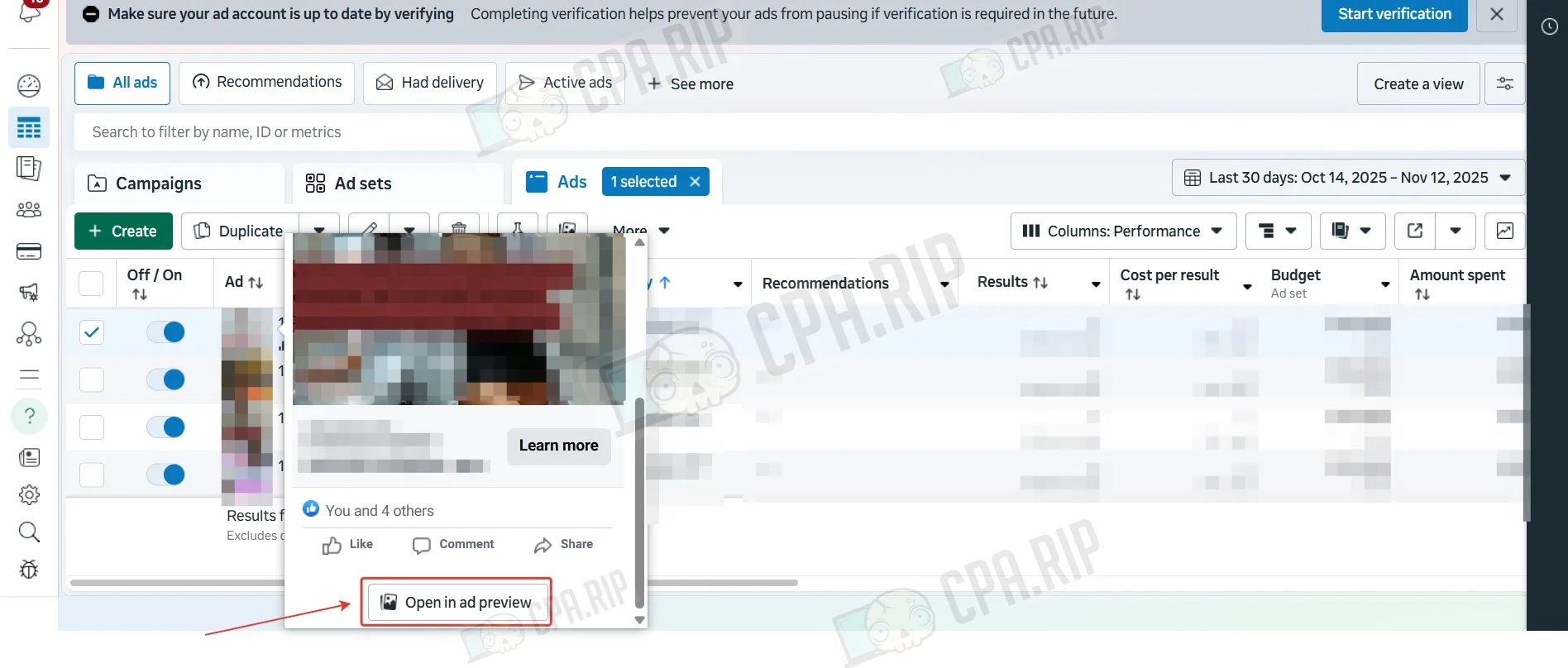
- Then click the arrow.
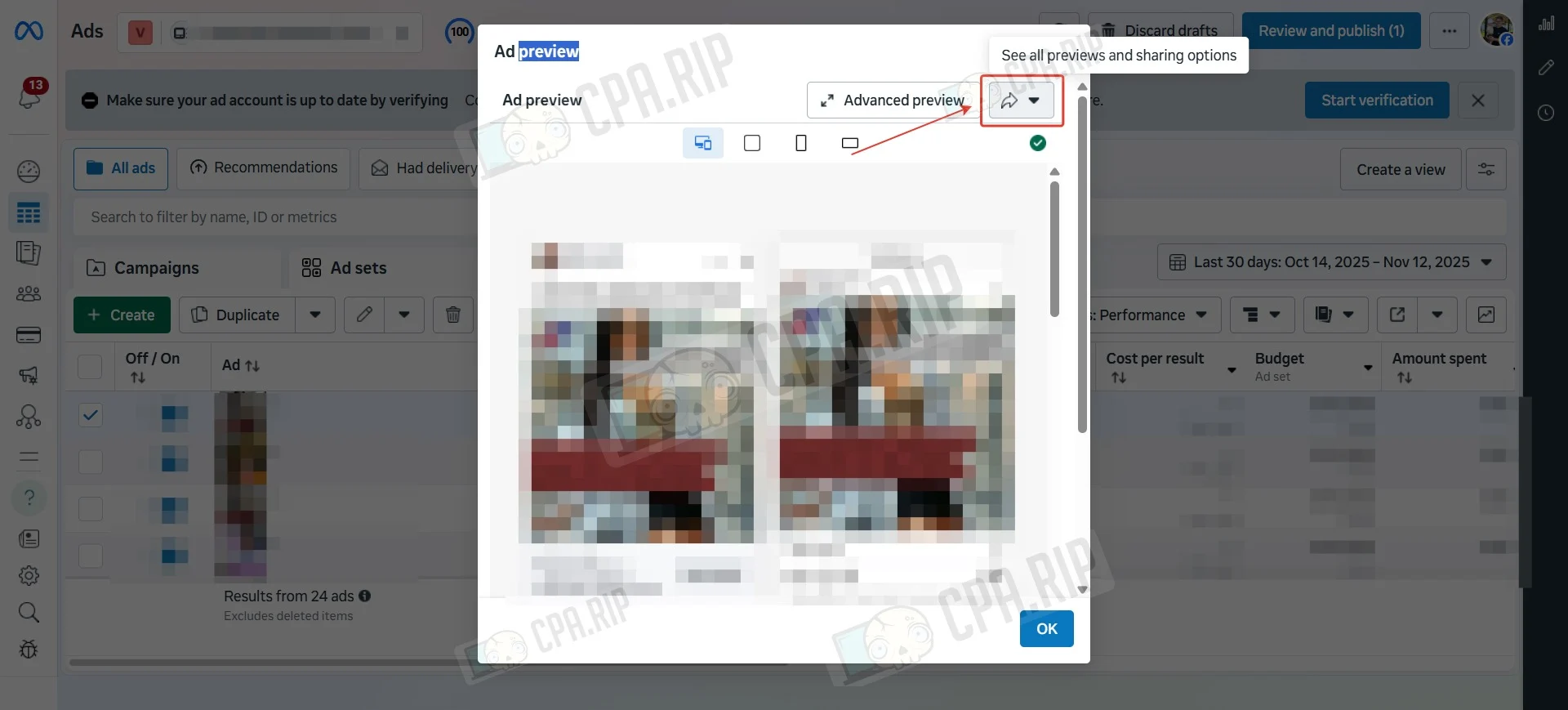
- Select “Facebook Post with Comments”.
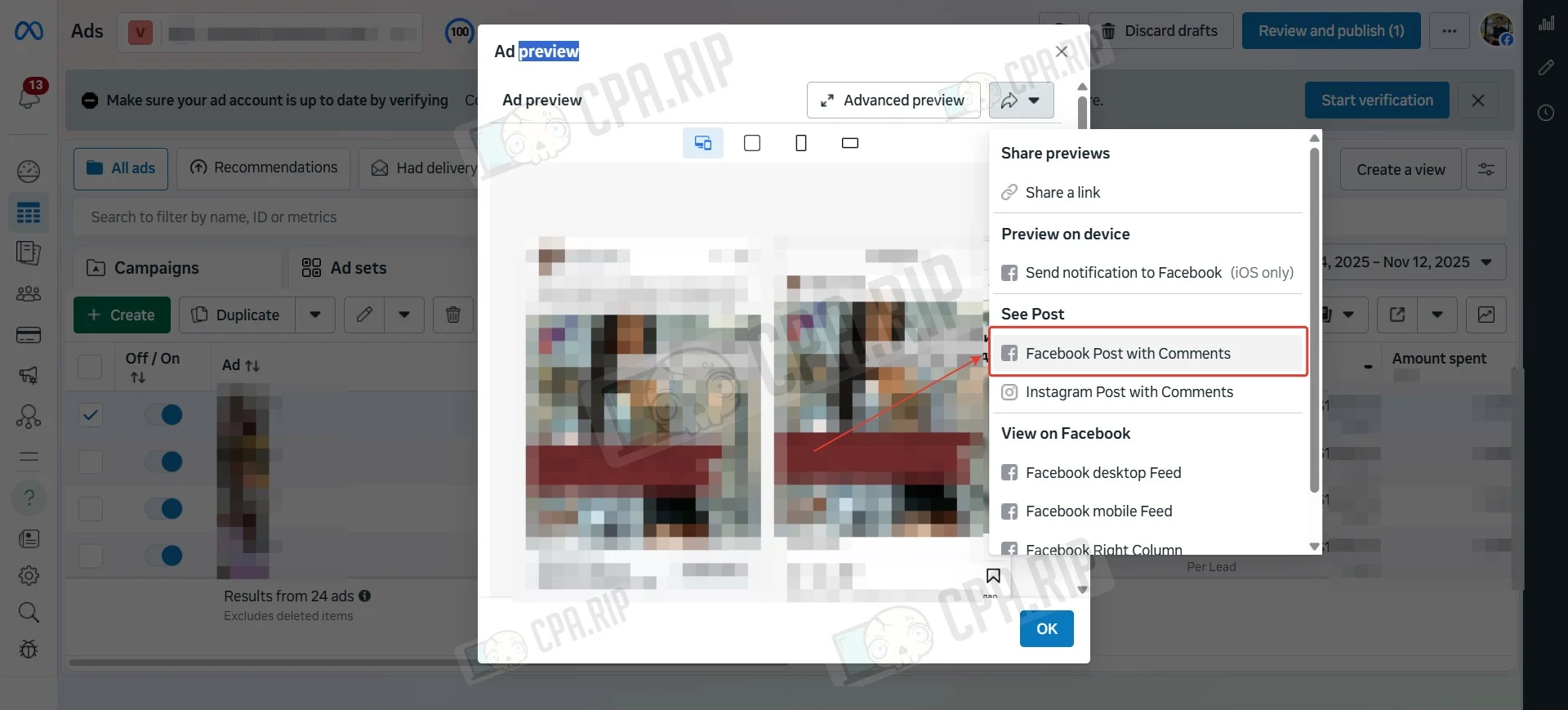
The ad post will open, and you’ll be able to leave comments directly under it.
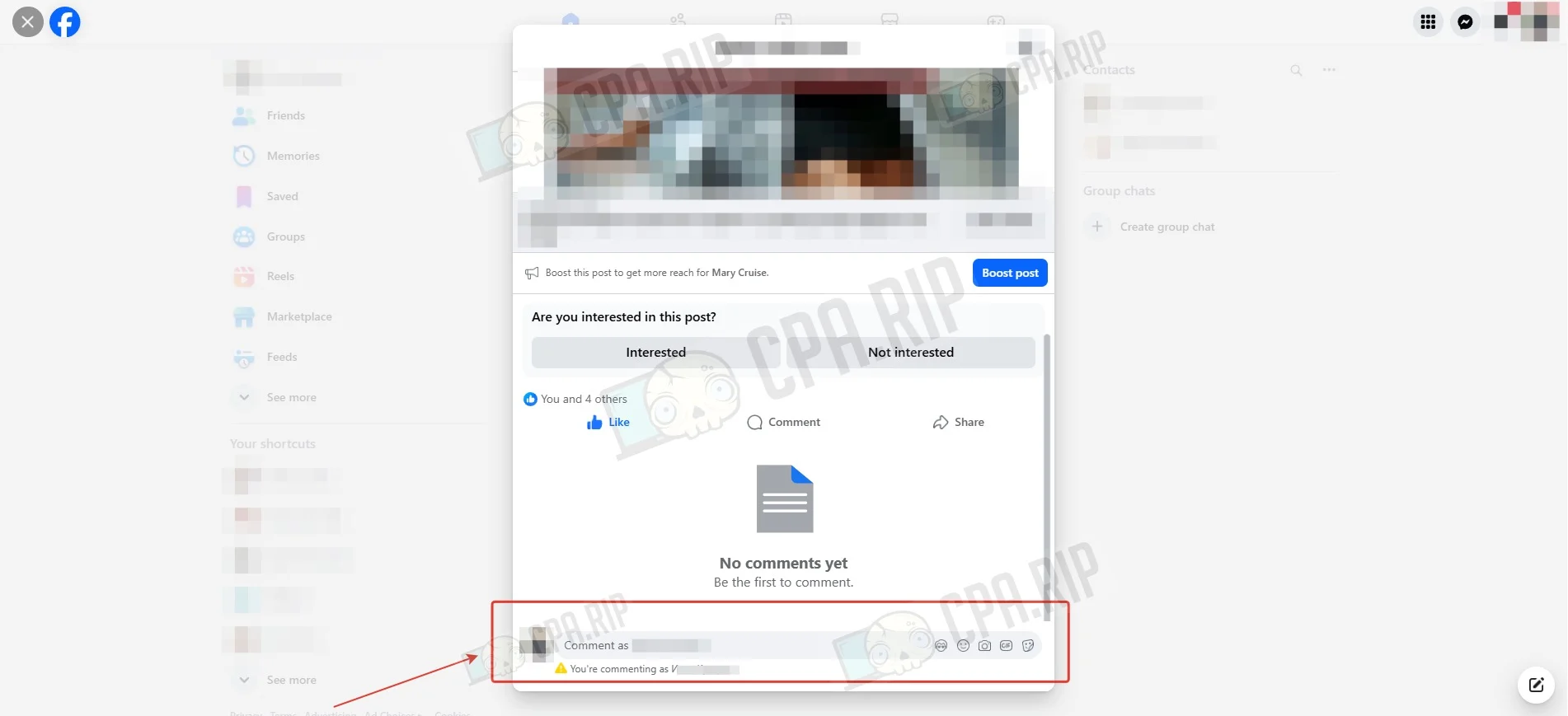
Method #2
Opening the ad post from a different account.
- In the ad preview, click “Share a link”.
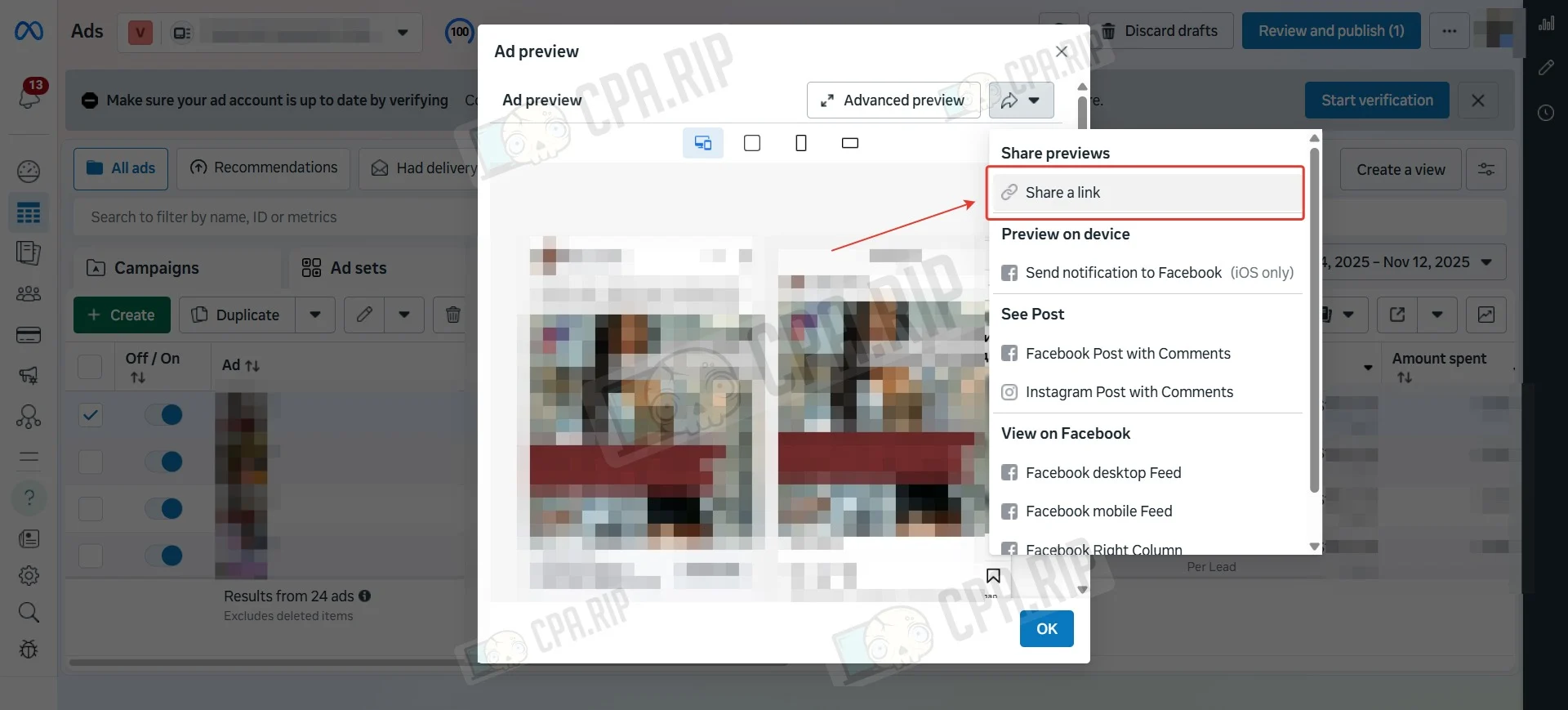
- Copy the link and open it on another account.
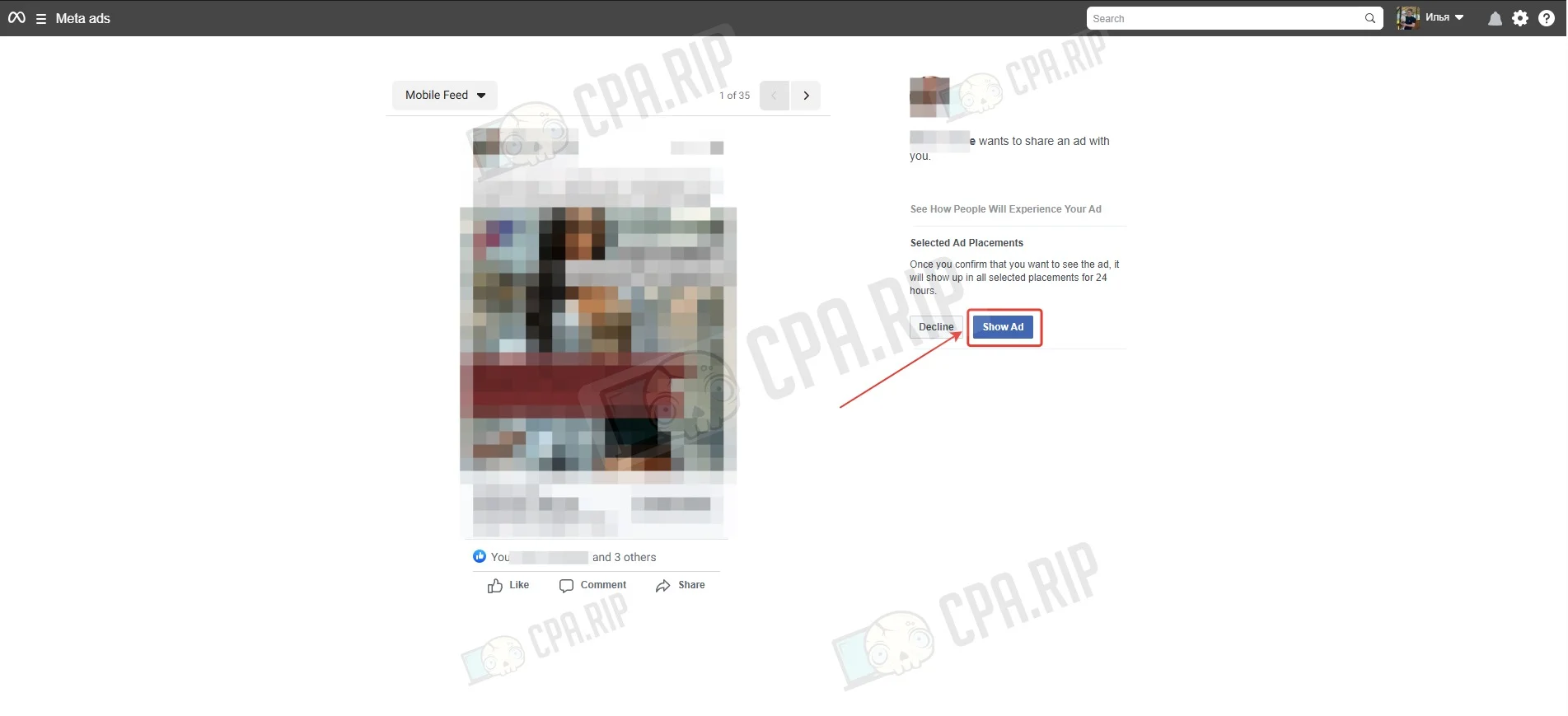
- Click “Show Ads”.
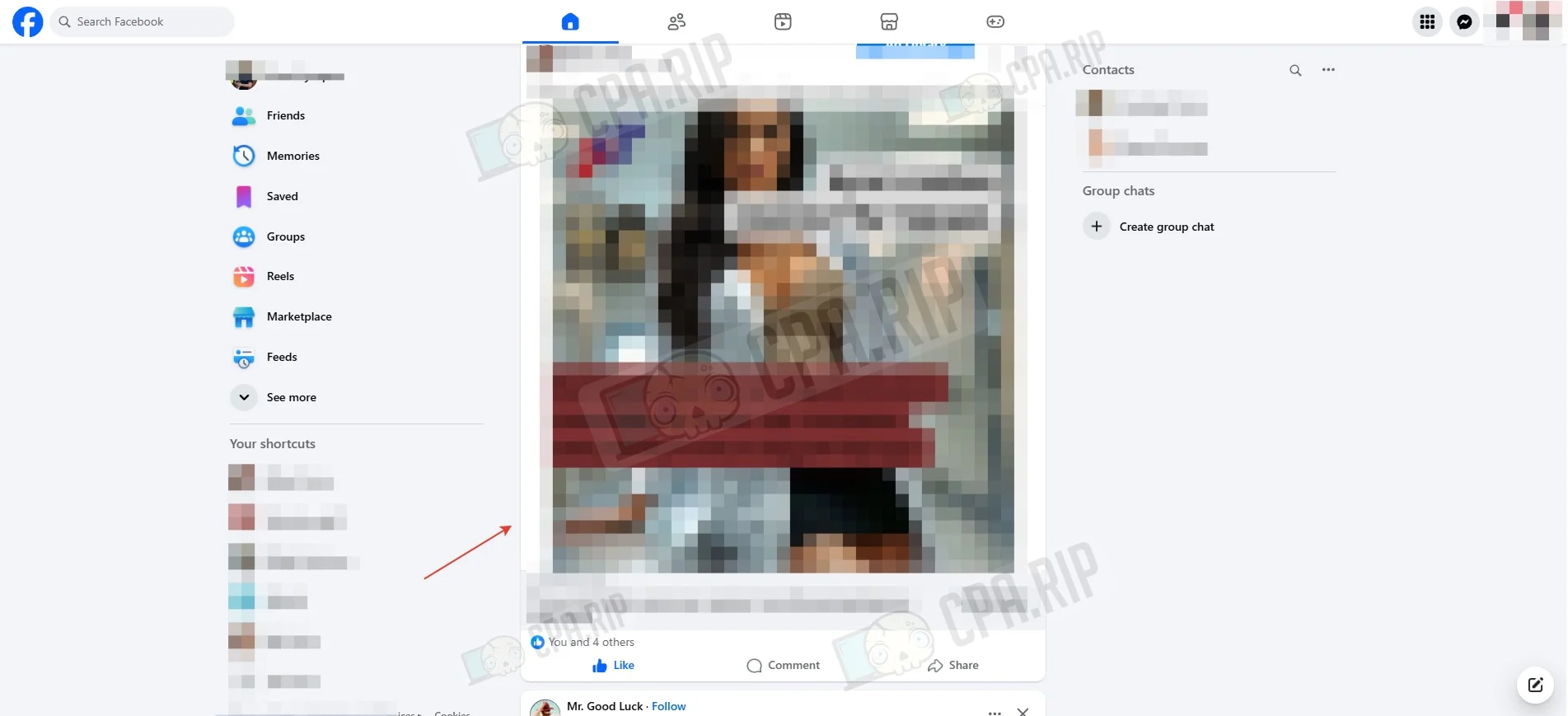
The ad will appear in the news feed. To comment, click “Comment”.
Automatic comment hiding
Negative or spam comments lower trust in your ad and hurt CTR, so it’s important to limit them. You can enable auto-hiding for comments containing profanity or specific stop words.
Instructions for setting up auto-hiding through Fan Page settings: https://cpa.rip/en/facebook/fan-page-preparing/#Rabota_s_kommentariami
Hiding comments based on criteria
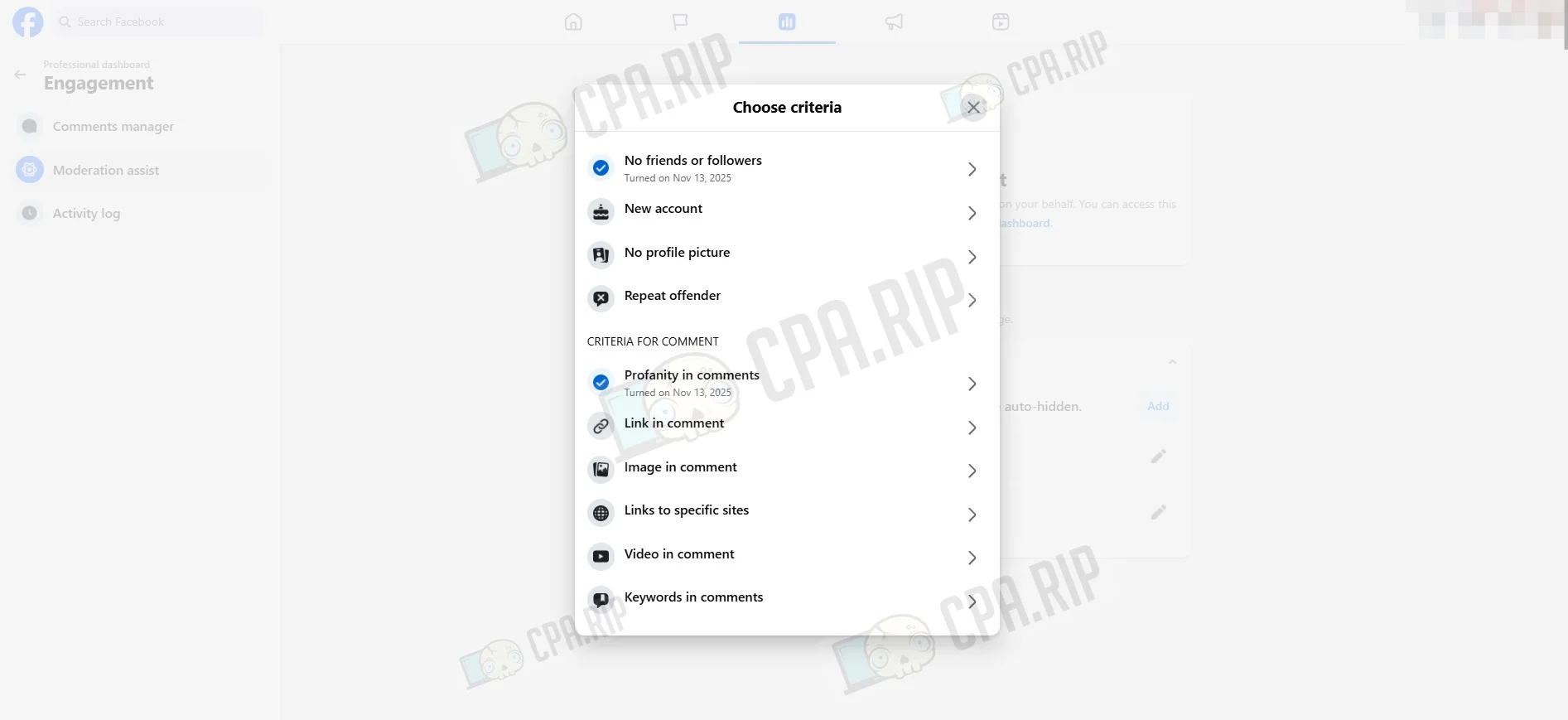
With Moderation Assist, you can define rules for automatically hiding comments.
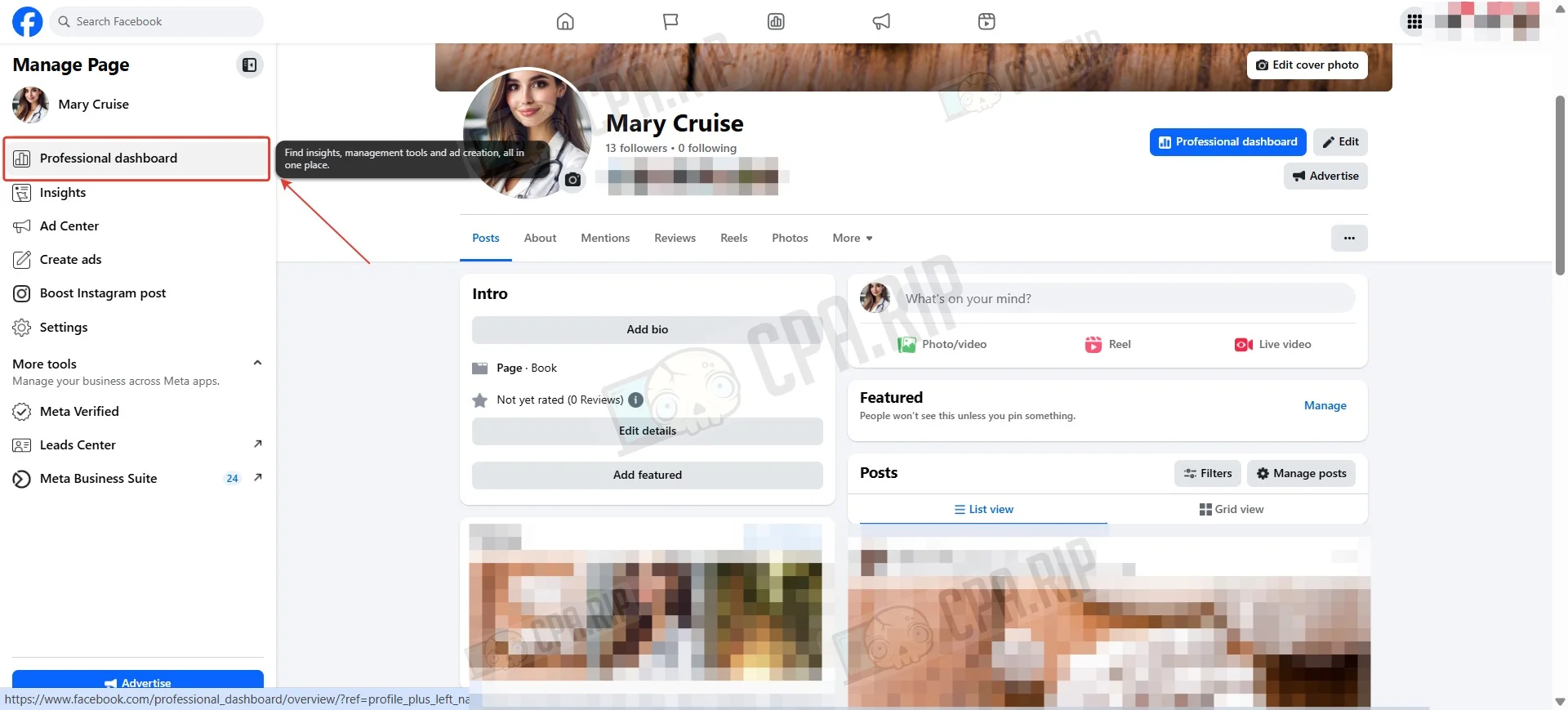
- Go to the “Professional dashboard”.
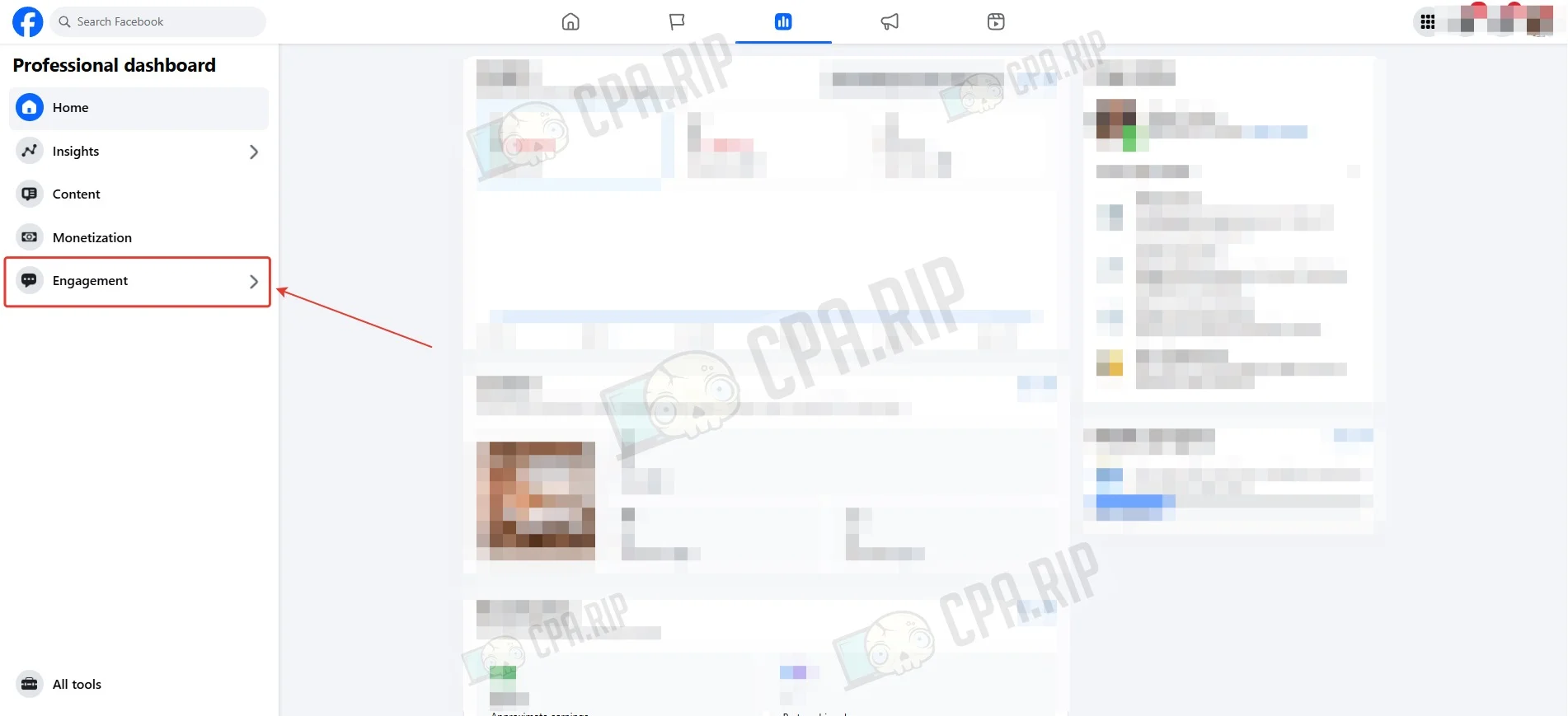
- Then open “Engagement”.
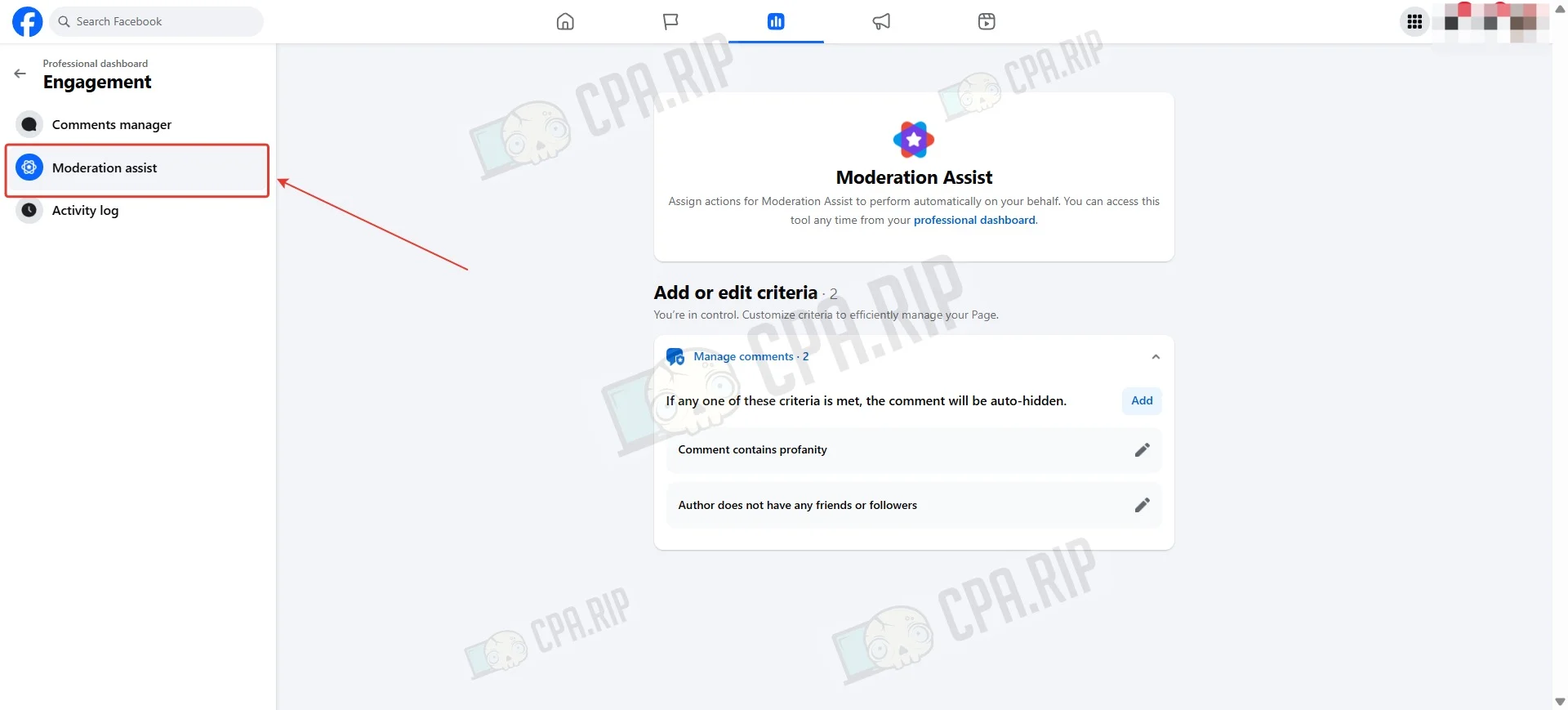
- Select “Moderation Assist”.
- Click “Add” to create a rule.
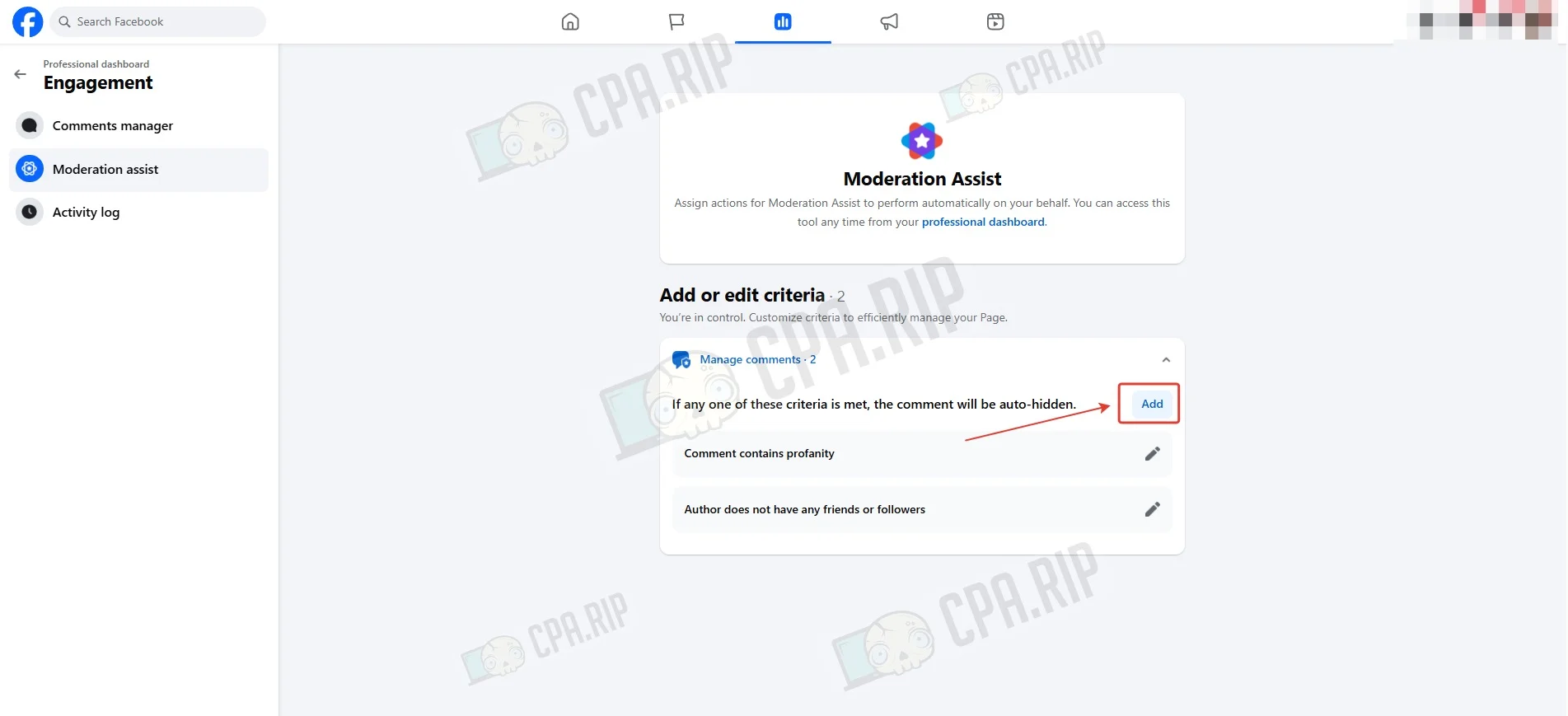
Rules fall into two main categories:
- Criteria related to the commenter’s profile (for example, a new account or accounts with no friends).
- Criteria based on the content of the comment (profanity or chosen keywords).
Posting positive comments
Positive comments can help improve conversion. To seed them, you’ll need 10–15 additional accounts or 10–15 Fan Pages. Here we’ll look at the Fan Page option.
When creating Fan Pages, use realistic names matching the region of your ad campaign. Profile photos can be generated with AI.
Example:

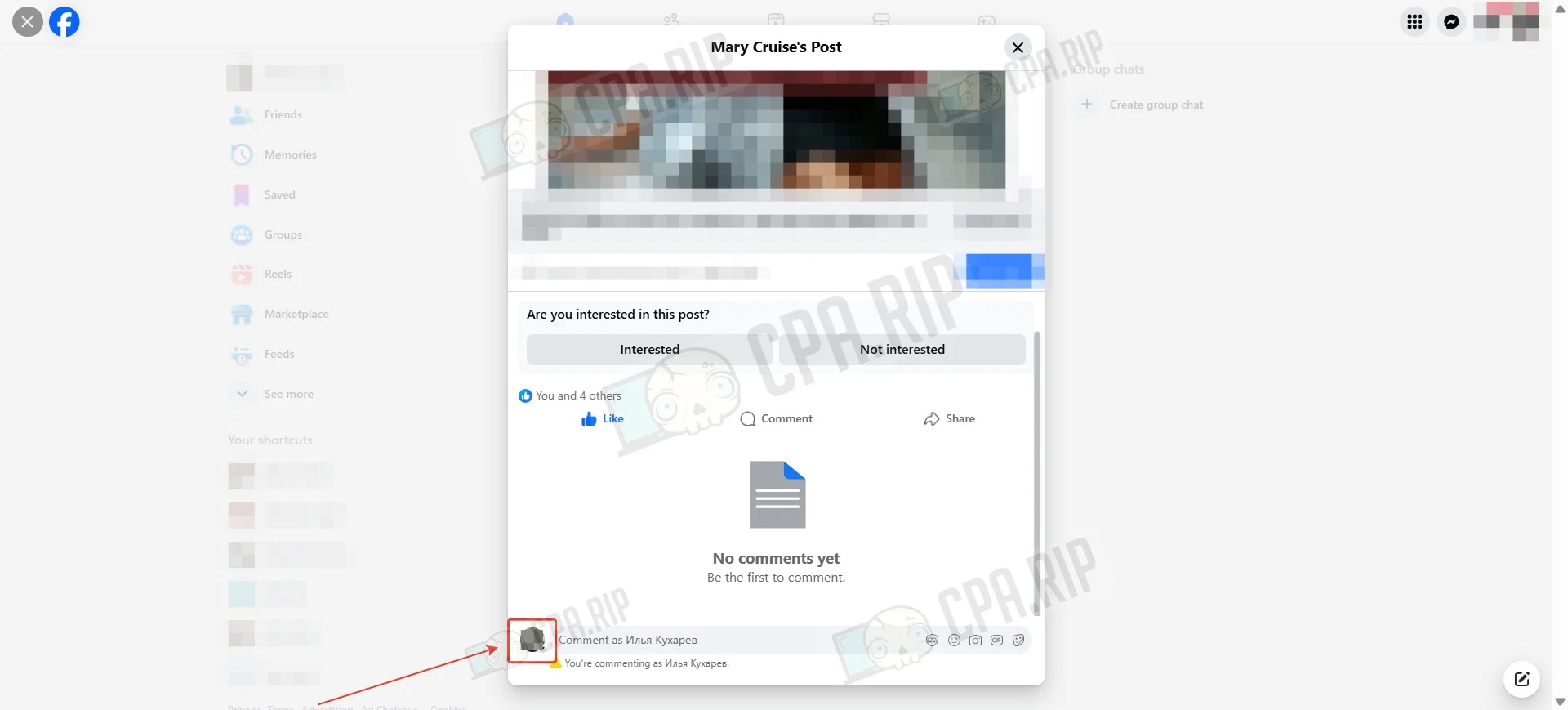
- To comment from a page, click your avatar.
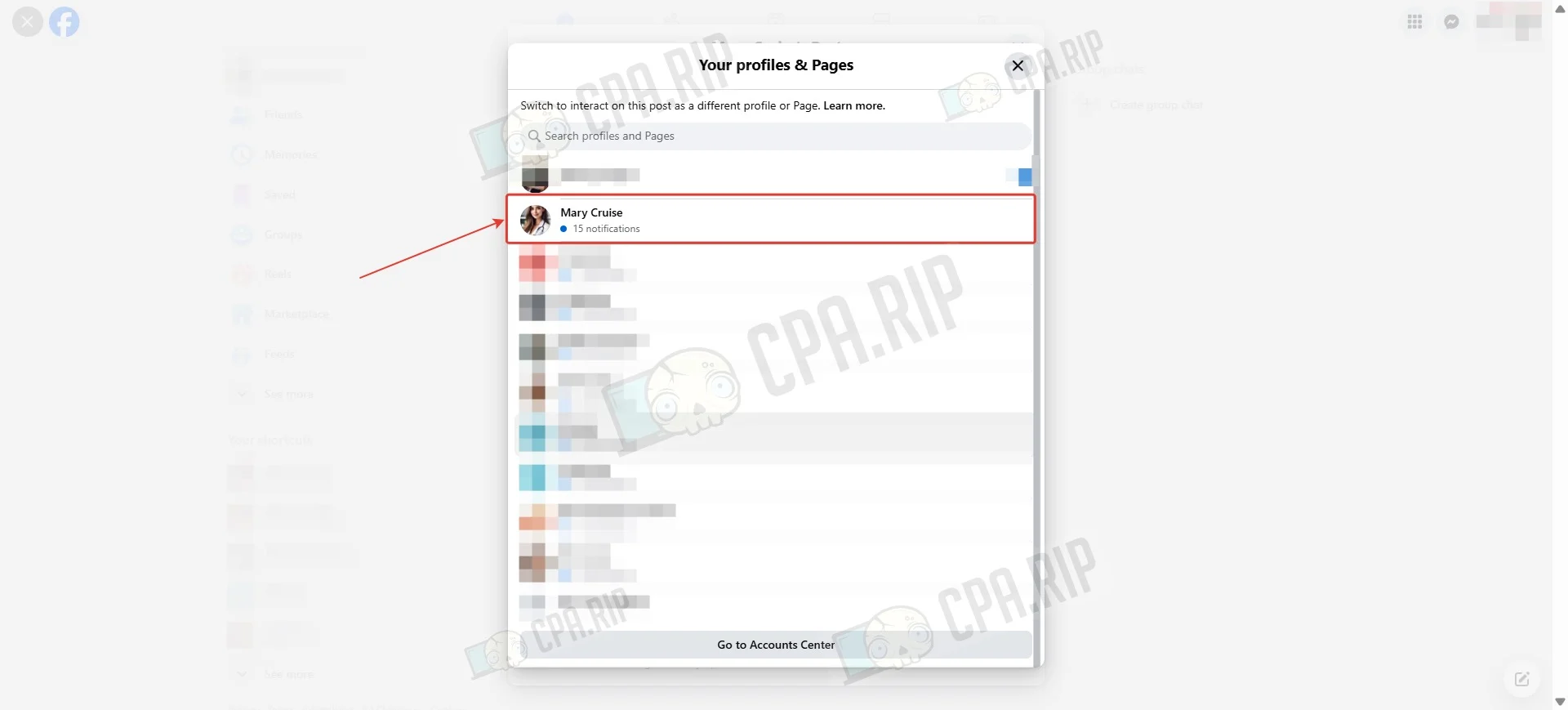
- Select the page.
- The comment will appear as if it was posted by a regular user.
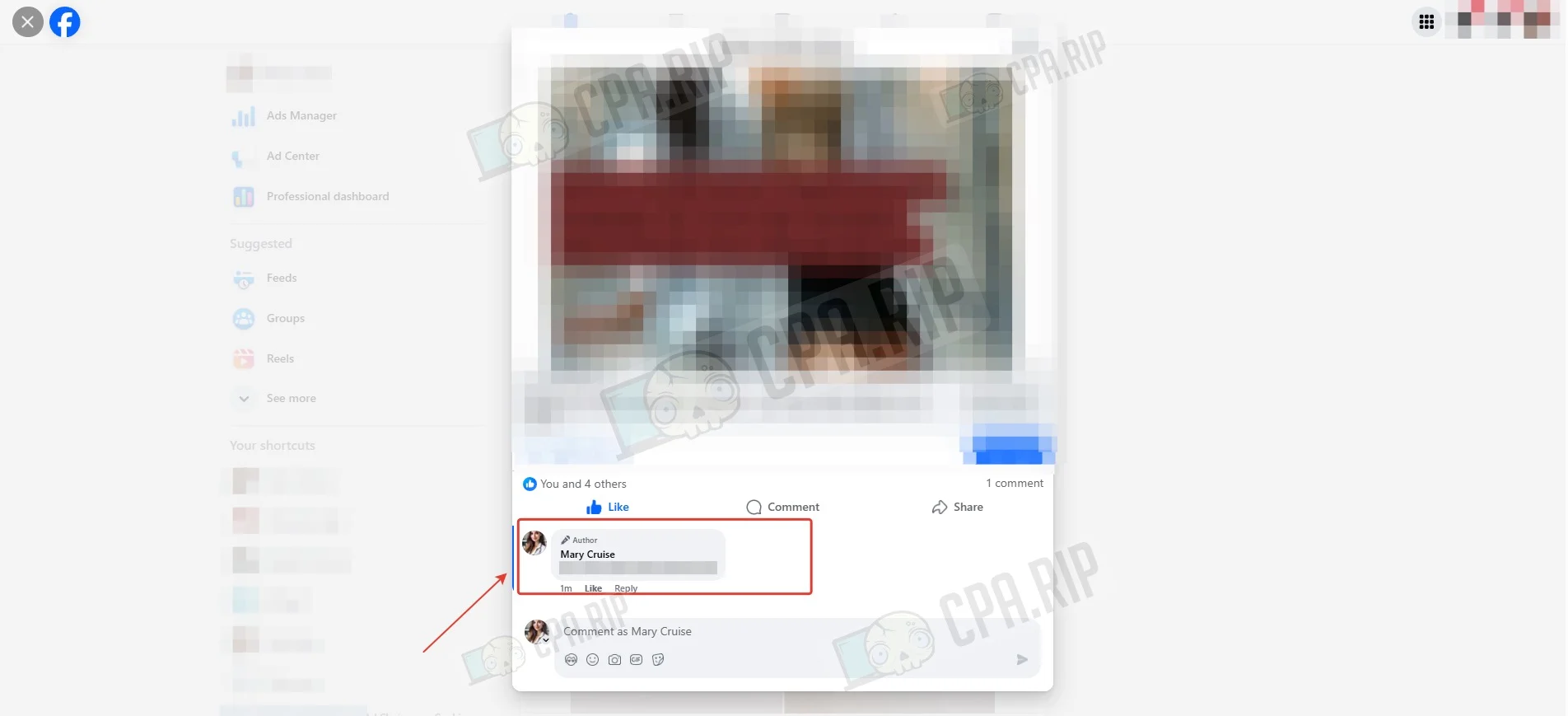
Create comments — AI tools work great for this. They should look natural and reflect different stages of user intent, from early interest to purchase-ready.
Setting up automatic replies to comments and messages
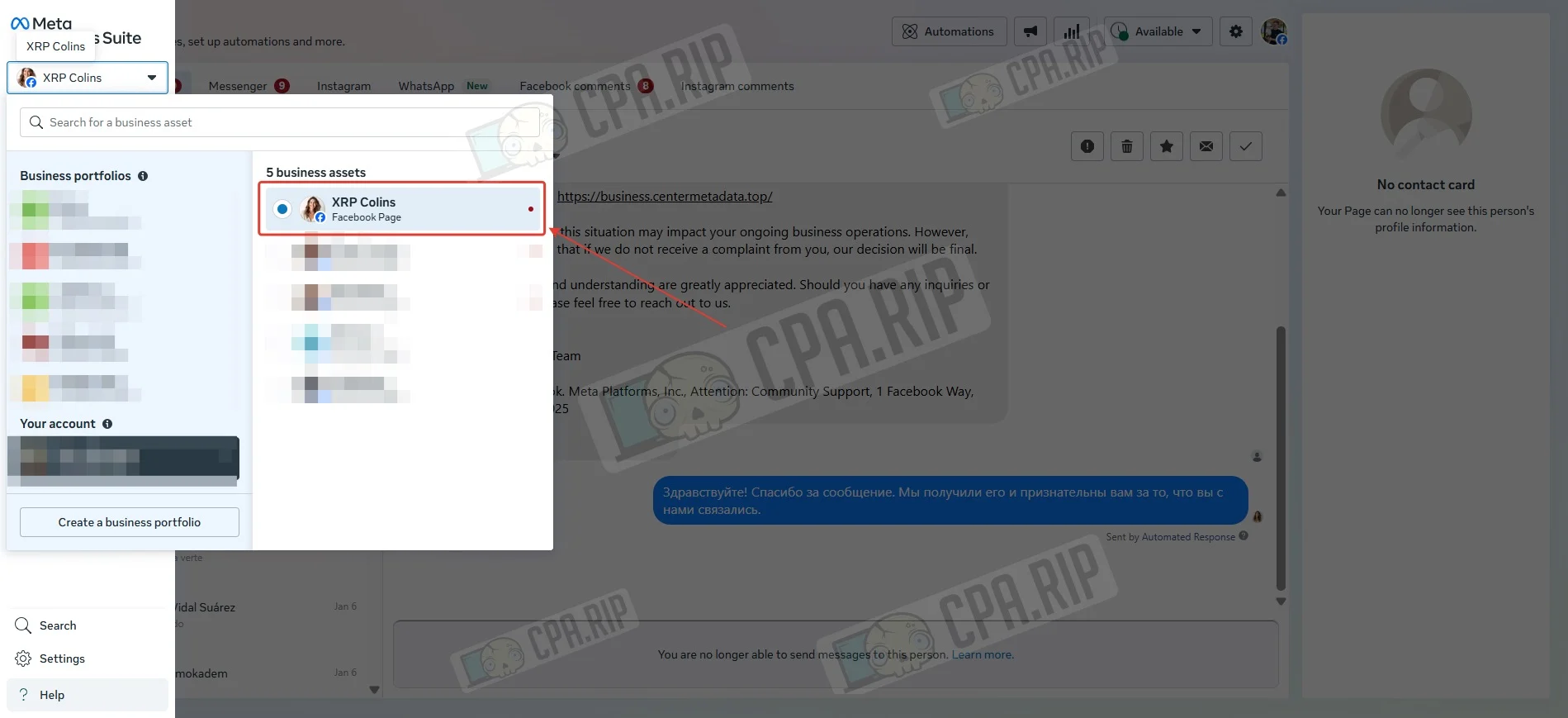
- Go to https://business.facebook.com/latest/inbox and select the required Fan Page.
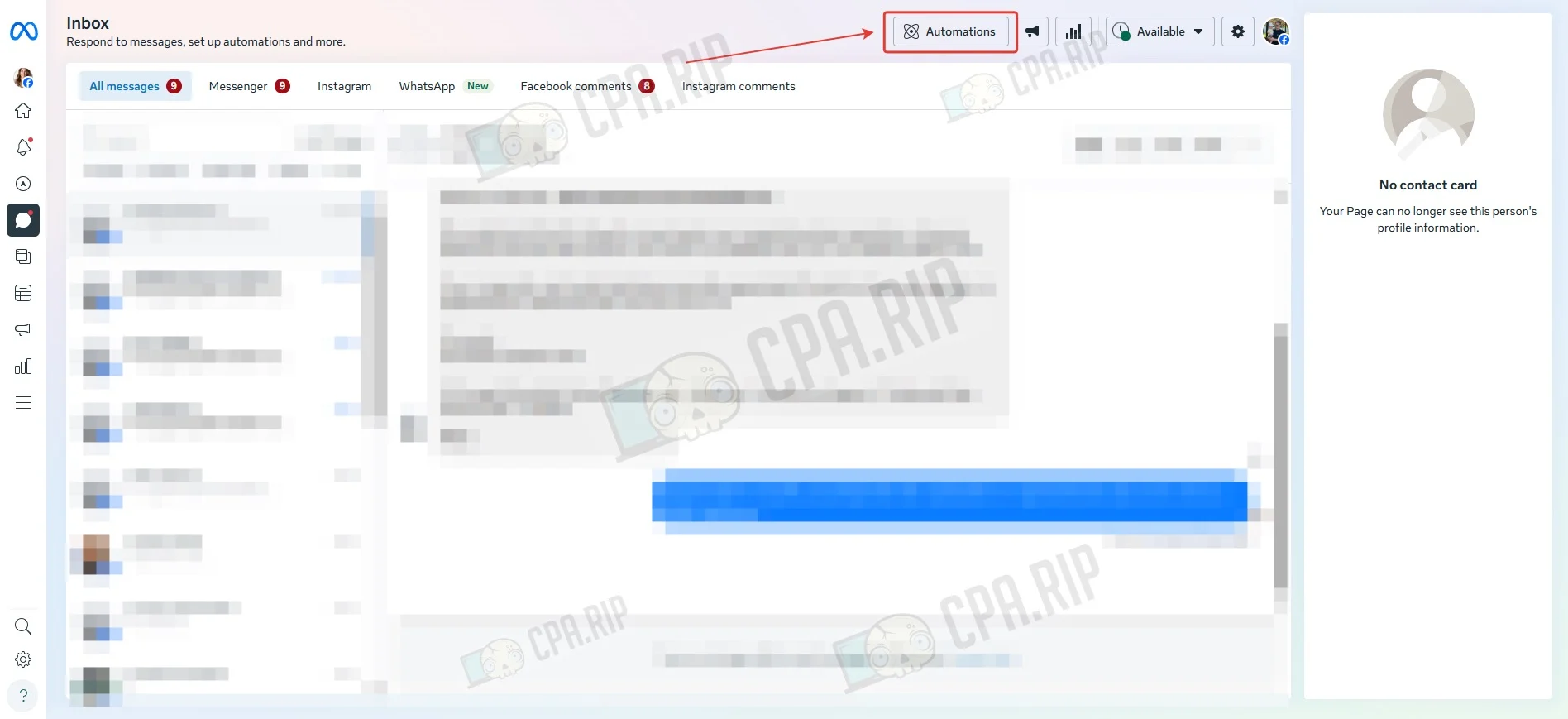
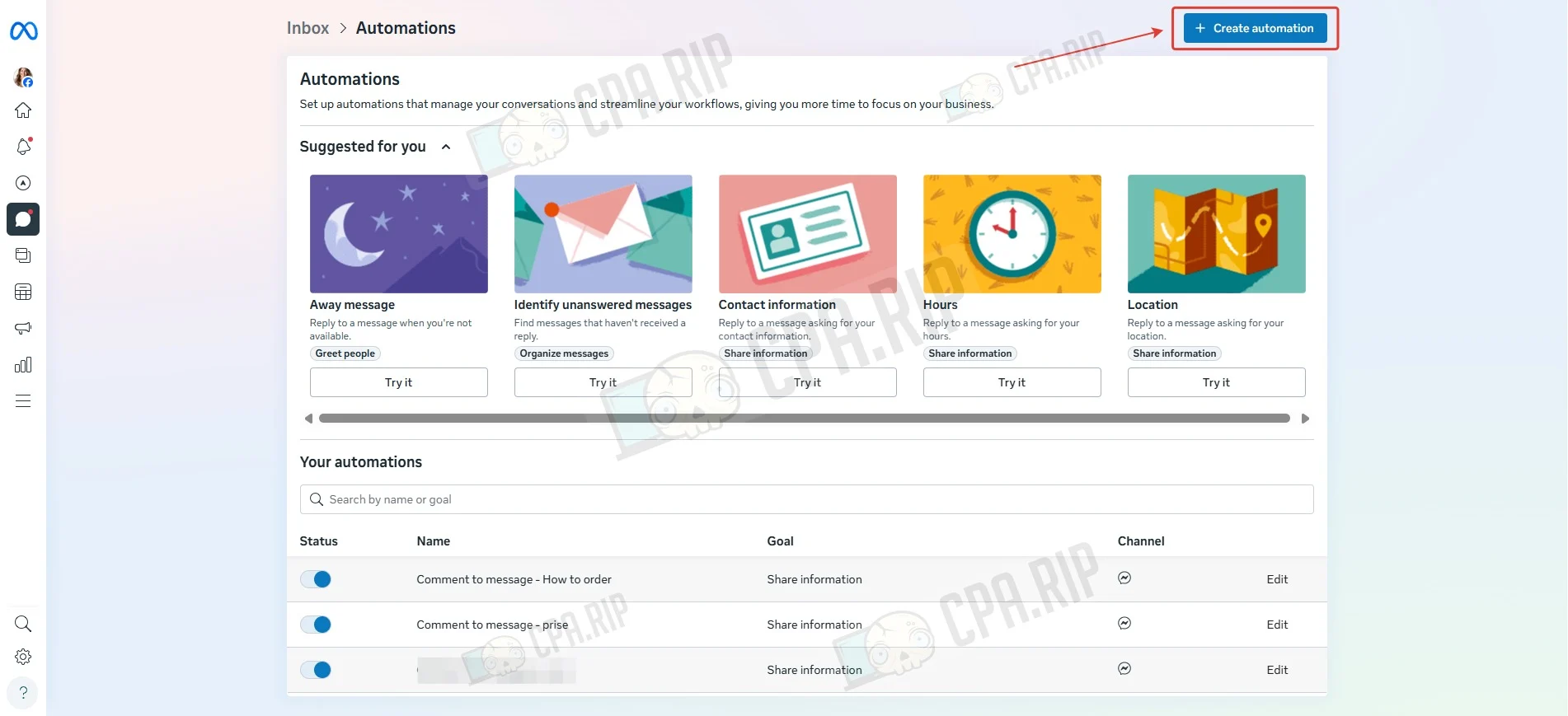
- Click Automations.
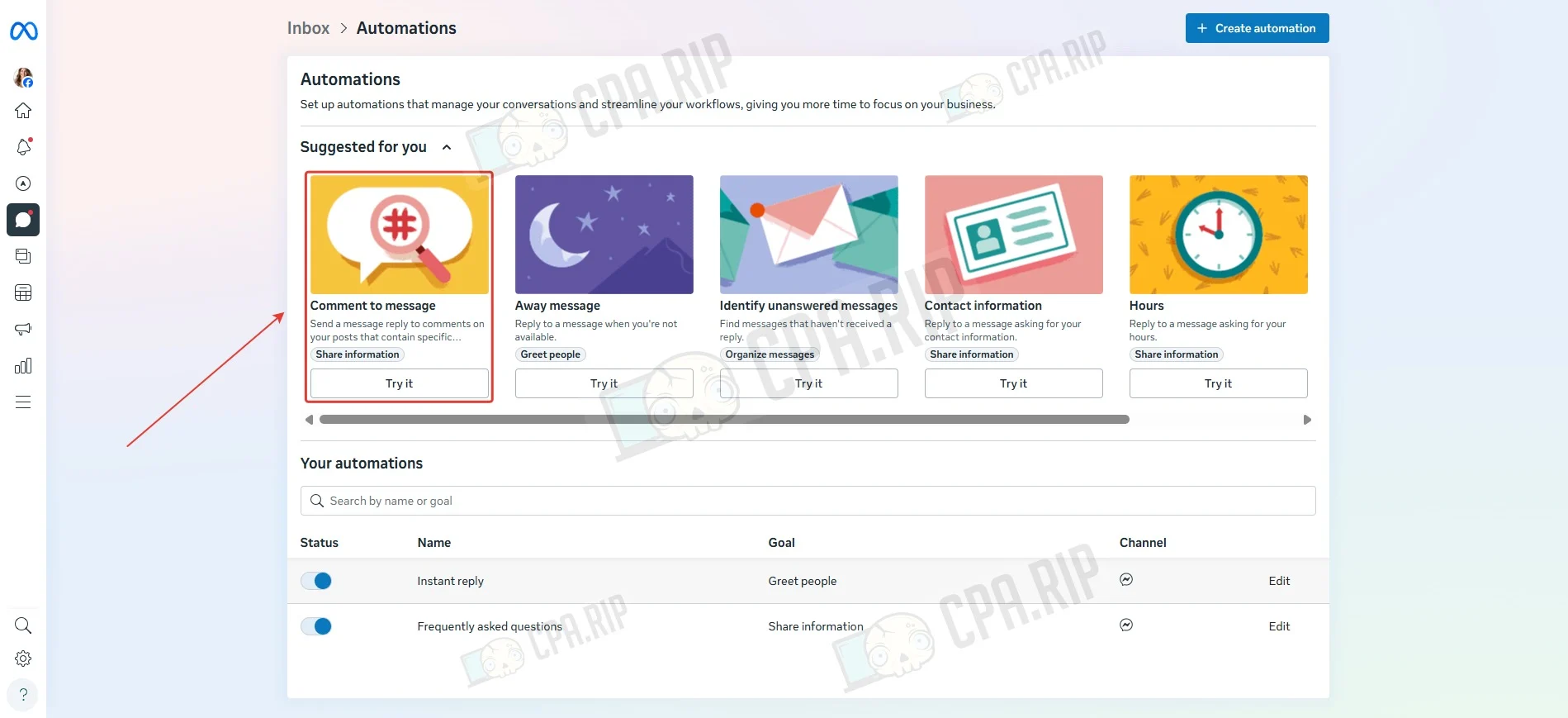
Auto-reply for comments
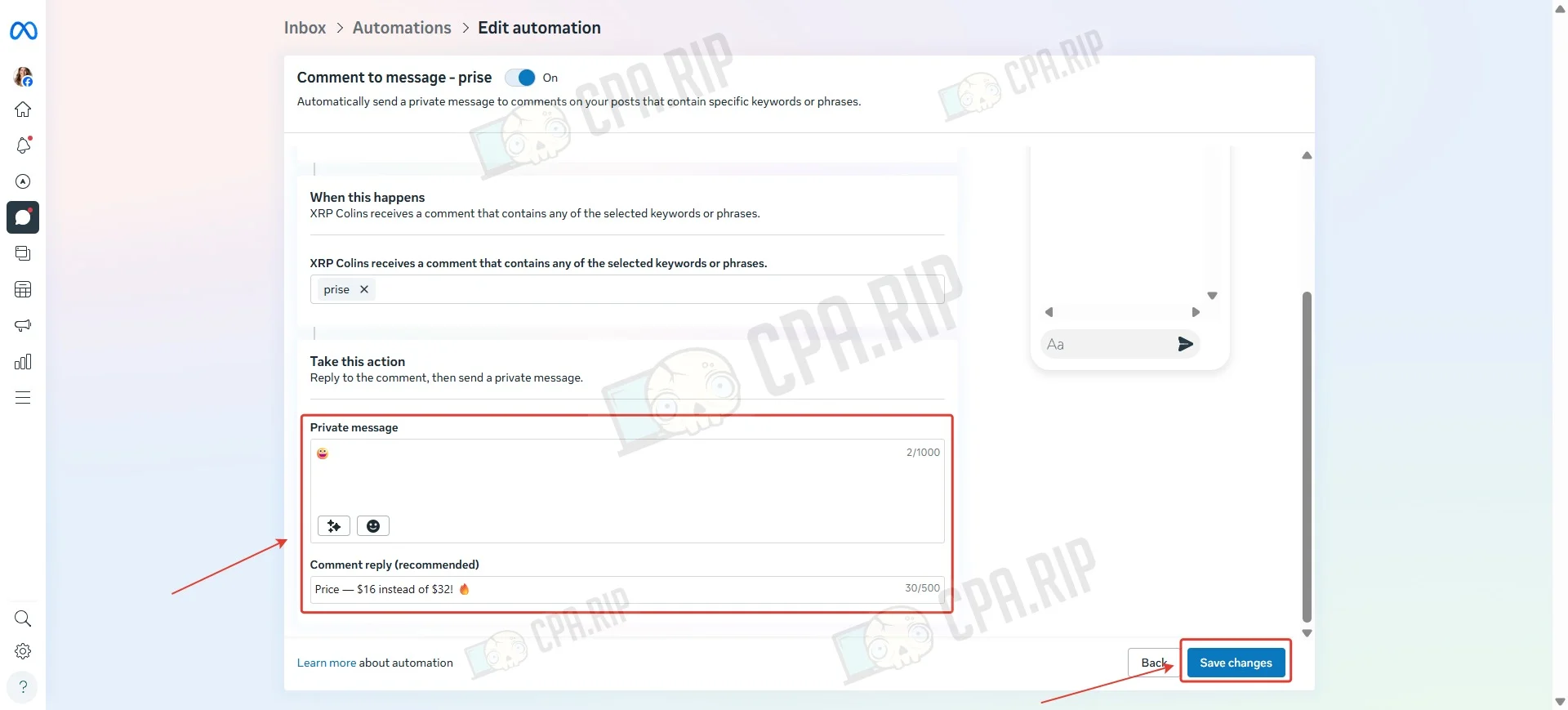
- Select “Comment to message”.
- In the Keyword field, enter the required words or phrases. One automation can contain up to 10 keywords.
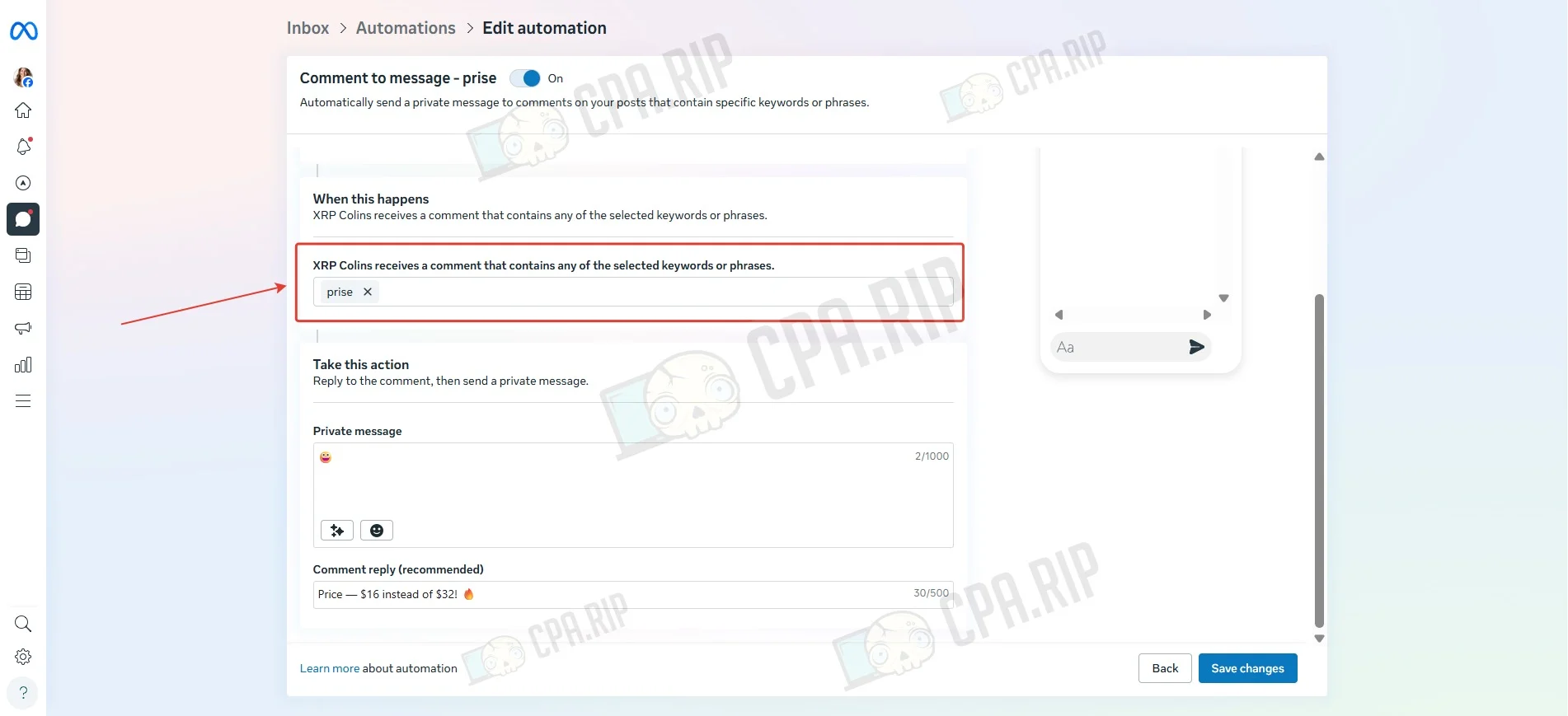
- Set the comment reply and the message that will be sent. Click Save changes.
- To add more keyword-based replies, click “Create automation”.
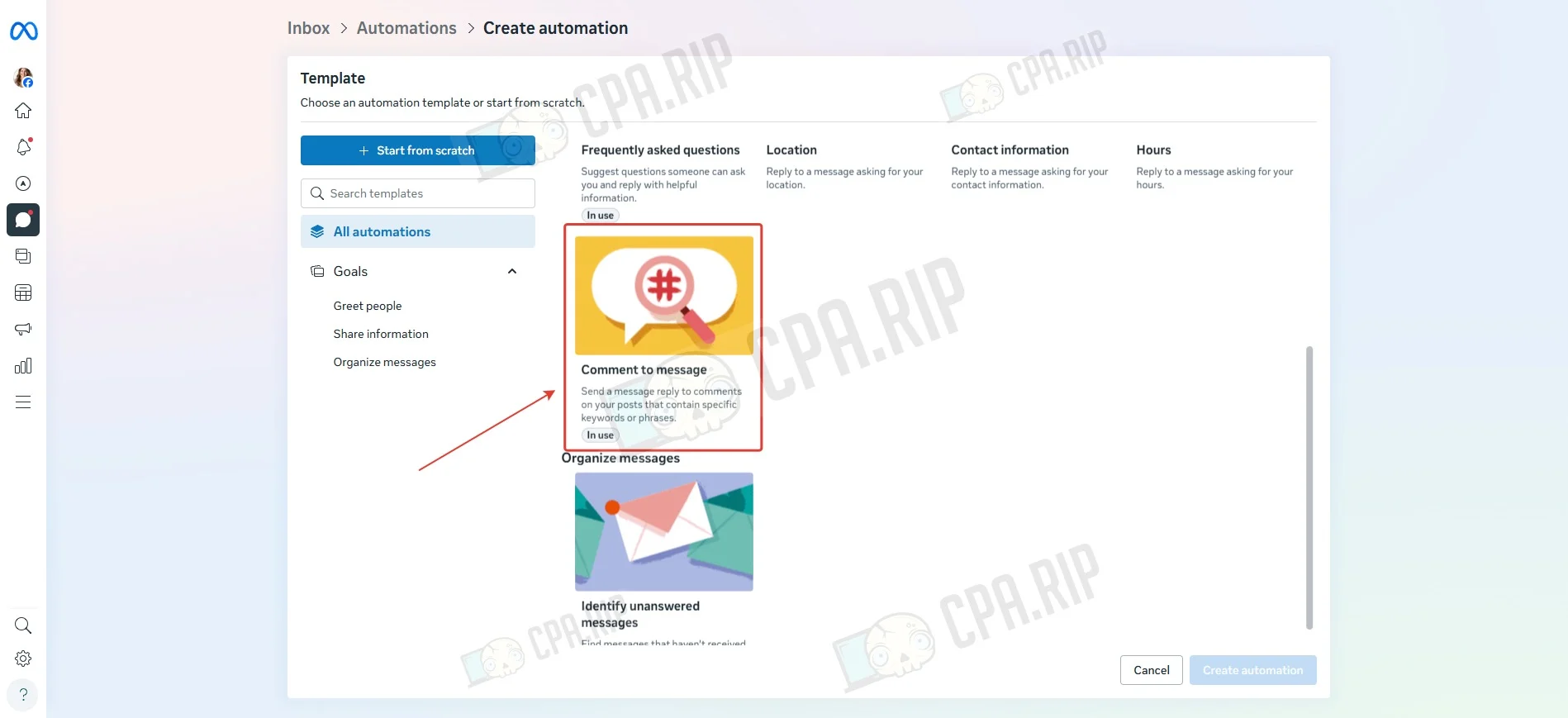
- Select “Comment to message” and fill out another automation for a specific keyword.
Auto-reply for messages
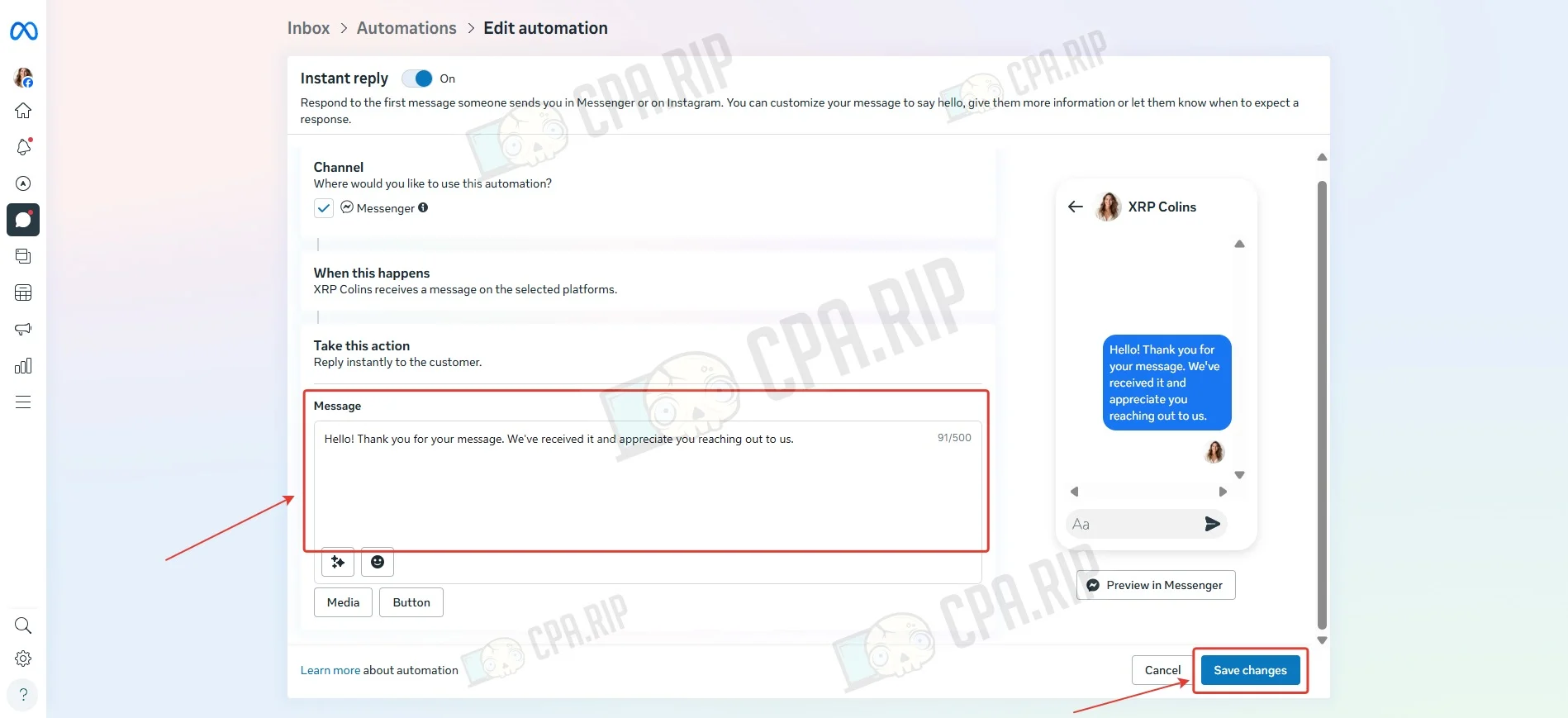
- For a welcome message in Messenger, choose “Instant Reply”.
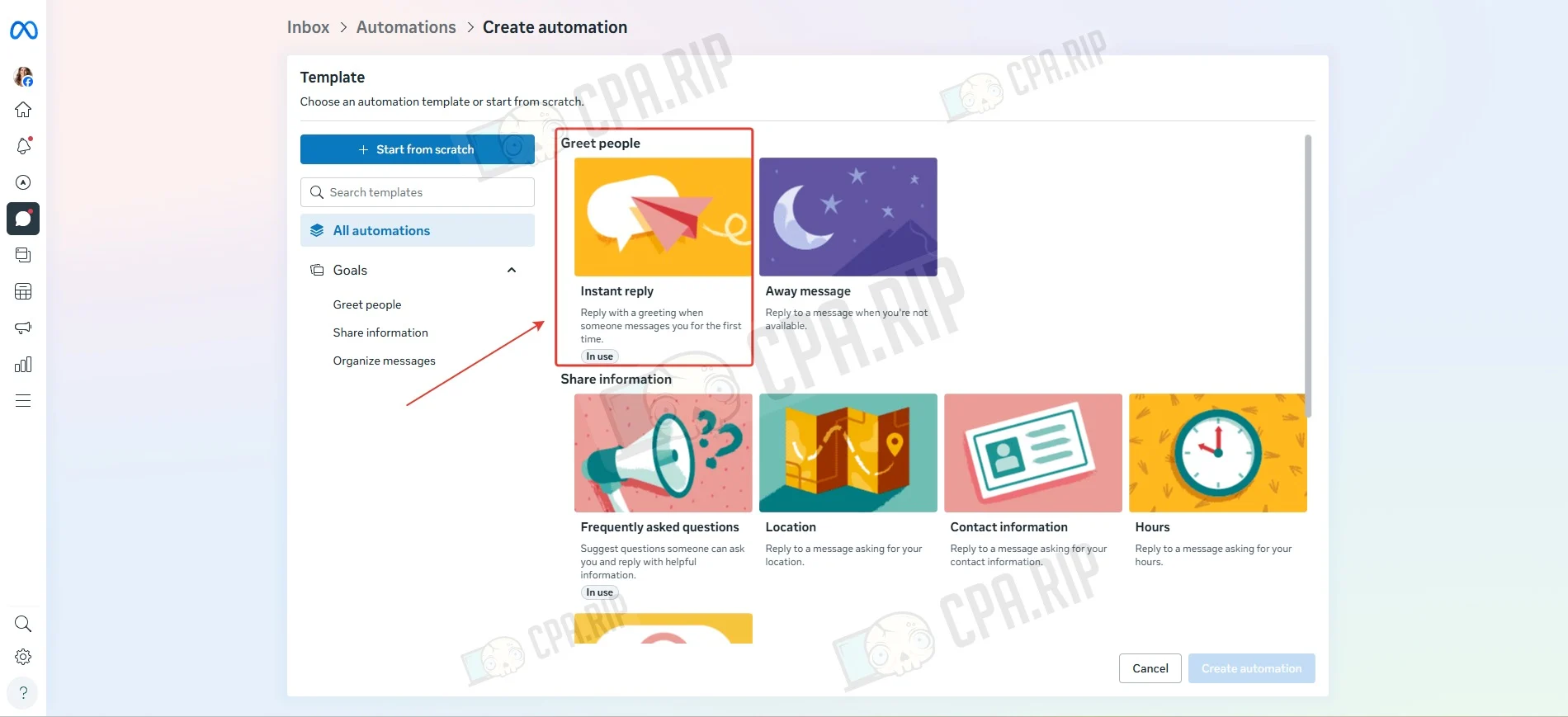
- Fill in the message text and click Save changes.
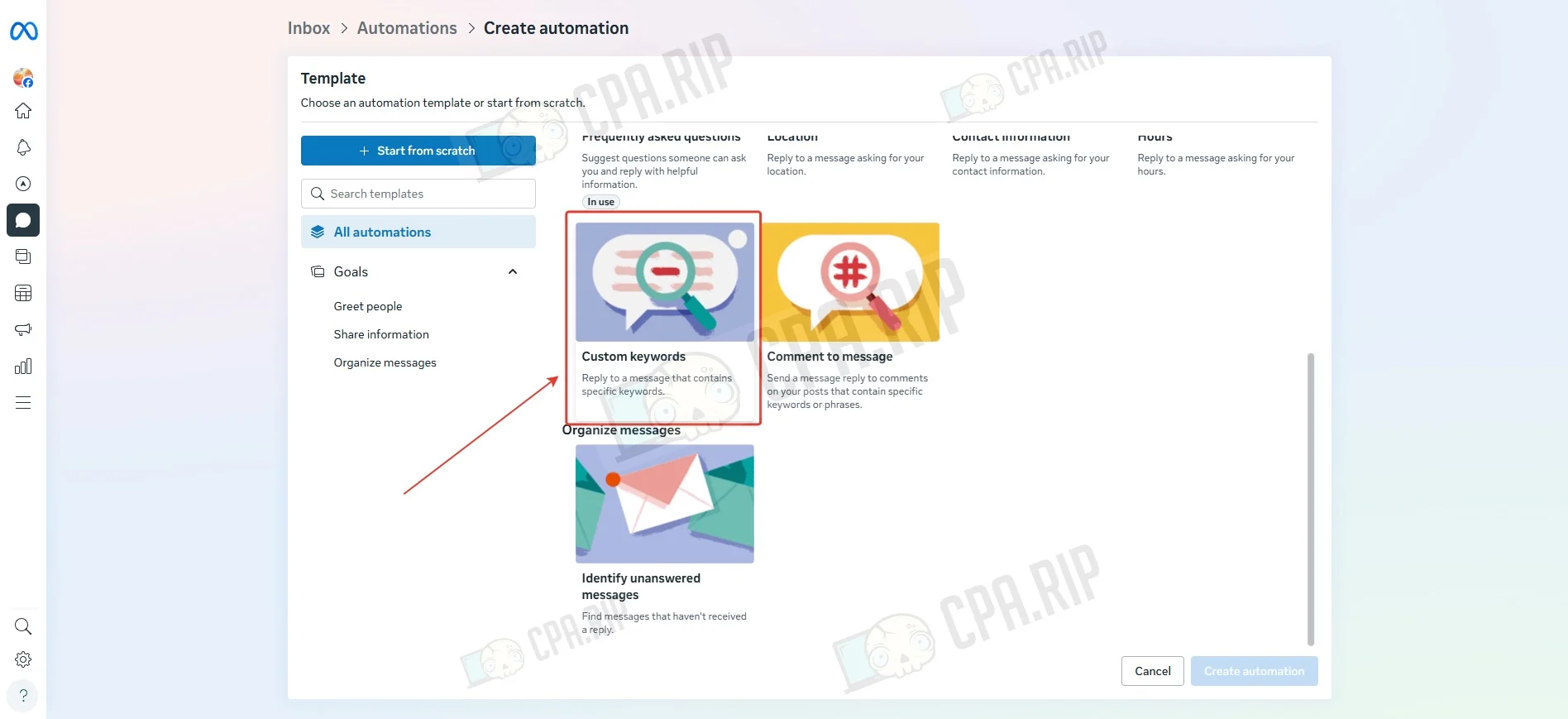
- For keyword-based message replies, select “Custom keywords”.
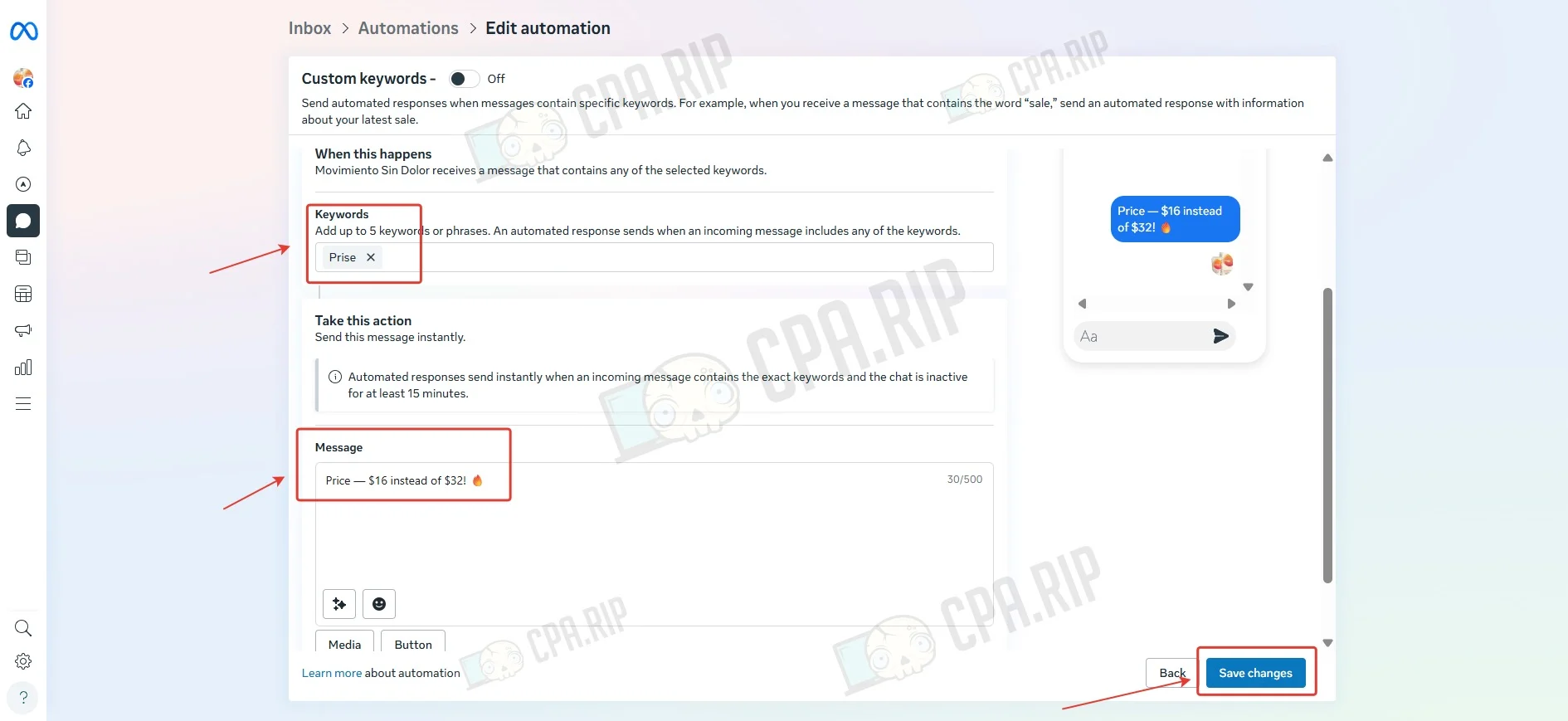
- Enter keywords, set the reply text, and click Save changes. As with comments, you can create multiple keyword-reply pairs.








Comments