



Step-by-step instructions for creating a Dataset in Meta, setting up Conversions API (CAPI), and connecting Facebook ad accounts. We also covered how to provide access to a Dataset for personal and partner advertising accounts in Business Portfolio, as well as the general logic of integrating CAPI with trackers.
Using a Dataset in combination with a pixel, CAPI, and a tracker allows you to collect conversion data in one place and send events from different sources to Meta. This helps track results more accurately, reduce data loss, and improve the optimization of advertising campaigns.
A Dataset is a set of data in Meta Events Manager that allows you to connect and manage events from different sources: a website, landing page, app, tracker, CRM, or another backend system.
Conversions API, or CAPI, is a tool for server-side event transmission to Meta. Unlike the pixel, which sends events from the user’s browser, CAPI sends data from the server, for example, from a tracker, CRM, app, etc.
Conversions API is not a replacement for the standard Meta pixel. These are two complementary tools. For maximum tracking accuracy, Meta recommends a hybrid setup: using both the browser pixel and server-side event transmission at the same time. Step-by-step instructions for installing the pixel can be found in this article.
Creating a Dataset
- In Business Portfolio, open the “Datasets & pixels” section.
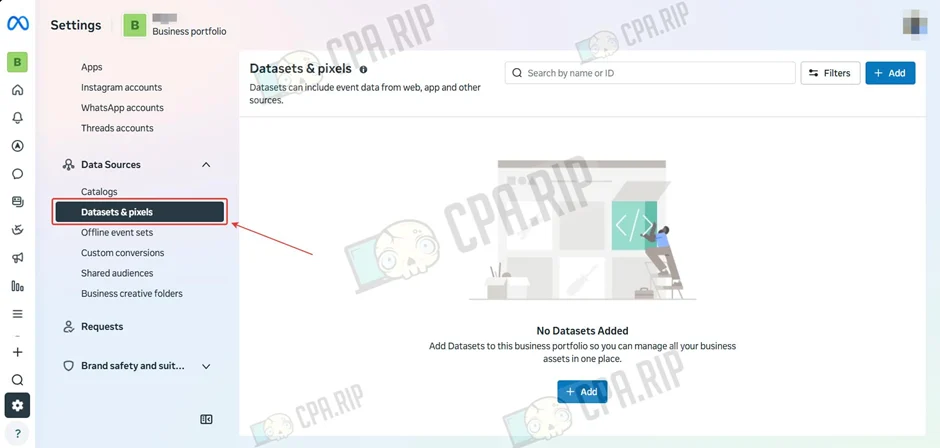
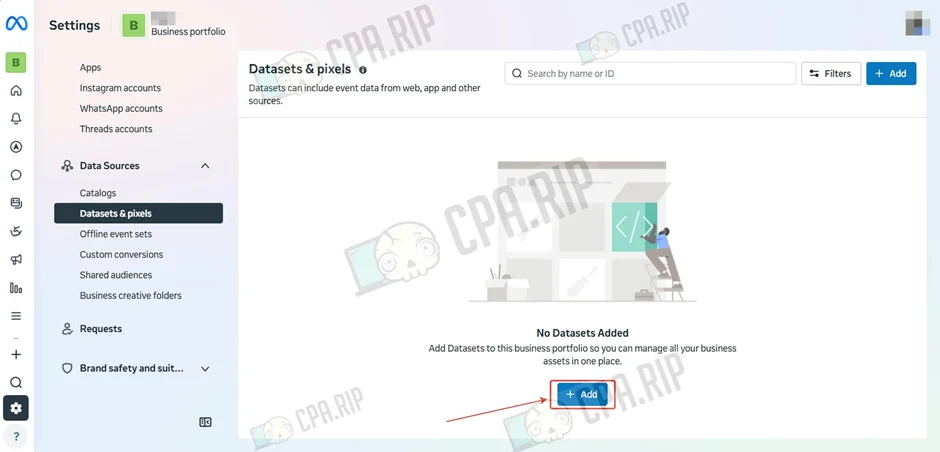
- Click “Add”.
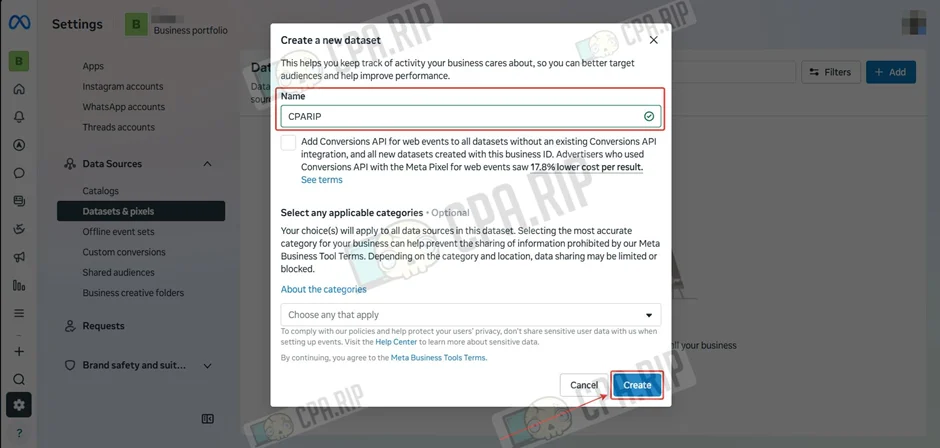
- Enter a name and click “Create”.
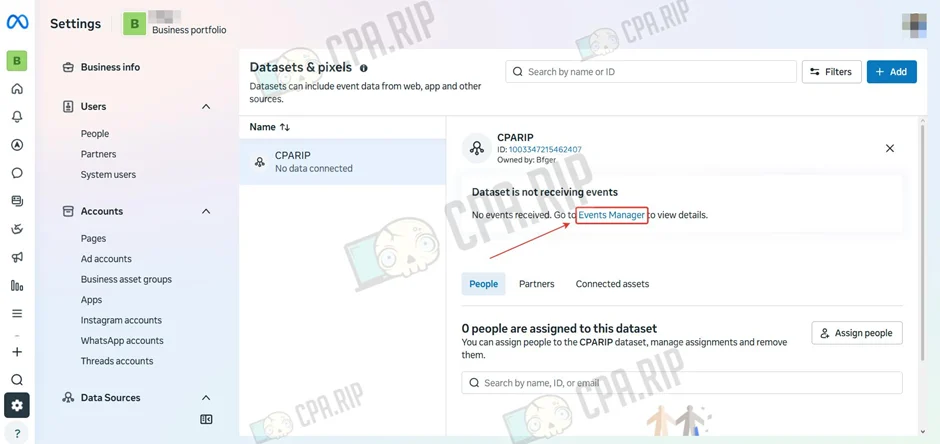
Setting up CAPI
- Go to Events Manager.
- Click “Set up Conversions API”.
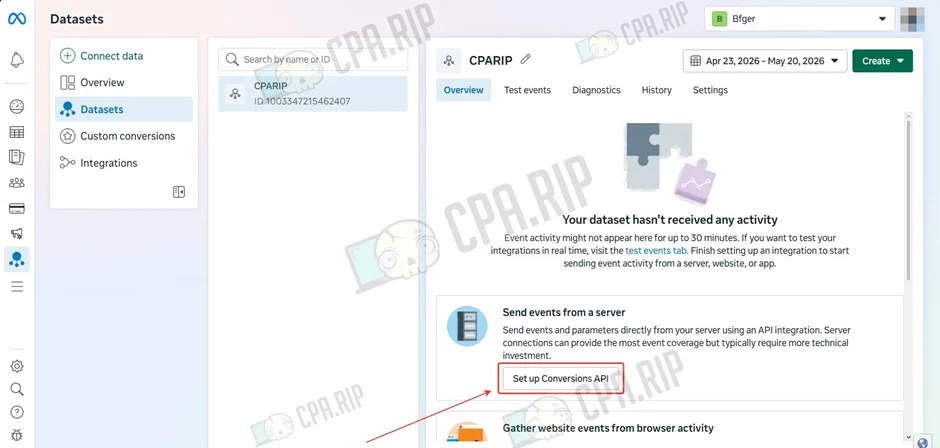
- Click “See other ways to setup”.
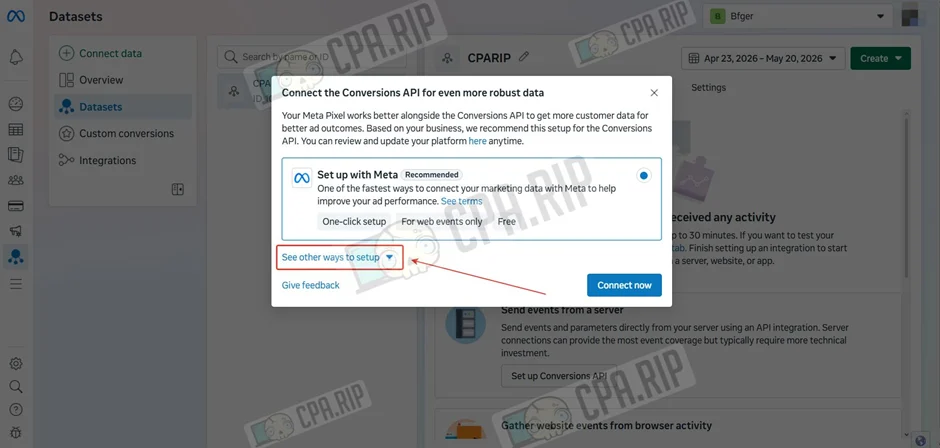
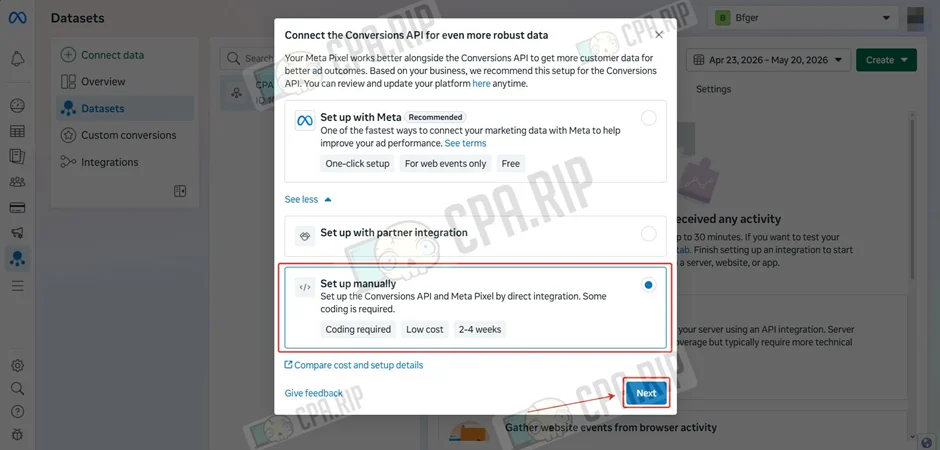
- Select “Set up Manually” and click “Next”.
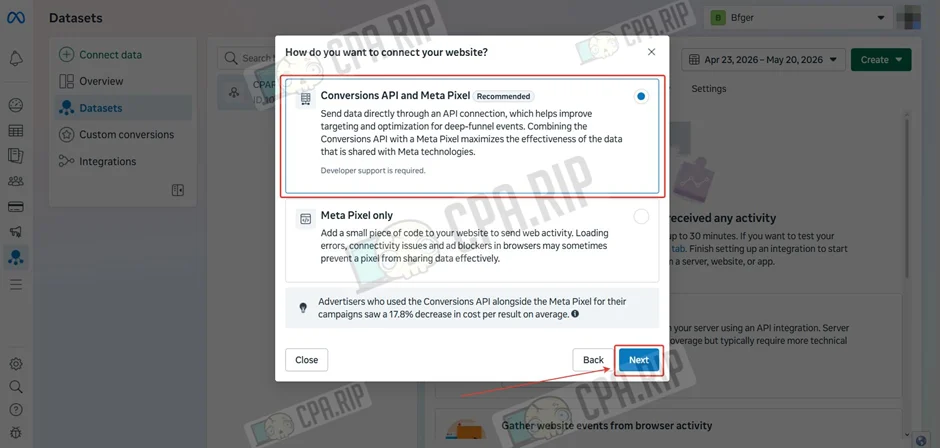
- Select Conversions API and Meta Pixel and click “Next”.
- Click “Start CAPI setup”.
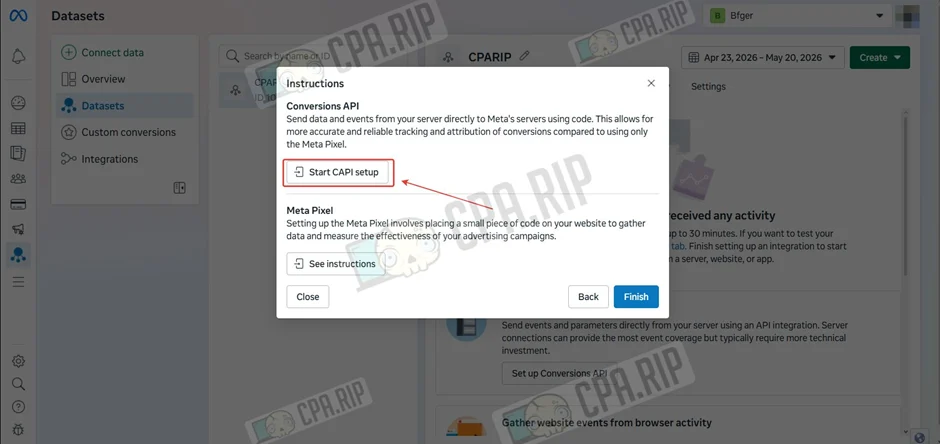
- Click “Continue”.
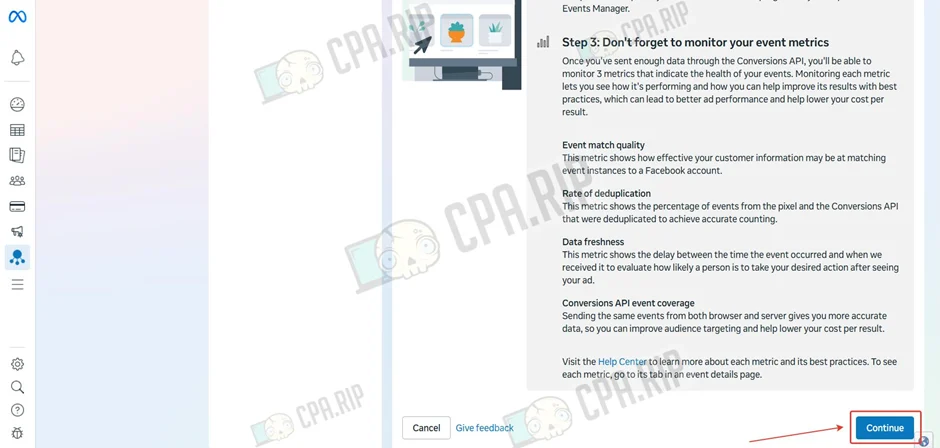
- Select the event to send and click “Continue”.
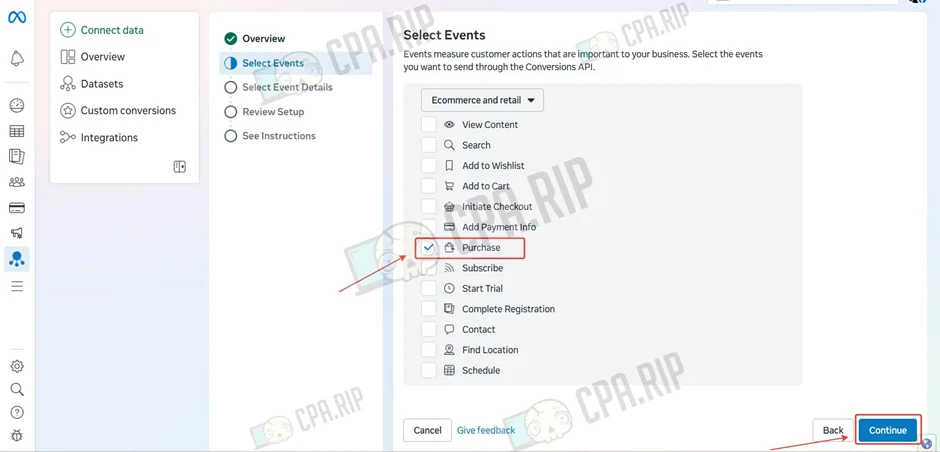
- Select the parameters from “Customer Information Parameters” that need to be sent and click Continue.
Be sure to enable Event ID in Event Detail Parameters; it links the browser event with the event sent from the server to avoid duplicates.
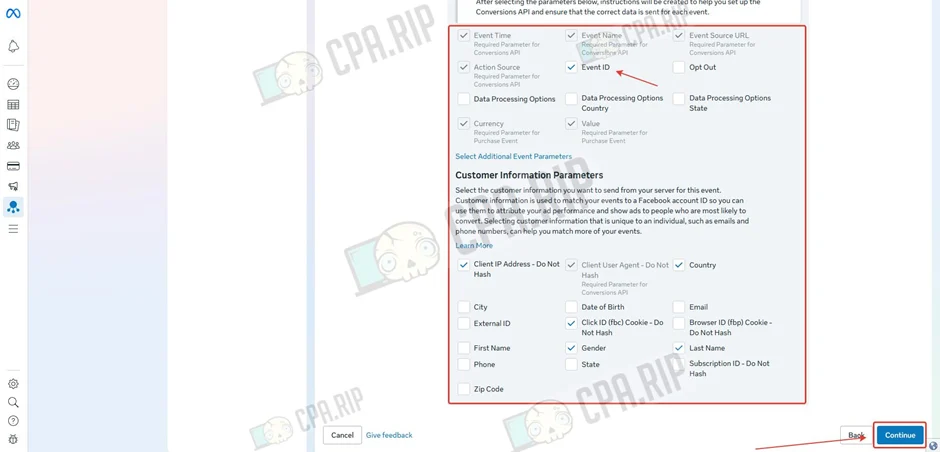
- Click “Continue”.
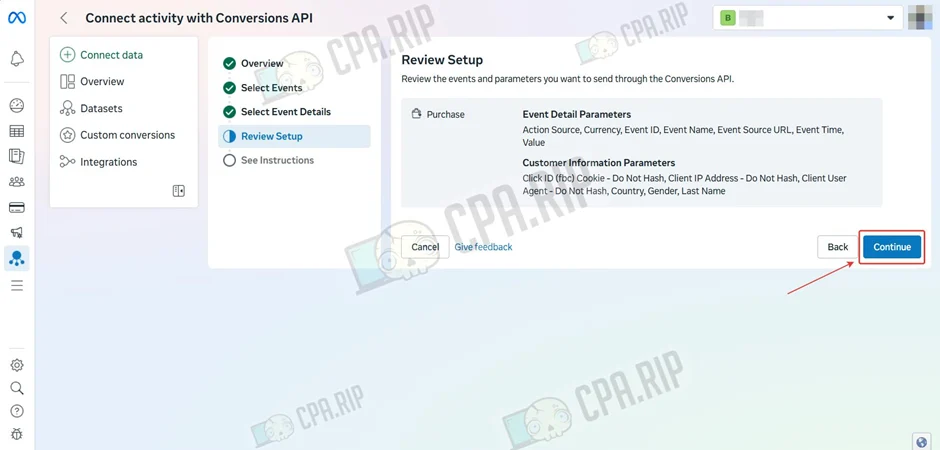
- Click “Continue”.
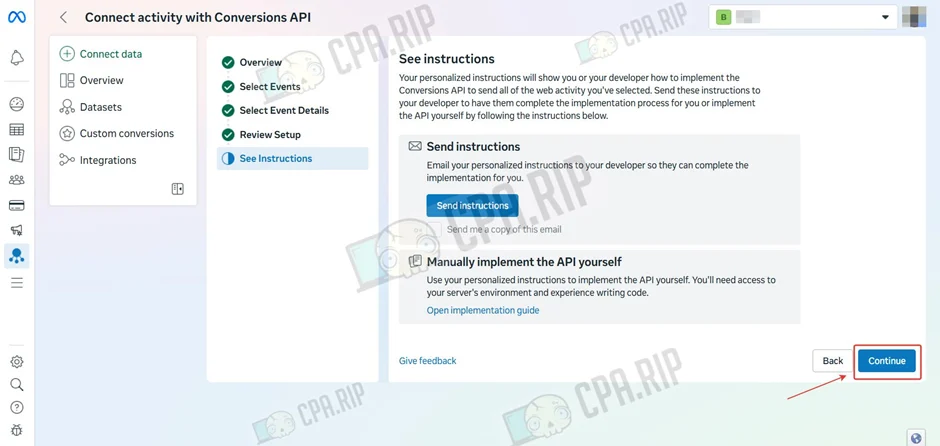
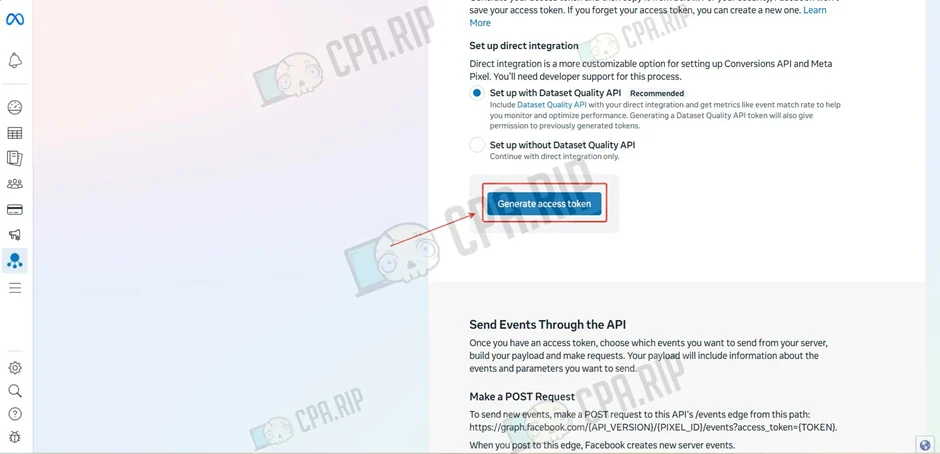
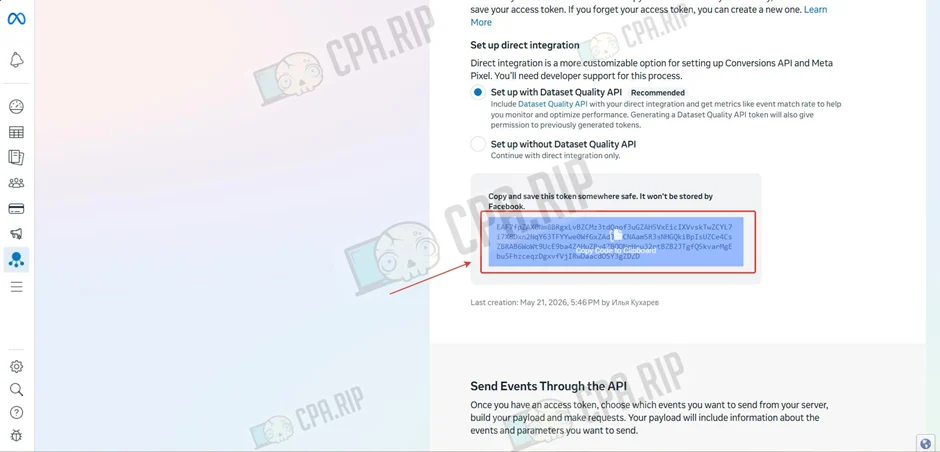
- Click “Generate access token”.
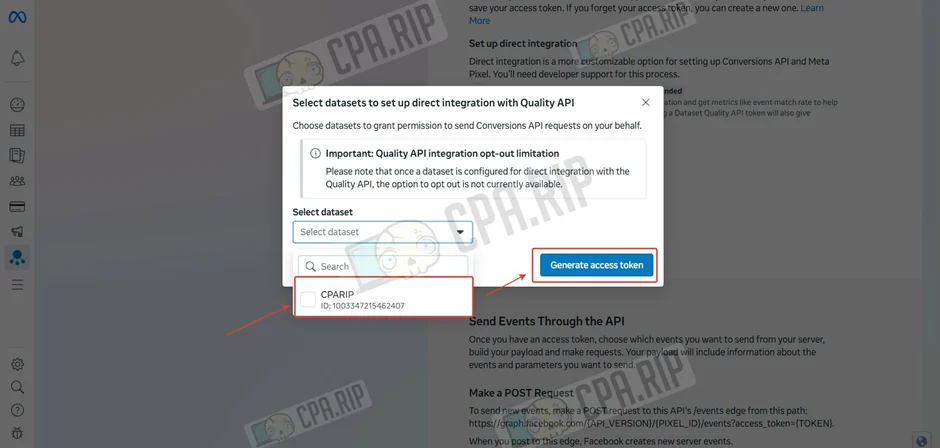
- Select the Dataset and click “Generate access token”.
- Copy and save the token.
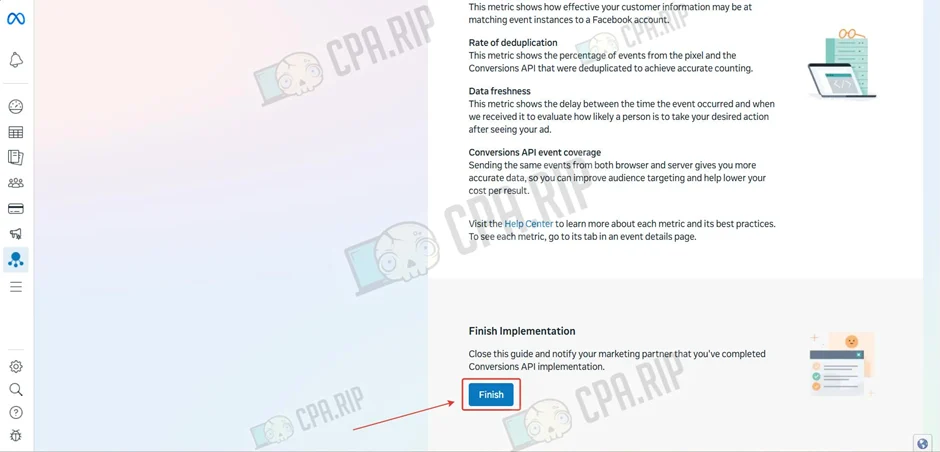
- Click “Finish”.
Connecting ad accounts to the Dataset
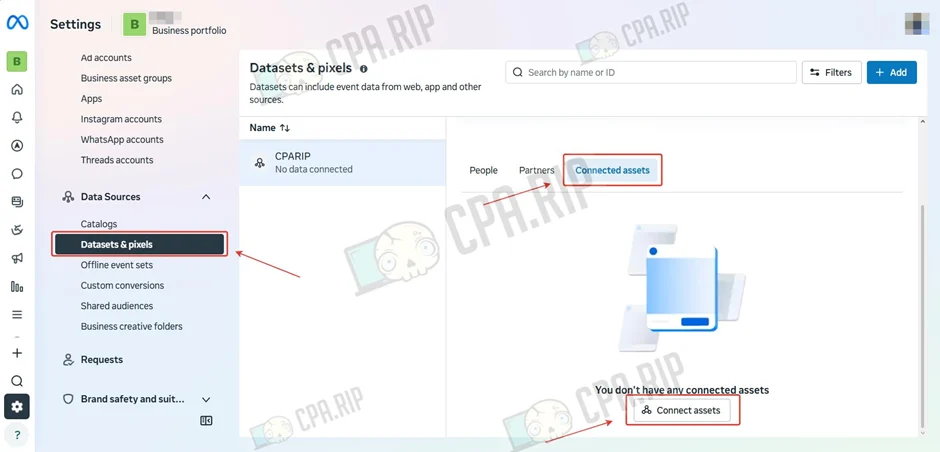
- In the Datasets & pixels section, select the Dataset.
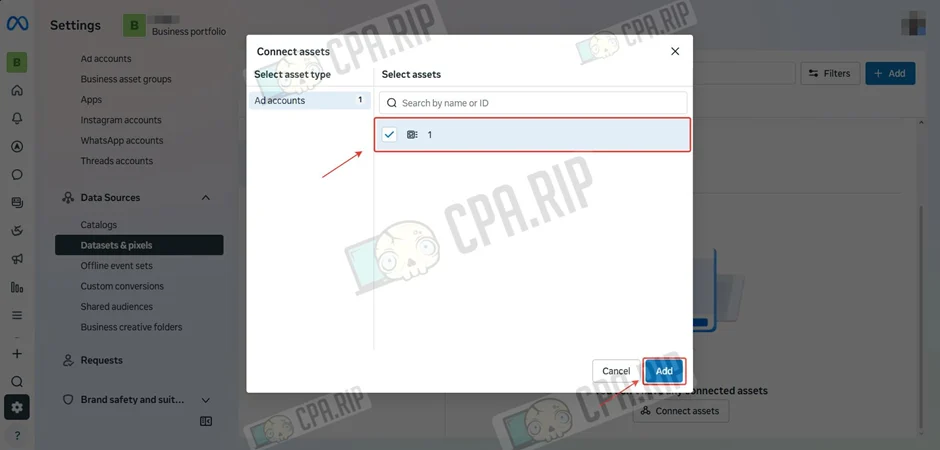
- Go to the Connected assets subsection and click “Connected assets”.
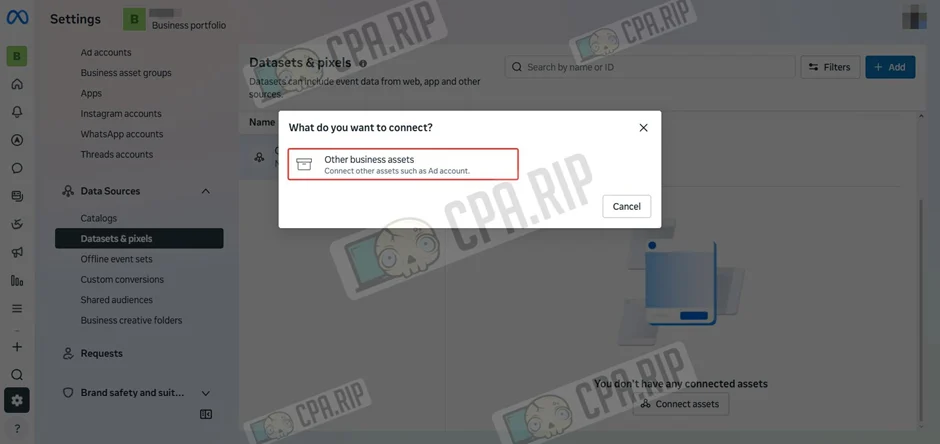
- Click “Other business assets”.
- Select the ad account and click “Add”.
Integrating CAPI with a tracker
After setting up the Dataset and generating the access token, server-side event transmission needs to be connected to the tracker through which the traffic will run. The tracker sends events to Meta via CAPI, while the ad accounts connected to the Dataset use this data for attribution, analytics, and campaign optimization.
The setup logic may differ across trackers, but usually the tracker side requires specifying the Pixel ID or Dataset ID, access token, events to send, and parameters that should be sent together with the conversion.
A step-by-step algorithm for setting up this integration using TDS.Ad as an example is presented in this article.
Before launching traffic, make a test conversion on the landing page and check that the event is displayed correctly in Events Manager.
Providing access to the Dataset
The Dataset can be connected to ad accounts that were created in other Business Managers or are personal ad accounts. This can be done by adding the required ad accounts to the Business Manager where it is physically located.
- A personal ad account is added to Business Manager according to the instructions described in this article. It can be added with either full access or partial access, depending on the task. After that, the ad account is connected in the same way as described above.
- For ad accounts created in other Business Managers, use the partner access feature.
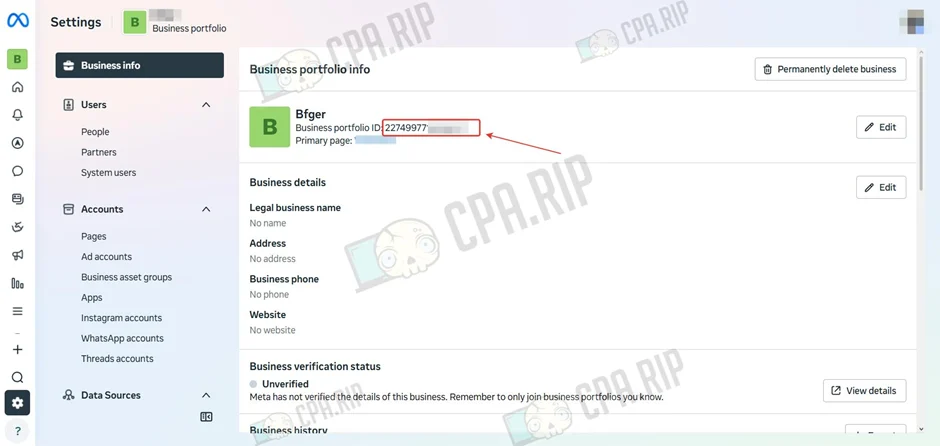
- Copy the Business portfolio ID of the Business Manager where the Dataset is located from the Business portfolio info section.
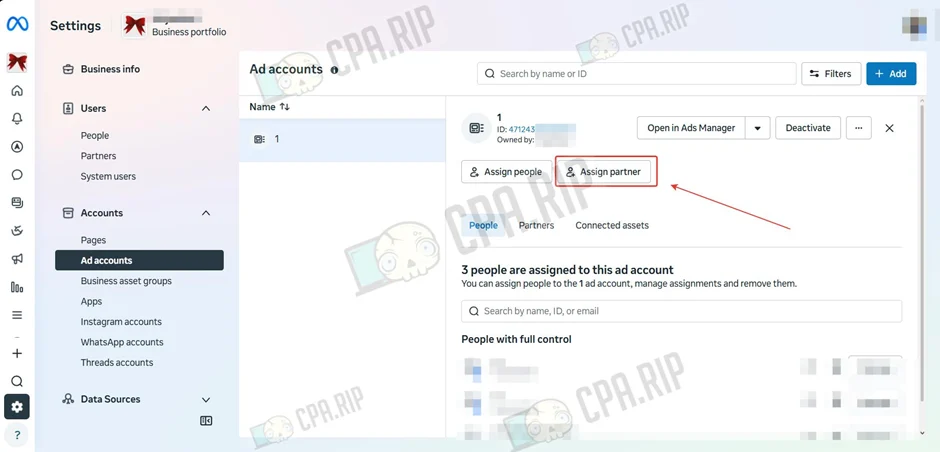
- Open the Business Manager where the ad account was created, select the account, and click “Assign partners”.
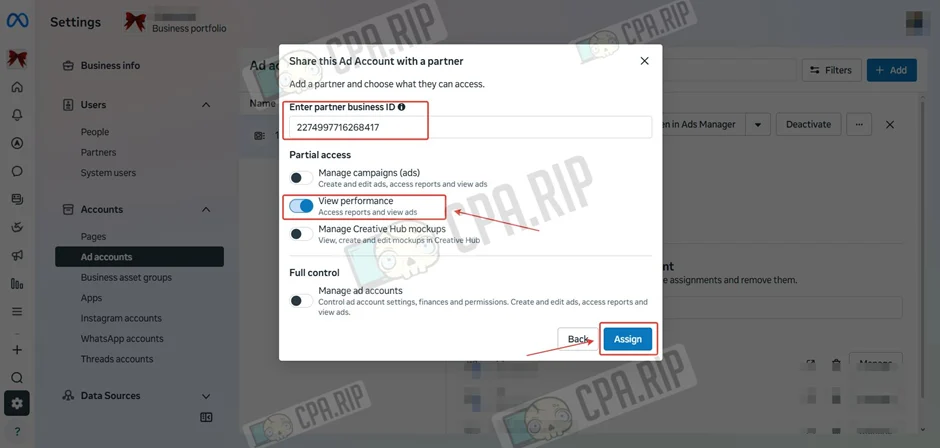
- Paste the copied Business portfolio ID, select the access level, and click “Assign”.
- After transferring it to the Business Manager with the Dataset, connect the ad account.
The Dataset can be shared through partnership with the required Business Manager. The procedure is similar to adding an ad account: through the “Partners” section in Business Manager settings. This feature is not available in all business portfolios.








Comments